Want to change your iPhone’s app colors but keep getting stuck between tint settings and custom icons? The quickest option is the Home Screen’s built-in tint setting, which changes icons together. For a different color on just one app, use a custom launcher or an alternate icon offered by that app.
Change your Home Screen icon color
On iOS 26 and iOS 27, touch and hold an empty area of your Home Screen until the icons jiggle.
Open Edit > Customize > Tinted. This applies a shared color theme to your Home Screen icons.
Adjust the color and saturation sliders to get the shade you want. This setting changes icons together, so use the custom launcher method below to personalize just one app.
Select Light, Dark, or Auto for the tint’s appearance. Your chosen hue and its light or dark appearance are separate settings.
Match the icons to your wallpaper
The eyedropper takes the guesswork out of matching your icons to a wallpaper color.
Touch and hold the Home Screen background until the icons jiggle.
Open Edit > Customize > Tinted.
Tap the eyedropper.
Select the wallpaper color you want to use for your icons.
Make icons follow Dark Mode
A fixed icon appearance keeps your icons from following automatic light and dark changes.
Touch and hold the Home Screen background until the icons jiggle.
Open Edit > Customize.
Select Auto to make the icon appearance follow the system’s light or dark setting. For consistently dark icons, choose Dark instead.
On iOS 27, open Settings > Appearance. If Appearance isn't listed, Apple's iOS 27 guide places the same options in Settings > Display & Brightness. On iOS 26, open Settings > Display & Brightness.
Select Dark to use the system’s dark appearance.
For scheduled changes, choose Automatic > Options in those system settings. Automatic appearance changes light and dark styling, not your selected tint hue.
For a translucent style on iOS 26 or iOS 27, choose Clear in the Home Screen’s Customize controls.
Select Light, Dark, or Auto for that clear appearance.
Give one app a custom colored icon
If Shortcuts is missing, install or redownload Apple’s Shortcuts app from the App Store.
Open Shortcuts to create an additional launcher for your app. This leaves the installed app’s underlying icon unchanged.
Tap + to create a shortcut.
Tap Add Action.
Select the Open App action.
Select the app you want the shortcut to launch.
Save the shortcut.
Open its editor.
Open Details > Add to Home Screen.
Tap the icon under Home Screen Name and Icon.
Select Choose Photo, Choose File, or Take Photo, depending on where you want to get your artwork.
Select or capture your colored icon image.
Enter the name you want displayed beneath the launcher.
Tap Add to place it on the Home Screen.
To hide the original icon afterward, touch and hold that original app icon.
Select Remove App > Remove from Home Screen.
Keep the app installed in App Library so your custom launcher can still open it.
Choose alternate icons built into apps
Some apps offer their own alternate icons. These choices apply to that app, and the available designs depend on what the app offers.
In Discord, tap your bottom-right avatar to access User Settings > App Settings > App Icon. This option requires Nitro or Nitro Basic.
Select an available Discord icon and acknowledge the iOS confirmation. Discord offers preset designs rather than personal image uploads. Your choice is per device and depends on maintaining the subscription.
With Snapchat+, open Profile > Snapchat+ membership card > App Icon. Select an icon. If the change does not appear, restart your iPhone, as Snapchat recommends.
Restore missing icon options
Older iOS versions lack newer appearance choices, including Clear, which is unavailable in iOS 18.
The older iOS 18 interface used Light, Dark, and Automatic. The iOS 26 and iOS 27 controls include additional tint appearances and Clear. Apple's steps for those versions call the automatic option Auto, while Apple's picture of the same screen labels it Automatic, so choose whichever of the two your iPhone shows. Phones remaining on iOS 18 do not have all those newer choices.
Back up your iPhone before updating.
Connect it to power.
Connect to Wi-Fi.
Open Settings > General > Software Update.
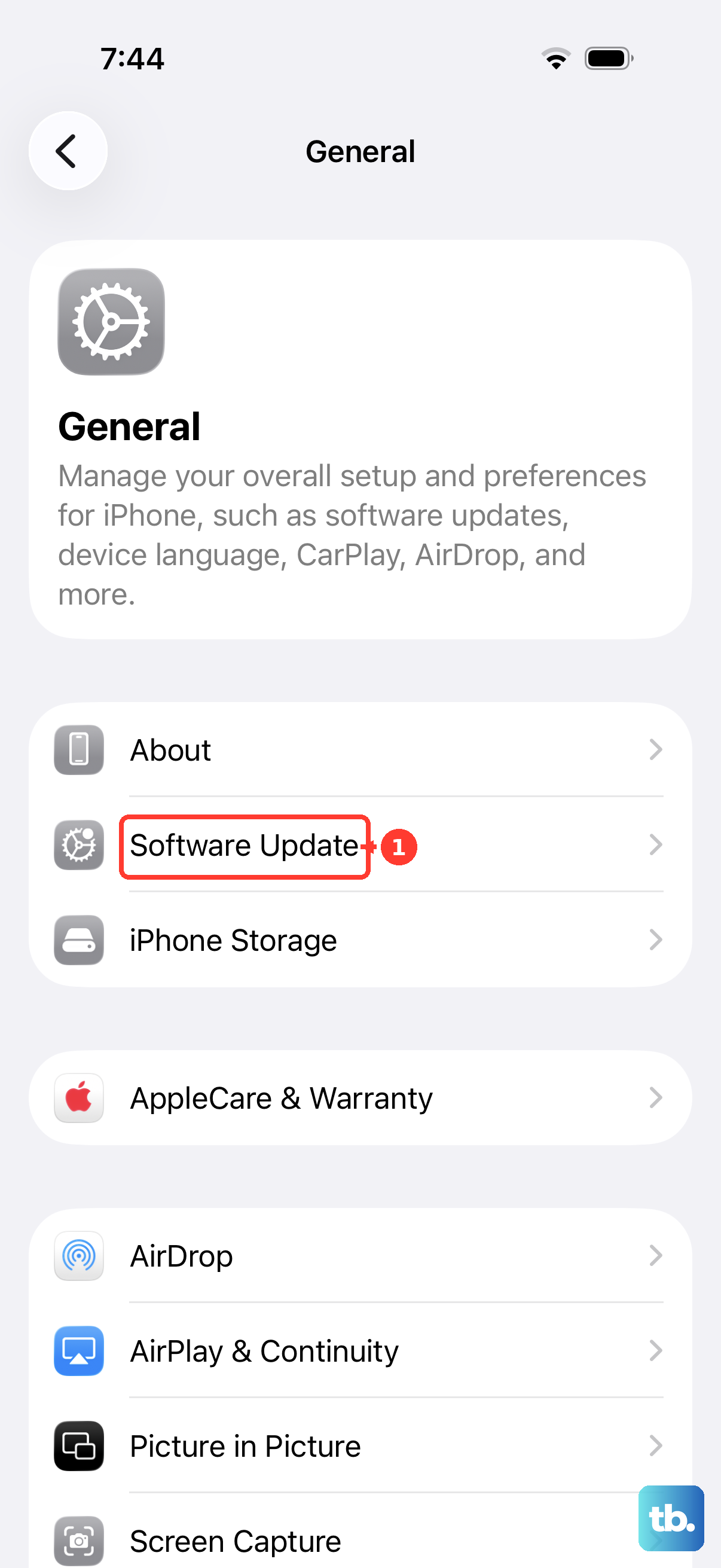
Tap Download and Install when an update is offered.
Follow the onscreen instructions to complete the update. Access to newer icon options depends on your iPhone being eligible for the required iOS version.
Apply color effects to the entire display
Use accessibility color controls when you want grayscale or a tint across everything on the screen. These effects also change how photos and videos look, so choose Home Screen tinting when you only want to style your icons.
Open Settings > Accessibility > Display & Text Size > Color Filters.
Turn on Color Filters.
Select Grayscale for a gray display, a color-vision filter, or Color Tint for a screen-wide hue.
For Color Tint, adjust the hue and intensity sliders to set the effect.
Frequently Asked Questions
Do I need a photo to make a custom shortcut icon?
No. Open your Open App shortcut’s editor in Shortcuts. Tap the icon beside its name. Select a color swatch and glyph, then tap Done. Use Details > Add to Home Screen > Add to place the launcher.
Can I switch automatic icon appearance from Control Center?
Yes. Set icon appearance to Auto first. Open Control Center, then touch and hold the brightness bar. Tap Dark Mode to switch light or dark appearance. Apple also calls this control the Appearance button, so tap whichever of the two labels your iPhone shows. Your chosen tint hue stays the same.
Can I toggle a color filter with my iPhone’s buttons?
Yes. Open Settings > Accessibility > Accessibility Shortcut. Select Color Filters. Triple-click the side button on a Face ID iPhone or the Home button on other models. If you assigned multiple accessibility features, select the one you want to toggle.
Can app colors match my iPhone or MagSafe case automatically?
Apple’s Matched tinting feature in iOS 26 matches apps and widgets to select iPhone colors and select Apple Silicone, FineWoven, and Leather cases with MagSafe. Support depends on the phone color and case.