
You can change how text looks on an iPhone, but the system font itself is not something Apple lets you replace globally. That means the right fix depends on what you actually want: larger text, bolder text, a different Lock Screen clock, or new fonts inside apps and documents. Start with the built-in readability controls, then use app-specific font tools where iOS supports them.
Start with the main text size setting
The fastest fix for most people who want to change iPhone font size is the built-in text size control. Open Settings, go to Display & Brightness, tap Text Size, then drag the slider left or right until supported apps look comfortable.
This changes text size in apps that support Dynamic Type, including many Apple apps and third-party apps. It does not switch the whole iPhone to a different font family.
If the text still is not large enough, use the larger accessibility sizes next.
Use larger accessibility text
For a bigger range than the standard slider gives you, use the Accessibility text controls.
- 1.Open Settings.
- 2.Tap Accessibility.
- 3.Tap Display & Text Size.
- 4.Tap Larger Text.
- 5.Turn on Larger Accessibility Sizes.
- 6.Drag the slider until supported apps are easier to read.
Fix apps that ignore text size
The most common cause is that iPhone text size changes rely on Dynamic Type, and each app has to support it.
When one app looks right and another does not, set that app separately. Open Settings, tap Accessibility, tap Per-App Settings, then tap Add App. Choose the app or Home Screen & App Library, tap the app name, and adjust its text-size-related settings.
You can also change text size while you are inside an app from Control Center. Use the Text Size slider there.
If Text Size is missing, open Control Center, tap the Add button in the top-left corner, choose Add a Control, then add Text Size.
Make iPhone text bolder
If your real problem is thin or hard-to-read text, make the system text bold. Open Settings, go to Display & Brightness, and turn on Bold Text.
The same control is also available from Settings, then Accessibility, then Display & Text Size, then Bold Text. It applies system-wide where supported.
If bold text still feels too small, combine it with Larger Text or Display Zoom.
Magnify the whole iPhone interface
Use Display Zoom when you want the iPhone interface itself to feel larger, including text, icons, and buttons.
- 1.Open Settings.
- 2.Tap Display & Brightness.
- 3.Tap Display Zoom.
- 4.Select Larger Text.
- 5.Tap Done.
- 6.Tap Use Zoomed.
Change fonts where iPhone allows it
For the Lock Screen clock, press the side button two times, touch and hold the Lock Screen, then tap Customize to edit the screen you are on, or tap the Add button to create a new Lock Screen. Tap the time, choose a font and other clock options, then tap Add or Done.
For your Contact Poster, open Contacts, tap your name, then tap Shared Name and Photo. Customize the poster and choose your preferred font for the phone-call poster shown to others when supported and shared.
In Safari, open a website, tap the Page Menu button on the left side of the search field, then tap the large A to increase text size or the small A to decrease it. On supported websites, tap the Page Menu button and choose Show Reader for a cleaner article view.
In Books, open a book, tap the Menu button at the bottom of the page, then tap Themes & Settings, Customize, Font, pick a font such as Original or Palatino, and tap Done. PDFs and fixed-layout books can have fewer options.
Install fonts for documents
Downloadable fonts are useful when you work in apps that support installed fonts for documents. They are not a replacement for the iPhone system font.
Open the App Store, tap Search, search for a font app, tap the app name or icon to review details, then tap Get or the price and authenticate with Face ID, Touch ID, or your passcode. After it installs, open the font app to install the fonts.
You can review installed fonts later in Settings, then General, then Fonts. Installed fonts can be used only in apps that support them.
If a font does not appear in the app you are using, try Pages, Keynote, or Numbers, where document text can use supported installed fonts.
Use fonts inside documents and messages
This fixes document and message formatting, not the iPhone system font.
In Pages, open a document and select text, or tap a text box, shape, or table cell.
Tap the Format button.
Choose Text or Cell.
Tap Font and choose the font you want.
Use the size controls or style buttons for bold, italic, underline, or strikethrough.
In Mail, start a draft, tap in the email, type your message, then use the Text Format button above the keyboard to change font style or color, or apply bold and italic formatting.
In Notes, while writing a note, tap the Format button and choose a style such as Heading, bold, italic, highlight, and more.
Skip older system font tricks
Avoid jailbreak-only system font replacement methods from older tutorials. Apple describes jailbreaking as an unauthorized modification of iOS and cautions against installing software that modifies iOS.
For decorative text in chats or social posts, use a third-party decorative-font keyboard or Unicode-styled text app from the App Store.
If the app adds a keyboard, go to Settings, then General, then Keyboard, then Keyboards, then Add New Keyboard, and choose it.
While typing, touch and hold the Emoji button or Switch Keyboard key and select that keyboard.
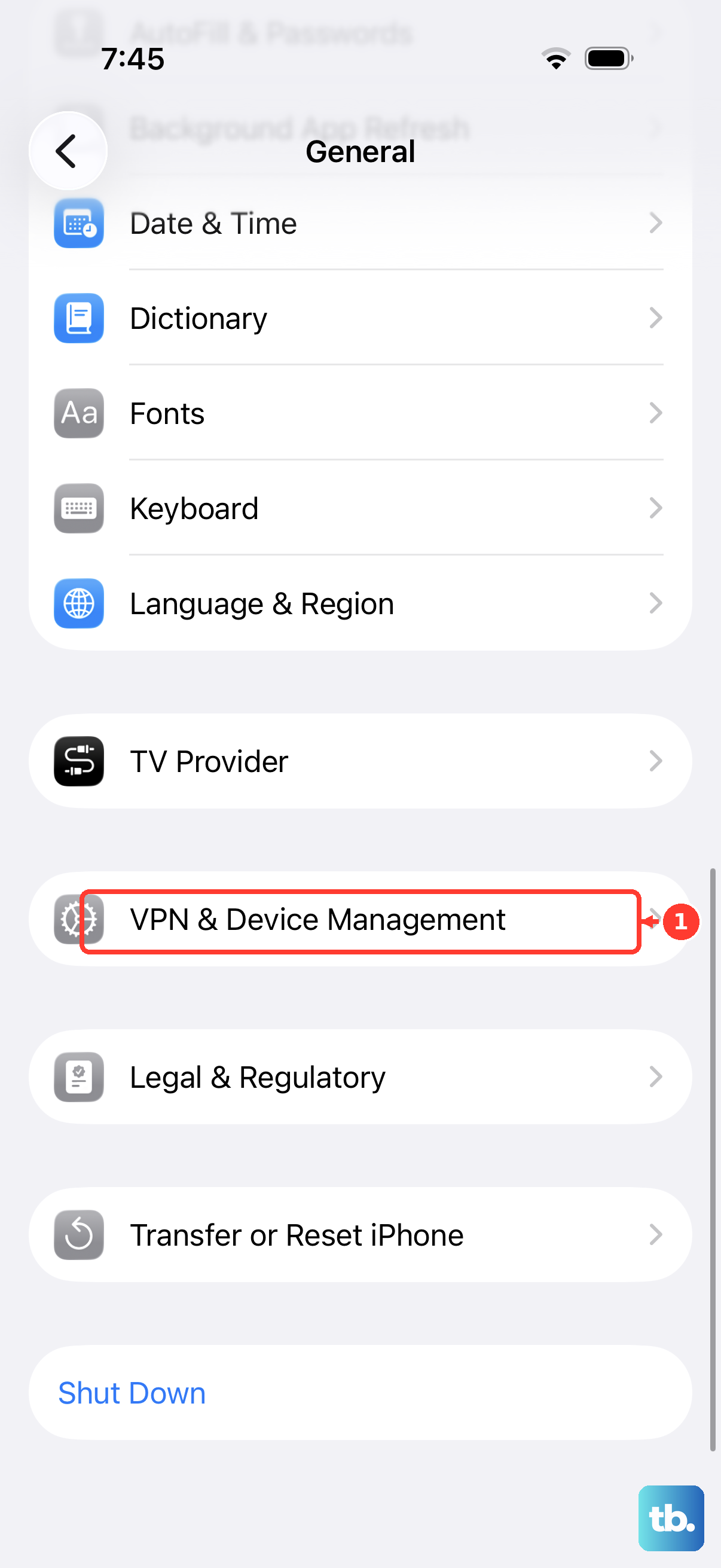
On a work or school iPhone, an organization can install fonts through device management or a font-related configuration profile. To review or remove installed profiles, go to Settings, then General, then VPN & Device Management; deleting a profile deletes its associated settings, apps, and data.
Use Apple’s built-in text controls for readability, and save installed or decorative fonts for apps and documents that are designed to use them.
Frequently Asked Questions
Can I change the default iPhone system font?
No. Apple does not provide a supported setting to replace the iPhone system font family globally. You can change text size, bold text, Display Zoom, app-specific settings, Lock Screen clock fonts, and document fonts.
Why did changing Text Size not affect every app?
Text Size works in apps that support Dynamic Type. If one app does not respond, use Settings > Accessibility > Per-App Settings and adjust that app separately.
Do App Store font apps change the whole iPhone font?
No. Font apps can install fonts for apps that support installed document fonts. They do not replace the system font across iOS.
Where do installed fonts appear on iPhone?
After installing fonts through a font app or profile, you can review them in Settings > General > Fonts.