

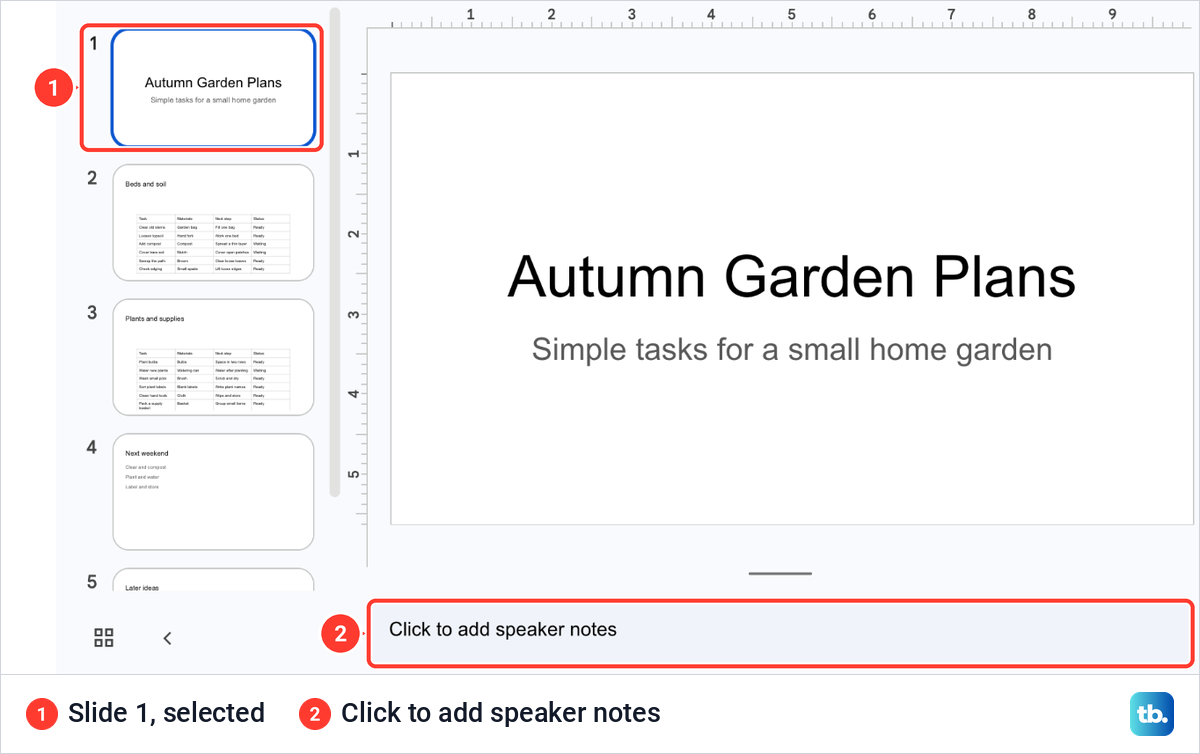
To add speaker notes in Google Slides on a computer, click the slide's thumbnail on the left, then click the field under the slide that reads Click to add speaker notes and type. There is no save button, and the note stays with that slide. To read notes while presenting, choose Presenter view from the arrow beside Slideshow.
We wrote notes under four slides of our Autumn Garden Plans presentation in Chrome and took them as far as the print preview. Two things are easy to miss: a longer note can be cut off in the short notes field until you drag the field taller, and the print layout with notes turns the page to portrait.
The short version
- Add a note: click a slide, click Click to add speaker notes under it, and type. Each slide keeps its own note.
- Field missing: open View and tick Show speaker notes.
- Long note cut off: drag the short bar above the notes field upward.
- While presenting: click the arrow beside Slideshow and choose Presenter view, or press S during a slideshow.
- On paper: open File > Print preview and choose 1 slide with notes.
- Privacy: anyone you share the presentation with can read its notes.
Where to add and see speaker notes at a glance
| Method | When to use it | What you get |
|---|---|---|
| Click Click to add speaker notes under the slide | Writing or changing a note in the editor | The note for the selected slide, kept with the presentation |
| View > Show speaker notes | The notes field has disappeared | The field back under the slide, notes unchanged |
| Ctrl + Alt + Shift + S, or Command + Option + Shift + S on a Mac | Reaching the notes from the keyboard | The speaker notes panel, with the cursor in it |
| Arrow beside Slideshow, then Presenter view | Presenting with your notes in view | The slideshow, with your notes in a separate window |
| S during a slideshow | You started an ordinary slideshow | Your speaker notes open without starting over |
| File > Print preview, then 1 slide with notes | A paper copy to speak from | Each slide on a portrait page with its note under it |
| Speaker notes in the Google Slides app | Presenting from a phone over Chromecast, or over AirPlay on an iPhone or iPad | Your notes shown or hidden while you present |
The keyboard row gives the Windows and ChromeOS keys first, then the Mac keys. The S key for notes during a slideshow is the same on all three.
Add speaker notes under a slide
Open the presentation and click the slide in the filmstrip on the left, so its thumbnail has a blue outline. Under the slide on the canvas sits a wide grey field. On a slide with no note yet, it reads Click to add speaker notes.
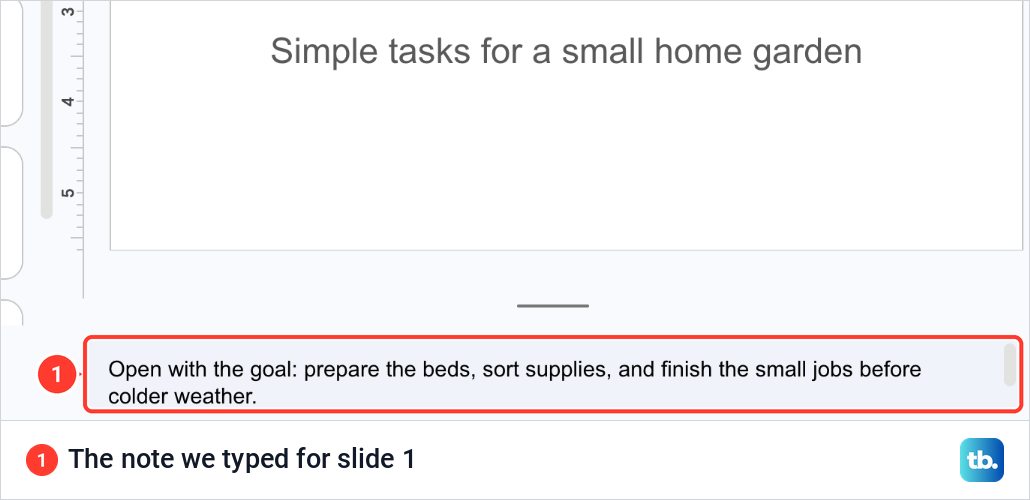
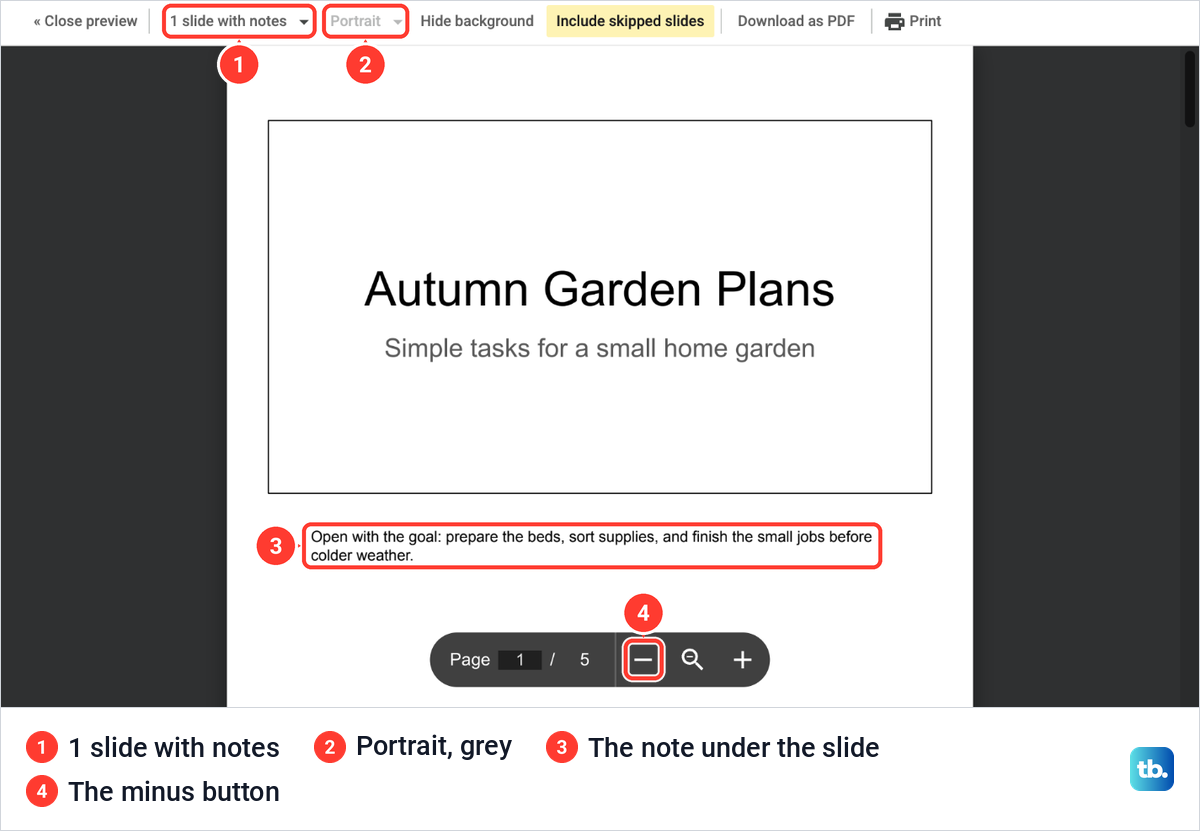
Click in the field and type what you want to say. For our title slide we typed "Open with the goal: prepare the beds, sort supplies, and finish the small jobs before colder weather." We then clicked the slide's thumbnail, and the note was still under the slide, wrapped onto two lines.
There is no save button to look for, because Google Slides saves changes to Drive automatically. The note belongs to the slide it was typed under, and it stays there when you click away to another slide and back.
If you would rather speak than type, open Tools > Dictate speaker notes. The notes open with a microphone box, and you click the microphone to start and again to stop. It needs a working microphone and the latest version of Chrome, Edge or Safari.
Give each slide its own note
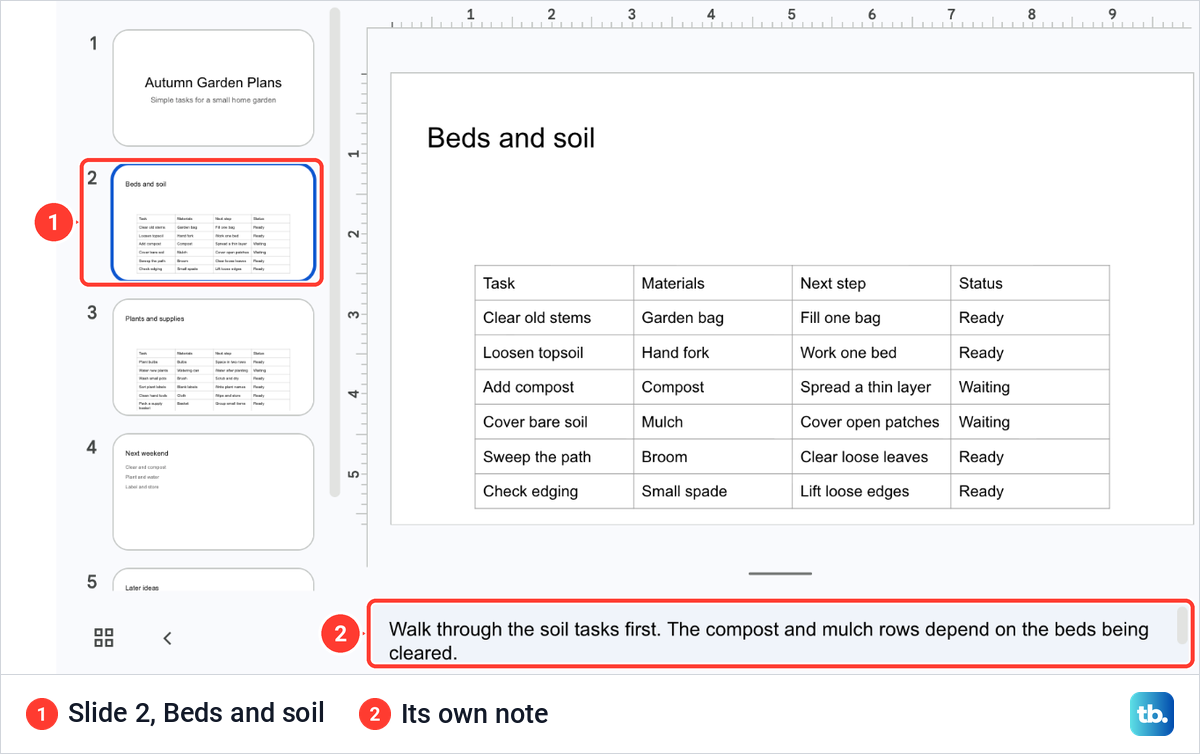
Every slide has a separate note. When we clicked slide 2, Beds and soil, the field showed that slide's note instead, and slide 1 kept its own. We typed notes under slides 3 and 4 the same way.
Write each note for the moment that slide is on screen: what to say first, which row of a table to point at, or the line that leads into the next slide. When we duplicated a slide in another of our presentations, the copy kept its speaker note, so check the notes on any copied slide before you rehearse.
Make the notes field taller for a long note
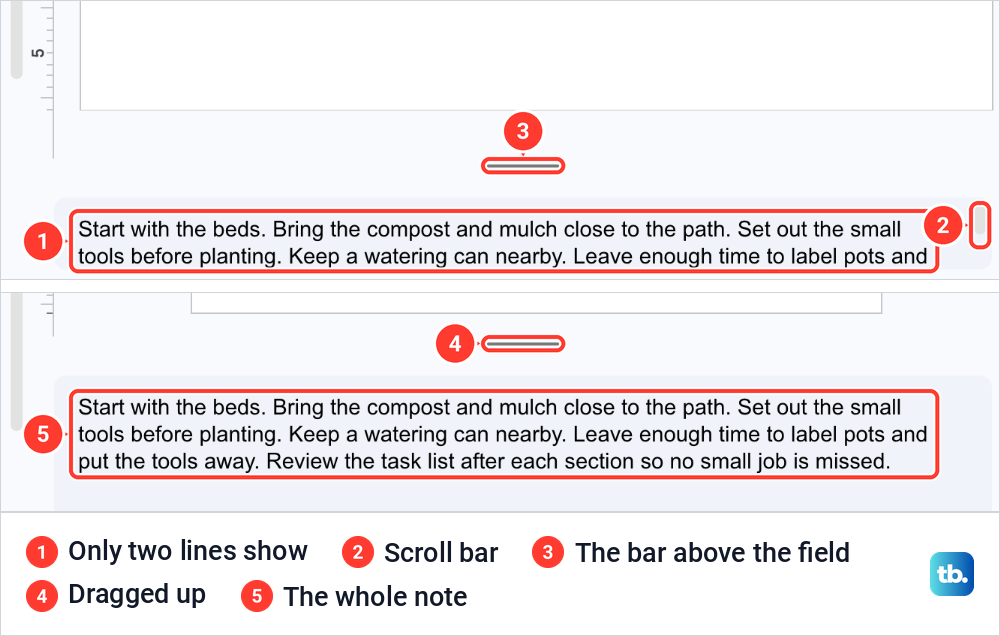
The field starts short. On slide 4, Next weekend, our three-line note showed only its first two lines, with a scroll bar at the right edge of the field. You can scroll inside it, but during a rehearsal it is easier to read the whole note at once.
Point at the short grey bar between the slide and the notes field and drag it upward. The field grew and showed the whole note on three lines, and the slide above it was drawn smaller to make room.
Show the speaker notes field when it is missing
If there is no field under the slide, the notes are hidden, not deleted. Open the View menu. Show speaker notes sits near the end, just above Show filmstrip, and carries a tick while the field is showing.
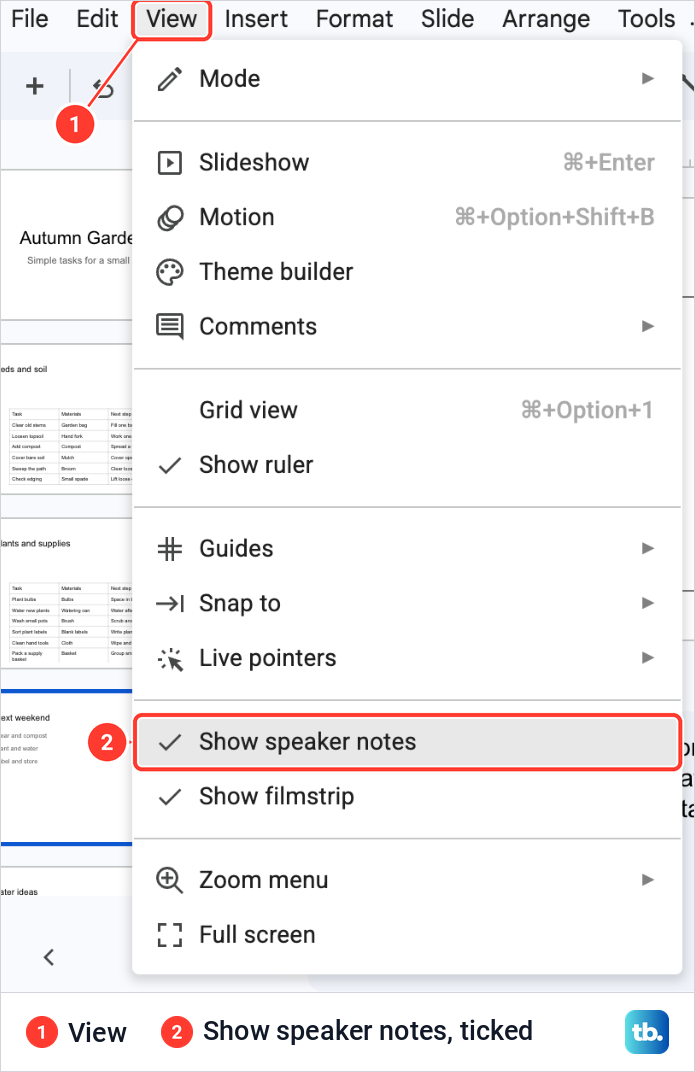
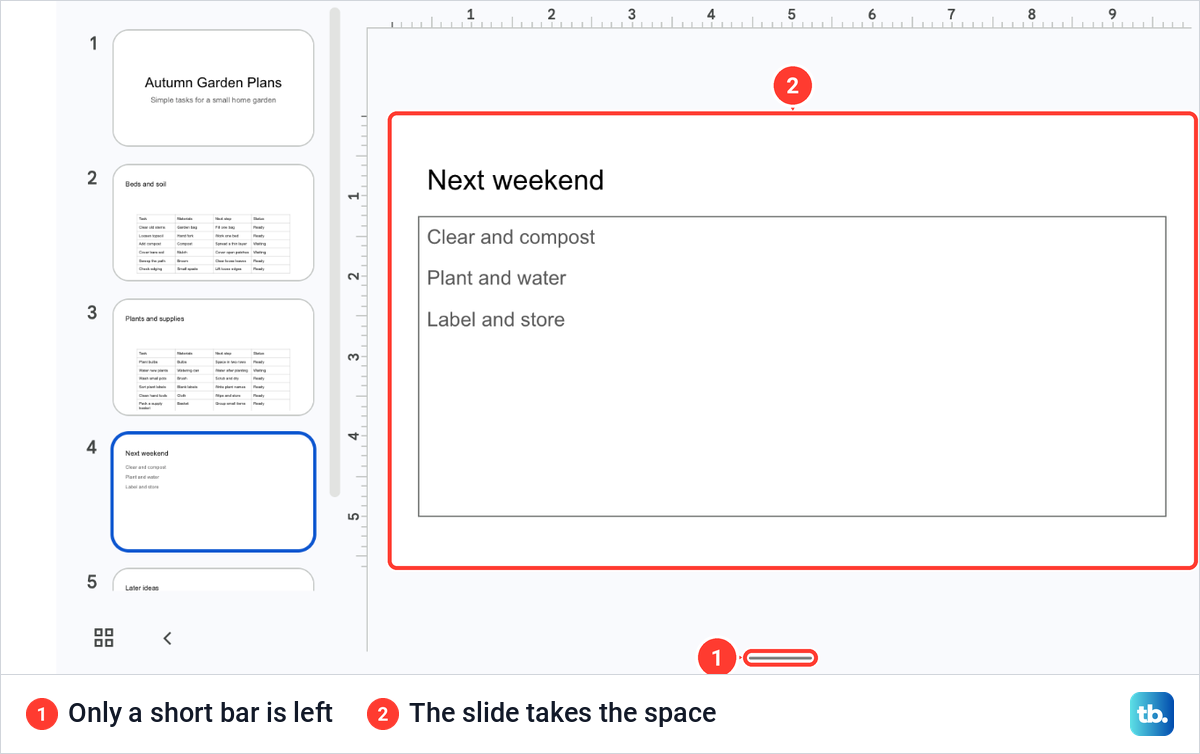
We unticked it to see what happens. The notes field disappeared, the slide grew into its space, and only a short bar was left at the bottom edge of the editor. Ticking Show speaker notes again brought the field back with our note unchanged.
From the keyboard, Ctrl + Alt + Shift + S on Windows and ChromeOS, or Command + Option + Shift + S on a Mac, opens the speaker notes panel. It also moves the cursor into the notes, which helps if you use a screen reader.
When you cannot type in the notes
If the field shows but will not take your typing, check the mode. View > Mode, at the top of the same menu, offers Editing (Edit presentation directly), Commenting (Add comments to the presentation) and Viewing (Read or print final presentation).
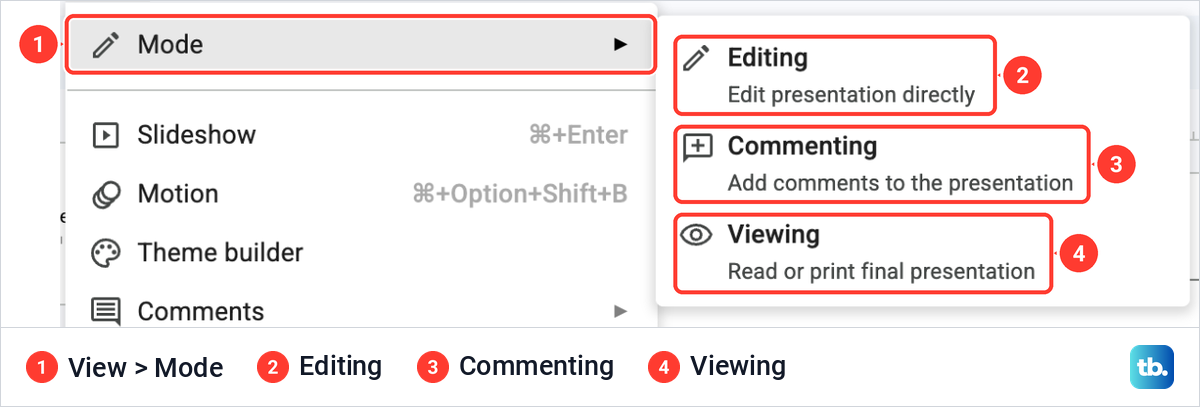
Only Editing lets you change a note, so switch back to it if the presentation is in Commenting or Viewing. Your access decides which modes you get. With commenter access only Commenting and Viewing are offered, and with viewer access you cannot switch modes, so ask the owner for edit access.
Read your notes in Presenter view
Presenter view is the slideshow with your notes kept beside it. Click the small arrow just right of the Slideshow button at the top right of the editor. The menu that opens lists Presenter view first, described as Start slideshow with speaker notes and audience Q&A.
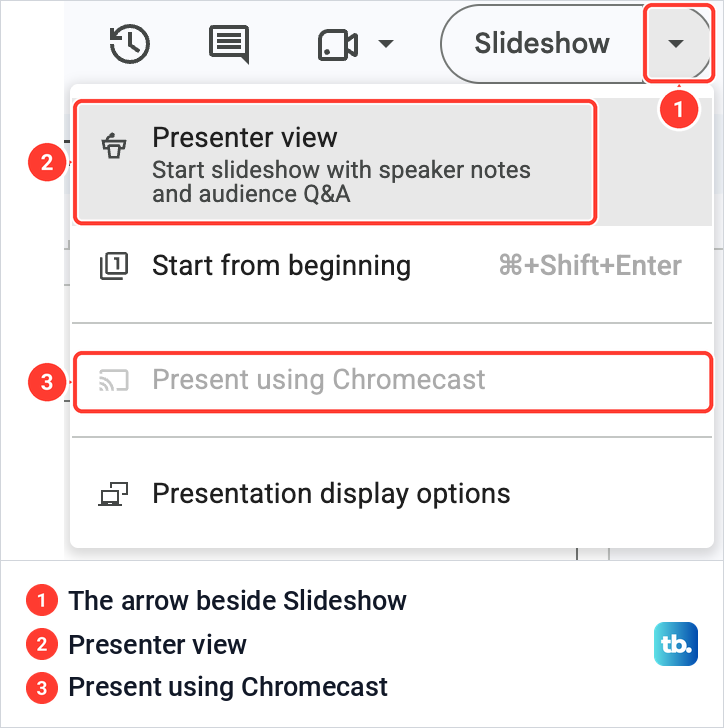
Choose Presenter view, and the slideshow starts with your speaker notes in a separate window. In that presenter window, click Speaker notes to see them. The slideshow window does not show speaker notes. Before you present, check that the audience sees only that window, especially when you mirror or share your screen.
Because the notes open in a separate window, a browser may report a blocked pop-up when you choose Presenter view. If it does, allow pop-ups for Google Slides and try again.
Already presenting without notes? Press S during the slideshow to open your speaker notes without starting over. Esc ends the slideshow when you are done.
With a second monitor attached to a computer running Chrome, Presentation display options at the bottom of the same menu lets you choose which monitor shows the presentation. If Chrome asks for permission to use more than one display, choose Allow. Those options offer Presenter view, Present from beginning and Full screen, and with only one monitor Presenter view and Full screen cannot be used together.
Present using Chromecast sits in the same menu and was grey on our computer. If you plan to show the slides on a television, the steps to cast a laptop to a TV with Chromecast cover the setup before you start.
Keep your notes away from the audience
Speaker notes are hidden from the slideshow, not from people who have the file. Anyone you share the presentation with can open it and read the note under every slide. Keep passwords, private reminders and anything you would not say out loud out of your notes.
In a video call, share the slideshow window only, not the notes window or your whole screen. For a talk in Microsoft Teams, share one window in a Teams meeting so people see the slides while your notes stay on your side.
Print slides with their speaker notes
Open File and choose Print preview, near the end of the menu between Page setup and Print. Our preview opened on a layout named 1 slide without notes, with the title slide alone on the page as Page 1 of 5. The same toolbar has Include skipped slides, which decides whether a slide you have hidden with Skip slide is printed.
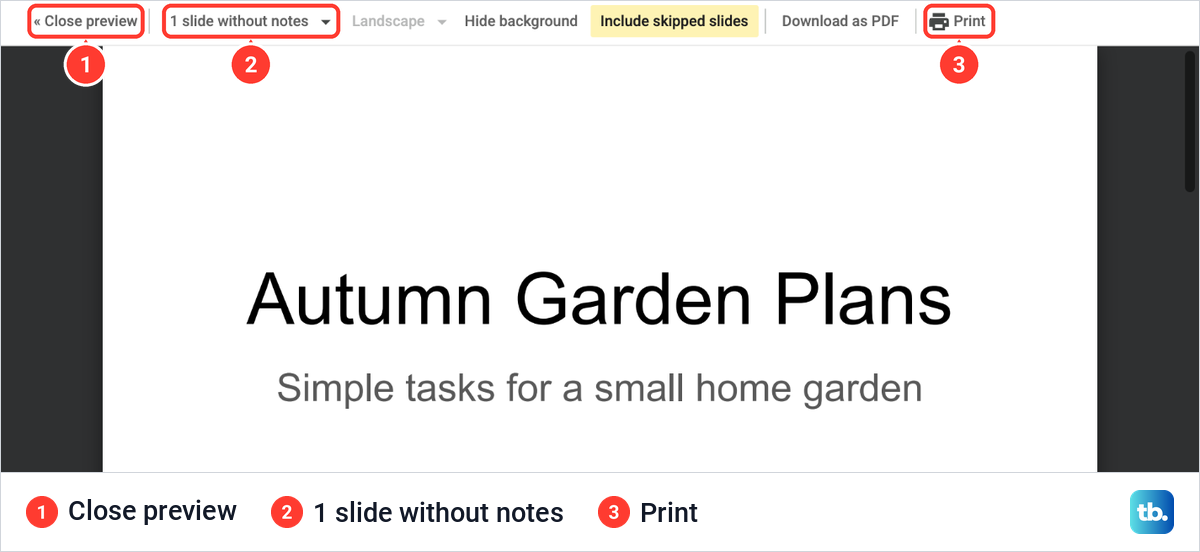
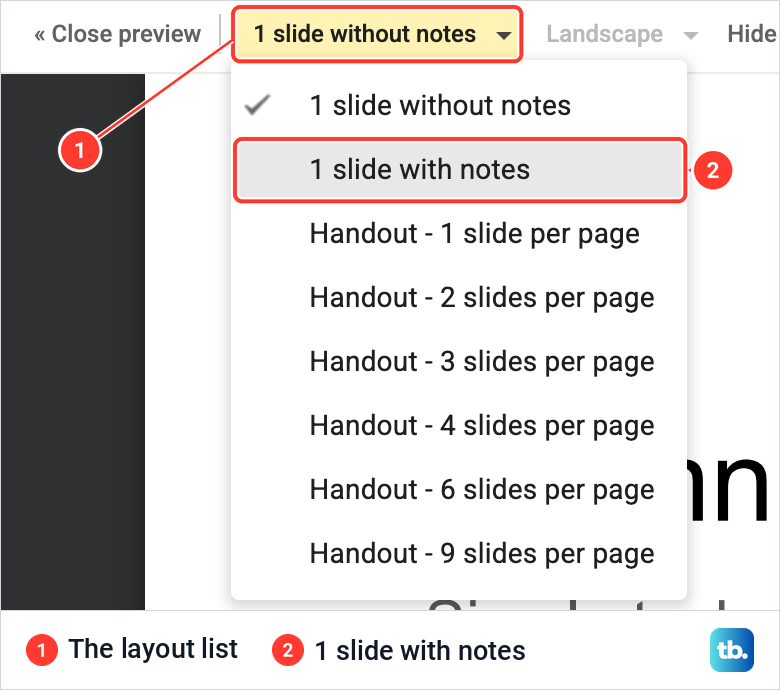
Click that layout list, the first control after Close preview. It holds 1 slide without notes (ticked), 1 slide with notes, and Handout layouts with 1, 2, 3, 4, 6 or 9 slides per page.
We chose 1 slide with notes. The page turned to portrait, the orientation list beside the layout read Portrait in grey, and the slide sat in a frame at the top with its note printed underneath. We used the minus button at the bottom of the preview to zoom out and see the whole page.
To print, click Print in the preview's toolbar, choose your printer and settings in the window that opens, and click Print again. Close preview takes you back to the editor without printing anything.
Read your speaker notes on a phone
The Google Slides app on Android, iPhone and iPad can show your notes while you present to a TV. Connect the phone to the same Wi-Fi network as your Chromecast, open the presentation in the app and tap Cast. Tap Speaker notes to show or hide your notes, swipe left or right to change slides, and tap Close to stop casting.
On an iPhone or iPad, the same Speaker notes button appears when you present over AirPlay mirroring. Presenting Google Slides does not work in Chromecast guest mode.
This section covers reading notes while you present from the app. To write or change notes, use the steps above in Google Slides on a computer.
How we tested this guide
We tested this in Google Slides in Chrome on a Mac, writing speaker notes under four slides of our Autumn Garden Plans presentation, up to the Print button in the 1 slide with notes preview.
Frequently Asked Questions
Where is the speaker notes box in Google Slides?
It is the wide field directly under the slide in the editor, and on a slide without a note it reads Click to add speaker notes. If it is not there, open View and tick Show speaker notes.
Can the audience see my speaker notes?
The slideshow window does not show them. Presenter view puts your notes in a separate window, so make sure the audience sees only the slideshow window, and in a call share that window, not the notes window or the whole screen.
Can people I share the presentation with see my notes?
Yes. Anyone you share the presentation with can read the note under each slide, so keep private information out of them before you share.
Why is my speaker note cut off?
The notes field starts short, so a long note can be cut off with a scroll bar beside it. Drag the bar between the slide and the field upward, and the field grows to show more of the note.
How do I see my notes while presenting?
Click the arrow beside Slideshow and choose Presenter view. If you already started a normal slideshow, press S to open your notes.
How do I print Google Slides with speaker notes?
Open File > Print preview, change the layout list from 1 slide without notes to 1 slide with notes, then click Print. The preview shows each slide on a portrait page with its note under it.
Can I see speaker notes on my phone?
Yes. While you present from the Google Slides app over Chromecast, or over AirPlay on an iPhone or iPad, tap Speaker notes to show or hide them.