


To duplicate a slide in Google Slides, click its thumbnail in the filmstrip on the left, right-click it and choose Duplicate slide. The copy appears directly under the original, already selected. With the thumbnail selected, Ctrl + D on Windows and ChromeOS, or Command + D on a Mac, does the same job.
We duplicated slides in Google Slides in Chrome with our own Home Projects presentation, by menu, by shortcut and between two decks. The shortcut held the one surprise: it copies whatever is selected, so it can copy a text box instead of the slide.
The short version
- One slide: right-click its thumbnail and choose Duplicate slide. The copy lands directly underneath.
- Keyboard: click the thumbnail first, then press Ctrl + D, or Command + D on a Mac.
- Several slides: click the first, Shift + click the last, then right-click and choose Duplicate slides.
- Another presentation: copy the thumbnail with Ctrl + C, select a slide in the other deck, paste with Ctrl + V and choose Do not link. On a Mac, use Command instead of Ctrl.
- Phone or tablet: touch and hold the slide, tap Copy, then tap Paste.
Ways to duplicate a slide at a glance
| Method | Where to use it | What you get |
|---|---|---|
| Right-click, then Duplicate slide | A thumbnail in the filmstrip | One copy directly under the original, selected |
| Ctrl + D, or Command + D on a Mac | With the thumbnail selected | The same copy, but a copy of the text box if a box is selected instead |
| Shift + click, then Duplicate slides | The first and last thumbnails of a run | Copies of the run, together and in order, under the originals |
| Slide menu, then Duplicate slides | The menu bar, with thumbnails selected | The same command, reached from the top of the window |
| Ctrl + C, then Ctrl + V in another deck | A thumbnail in each presentation | The slide under the one you selected, plus an Import Slides choice |
| File > Make a copy | The File menu | A separate copy of the whole presentation (Entire presentation) |
| Touch and hold, Copy, Paste | The Google Slides app on Android, iPhone or iPad | A copy after the original |
The table gives the Windows and ChromeOS keys. On a Mac, press Command instead of Ctrl in each of them.
Duplicate a slide from the right-click menu
Every slide in the presentation sits as a small thumbnail in the filmstrip down the left side of the editor. Click the one you want to copy so it has a blue outline, then right-click it. In the long menu that opens, Duplicate slide sits under New slide and Templates, just above Skip slide, the command that hides a slide in Google Slides without deleting it.
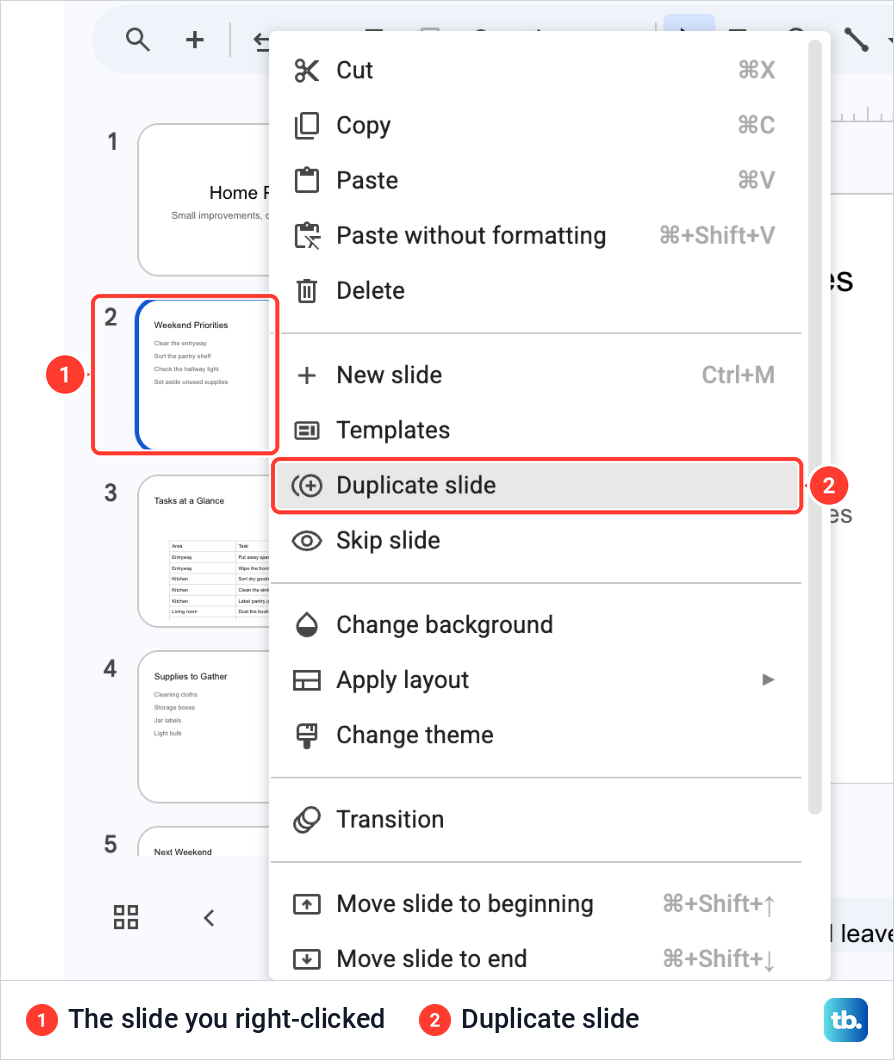
New slide, two lines higher, is a different command. It adds an empty slide in the current layout rather than a copy, and on our Mac it was listed as Ctrl + M, not with the Command key.
Duplicate slide worked at once. The copy appeared as slide 3, directly under the Weekend Priorities slide we had copied, already selected and open on the canvas. Our deck went from five slides to six, and the slides below moved down one place.
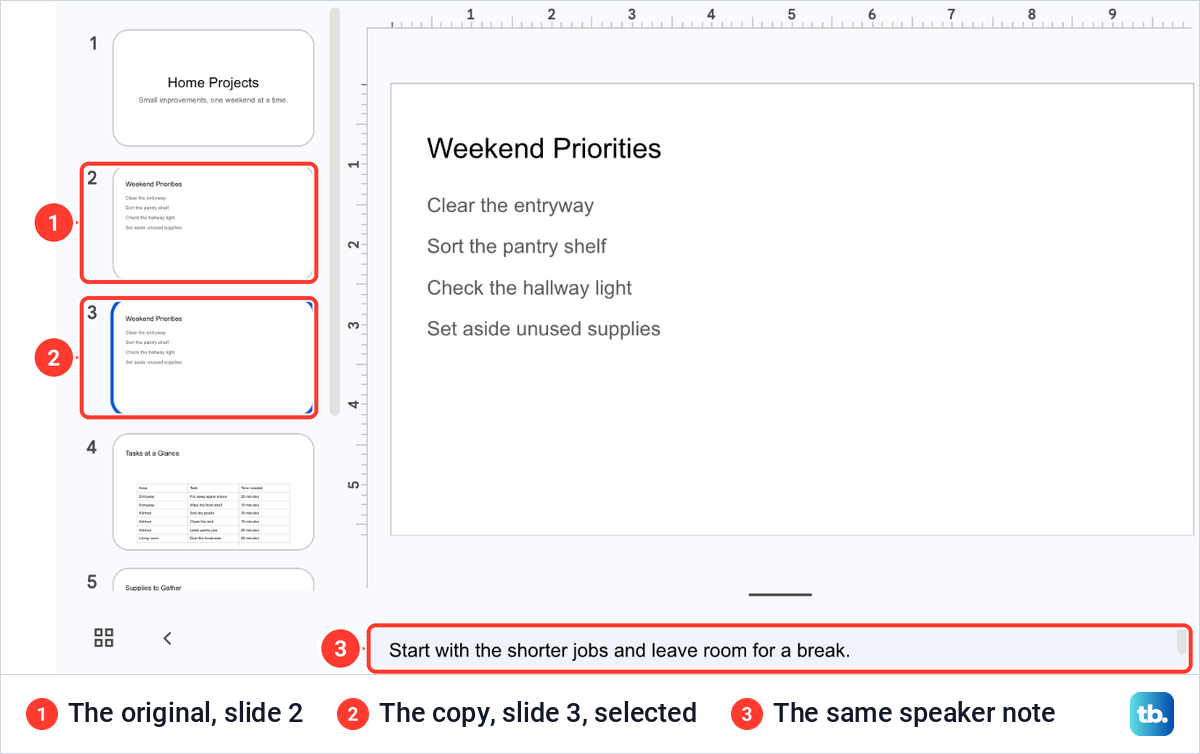
The duplicate matched its original. The title, the four lines of text and the speaker note under the slide were all there on the copy.
The copy is a separate slide
Changing the duplicate leaves the original alone. We retyped the first line of the copy as Clear the hall shelf, then clicked the original. It still read Clear the entryway and kept its speaker note.
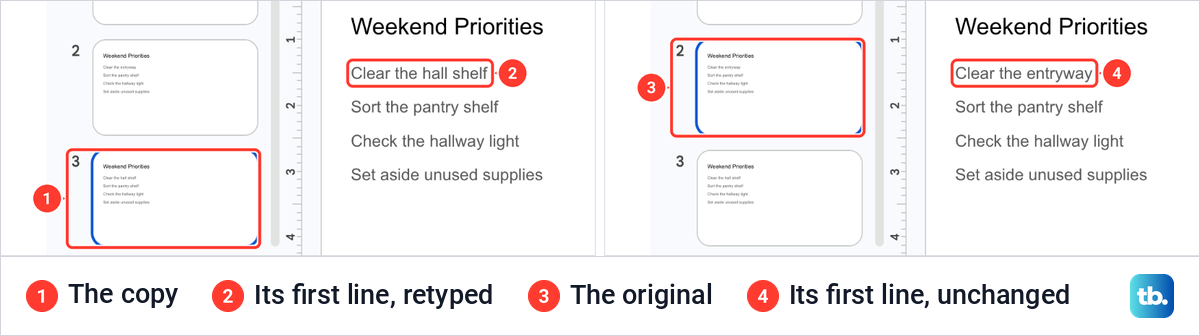
That makes a duplicate a quick starting point for a slide that should share the look of another, such as next weekend's list in the same layout. Finish the slide you want to repeat before you copy it, so every copy starts from the finished version.
Duplicate a slide with Ctrl + D or Command + D
The keyboard is quicker once a thumbnail is selected. Click the slide in the filmstrip so it has a blue outline, then press Command + D on a Mac, or Ctrl + D on Windows and ChromeOS.
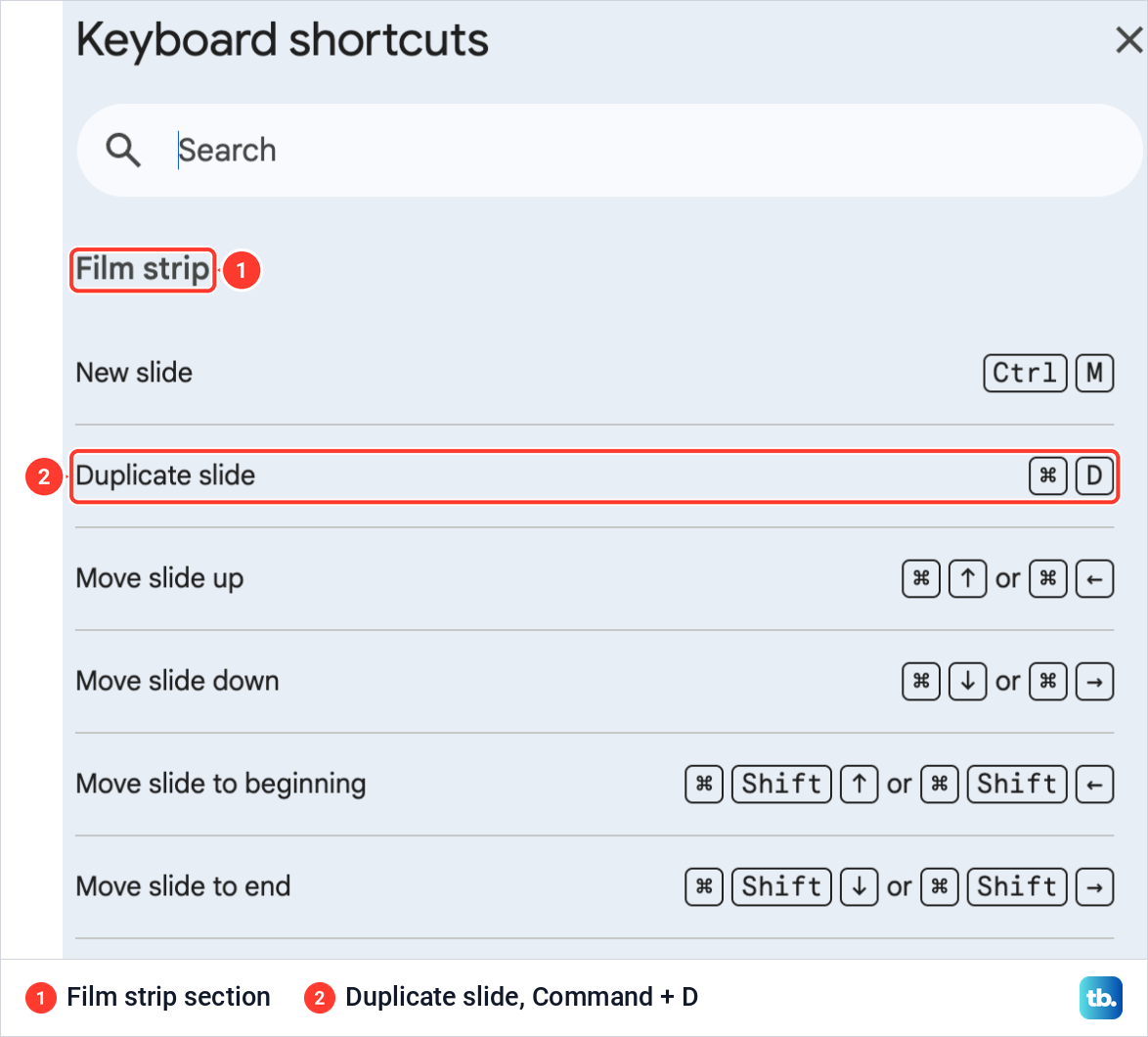
To check the keys on your own computer, press Command + / on a Mac, or Ctrl + / on Windows and ChromeOS. With a thumbnail selected, the Keyboard shortcuts list opened for us on a section named Film strip, with Duplicate slide listed as Command + D.
We then selected Supplies to Gather and pressed Command + D. Another Supplies to Gather slide appeared under it as slide 5, selected, just as with the menu.
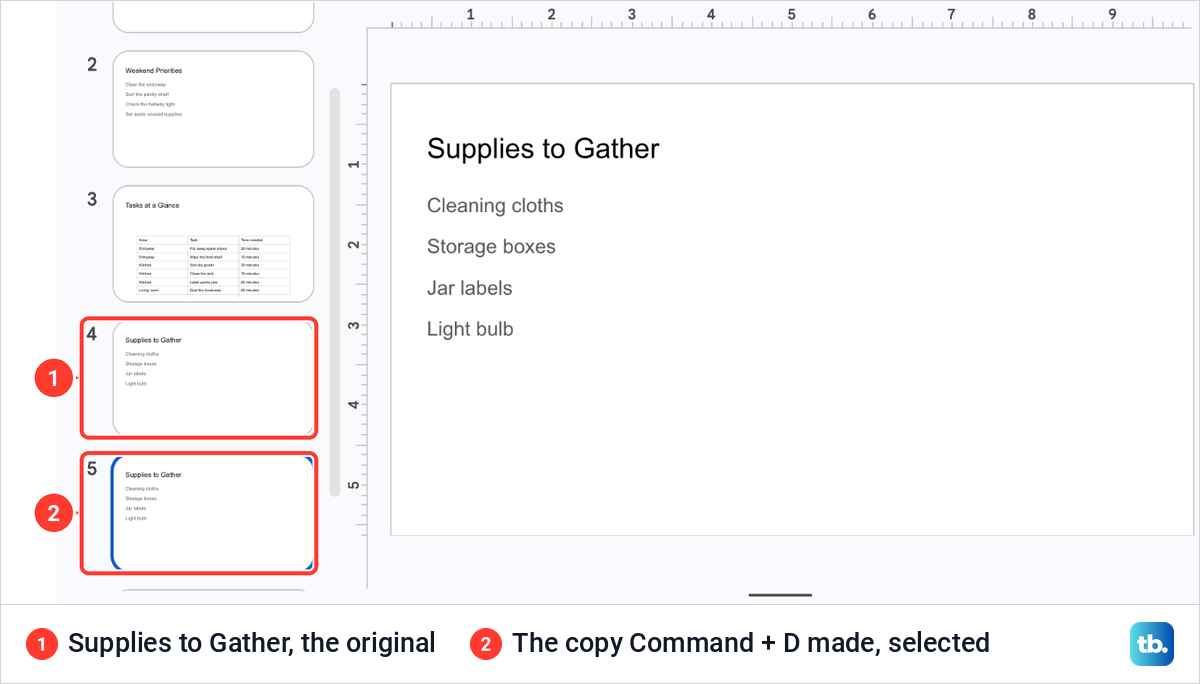
If nothing happens, look at the filmstrip. The shortcut only copies a slide when its thumbnail is selected, so check that the slide you want has a blue outline, then press again.
When Ctrl + D copies a text box instead
The same keys copy a selected object as well as a slide. We clicked into the list on Supplies to Gather, pressed Escape so the whole text box was selected, then pressed Command + D. Slides copied the text box on the same slide, placing the copy slightly lower and to the right, so every line appeared twice. No slide was added, and the label at the bottom of the filmstrip still read 5 total slides.
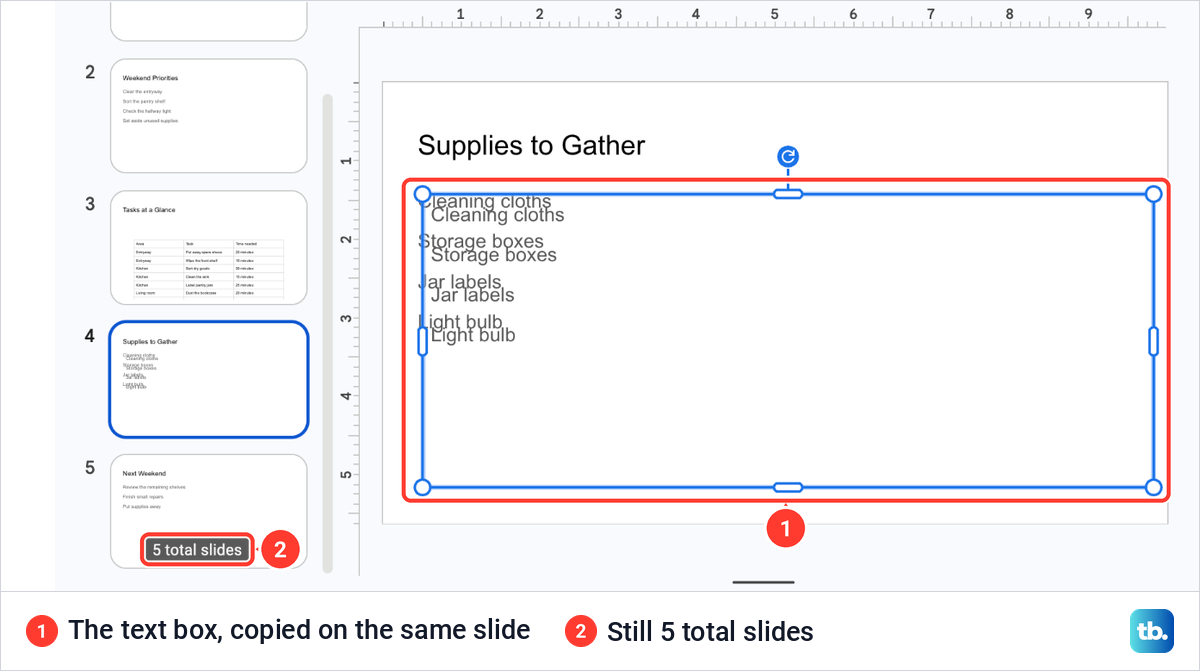
On Windows and ChromeOS, Ctrl + D does both jobs in the same way. To fix a stray copy, undo it with Ctrl + Z or Command + Z, click the slide's thumbnail on the left, and press the shortcut again.
Duplicate several slides at once
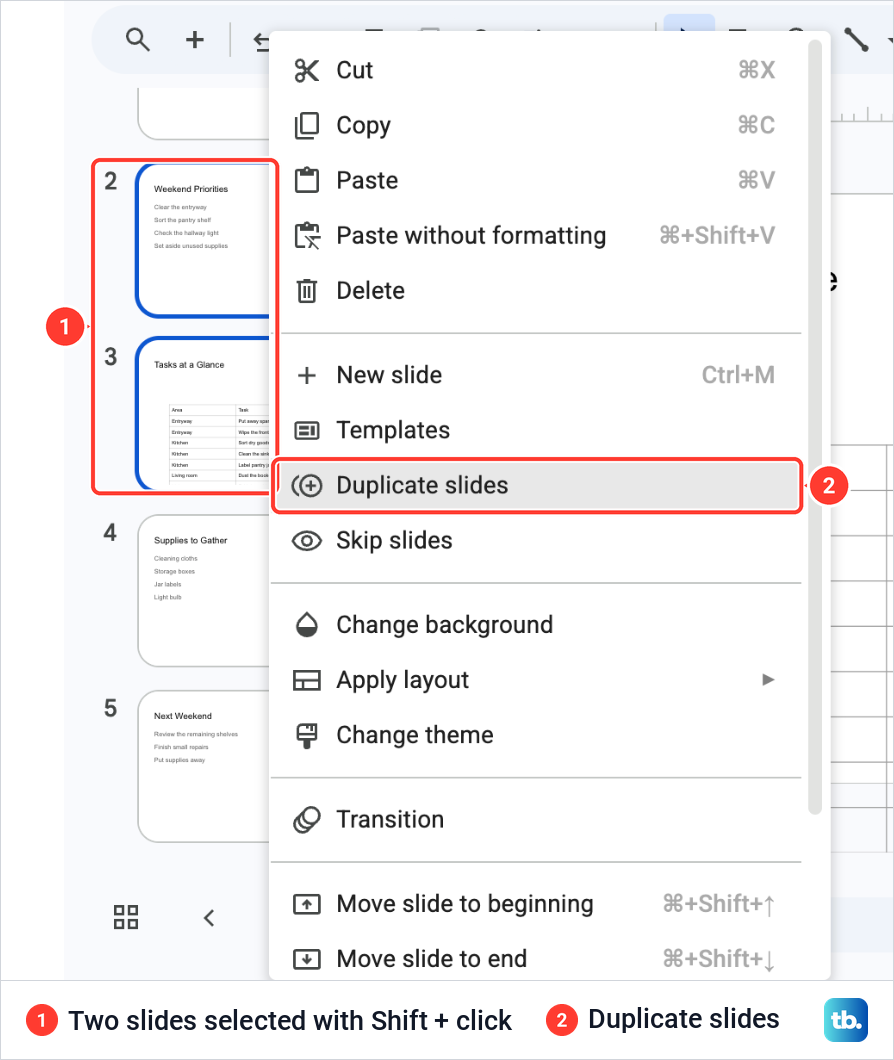
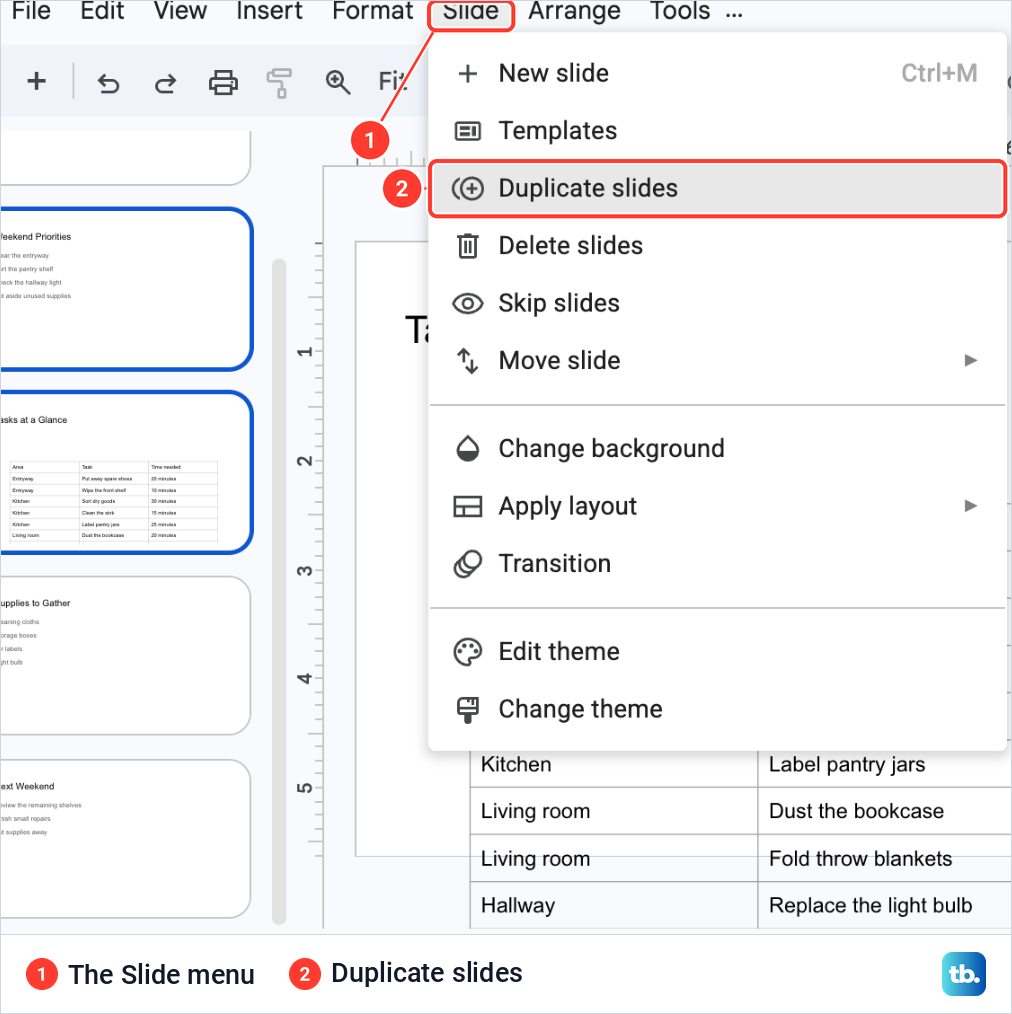
To copy a run of slides, click the first thumbnail, hold Shift and click the last one. Our two, Weekend Priorities and Tasks at a Glance, both took a blue outline. Right-click either of them and the menu switches to the plural, Duplicate slides, with Skip slides under it.
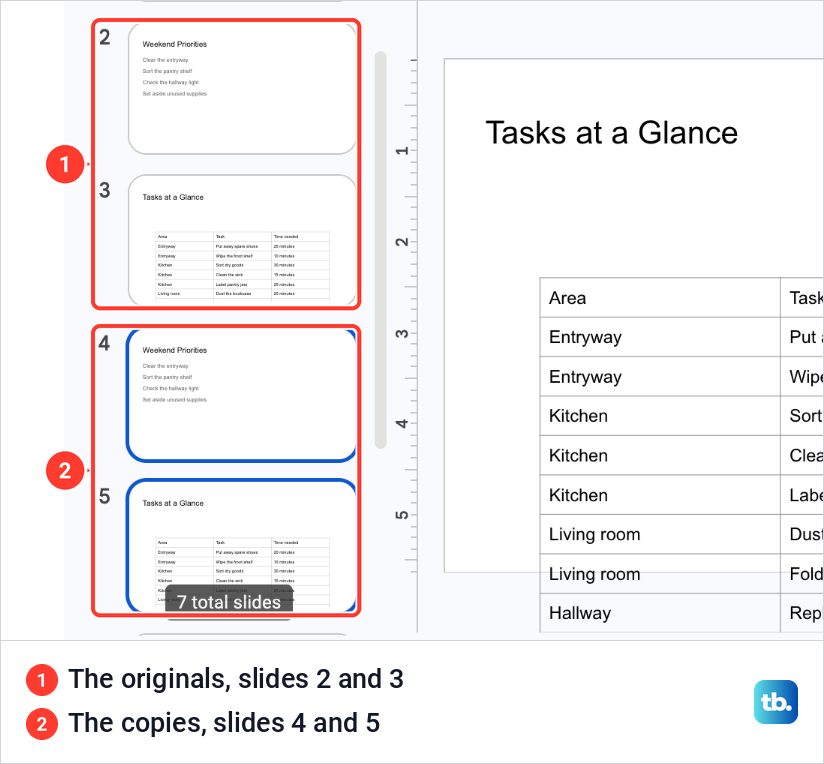
The two copies landed together directly under the originals, in the same order, as slides 4 and 5. Both stayed selected, and the label at the bottom of the filmstrip read 7 total slides.
The Slide menu in the menu bar holds the same command. With our two slides selected it also read Duplicate slides, between Templates and Delete slides, and a Move slide entry sits a few lines lower.
Move the copy to another place
A duplicate lands under its original, so you will often want to move it. Click its thumbnail and drag it up or down the filmstrip to the place you want. To move several slides, Shift + click them first, then drag the group.
For short moves the keyboard is tidier. The shortcuts list on our Mac gave Move slide up as Command + Up arrow and Move slide down as Command + Down arrow. On Windows and ChromeOS they are Ctrl + Up arrow and Ctrl + Down arrow, and the right-click menu also offers Move slide to beginning and Move slide to end.
Copy a slide into another presentation
Duplicate slide only works inside the presentation you have open. To put a slide into a different one, copy and paste the thumbnail. Click the slide in the filmstrip and press Ctrl + C, or Command + C on a Mac.
Open the other presentation, click the thumbnail the slide should follow, and press Ctrl + V or Command + V. We copied Weekend Priorities from Home Projects into our Home Projects Archive deck, with its title slide selected. The slide arrived as slide 2 with its text and its speaker note, and a box named Import Slides appeared over it.
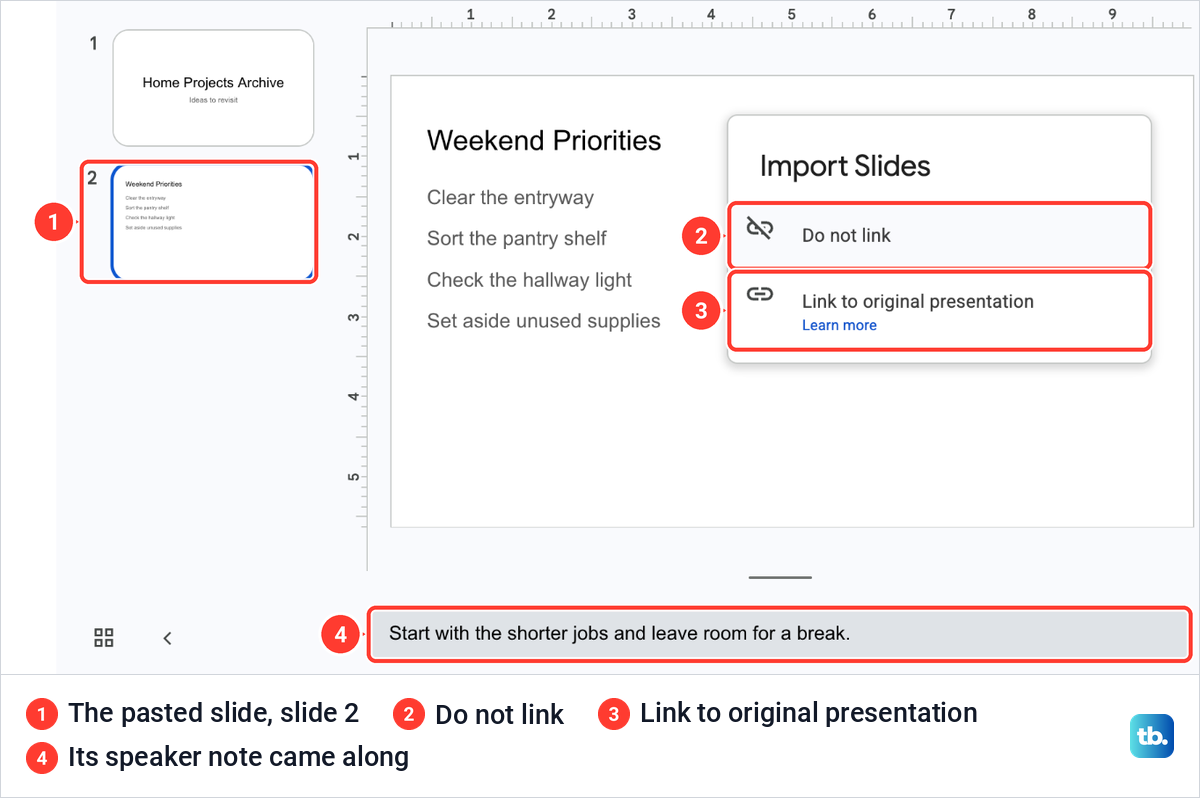
The box asks one question. Do not link pastes an ordinary slide, and when we chose it the slide stayed like any other in the deck. Link to original presentation is the other choice, with a Learn more link under it.
File > Import slides is the other way to bring slides across. It opens your presentations in Google Drive, lets you pick the slides you want, and has a Keep original theme box. Leave it ticked to keep their look, or untick it to give them the current deck's theme.
Copy the whole presentation instead
If you want another presentation rather than another slide, open File > Make a copy. On our deck it opened a short submenu with two entries.
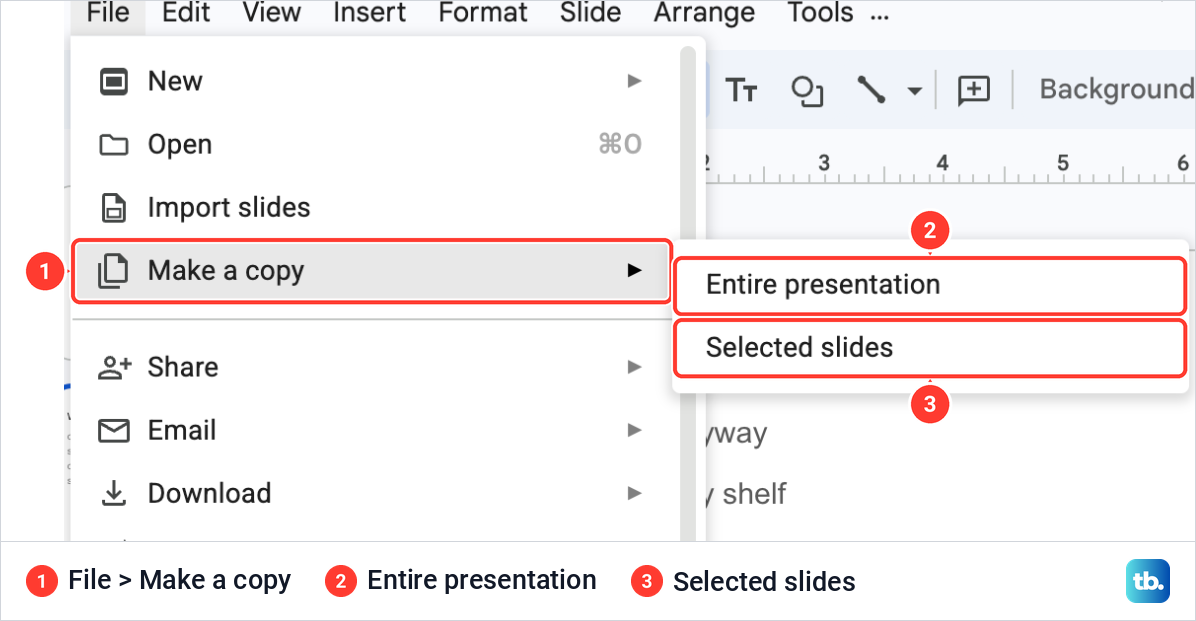
Entire presentation gives you the whole deck again as a separate file. The other entry is Selected slides.
Duplicate a slide in the Google Slides app
The Android app and the iPhone and iPad app use the same steps. Open the presentation, then touch and hold the slide you want to duplicate in the row of slides at the bottom of the screen. To copy several, tap the others now.
Tap Copy, then tap Paste. The duplicate appears after the original, the same place it lands on a computer.
When Duplicate slide is missing
First check that the filmstrip is showing, because the right-click command needs a thumbnail to click. If the column of thumbnails is gone and the slide fills the window, click the small arrow at the bottom left. You can also open View and tick Show filmstrip, near the end of the menu under Show speaker notes.
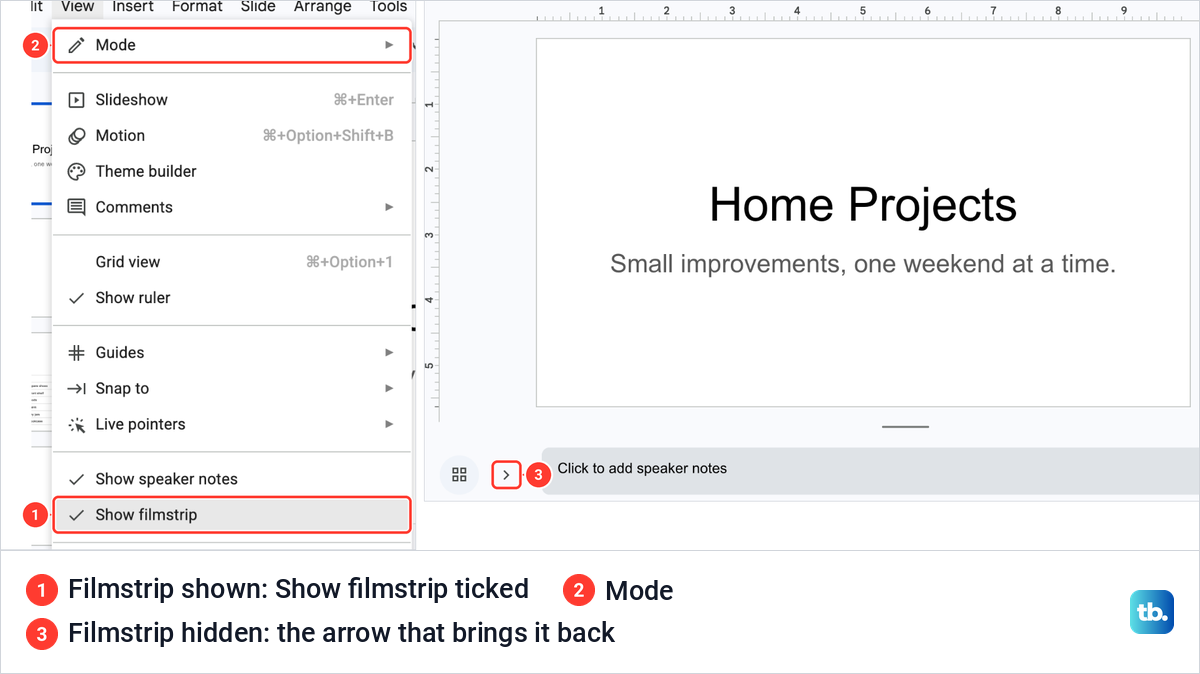
Next, check the mode. Mode, at the top of the same View menu, switches between Editing, Commenting and Viewing, and only Editing lets you change slides. A viewer or commenter on someone else's presentation cannot edit it at all, so ask the owner for edit access.
Undo a duplicate you did not want
Press Command + Z on a Mac, or Ctrl + Z on Windows and ChromeOS, straight after the mistake. Edit > Undo does the same, and it took a fresh copy away again on our deck.
Undo goes back one step at a time. After we had duplicated a slide and retyped a line of the copy, it took more than one press of Command + Z to remove both the edit and the copy and get back to five slides.
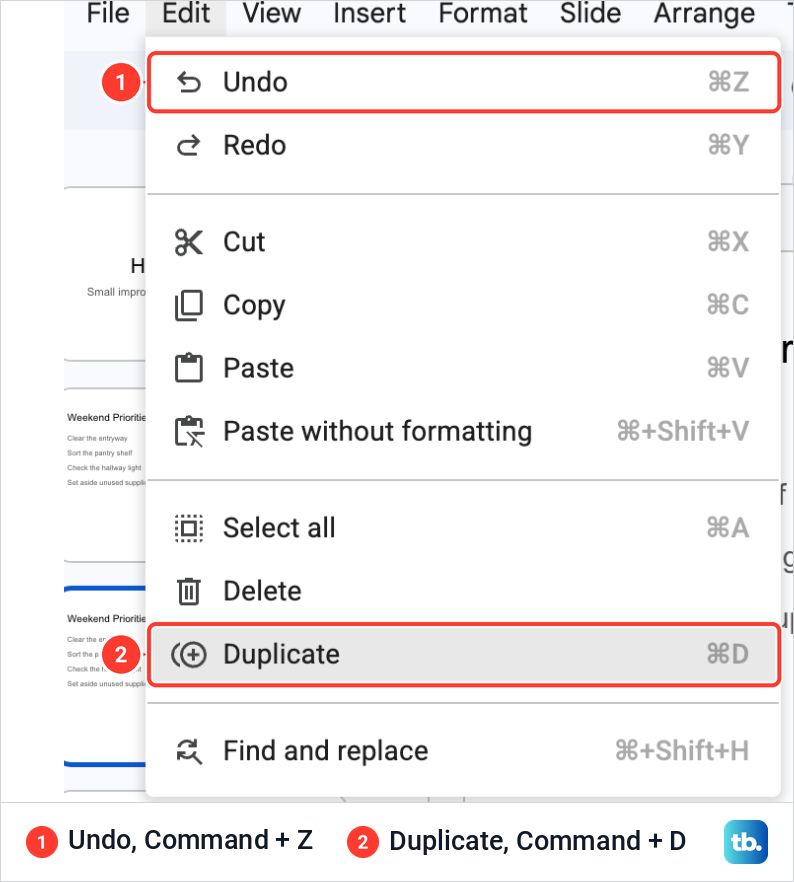
The Edit menu does not say what Undo will reverse, so watch the filmstrip as you press. If you spot a stray copy later, select its thumbnail and press Delete or Backspace, or right-click it and choose Delete.
For an older state of the whole file, open File > Version history > See version history, or press Command + Option + Shift + H on a Mac or Ctrl + Alt + Shift + H on Windows. Restoring a version there brings back the entire presentation as it was, not one slide, and you need edit access to see the list.
How we tested this guide
We tested this in Google Slides in Chrome on a Mac, duplicating slides in our Home Projects presentation and pasting one into our Home Projects Archive deck, up to the File > Make a copy submenu.
Frequently Asked Questions
What is the shortcut to duplicate a slide in Google Slides?
Click the slide's thumbnail in the filmstrip, then press Ctrl + D on Windows or ChromeOS, or Command + D on a Mac. The copy lands directly under the original.
Why did Ctrl + D copy a text box instead of the slide?
The same keys duplicate whatever is selected, and a selected text box or shape counts. Undo the extra box, click the slide's thumbnail on the left and press the shortcut again.
Can I duplicate more than one slide at a time?
Yes. Click the first thumbnail, hold Shift and click the last, then right-click and choose Duplicate slides. The copies land together under the originals, in the same order.
Does a duplicated slide keep its speaker notes?
Yes. Our copy kept its speaker note when we duplicated it in the same presentation and when we pasted it into another one.
If I edit the copy, does the original change too?
No. A duplicate is a separate slide, and when we retyped a line on the copy, the original kept its own text.
How do I duplicate a slide on my phone?
In the Google Slides app, touch and hold the slide at the bottom of the screen, tap Copy, then tap Paste. The copy appears after the original.
How do I duplicate a whole Google Slides presentation?
Open File > Make a copy and choose Entire presentation. That gives you a separate file, while Duplicate slide only adds a slide to the presentation you have open.