

To hide a slide in Google Slides, right-click its thumbnail in the filmstrip on the left and choose Skip slide. Slides has no command called Hide. Skip slide keeps the slide in the file, and the slideshow passes over it. To bring it back, right-click the thumbnail again and choose Unskip slide.
Anyone who can open the presentation can still see a skipped slide, because the command changes what the slideshow plays, not who can see the file. Print preview is the other place to watch. On our deck it opened with the skipped slide included, so the preview counted every page until we switched it off.
The short version
- Hide one slide: right-click its thumbnail and choose Skip slide. The thumbnail fades and shows a crossed-out eye.
- Show it again: right-click the same thumbnail and choose Unskip slide, or open the Slide menu and choose Unskip slide.
- Several slides: click the first, Shift + click the last, then right-click and choose Skip slides.
- Printing: in File > Print preview, turn off Include skipped slides, and open any PDF you save to check the slide is not in it.
- Sharing: a skipped slide stays in the file, so share a copy without it if viewers must not see it.
Ways to skip and show a slide at a glance
| What you want | Where to do it | What happens |
|---|---|---|
| Hide one slide in the slideshow | Right-click its thumbnail, then Skip slide | The thumbnail fades with a crossed-out eye and the show passes over it |
| Shift + click to hide several slides | Select the thumbnails, right-click, then Skip slides | Every selected slide gets the crossed-out eye |
| Show a skipped slide again | Right-click it, or the Slide menu, then Unskip slide | The thumbnail returns to full colour and the slide is back in the slideshow |
| Leave it out of a printout | File > Print preview, then turn off Include skipped slides | The skipped slide's page drops out of the preview |
| Keep it from people you share with | A copy of the presentation with the slide deleted | Viewers of the copy never get the slide |
| Hide a slide on a phone or tablet | Touch and hold the slide, More, then Skip Slide | Show Slide in the same menu brings it back |
Skipping is the right tool when the slide should stay ready for later, such as a backup slide you may need for questions. If the slide should never be seen by the people you share with, the sections on printing and sharing below matter more than the command itself.
Hide a slide with Skip slide
Find the slide in the filmstrip, the column of numbered thumbnails down the left side of the editor. Click it so it has a blue outline, then right-click it. In our Garden Open Day Plan deck we right-clicked slide 4, Optional rain plan, and Skip slide sat in the middle of the menu with an eye icon, just under Duplicate slide, the command that duplicates a slide in Google Slides.
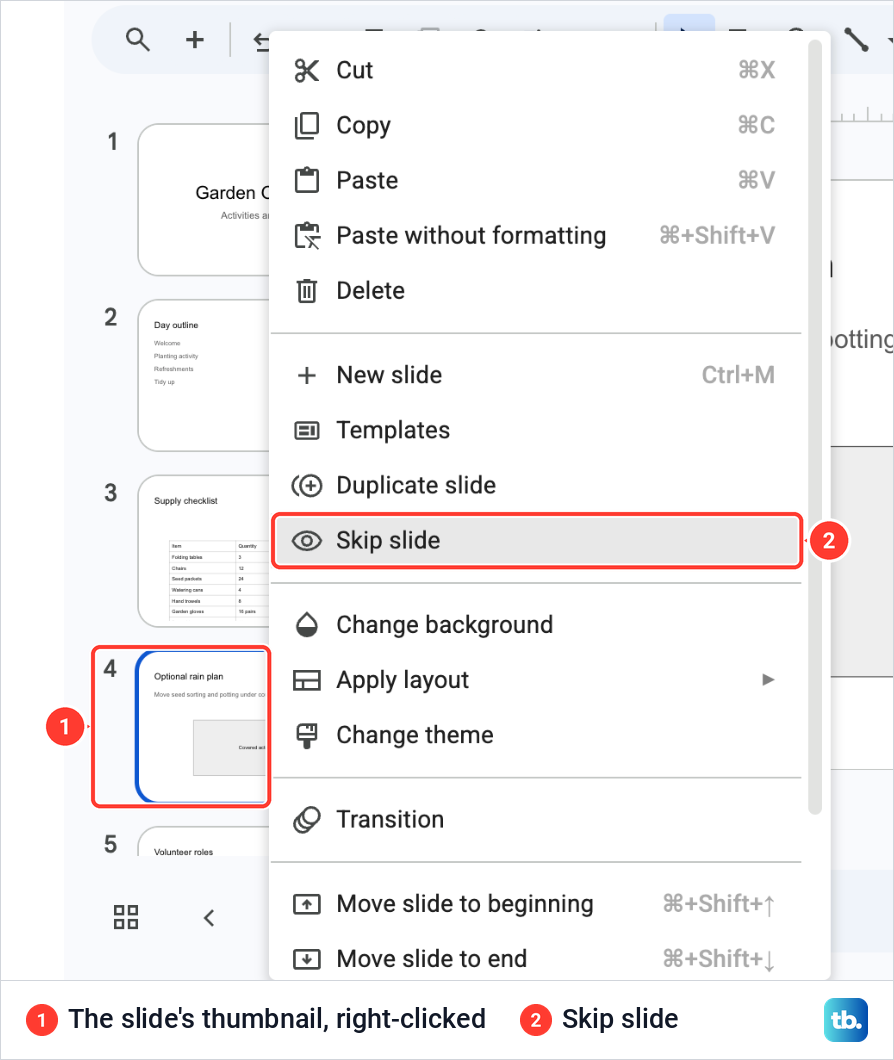
Right-click the thumbnail in the filmstrip, where the slide's own menu opens, rather than the large slide in the middle of the window. If the filmstrip is missing, click the small arrow at the bottom left of the window, or open View and tick Show filmstrip.
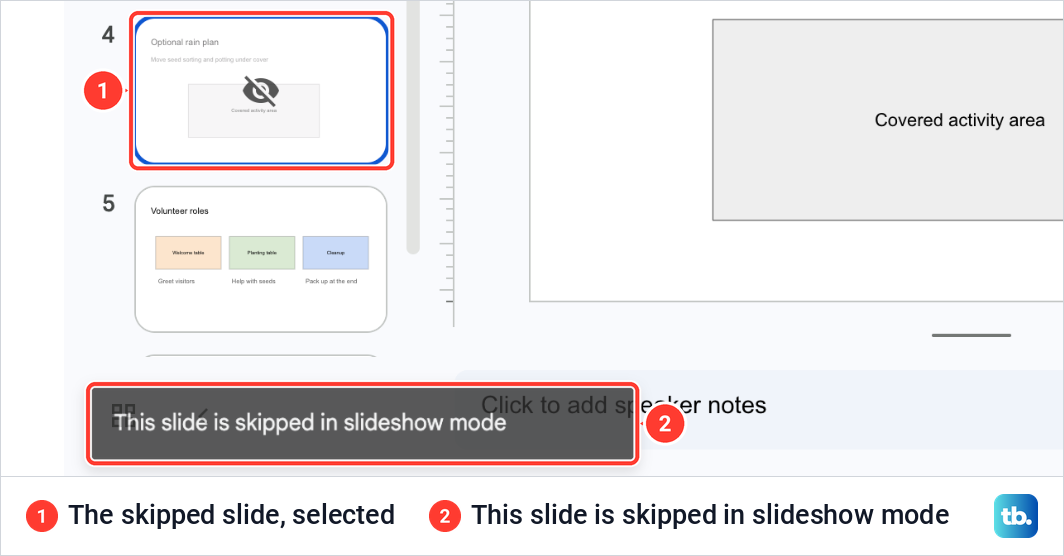
One click on Skip slide changed the thumbnail at once. Slide 4 turned pale and a crossed-out eye appeared in its middle. It kept its number, 4, and its place between slides 3 and 5, so the numbers of the other slides did not move.
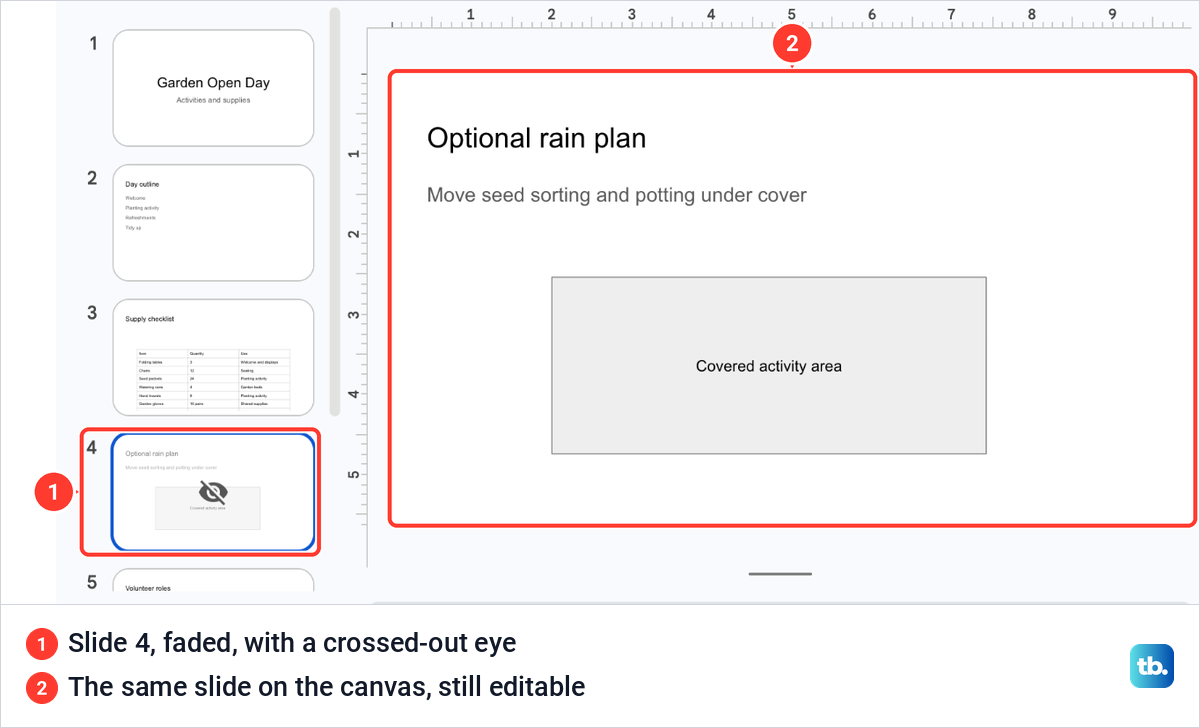
The slide itself is untouched. The canvas still showed Optional rain plan at full strength, and it stayed open for editing as before. The mark also stayed put later, when we changed the deck's slide size and changed it back.
Show a skipped slide again
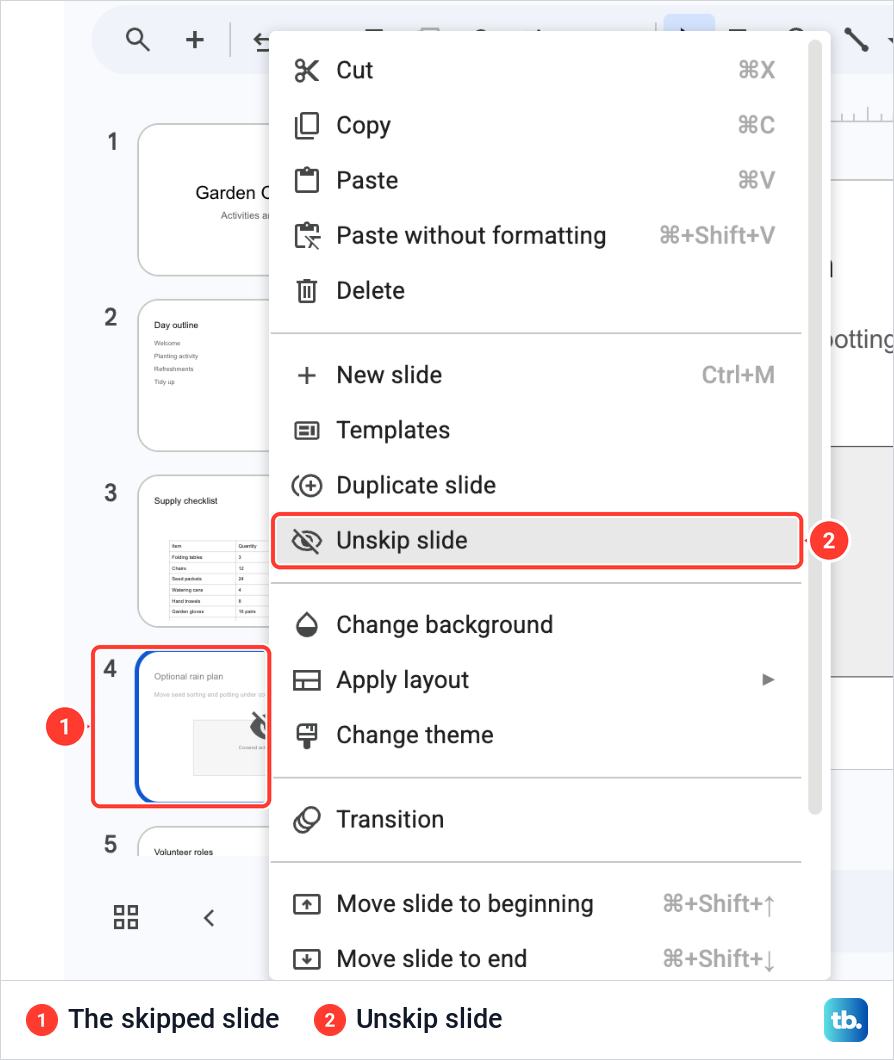
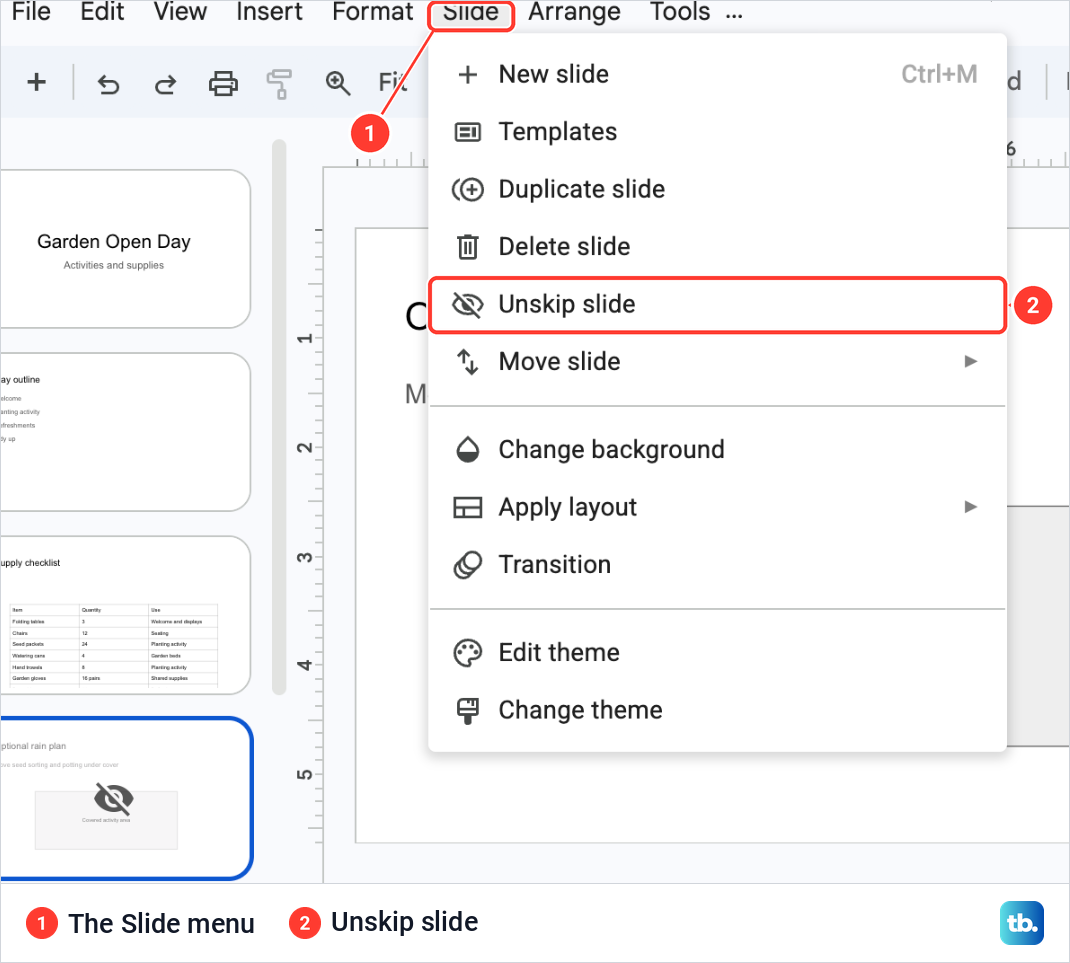
The same right-click brings it back, but the entry changes its name. Right-click the faded thumbnail and the line that read Skip slide now reads Unskip slide, with a crossed-out eye beside it. Choose it and the thumbnail returns to full colour.
The Slide menu in the menu bar holds the same entry. With our skipped slide selected it read Unskip slide, between Delete slide and Move slide. That route is handy when a right-click is awkward.
Without a mouse, the keyboard opens the same menu. Press Command + Option + Shift + F on a Mac, or Ctrl + Alt + Shift + F on Windows and ChromeOS, to move to the filmstrip, and use the Up or Down arrow to reach the slide.
Press Shift + F10 to open its context menu, press the Down arrow until Skip slide is chosen and press Enter. Once the slide is skipped, the same entry reads Unskip slide, so the same keys bring it back.
Skip several slides at once
To skip a run of slides together, click the first thumbnail, hold Shift and click the last one. We selected slides 4 and 5, Optional rain plan and Volunteer roles, and both took a blue outline. A right-click on the selection showed the plural, Skip slides.
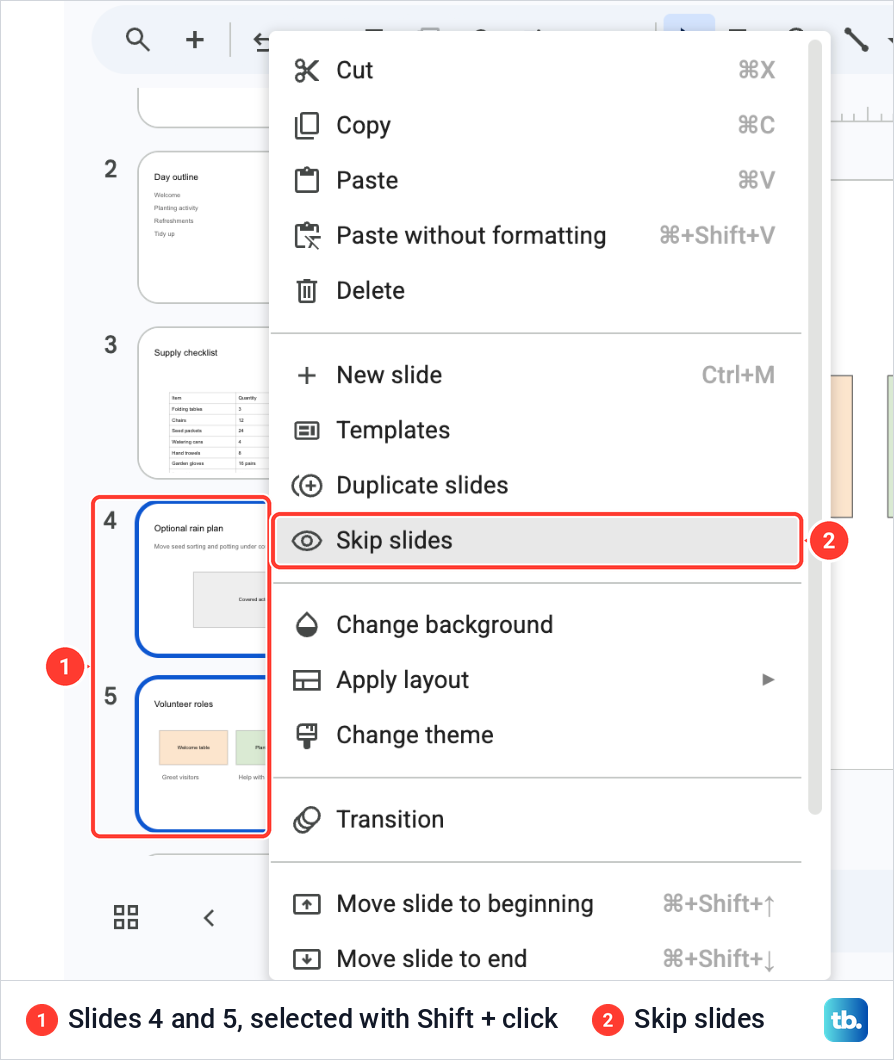
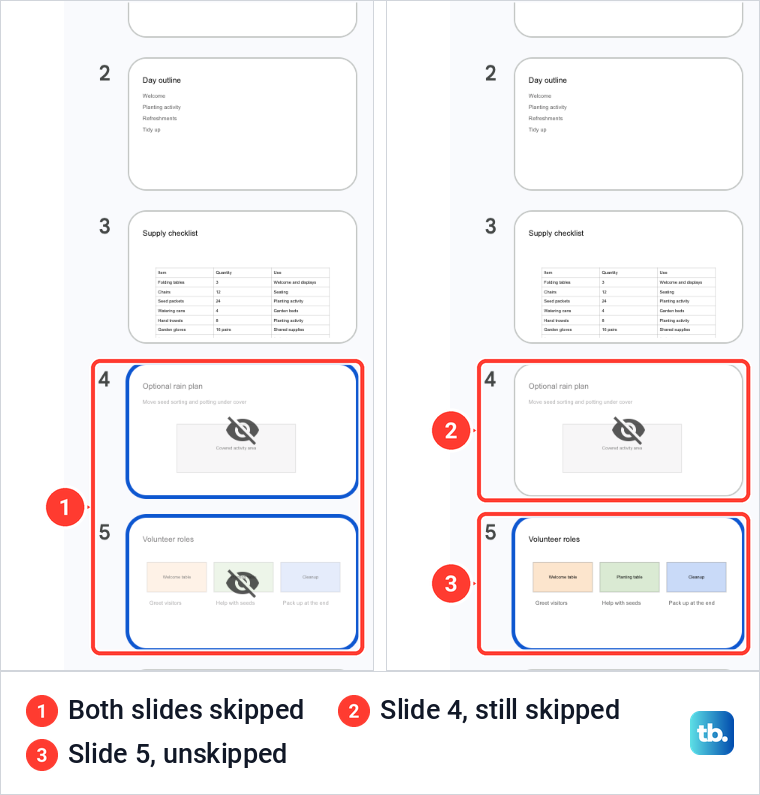
One click marked both thumbnails with the crossed-out eye. You can then bring back one of them alone. We clicked slide 5 by itself, right-clicked it and chose Unskip slide, and slide 5 returned to full colour while slide 4 stayed skipped.
What the slideshow does with a skipped slide
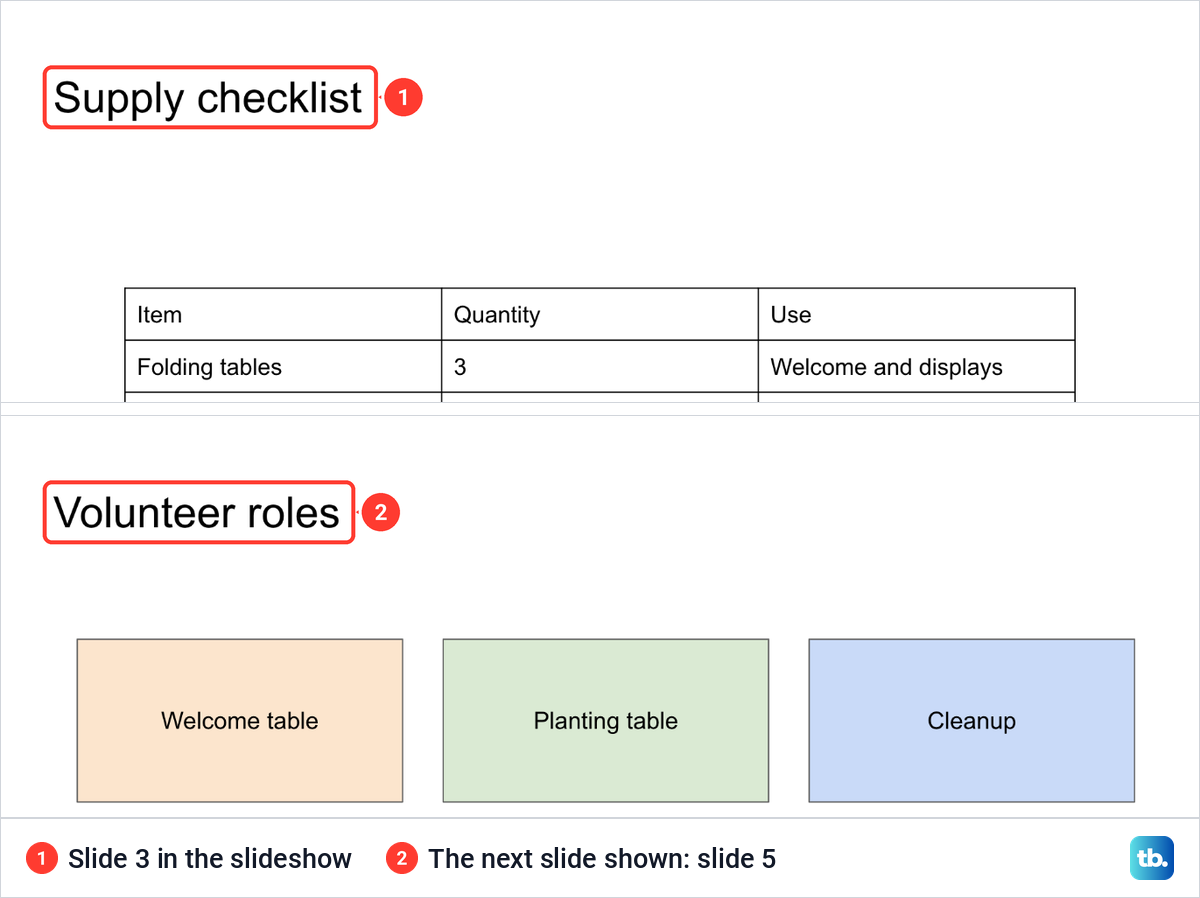
To present, click Slideshow at the top right of the window. With only slide 4 skipped, we started the show on slide 3, Supply checklist. One press of the Right arrow went straight to slide 5, Volunteer roles, and one press of the Left arrow went back to slide 3.
The label the show gives each slide still counted six, as in "Slide 5 of 6: Volunteer roles", so a skipped slide keeps its number in the show as well. The filmstrip numbers do not move either, so slide 5 stays slide 5 whether or not slide 4 plays.
A skipped slide is not locked away, either. In the show we typed 4 and pressed Enter, and Optional rain plan opened. After that, the Left arrow from slide 5 went back to it as well, while the Right arrow from slide 3 still passed over it.
That makes Skip slide a good home for a backup slide. Keep it skipped, and if a question calls for it, type its number to bring it up.
The show starts on the slide that is selected in the editor, skipped or not. With slide 4 selected we clicked Slideshow, and the show opened on Optional rain plan. Slides does tell you when you select such a slide. A small message at the lower left of the editor reads This slide is skipped in slideshow mode, and it fades after a few seconds.
Leave skipped slides out of a printout or PDF
This is the part that catches people out. Do not count on print preview leaving a skipped slide out. We opened File > Print preview with slide 4 skipped, and the toolbar button Include skipped slides was lit as the preview opened. The page count read Page 1 / 6, so the preview held all six slides, the skipped one included.
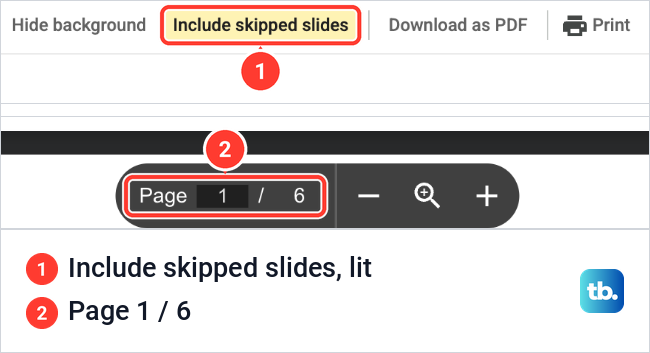
One click on Include skipped slides turned it off, and the count dropped to Page 1 / 5. The Optional rain plan page was gone from the preview. We switched it back on and closed the preview.
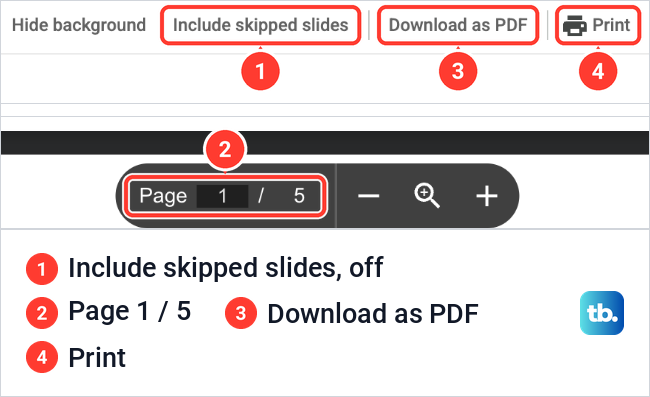
Turn the button off before you press Print, and before you use Download as PDF, which sits on the same toolbar. Whichever way you save a PDF, open the file and look for the slide you meant to hide before you send it.
Who can still see a skipped slide
Skip slide is not a privacy setting. The slide stays in the file, and anyone you share the presentation with can still see skipped slides. Skipping changes what the slideshow plays and nothing about who can open the slide.
When some slides must stay private, share a separate presentation instead. Open File > Make a copy, choose Entire presentation, then name the copy and choose where to save it. In the copy, click each private slide's thumbnail and press Delete or Backspace, and share the copy, not the original.
The sharing setting decides who can open the whole file, not single slides. By default a new presentation is Restricted, so only people with access can open it. Once they can, every slide in it, skipped or not, is theirs to read.
Skip a slide in the Google Slides app
The Android app and the iPhone and iPad app use the same steps. Open the presentation, then touch and hold the slide you want to skip in the row of slides at the bottom of the screen. To skip more than one, tap the other slides now.
Tap More, then Skip Slide. To show a skipped slide again, select it the same way, tap More and choose Show Slide. The app calls it Show Slide where the web version says Unskip slide.
When a skipped slide still shows up
First look at the thumbnail. If it is not faded and marked with a crossed-out eye, the slide is not skipped, and you may have skipped a different slide. Select the right one, right-click it and choose Skip slide.
If the slide turns up on paper or in a PDF, check Include skipped slides in print preview, which was on when our preview opened, and open any PDF to check the slide is not in it before you send it. If it turns up for someone you shared the file with, that is how skipping works, and a copy without the slide is the fix.
If the show opens on the skipped slide, that slide was the one selected in the editor when you clicked Slideshow, which is what happened on our deck. Select a slide that is not skipped before you start. The arrow keys then pass over the skipped one, and only typing its number brings it up.
How we tested this guide
We tested this in Google Slides in Chrome on a Mac, skipping and restoring slides in our Garden Open Day Plan presentation and checking the slideshow and the print preview, up to its Print button.
Frequently Asked Questions
Does skipping a slide delete it?
No. The slide stays in the presentation with its number and its content, and you can still edit it. Right-click it and choose Unskip slide to put it back in the slideshow.
How do I unhide a slide in Google Slides?
Right-click the faded thumbnail and choose Unskip slide, or select it and open Slide > Unskip slide. In the phone app, touch and hold the slide, tap More and choose Show Slide.
Can I hide several slides at once?
Yes. Click the first thumbnail, hold Shift and click the last, then right-click and choose Skip slides. Each one gets the crossed-out eye, and you can unskip any of them on its own later.
Can people I share the presentation with see a skipped slide?
Yes. Skipping changes the slideshow, not who can open the file, and anyone with access can still see the slide. To keep it from them, share a copy of the presentation with that slide deleted.
Will a skipped slide print?
It was in our print preview. File > Print preview opened with Include skipped slides turned on and six pages for our six slides. Click that button to turn it off, and the skipped slide drops out of the preview.
Can I still show a skipped slide during a presentation?
Yes. In the slideshow, type the slide's number and press Enter. We typed 4 and the show opened our skipped slide 4, which the arrow keys had passed over until then.
Why does my skipped slide show first in the slideshow?
The show starts on the slide that is selected in the editor, and that includes a skipped one. On our deck, clicking Slideshow with the skipped slide selected opened the show on it. Select another slide before you start.
How do I hide a slide on my phone?
In the Google Slides app, touch and hold the slide at the bottom of the screen, tap More, then Skip Slide. Show Slide in the same menu brings it back.