AirDrop finds nearby Apple devices over Bluetooth Low Energy, then sends the file over a direct Wi-Fi link that Apple sets up between the two devices. No router or internet connection is needed for that local transfer, and Apple says the connection is encrypted with TLS. Since iOS 17.1, a transfer you have already started can keep going over the internet if you walk out of range.
How AirDrop works step by step
Apple's security guide describes the steps. First, the sending device broadcasts an AirDrop signal over Bluetooth Low Energy so nearby devices can spot it. Nearby devices answer back over peer-to-peer Wi-Fi that Apple creates for the purpose.
The file then moves over that same direct Wi-Fi connection. Apple says it works without any internet connection or wireless access point, so the local transfer does not depend on a Wi-Fi network.
Apple tells you to keep the two devices within 30 feet, or 10 meters, of each other before you start. Both need Wi-Fi and Bluetooth turned on, and if either has Personal Hotspot running, Apple says to disconnect it.
Who can send you files
On an iPhone or iPad, you choose who can reach you from the AirDrop control in Control Center. The two main options are Contacts Only and Everyone for 10 Minutes. On a Mac, Apple's guide labels them Contacts Only and Everyone.
- Contacts Only: the sender must be in your contacts, and that contact card must include the email address or phone number tied to their Apple Account.
- Everyone for 10 Minutes: Apple suggests this when someone outside your contacts wants to send you something. In iOS 16.2 and later it switches back after ten minutes, to Contacts Only if you are signed in to an Apple Account or to Receiving Off if you are not.
- AirDrop codes: when both devices run iOS 26.2 or later, sharing with someone who is not a contact brings up an AirDrop code. The recipient supplies the code, and that person then stays on an Other Known List for 30 days.
AirDrop over the internet
Apple's release notes say iOS 17.1 added the ability for AirDrop content to keep transferring over the internet once you step out of range. Apple says this applies to a transfer that has already started.
If you are on cellular, that continuation can use your data plan, and Apple notes carrier charges may apply. You can turn it off in Settings, then General, then AirDrop, by switching off Use Cellular Data.
NameDrop and supported devices
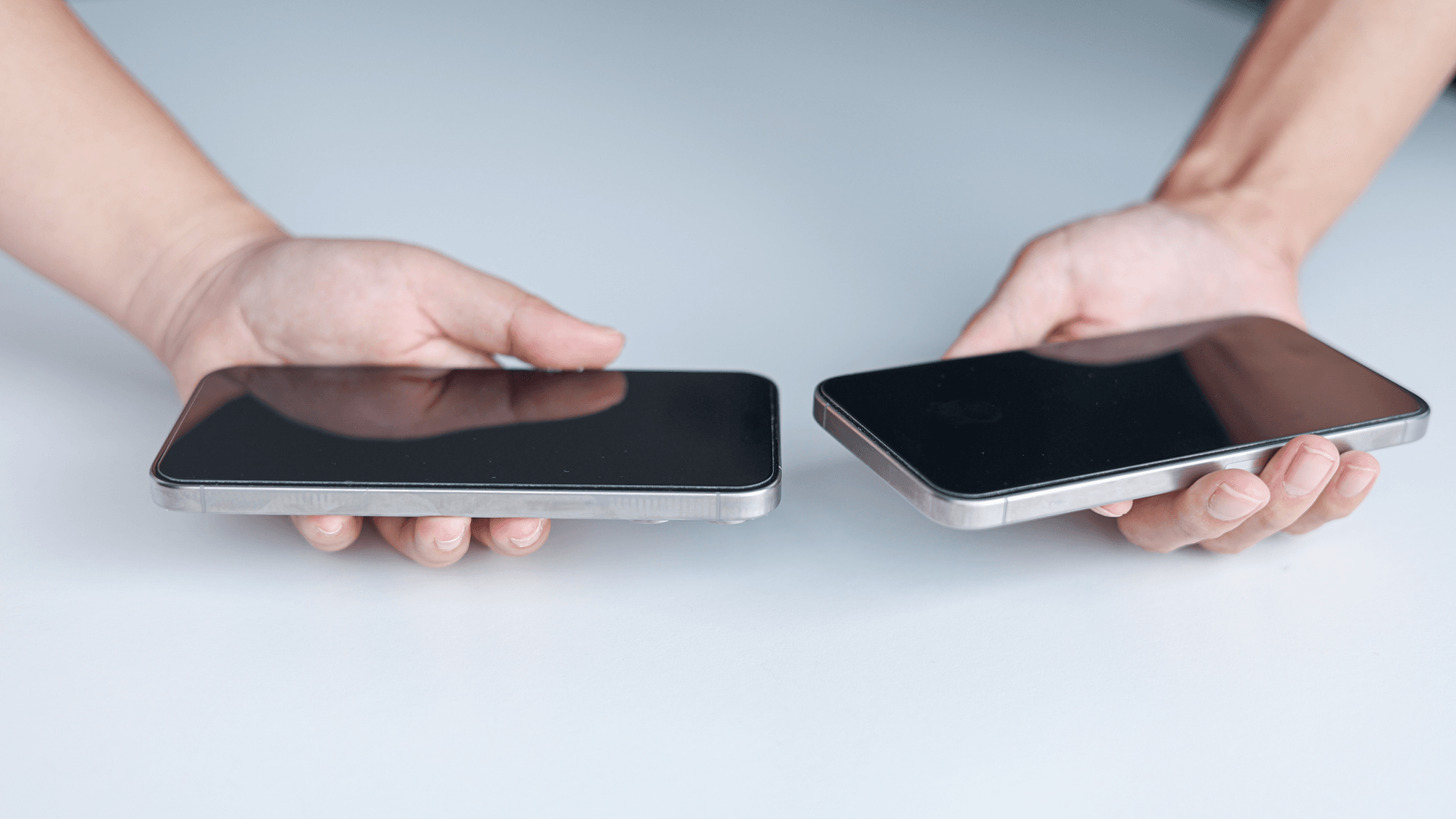
NameDrop, which arrived with iOS 17, is part of AirDrop. It lets two iPhone users, or an iPhone and an Apple Watch user, swap contact details by bringing their devices close together. Apple says it shares your name, the phone number or email address you pick and your Contact Poster, but not other card details such as your home address or birthday.
You can choose to exchange cards or only receive one. NameDrop sends new contact details and does not update an existing contact. To turn it off, go to Settings, then General, then AirDrop, and switch off Bringing Devices Together. On the watch side, Apple lists Apple Watch SE (second generation), Series 7 and later and Apple Watch Ultra models, with iOS 17.1 and watchOS 10.1 or later.
AirDrop itself runs on iPhone, iPad and Mac. Apple's security guide covers AirDrop-capable iPhone and iPad models on iOS 7 or later and Macs on OS X 10.11 or later, and Apple also documents AirDrop on Apple Vision Pro.
AirDrop and Android phones
Google announced on November 20, 2025 that its Quick Share feature could work with AirDrop, starting with the Pixel 10 family. Google says the link is direct and peer-to-peer, uses AirDrop's Everyone for 10 Minutes mode and does not send the shared data through a server. Its June 2026 Pixel Drop added Pixel 8a and Pixel 9a.
Google's Quick Share help page lists Pixel 8a or later for sending to an iPhone, iPad or Mac, plus some Samsung, Oppo, OnePlus, Vivo, Xiaomi, Honor, Transsion and Motorola phones. The same page still lists Pixel 9 or later, excluding Pixel 9a, in its receiving steps, so the two lists do not match. For an iPhone to receive from Android, Google says to turn on Everyone for 10 Minutes and accept the AirDrop prompt.
What to check if a transfer fails
If the other device does not show up, check that both have Wi-Fi and Bluetooth on, Personal Hotspot off and are near each other, as Apple's AirDrop page describes. Apple's User Guide puts that at 30 feet. If the sender is not in your contacts, switch to Everyone for 10 Minutes, since Contacts Only needs their Apple Account details on your contact card.
For the basics of sending, see how to AirDrop photos and files on iPhone and Mac. To track down received items, see where AirDrop files go, and Mac users can try these AirDrop fixes for Mac.