AirDrop not working on your Mac can leave you staring at a missing recipient, a waiting transfer, or a file you can't find. Start with the connection and receiving settings, then follow the fixes that match what you're seeing. The Mac menu paths below use macOS Tahoe 26.
Get both devices ready to connect
If the other device never shows up, start with Wi-Fi, Bluetooth, and distance. AirDrop needs both wireless controls enabled.
Keep the sender and recipient within 10 meters of each other.
On your Mac, turn on Wi-Fi through Apple menu > System Settings > Network > Wi-Fi.
Turn on Bluetooth through System Settings > Bluetooth.
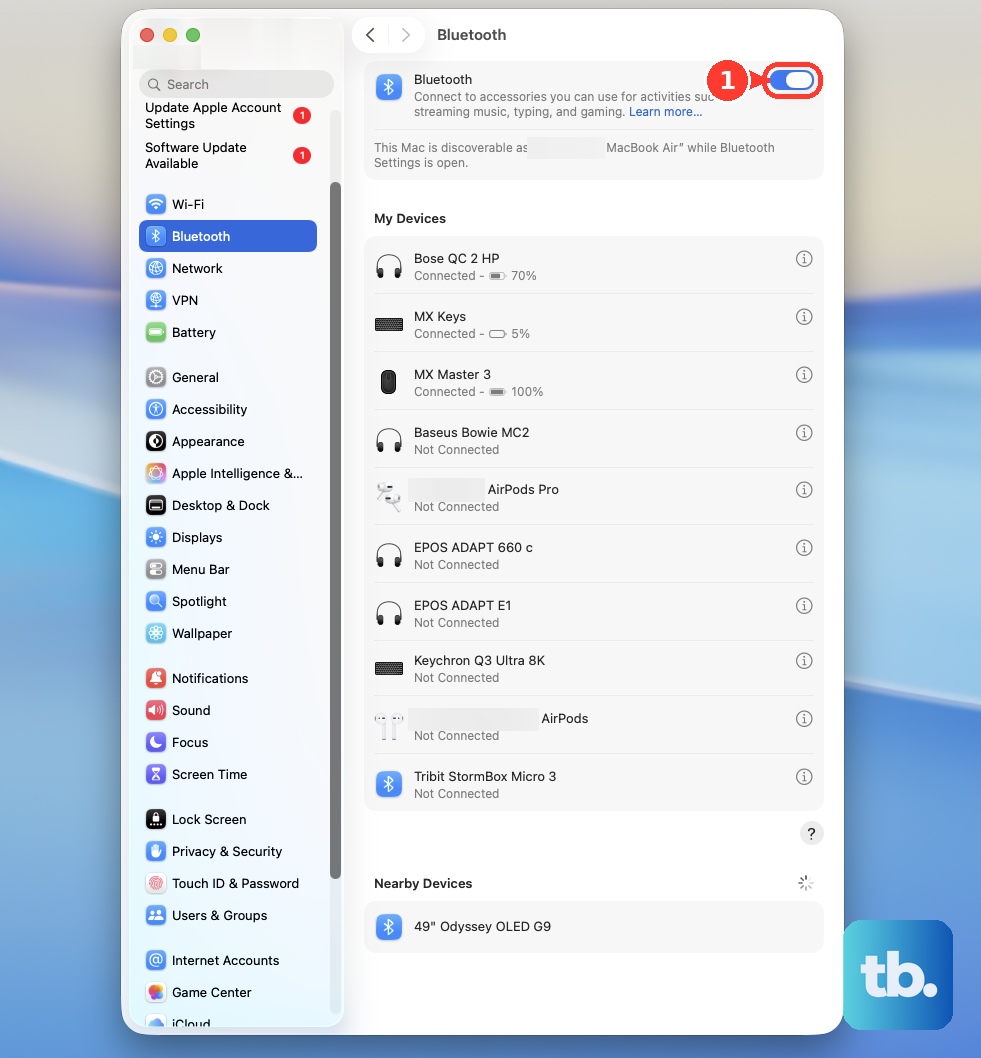
Check that Wi-Fi and Bluetooth are enabled on the other device, too.
Disconnect Personal Hotspot if either participant is using it.
Confirm that Wi-Fi and Bluetooth remain enabled afterward.
For intermittent failures, move the devices away from microwaves, wireless cameras, power cables, and physical obstructions.
Move nearby USB 3 or Thunderbolt 3 hubs and drives away from the Mac to reduce wireless interference.
Make the receiving device discoverable
On the receiving Mac, open Control Center > AirDrop.
Enable AirDrop. Blue means it's on.
Expand the AirDrop options.
Select Everyone to test discovery without the contact requirement. The same receiving control is available through System Settings > General > AirDrop & Continuity > AirDrop.
When sending to an iPhone or iPad, select Settings > General > AirDrop > Everyone for 10 Minutes on that device.
Retry the transfer within that window. When it expires, receiving returns to Contacts Only when signed in to an Apple Account, or Receiving Off when signed out.
If the mobile device's receiving control is restricted, allow AirDrop through Settings > Screen Time > Content & Privacy Restrictions > Allowed Apps & Features.
Still no recipient? Check the sender's saved contact details next. If the recipient appears but the transfer waits, check for an AirDrop code or acceptance request in the sending section below.
Correct the sender's contact details
Contacts Only requires the recipient's contact card for the sender to include the sender's Apple Account email address or phone number. A name or an unrelated email address doesn't meet that requirement.
On the receiving Mac, open the sender's card for editing through Contacts > the sender > Edit.
Save the corrected Apple Account email address or phone number with Done.
To resume receiving only from contacts, select Contacts Only in Control Center > AirDrop.
Send through Finder and check the request
Open Finder > AirDrop in the sidebar. With Finder active, Shift-Command-R also opens this window.
Drag the file onto the recipient.
For a non-contact request showing a code prompt, select Continue or Get AirDrop Code on the receiving device. This code exchange applies to macOS 26.2, iOS 26.2, and iPadOS 26.2 or later.
Give the displayed code to the sender.
On the sending device, enter that code.
On the receiving Mac, check the Finder > AirDrop window for the request if that window is open.
Click Accept on the receiving Mac when prompted. Transfers between devices signed in to the same Apple Account are accepted automatically.
Look in Downloads or the receiving app after the transfer finishes.
To retry from an app, use the selected item's Share > AirDrop command.
For a desktop file, use Control-click > Share > AirDrop.
In Safari, use Share > AirDrop for the webpage rather than selected text.
For a collaboration document, choose Send Copy when you want to send the document itself.
Tip: If AirDrop is missing from an app's Share menu, try the saved file through Finder; Apple's default AirDrop sharing extension cannot be turned off.
Restart after the basic checks
A restart addresses persistent AirDrop trouble and is a troubleshooting step Apple recommends.
Save your open work.
Choose Apple menu > Restart.
Retry the transfer through Finder > AirDrop after startup.
Restart the other participating device if the transfer still fails.
Check VPN and firewall interference
A VPN that blocks local networking interferes with AirDrop.
Allow local networking in your VPN app's configuration. The control's label depends on the app.
If the transfer still fails, temporarily disconnect the VPN using its connection control.
Retry the transfer through Finder > AirDrop.
For a Mac with restrictive firewall settings, open Apple menu > System Settings > Network > Firewall > Options.
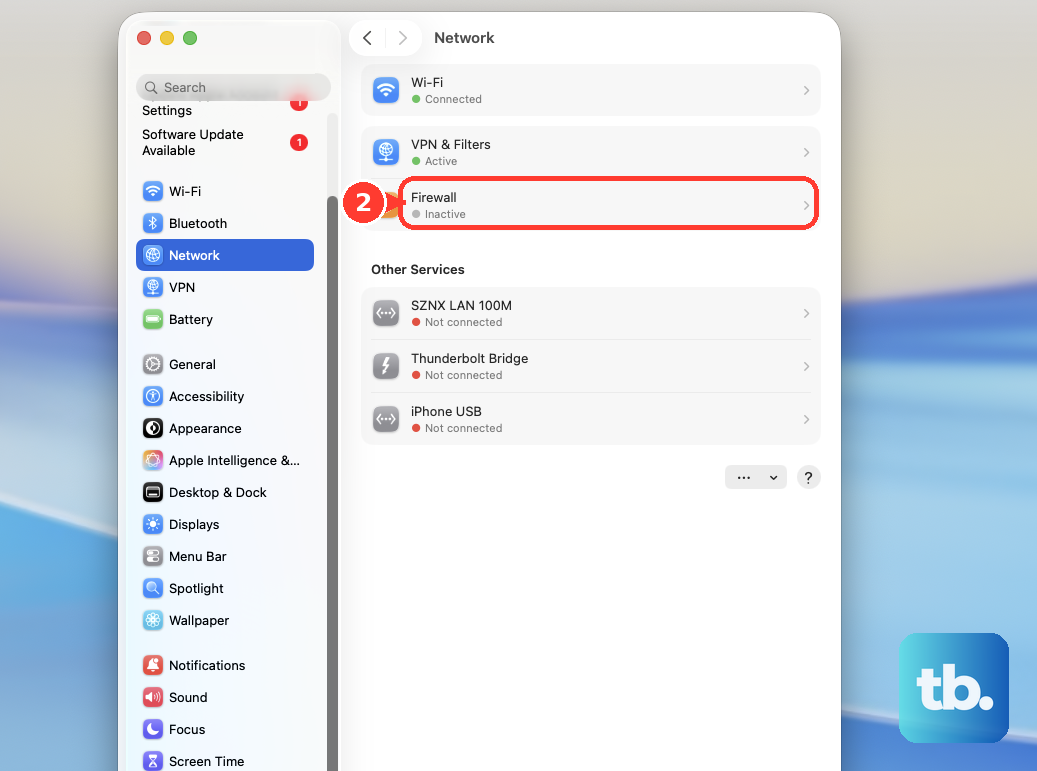
Turn off Block all incoming connections if enabled. This checks a restriction on sharing services; it is general network troubleshooting, with no guaranteed AirDrop result.
Inspect Automatically allow built-in software to receive incoming connections in the same window.
If you use third-party firewall, antivirus, parental-control, or content-filtering software, temporarily disable its filtering features through that app's controls. Labels vary by vendor.
Retest the transfer through Finder > AirDrop.
If that identifies the interfering app, follow its vendor's instructions to change its configuration or remove it.
Install an available macOS update
Back up your Mac before installing an update.
Open Apple menu > System Settings > General > Software Update. This shows releases compatible with your Mac.
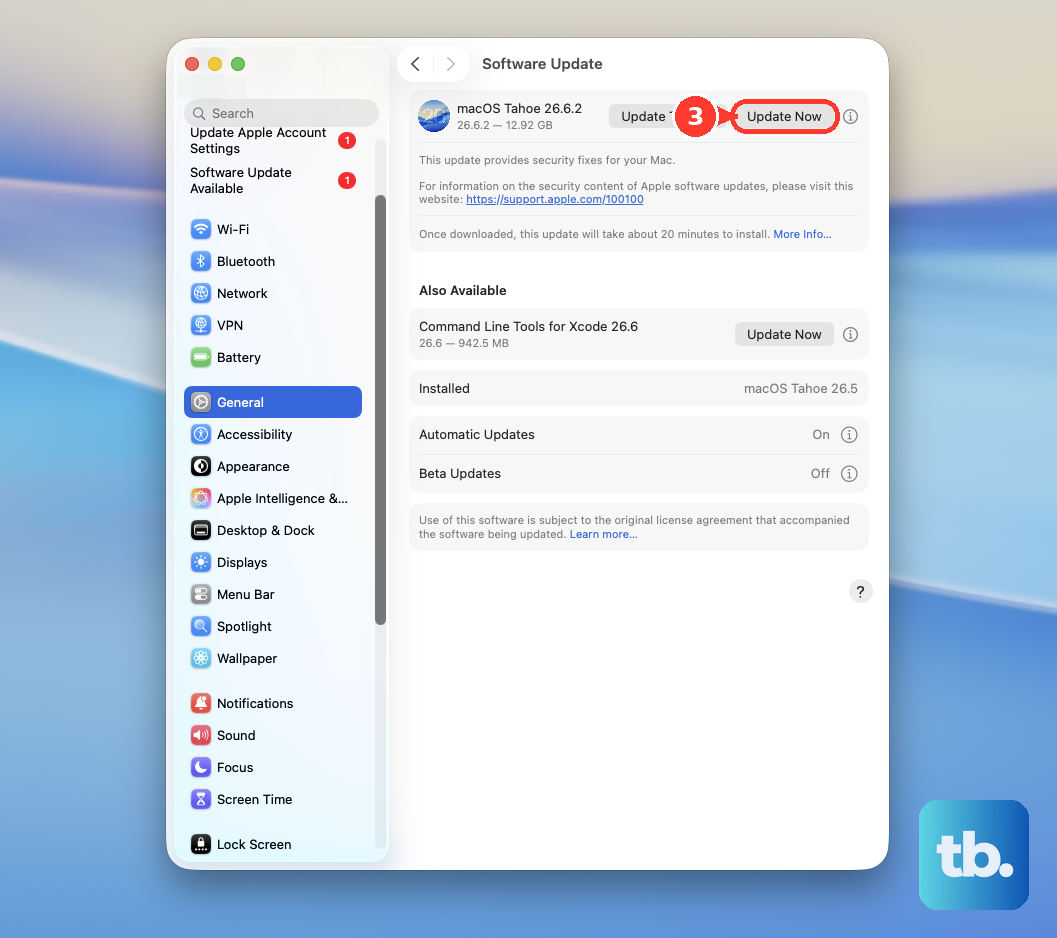
Install the offered update using Update, Upgrade, or Restart Now, depending on the button shown.
Retry the transfer through Finder > AirDrop after installation finishes.
Tip: AirDrop has no separate installer, so use Software Update for system updates.
Resolve restrictions and get further help
On a work or school device, ask the administrator to check the AirDrop restriction. Managed iPhone and iPad apps also have sharing policies that can block work documents while allowing personal files to transfer.
If ordinary files transfer but passwords or passkeys don't, set up iCloud Keychain. Password sharing has additional requirements that Everyone discovery alone doesn't satisfy.
Make sure both people have each other in Contacts with their iCloud email addresses.
If these checks don't resolve the failure, open Apple's AirDrop support page and select Get suggestions under Need more help. Include the devices and operating system versions, which direction fails, and whether the recipient is missing or the transfer fails after selection.
Frequently Asked Questions
Can I correct an AirDrop contact through a browser?
Yes. Sign in at icloud.com/contacts and open the sender's card with Edit. Save the corrected Apple Account email address or phone number using Save. Changes synchronize to devices with iCloud Contacts enabled.
What if my Mac is unresponsive and I can't restart normally?
Hold the power button until the Mac shuts down, then turn it on again. Use this only when normal restarting is unavailable. Unsaved changes can be lost.
Does Shift-Command-R reset AirDrop?
No. With Finder active, Shift-Command-R opens the AirDrop window. It doesn't reset AirDrop.
Can I enable Bluetooth without a working mouse?
Yes, with a working keyboard. Press Command-Space. Enter Bluetooth File Exchange. Press Return to open it, then press Return again to enable Bluetooth.