
A trackpad that suddenly stops working on your Galaxy Book 4 Pro can bring your work to a complete halt. Whether the cursor is frozen, taps aren't registering, or multi-finger gestures have failed, you're forced to rely on an external mouse. The good news is, this is usually a software or settings issue you can resolve yourself.
Let's start with the quickest fix. Press the Fn + F5 keys on your keyboard. This is Samsung's dedicated function key to toggle the trackpad on and off. You should see a small on-screen notification confirming the change. If that doesn't do it, the next step is a simple restart.
Restart Your Galaxy Book 4 Pro
If the trackpad stopped responding after waking from sleep or a recent update, a restart is your best bet. Use your keyboard to navigate: press the Windows key, then use the Tab key to highlight the power button in the lower right, and press Enter. Select "Restart" from the menu that appears.
This process reloads all the drivers, including the one for your trackpad. I've found it resolves about half of these sudden glitches.
Verify Trackpad Settings in Windows
Sometimes, a setting gets changed accidentally. Open Settings > Bluetooth & devices > Touchpad. Make sure the main toggle at the top is set to "On."
Also, scroll down and look for the setting that says "Leave touchpad on when a mouse is connected." If this is off and you have a mouse plugged in, your trackpad will be disabled. You can turn this on to use both input devices simultaneously.
Check for Conflicts in the Samsung Settings App
The Galaxy Book 4 Pro comes with the Samsung Settings app, which manages device-specific features. There can sometimes be a conflict between its power management settings and Windows.
Open the Samsung Settings app from your Start menu. Look through the tabs, particularly any related to performance, power saving, or input devices. If you see any options concerning the trackpad or touchpad, ensure they are enabled. Temporarily setting the performance mode to "Optimized" or "High performance" can also rule out a power-saving bug.
Update or Reinstall the Trackpad Driver
Outdated or corrupted drivers are a common culprit. Press Windows key + X and select Device Manager. Expand the "Mice and other pointing devices" category.
Right-click on the device listed (it might be called "Precision Touchpad," "Synaptics," or "ELAN") and select "Update driver." Choose "Search automatically for drivers." If Windows finds an update, install it and restart.
If updating doesn't help, try reinstalling. Right-click the driver again and select "Uninstall device." Check the box that says "Attempt to remove the driver software for this device" if it appears. Restart your laptop, and Windows will attempt to install a fresh driver automatically.
Clean the Trackpad Surface
It sounds simple, but oils from your fingers, lotion, or dust can interfere with the capacitive sensors. Power off the laptop for safety.
Then, take a microfiber cloth slightly dampened with water (not dripping wet) and gently wipe the trackpad surface. Dry it thoroughly with another clean part of the cloth before turning your laptop back on.
Enter the BIOS to Check Hardware Status
If the trackpad doesn't work at all, even during startup, you can check if it's disabled at a deeper level. Restart your Galaxy Book 4 Pro and immediately press the F2 key repeatedly until the Samsung BIOS screen appears.
Use your keyboard arrow keys to navigate. Look for a menu called "Advanced" or "System Configuration." Inside, find an option for "Internal Pointing Device" or "Touchpad" and make sure it is set to "Enabled." Save and exit (usually F10).
Run Windows System File Checker
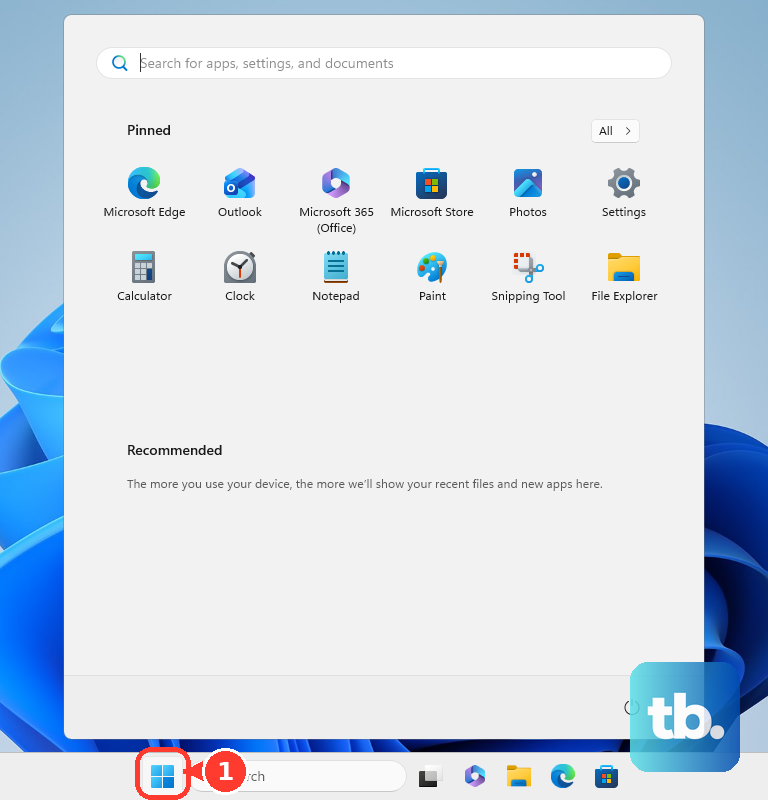
Corrupted Windows system files can affect hardware like your trackpad. Open the Start menu, type "cmd," and right-click on "Command Prompt." Select "Run as administrator."
In the black window, type the command sfc /scannow and press Enter. This scan can take 10-15 minutes. It will repair any corrupted files it finds. Once it's complete, restart your laptop to see if the trackpad functionality is restored.
Consider a System Restore or Reset
If the problem started after a specific Windows update or software installation, using System Restore can roll back those changes. Search for "Create a restore point" in the Start menu, click "System Restore," and follow the prompts to choose a restore point from before the issue began.
For a more comprehensive fix, Samsung provides a recovery option. You can boot into the Samsung Recovery environment by restarting your laptop and pressing F4 during startup. This gives you options to reinstall Windows and Samsung drivers while keeping your files, which often resolves deep-seated driver conflicts.
If none of these software fixes work, and the trackpad is completely dead even in the BIOS or if you notice any physical damage or swelling on the laptop palm rest, the issue is likely hardware. This could be a loose internal ribbon cable connection or a faulty trackpad module, which would require professional repair.