


You're staring at your Samsung Galaxy S25 FE, and the Wi-Fi icon just won't turn blue. It's stuck on "Saved" or "Connecting," or maybe it connects but nothing loads. I've seen this happen a lot, especially after a software update, and it's almost always a software glitch you can fix yourself in a few minutes.
Toggle Wi-Fi and Restart Your Phone
Start with the simplest fix. Swipe down from the top of your screen to open the Quick Panel and tap the Wi-Fi icon to turn it off. Wait five seconds, then tap it again to turn it back on. This forces the phone's radio to re-scan for networks and can clear up a temporary hiccup instantly.
If that doesn't work, restart the phone. Press and hold the Side button and Volume Down button together for about ten seconds until you see the Samsung logo. This is the force restart method for the S25 FE, and it clears out the phone's memory, which often resolves connectivity bugs.
Forget the Network and Reconnect
Your phone might be holding onto old or corrupted login information for your network. To clear it out, go to Settings > Connections > Wi-Fi. Tap on the name of your network, then tap "Forget."
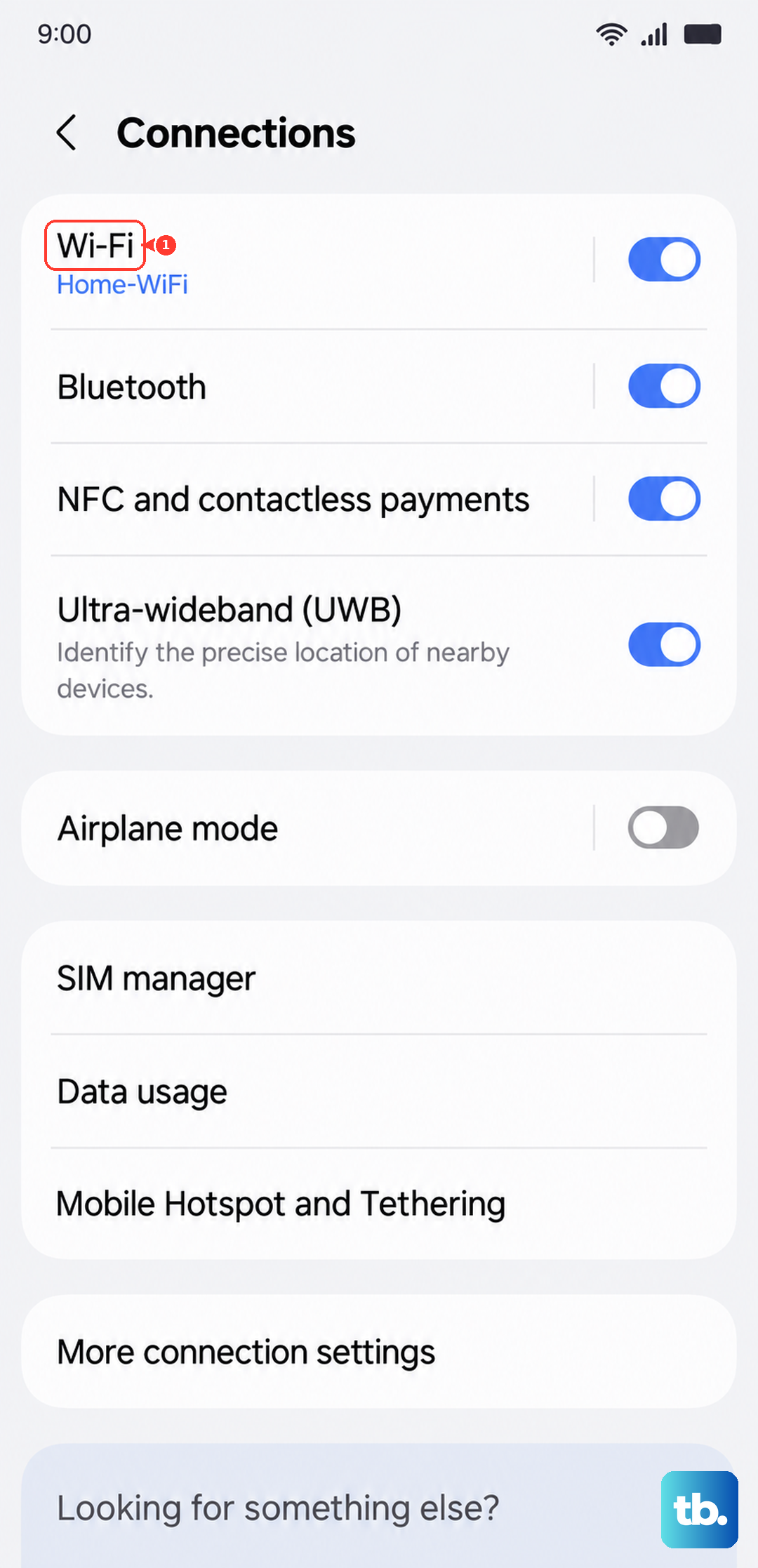
Now, find your network in the list again, tap it, and re-enter the password carefully. Make sure caps lock isn't on, as Wi-Fi passwords are case-sensitive. This is the most effective fix if you recently changed your router's password or got a new modem.
Check and Disable Smart Network Switch
Samsung's Smart Network Switch is designed to switch you to mobile data when Wi-Fi is weak. Sometimes, it gets a little too eager and can prevent a stable connection. You'll want to turn this off to test.
Go to Settings > Connections > Wi-Fi. Tap the three-dot menu in the top right and select "Intelligent Wi-Fi." Here, you can turn off "Switch to mobile data." With this off, your phone will stop second-guessing the Wi-Fi signal.
Turn Off Power Saving and Adaptive Battery
Power saving modes, including the S25 FE's Adaptive Battery feature, can limit background network activity to save power. This can sometimes interfere with maintaining a connection. First, swipe down and check if Power saving mode is enabled in your Quick Panel and turn it off.
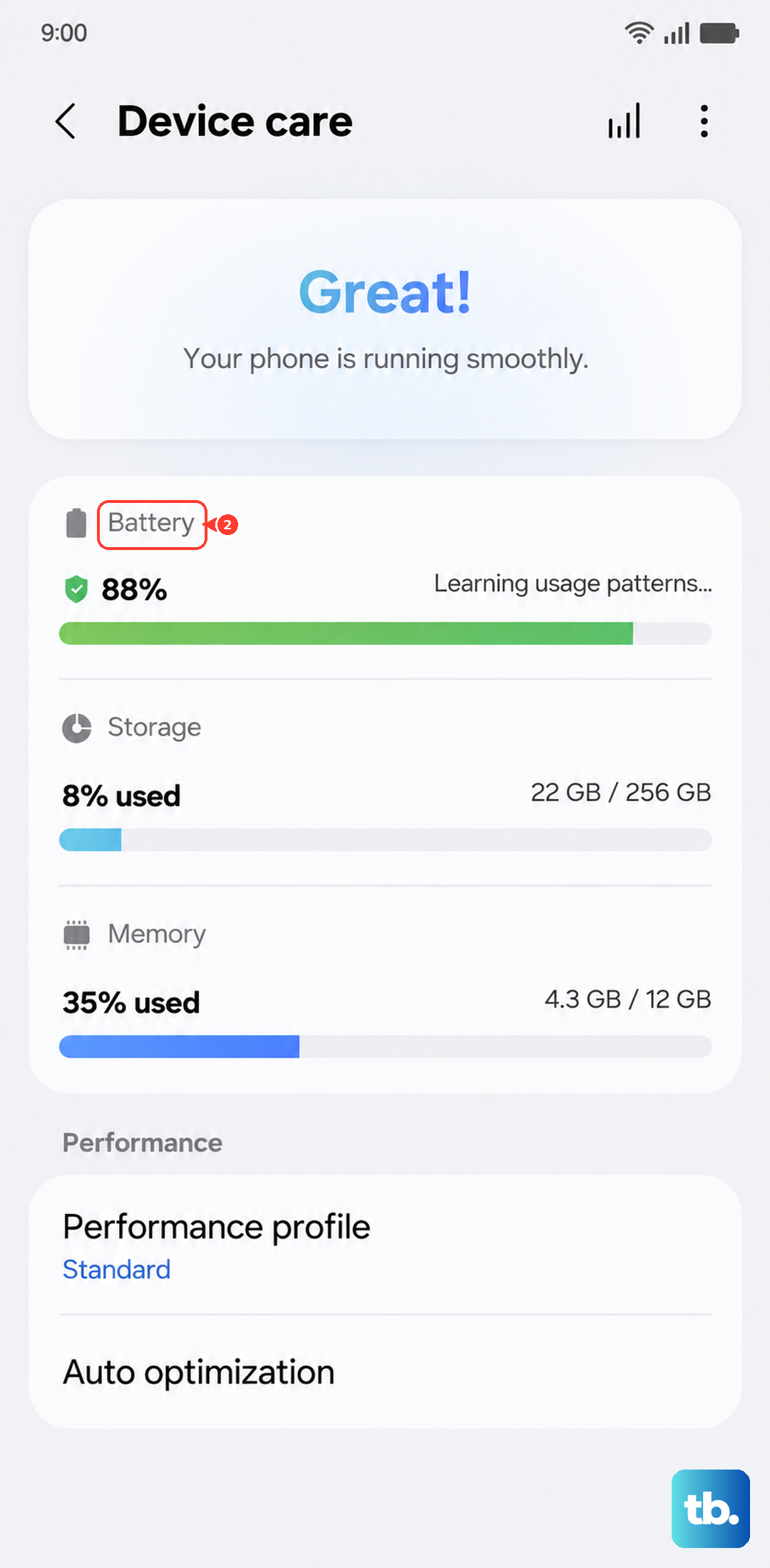
For a deeper check, go to Settings > Battery and device care > Battery. Here, you can disable any active power saving mode. Also, tap "More battery settings" and consider turning off "Adaptive battery" temporarily to see if it helps.
Use Airplane Mode to Reset Radios
This is a more thorough version of toggling Wi-Fi. Turning on Airplane mode shuts down all wireless radios, cellular, Wi-Fi, and Bluetooth. Swipe down to open the Quick Panel and tap the Airplane mode icon.
Leave it on for a full 15 seconds, then tap it again to turn it off. This gives all the radios a complete reset. When they come back online, they often establish a cleaner connection to your network.
Update Your Software
Outdated software is a common culprit for Wi-Fi issues. Samsung and Google release patches that often include fixes for connectivity bugs. To check, go to Settings > Software update > Download and install.
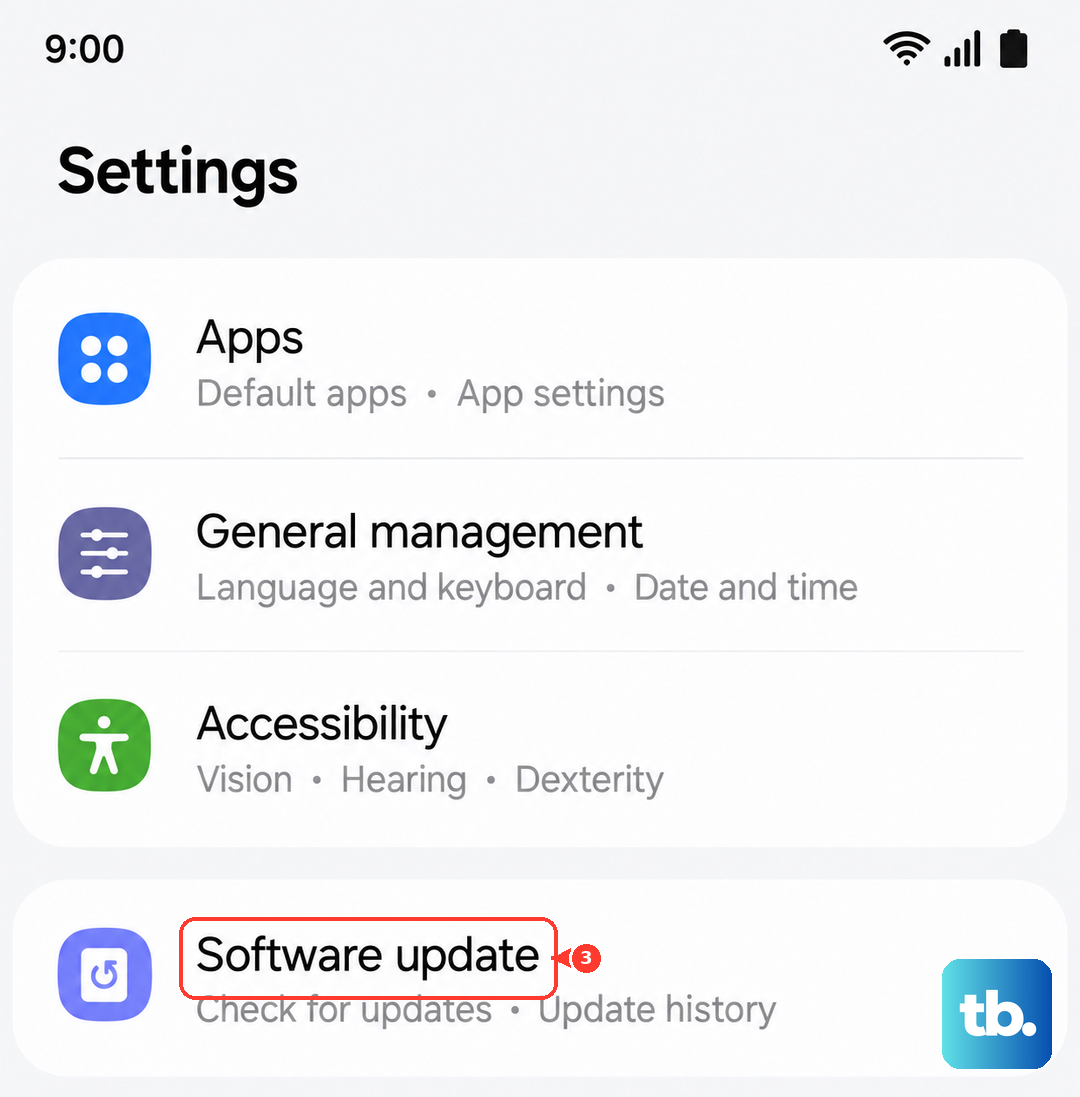
If an update is available, install it. I'd recommend doing this over a strong cellular connection if your Wi-Fi is completely down. Keeping your S25 FE on the latest version of Android 16 and One UI 8 is one of the best ways to prevent these glitches.
Verify Date, Time, and Network Settings
An incorrect date or time can break the security certificates needed for Wi-Fi authentication. Go to Settings > General management > Date and time. Make sure "Automatic date and time" is switched on.
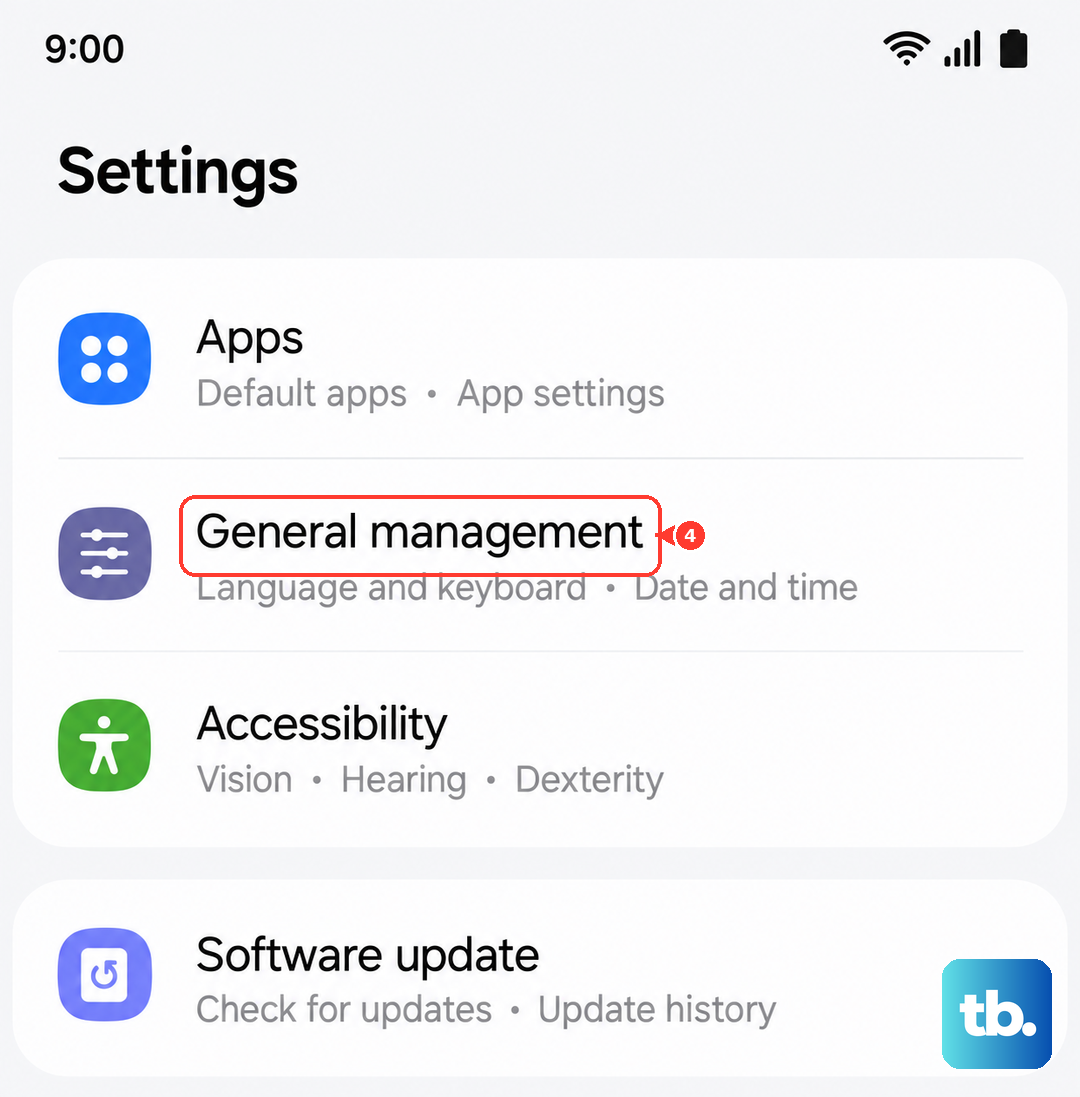
If you've tried everything and you're still stuck, a network settings reset is a strong next step. This will erase all saved Wi-Fi networks, Bluetooth pairings, and mobile network settings. Go to Settings > General management > Reset > Reset network settings. You'll need to reconnect to your Wi-Fi and re-pair Bluetooth devices afterward.
Check for App Interference in Safe Mode
A third-party app, like a VPN, ad blocker, or certain "cleaner" apps, could be blocking the connection. To test this, you need to boot into Safe Mode. Press and hold the Side button until the power menu appears, then tap and hold "Power off" until you see the Safe Mode prompt. Tap to restart in Safe Mode.
If your Wi-Fi works perfectly in Safe Mode, a downloaded app is the problem. Start by uninstalling any recent apps, or apps that manage network connections, to find the culprit.
Restart Your Router and Modem
Don't forget that the problem might not be your phone at all. If other devices are also struggling to connect, your home network equipment needs a reboot. Unplug your router and modem from power for a full minute.
Plug the modem back in first and wait for all its lights to stabilize. Then plug the router back in. Once it's fully booted, try connecting your S25 FE again. This resolves a huge number of home Wi-Fi issues.