
If your Samsung Galaxy A55's Settings app keeps crashing, the first thing to try is a simple restart. Press and hold the side button and the volume down button together for about ten seconds until you see the Samsung logo appear. This force restart can clear out any temporary software glitches that are causing the Settings app to freeze or close unexpectedly.
Clear the Settings App Cache and Data
Corrupted temporary files are a common culprit for app crashes on One UI. The Settings app stores its own cache and data, and clearing it can often fix the problem without affecting your personal information. You'll need to access the Apps menu to do this.
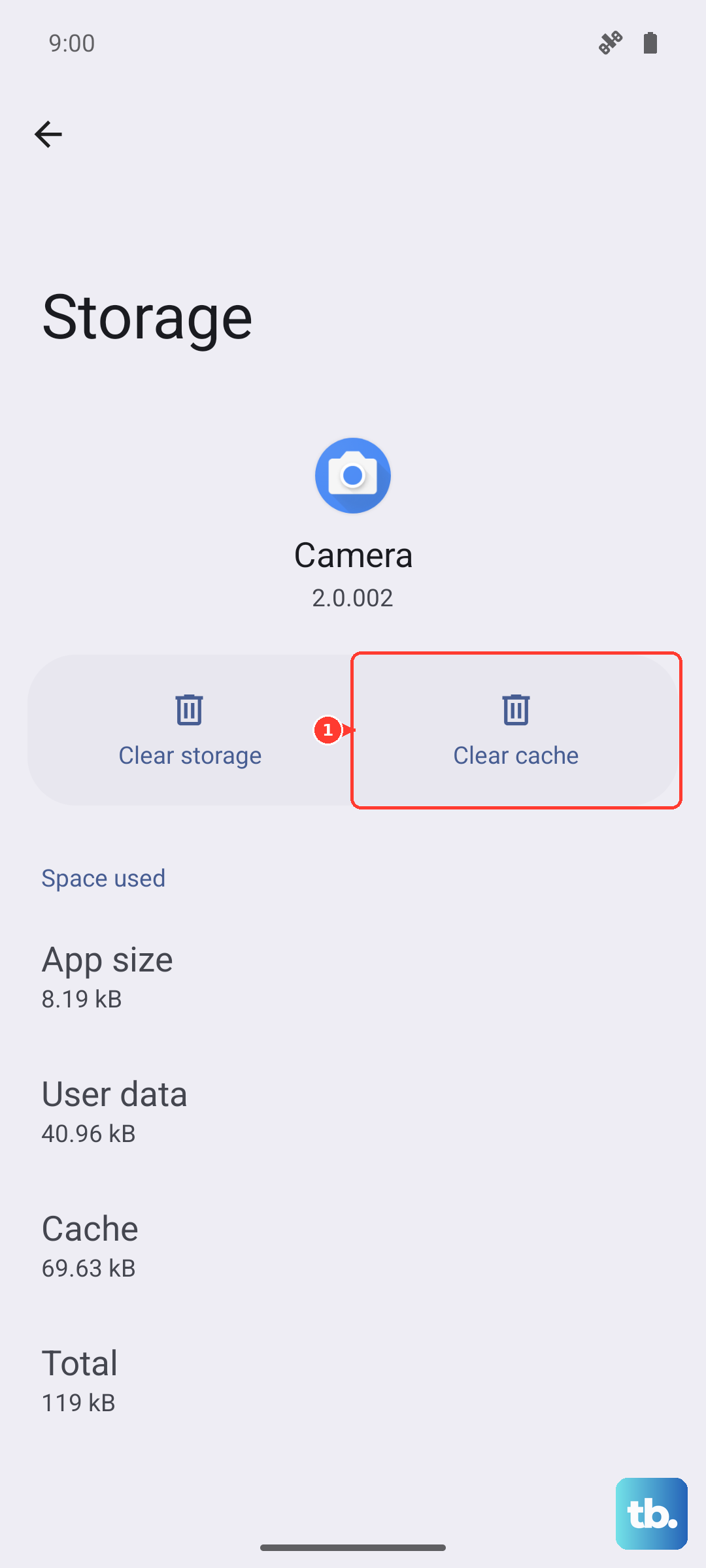
Open your app drawer and find the Settings icon. Press and hold on it, then tap the "App info" (i) icon that pops up. Alternatively, you can go to your phone's main Settings, then tap "Apps," and find "Settings" in the list. Once you're on the Settings app info page, tap "Storage."
Here, you'll see two options: "Clear cache" and "Clear data." Tap "Clear cache" first. This only removes temporary files. If the crashes continue, go back and tap "Clear data." This will reset the Settings app to its default state, so you might lose some customizations like your recent search history within Settings, but it won't delete your accounts or personal files.
Check for a System Update
Samsung regularly releases updates for One UI that fix bugs and improve stability. An outdated software version on your A55 could be the reason the Settings app is misbehaving. It's a good idea to check for updates manually, even if your phone says it's set to update automatically.
Swipe down from the top of your screen to open the Quick Settings panel, then tap the gear icon to go into Settings. Scroll down and tap "Software update." Next, tap "Download and install." Your phone will connect to Samsung's servers to see if a newer version of One UI is available for your model and carrier.
If an update is found, make sure your phone is connected to Wi-Fi and has at least a 50% charge, then follow the prompts to install it. The phone will restart during this process. After it boots back up, see if you can open Settings without it crashing.
Boot Into Safe Mode
Sometimes, a third-party app you've installed can conflict with system processes and cause the Settings app to crash. Booting your Galaxy A55 into Safe Mode temporarily disables all downloaded apps, letting you see if one of them is to blame.
To enter Safe Mode, press and hold the side button until the power off menu appears. Then, press and hold the "Power off" option on your screen. A prompt will ask if you want to reboot to Safe Mode; tap "OK." Your phone will restart, and you'll see "Safe mode" in the bottom-left corner of the screen.
Try opening the Settings app now. If it works perfectly in Safe Mode, you know a downloaded app is causing the issue. Restart your phone normally to exit Safe Mode, then try uninstalling apps you recently installed one by one, testing Settings after each removal, until you find the problematic one.
Reset All App Preferences
This is a useful middle-ground step that resets various system app settings without deleting any personal data. It will revert permissions, default apps, background data restrictions, and notification settings back to their original state. It can resolve conflicts that cause core apps like Settings to fail.
Go to Settings and tap "Apps." Tap the three-dot menu icon in the top-right corner and select "Reset app preferences." A confirmation window will list what will be reset; tap "Reset" to proceed. Your phone will apply the changes and you'll need to re-grant permissions to apps when you use them next.
After the reset is complete, try opening the Settings app again. This fix has resolved the crashing issue for many users when simpler cache clears didn't work, and it's much less drastic than a full factory reset.
Wipe the Cache Partition
Your phone's system cache is different from an individual app's cache. This partition stores temporary files from the Android operating system and One UI itself. Corrupted data here can lead to all sorts of strange behavior, including system app crashes. Wiping it is a safe procedure that doesn't touch your personal data or settings.
First, power off your Galaxy A55 completely. Once it's off, press and hold the side button and the volume up button simultaneously. Release both buttons when you see the Samsung logo, and you'll boot into the Recovery Mode menu. Use the volume buttons to navigate to "Wipe cache partition" and press the side button to select it.
Confirm your selection on the next screen. The process will only take a few seconds. Once it's done, make sure "Reboot system now" is highlighted and press the side button to restart your phone normally. When it finishes booting, check if the Settings app is stable.
Perform a Factory Reset
If you've tried everything else and the Settings app is still unusable, a factory reset is the final step. This will erase all data from your Galaxy A55 and return it to the state it was in when you first took it out of the box. You must back up everything important, photos, contacts, messages, and app data, before proceeding.
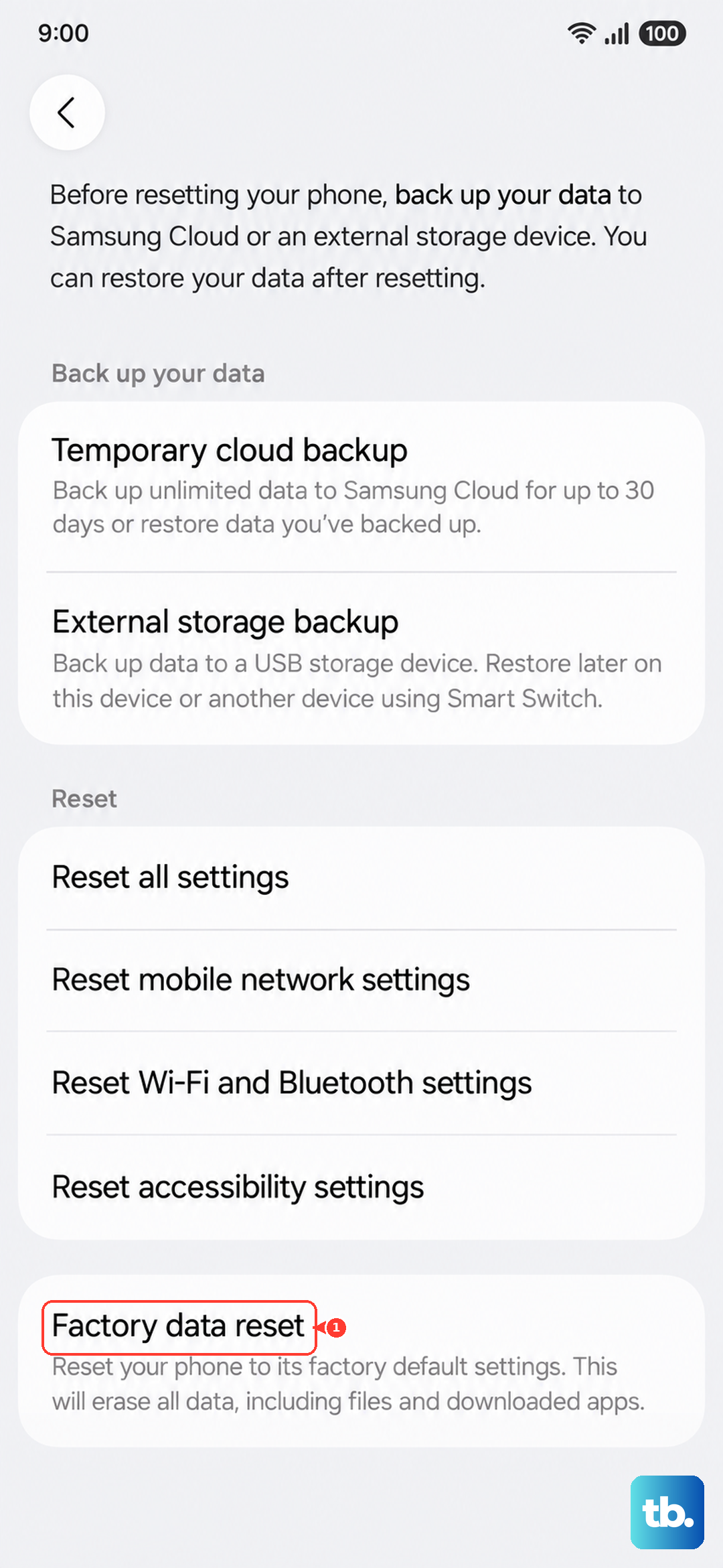
Since accessing Settings might be difficult, you have two options. If you can still get to the reset menu, go to Settings > General management > Reset > Factory data reset. Tap "Reset" and follow the prompts. If the Settings app crashes before you can get there, you can use the hardware buttons.
Power off the phone. Boot into Recovery Mode by holding the side button and volume up button. In Recovery Mode, use the volume keys to highlight "Wipe data/factory reset" and press the side button to select it. Confirm the action on the next screen. After the reset is complete, select "Reboot system now." This will eliminate any deep-seated software corruption causing the crashes.











