
When your Samsung Galaxy S25+ stops suggesting words as you type, it can really slow you down. The predictive text feature might vanish, autocorrect could start making bizarre changes, or the keyboard might feel less intelligent than it should. These fixes are tailored specifically for the S25+ running One UI 7.
I'd start with the simplest solution first. A quick restart can clear out temporary glitches that might be interfering with the keyboard's learning process. Just press and hold the Volume Down and Side button together for about ten seconds until you see the Samsung logo.
Clear the Keyboard's Cache and Data
Over time, the keyboard app stores temporary files that can become corrupted. Clearing this cache is a safe first step that won't erase your personal dictionary or settings. Go to Settings > Apps, then tap the three-dot menu and select Show system apps.
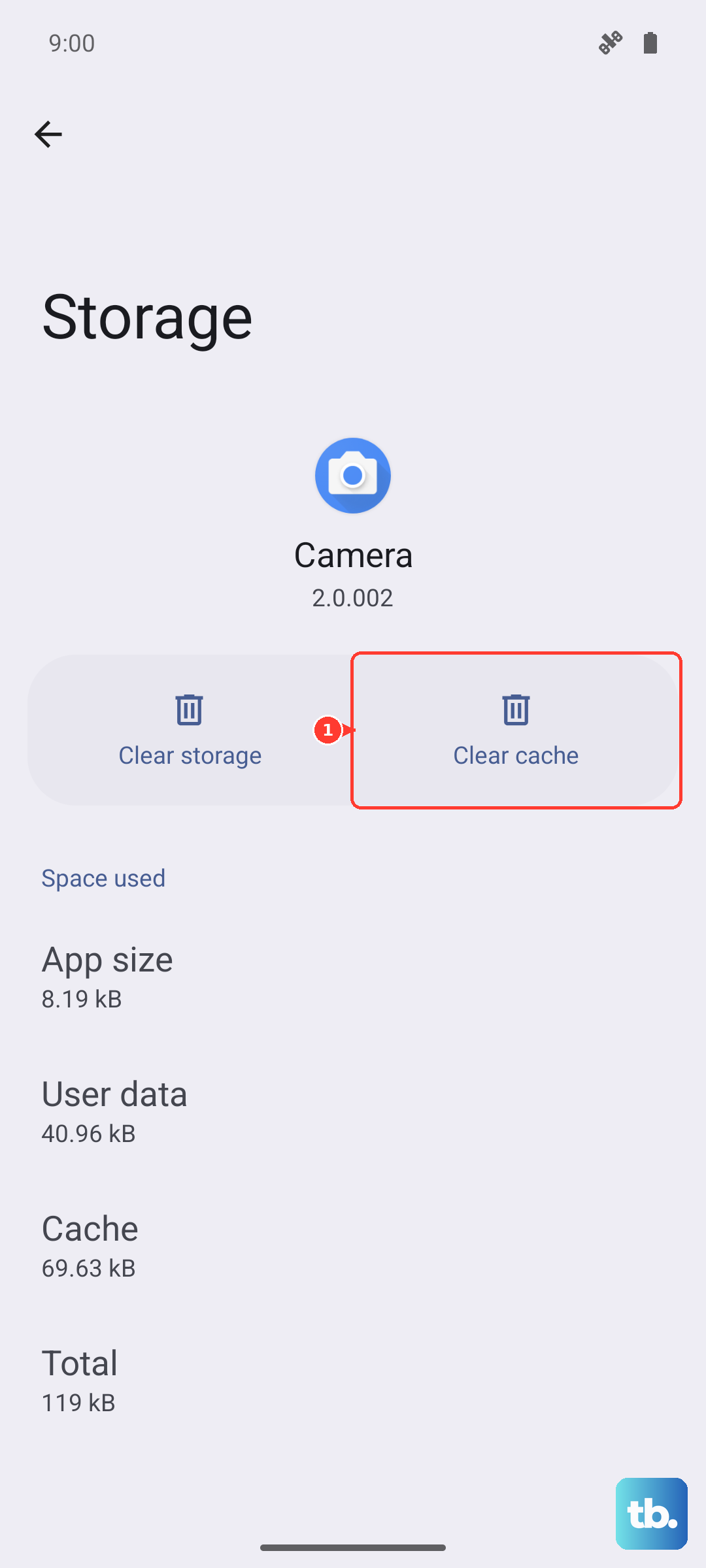
Find and select Samsung Keyboard. Tap on Storage, then hit Clear Cache. Do the same for Samsung Keyboard Neural Beta if you see it listed. If the problem persists after that, you can go back and choose Clear Data instead, but be aware this will reset the keyboard to its default state and erase your saved words.
Check Your Smart Typing Settings
It's possible a setting was accidentally toggled off. The path to these options in One UI 7 is Settings > General Management > Language & input > On-screen keyboard > Samsung Keyboard.
Once there, tap on Smart typing. Make sure the switch for Predictive text is turned on. While you're in this menu, you can also toggle the feature off and back on again to refresh it. This simple reset has fixed the issue for many users.
Update Your Keyboard Language and App
The predictive text models for your language receive updates to improve accuracy and add new words. To check, go back to the main Samsung Keyboard settings page and select Languages and types.
Tap on your active language, like English (US), then select Manage input languages. Tap the three-dot menu in the top corner and choose Check for an update. Also, open the Google Play Store, search for "Samsung Keyboard," and see if an app update is available. Keeping both updated ensures you have the latest fixes.
Reset the Keyboard to Default Settings
If predictive text is still malfunctioning, a full reset of the keyboard can wipe away any deep-seated configuration errors. Navigate back to Settings > General Management > Language & input > On-screen keyboard > Samsung Keyboard.
Scroll to the bottom and tap Reset to default settings. This will restore all keyboard preferences, including predictive text, autocorrect, and keyboard layout, back to how they were when you first got your S25+. You'll need to re-customize any personal preferences afterward.
Consider a Third-Party Keyboard
If you've tried everything and the native Samsung keyboard's predictions still aren't working for you, installing an alternative from the Play Store is a reliable workaround. Apps like Gboard (Google Keyboard) or SwiftKey offer robust predictive text engines and can be set as your default keyboard in moments.
After installing one, go to Settings > General Management > Language & input > On-screen keyboard > Default keyboard to switch over. This gives you a fully functional typing experience while you wait for a future Samsung update that might address the underlying issue on your device.











