
When your Samsung Galaxy A36 won't download apps, it can feel like your brand new phone is already broken. You tap install and nothing happens, or you get stuck on a spinning circle. Since the A36 runs the latest Android 15 with One UI 7, there can be a few new software quirks to work through.
The fixes are usually straightforward. Let's get your app downloads working again.
Check Your Connection and Restart
This sounds basic, but it's the most common fix. A weak or unstable internet connection is often the culprit. Swipe down from the top of your screen to open the Quick Settings panel and make sure your Wi-Fi or mobile data is on and has a strong signal.
If your connection looks good, try a simple restart. Press and hold the Volume Down and Power button together for about ten seconds until you see the Samsung logo. This clears out any temporary glitches in the system that might be blocking the Play Store.
Verify the Date and Time
Google's servers use your phone's time to authenticate downloads. If your clock is off, downloads can fail silently. Go to Settings > General Management > Date and time.
Make sure "Automatic date and time" is switched on. If it's already on and you're still having trouble, try turning it off and back on again to force a refresh with the network time server.
Clear the Google Play Store Cache
The Play Store stores temporary data that can sometimes become corrupted. Clearing this cache is a safe first step that doesn't delete any of your apps or account info.
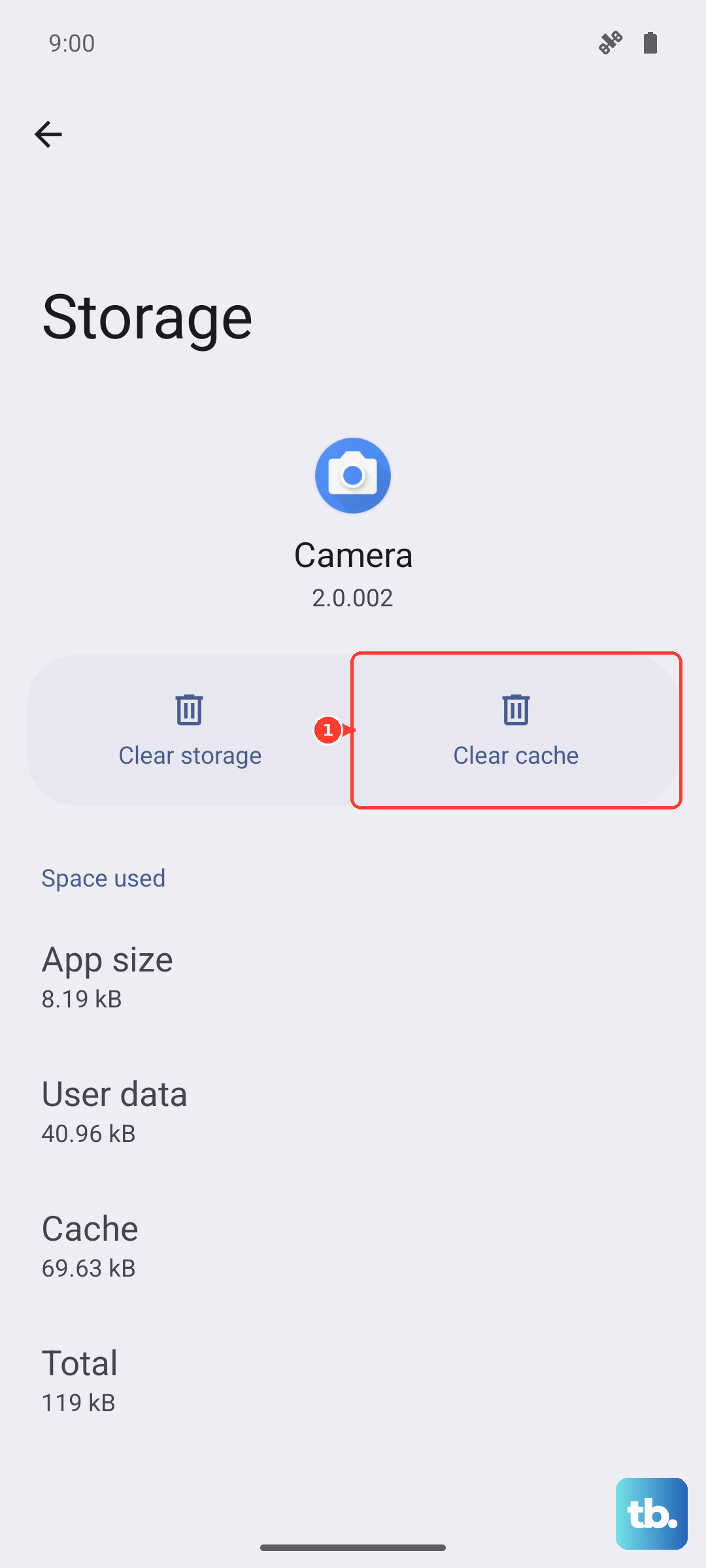
Open Settings > Apps, then find and tap on "Google Play Store." Tap on Storage, and then hit "Clear Cache." Go back and try your download. If that doesn't work, you can go a step further and tap "Clear Data." This will reset the Play Store app to its default state, so you may need to sign in again.
Clear Google Play Services Data
This is the engine behind the Play Store. If clearing the Play Store cache didn't help, issues often lie here. Go back to Settings > Apps, find "Google Play Services," and tap on it.
Tap Storage, then "Clear Cache." Next, tap "Manage space," and then select "Clear all data." Don't worry, this won't delete your personal information. It just resets the service's connection. Your phone will rebuild this data as you use it.
Check for Software Updates
Since the Galaxy A36 launched with Android 15 and One UI 7, early software bugs can affect core services like the Play Store. Samsung is typically quick to patch these issues.
Go to Settings > Software update and tap "Download and install." If an update is available, install it. Your phone will restart. I've seen this resolve download issues on new models more often than you'd think, especially after a major OS launch.
Review Your Storage Space
Your phone might not be giving you a clear "storage full" warning, but it could be running on empty. The A36 doesn't have expandable storage via microSD, so you need to manage what's on the device.
Go to Settings > Device care > Storage. See how much space is free. If you're below 1GB, you'll need to free some up. Uninstall apps you don't use, or use the built-in file manager to clear out old downloads and cached files from apps like Spotify or YouTube.
Switch Between Wi-Fi and Mobile Data
Some Wi-Fi networks, like public hotspots or corporate networks, block the specific ports the Play Store uses. If your download is stuck on Wi-Fi, try switching to mobile data for a moment.
Swipe down your Quick Settings panel and turn off Wi-Fi, then turn on Mobile Data. Try the download again. If it works, you know the issue is with your Wi-Fi network. You can try forgetting the network and reconnecting, or using a different Wi-Fi source.
Remove and Re-add Your Google Account
This refreshes the connection between your phone and Google's servers. Go to Settings > Accounts and backup > Manage accounts. Select your Google account.
Tap "Remove account." Confirm, then go back and tap "Add account" to sign back in. This process only takes a minute and can clear up authentication errors that stop downloads.
Check Download Manager and App Permissions
The Download Manager is a system app that handles all downloads. Let's make sure it's active. Go to Settings > Apps, tap the three-dot menu, and select "Show system apps."
Search for "Download Manager" and tap on it. If it's disabled, tap "Enable." While you're here, also find "Google Play Services" and tap Permissions. Ensure that all permissions, especially "Files and media," are allowed.
Reset All App Preferences (Last Step Before a Reset)
This is a useful nuclear option that doesn't delete your data. It resets all your app permissions, notification settings, and default apps back to factory state. It can fix deeper system conflicts.
Go to Settings > Apps, tap the three-dot menu, and choose "Reset app preferences." Confirm. You'll need to re-grant permissions to apps as you use them, but it often resolves stubborn issues without a full factory reset.











