When your Samsung Galaxy S25 Ultra starts restarting on its own, it pulls you right out of whatever you're doing. This can happen for a bunch of reasons, from a simple app acting up to a deeper system glitch. I'd start with a force restart, as it clears out temporary software hiccups without touching your data.
Before you dive into the fixes, it's a good idea to make sure your photos and files are backed up. You can use Samsung Cloud or Google One. This way, if you need to do a more serious reset later, your important stuff is safe.
Perform a Force Restart
This is your go-to first step. It's like giving the phone a fresh cup of coffee without deleting anything. For the S25 Ultra, press and hold the Volume Down button and the Side (power) button together. Keep holding them for about 10 seconds, or until you see the Samsung logo appear on the screen.
Let go once the logo shows up. The phone will complete its boot cycle. This often resolves random restarts caused by a temporary software freeze.
Check for a Problematic App
A misbehaving third-party app is one of the most common reasons for random reboots. Start by checking if the restarts happen when you're using a specific app, like a game or social media platform.
If you suspect an app, try uninstalling it to see if the problem stops. You can also boot into Safe Mode, which temporarily disables all downloaded apps. To do this, press and hold the power button until the power menu appears, then tap and hold the "Power off" option until you see the Safe Mode prompt.
If your phone stops restarting in Safe Mode, you know a downloaded app is the culprit. You'll need to uninstall apps one by one (starting with the most recently installed) to find the offender.
Update Your Software and Apps
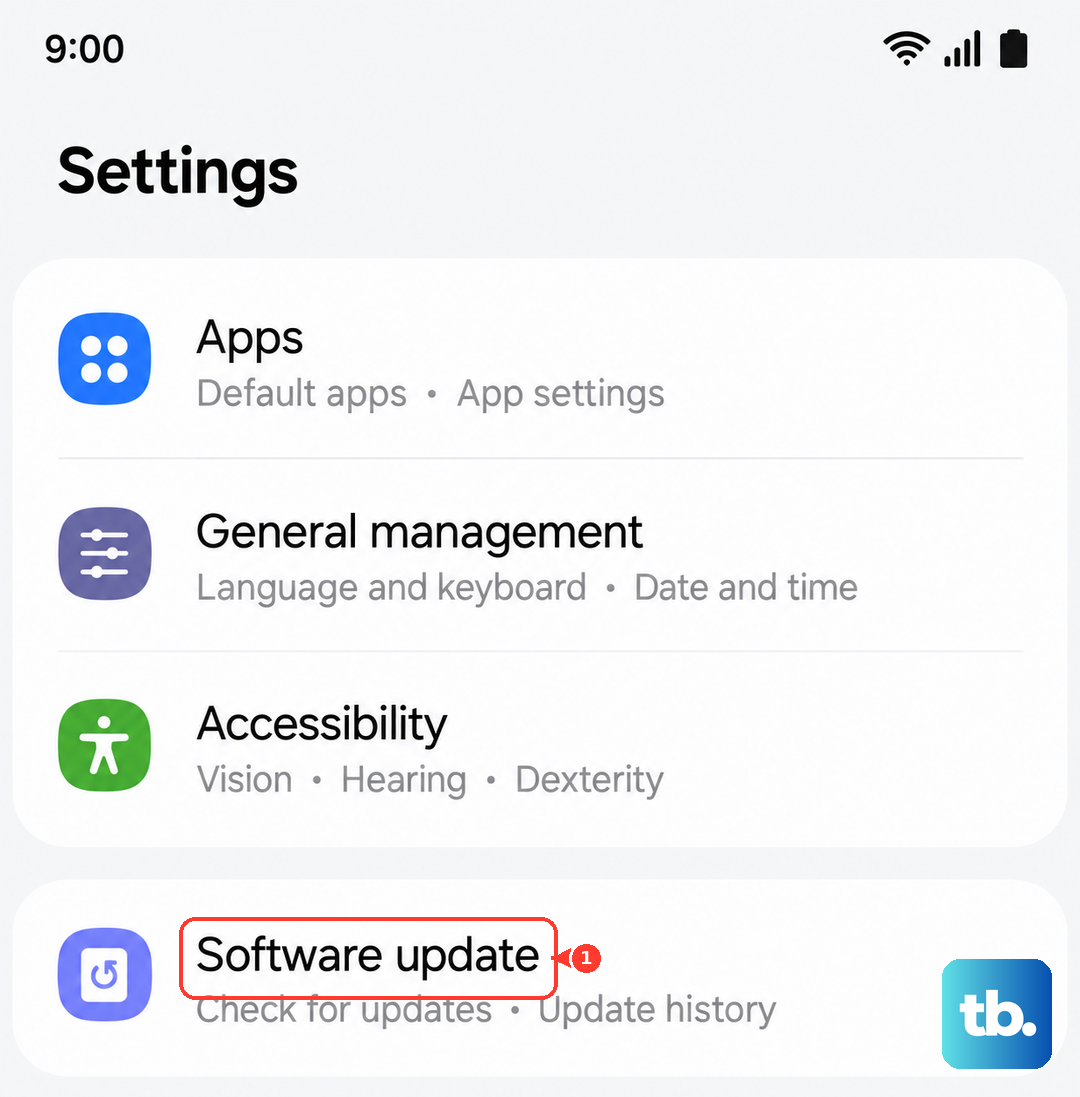
Running outdated software can lead to conflicts that make your phone unstable. Samsung regularly releases updates that fix bugs. Go to Settings > Software update and tap "Download and install."
Don't forget about your apps, too. Open the Galaxy Store and Google Play Store, check for updates in your profile menu, and install any pending updates. An old app version might not play nicely with Android 15 or One UI 7.
Free Up Storage Space
When your phone's storage is critically full, the system can struggle to operate smoothly, which might trigger restarts. Head to Settings > Device care > Storage.
Take a look at what's taking up the most space. The phone will often give you suggestions, like clearing cached data from apps. Moving photos and videos to cloud storage or a microSD card can free up a lot of room quickly.
Manage Performance and Heat
The Snapdragon 8 Elite chip is powerful, but under sustained heavy loads it can throttle performance and generate heat. Excessive heat is a known trigger for protective shutdowns and restarts.
If the phone feels very warm and then restarts, try closing demanding apps. You can also go to Settings > Battery > More battery settings and toggle off "Enhanced processing." This reduces performance slightly to keep temperatures in check.
Reset All Settings
If the issue persists, this step resets all your system preferences (like Wi-Fi passwords and display settings) back to default without deleting your personal data. It can fix conflicts caused by a corrupted setting.
Go to Settings > General management > Reset > Reset all settings. Enter your PIN or password if prompted and confirm. You'll need to set up your connections and preferences again, but your photos and apps will remain.
Check the S Pen and Bluetooth
Some users have reported S Pen Bluetooth connectivity issues that can sometimes cause system instability. If you use your S Pen for remote features, try disabling its Bluetooth for a while to test.
Remove the S Pen from its slot, then go to Settings > Advanced features > S Pen and turn off "S Pen remote." Also, keep the S Pen stored in the phone when not in use to ensure it stays charged, as a low battery can sometimes cause erratic behavior.
Wipe the Cache Partition
This clears temporary system files that can become corrupted over time. It's a safe step that doesn't affect your personal data. First, turn off your phone completely.
Then, press and hold the Volume Up and Side buttons together. When you feel a vibration, release the Side button but keep holding Volume Up until the Android Recovery screen appears. Use the volume buttons to navigate to "Wipe cache partition" and press the power button to select it. Confirm, then select "Reboot system now."
Perform a Factory Reset
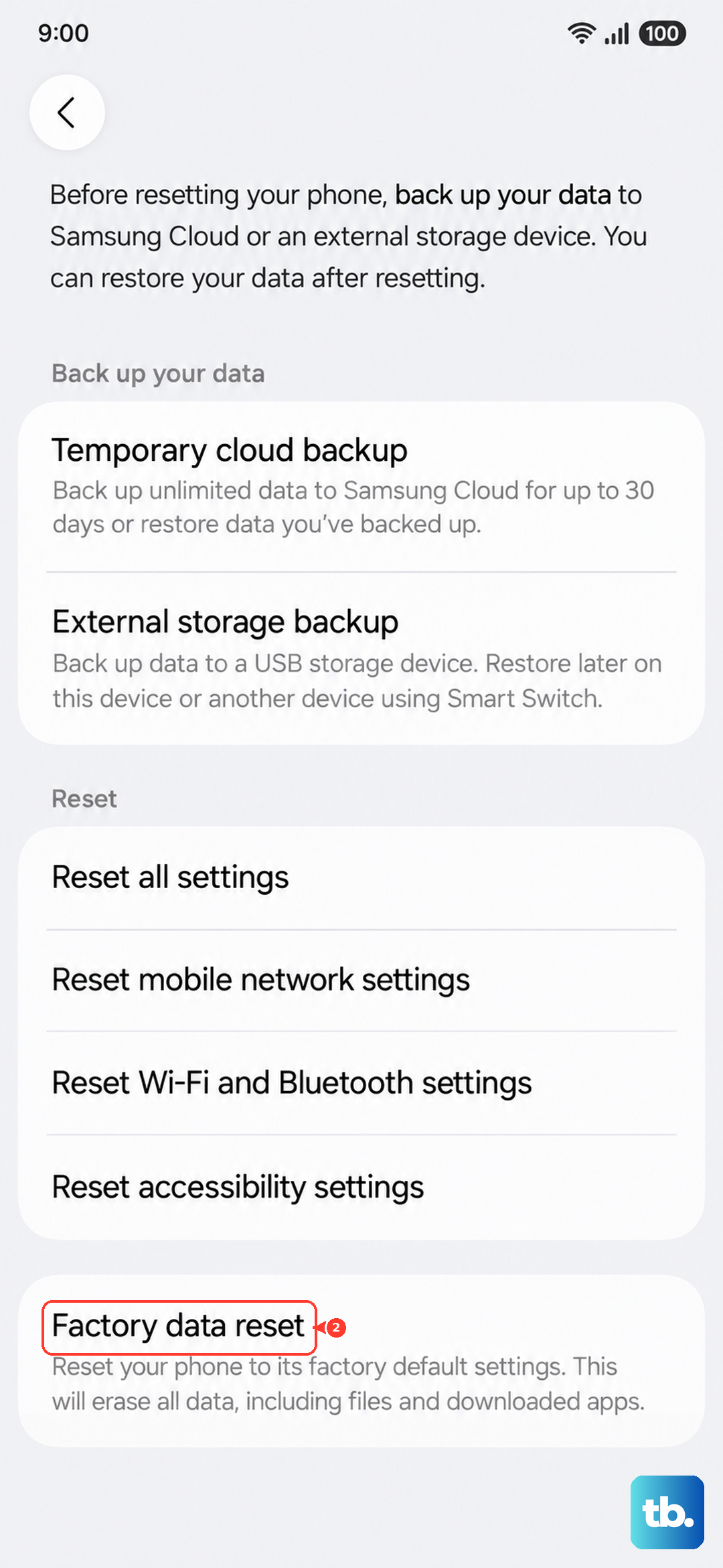
This is your last resort software fix. It will erase everything on your phone and return it to its original out-of-the-box state. Please ensure you have a complete backup before proceeding.
You can do this from within the settings by going to Settings > General management > Reset > Factory data reset. Follow the prompts to erase all data. After the reset, set up the phone as new initially to see if the restarting stops, rather than restoring a backup right away, in case the backup contains the problematic element.