Your display isn't using the refresh rate you want. You can select a supported rate in Windows 11, macOS, ChromeOS, or Ubuntu, with separate settings for each screen. Start with your operating system below, then check the available modes if your preferred rate is missing.
Change your refresh rate in Windows 11
This sets the refresh rate for your chosen display. If gaming VRR such as G-SYNC or FreeSync is enabled, the actual rate can still vary with a game's frame rate.
Open Start.
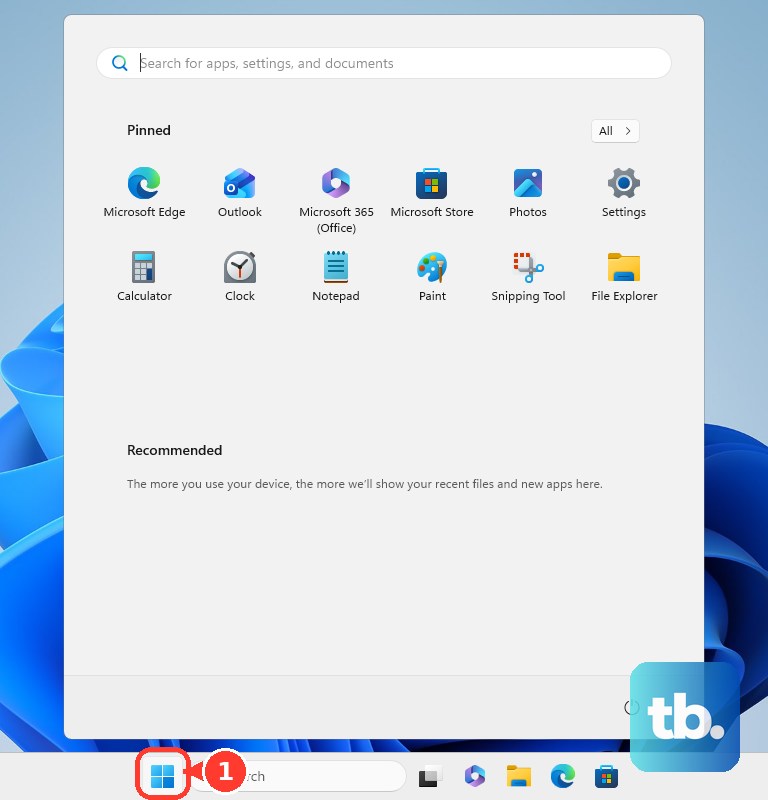
Go to Settings > System > Display > Advanced display.
Select the display you want to adjust. With multiple monitors connected, check that you've selected the intended screen.
Turn off Dynamic refresh rate if it's enabled. This automatic switching feature requires a supported display with variable refresh rate and at least 120 Hz.
Choose your preferred value under Choose a refresh rate. The available choices depend on your display, connection, resolution, and graphics hardware.
On a Mac, use Displays settings
Open Apple menu > System Settings > Displays. Refresh-rate selection requires a supported Mac display or external monitor.
Select the screen you want to change.
Choose an option from Refresh Rate. A fixed value stops automatic adjustment; ProMotion enables it on supported Apple-silicon 14-inch and 16-inch MacBook Pro models. Studio Display XDR offers Adaptive (47-120 Hertz).
For an external Adaptive-Sync monitor, choose Variable or Adaptive under Refresh Rate for adaptive operation. This requires a supported Mac running macOS Monterey 12 or later and a compatible monitor. These steps apply to macOS Ventura 13 or later; on Monterey 12, choose Apple menu > System Preferences > Displays, click Display Settings, select the external display in the sidebar, then choose Variable or Adaptive from Refresh Rate.
Adjust a Chromebook display
Google documents this refresh-rate control for connected monitors that support multiple refresh rates.
- 1.Select the time to open the system controls.
- 2.Open Settings > Device > Displays.
- 3.Select the name of the external monitor you want to adjust.
- 4.Choose an available rate using that monitor's refresh-rate control.
Set the rate in Ubuntu
Ubuntu's GNOME display settings let you select and confirm a supported refresh rate.
Open Activities.
Search for Displays.
Open Displays from the results.
Select your monitor in the preview.
Choose the desired value under Refresh Rate. The offered rates depend on your display and graphics configuration.
Click Apply.
Select Keep Changes to retain the setting.
When your preferred refresh rate is missing
Use these checks when the rate you want isn't listed. Available modes depend on your display, graphics hardware, port, cable, and resolution, and also change with HDR or compression.
Compare your monitor's supported resolution and refresh-rate combinations with the capabilities of your computer and connection. A monitor's maximum rate isn't available at every resolution or through every connection.
In Windows 11, open Settings > System > Display > Advanced display.
Select the intended display.
Open Display adapter properties.
Select the Adapter tab.
Click List All Modes.
Select a supported entry containing the resolution and Hertz value you want.
Click OK.
For another Windows refresh-rate selector, open the Monitor tab in Display adapter properties. This classic dialog remains a current option on systems that expose it.
Select a value under Screen refresh rate.
Click OK to apply that choice.
Frequently Asked Questions
Does changing my monitor to 120 Hz make every game run at 120 fps?
No. Selecting a display refresh rate is different from setting a game's frame rate. A game's FPS limiter and V-Sync are not direct controls for selecting your monitor's Hertz value.
Is Windows Dynamic Refresh Rate the same as gaming VRR?
No. Dynamic Refresh Rate is a Windows 11 power-management feature. Gaming VRR controls variable refresh operation during games; enabling G-SYNC or FreeSync does not select one fixed Hertz value.
Can I use a keyboard shortcut to change the refresh rate?
Supported Lenovo laptops offer a model-specific shortcut. On the Lenovo Legion Pro 5 16IRX9, press Fn+R to switch between the display's supported high and low refresh-rate modes. This is not a universal Windows shortcut.
Can I change the refresh rate on an iPhone or iPad?
On models with ProMotion, open Settings > Accessibility > Motion. Turn Limit Frame Rate on to cap the display at 60 frames per second, or off to allow normal adaptive operation. Turning it off does not lock an iPhone at a continuous 120 Hz.