When taskbar auto-hide is not working, Windows usually has the setting turned off or an app is demanding attention from the taskbar. Start with the Windows 11 setting, then clear notifications, badges, and flashing icons before moving into deeper repairs.
These fixes go from quick checks to system-level steps, so you can stop once the taskbar hides normally again.
Check the auto hide setting first
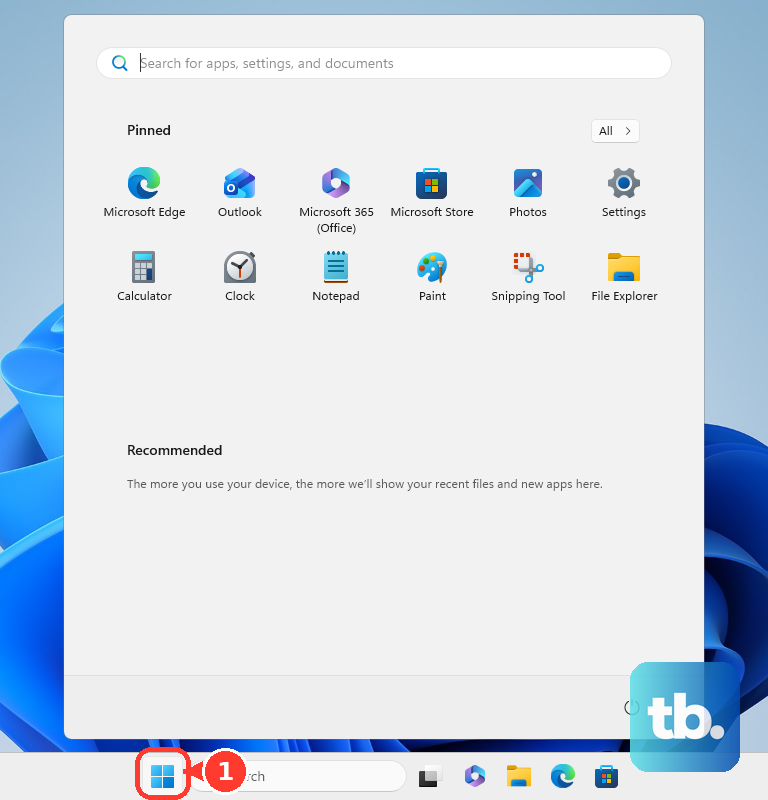
Start with the taskbar itself. Right-click or press and hold an empty space on the taskbar, open Taskbar settings, expand Taskbar behaviors, and turn on Automatically hide the taskbar.
You can reach the same switch from Settings. Open Start, choose Settings, go to Personalization, select Taskbar, open Taskbar behaviors, and enable Automatically hide the taskbar.
Now test it properly. Move your mouse pointer to the bottom edge of the screen, or touch the bottom edge on a touchscreen, and the hidden taskbar appears again.
Use Settings search when the taskbar menu will not cooperate
If the taskbar is acting inconsistently, skip the right-click menu and open Settings directly with the keyboard. Press Windows logo key + I, choose Personalization, open Taskbar, expand Taskbar behaviors, and turn on Automatically hide the taskbar.
You can also use the search bar inside Settings. Search for taskbar, open the relevant taskbar result, then go to Taskbar behaviors and enable Automatically hide the taskbar.
If this does not make the taskbar hide, clear anything that is asking for attention.
Clear notifications that keep the taskbar visible
Use this when the auto-hide switch is already on, but the taskbar keeps returning after app activity. Notification icons can light up, and clearing active notifications removes that attention state.
Open Notification Center by selecting the clock or notification bell icon on the taskbar, or press Windows logo key + N.
Close individual notifications, clear all notifications from a noisy app, or clear all notifications.
For a quieter setup, open Start, go to Settings, choose System, and open Notifications. Turn Notifications off globally, or adjust individual apps that keep pulling the taskbar back into view.
You can also open Notification Center and select the bell icon with zZ to turn on Do not disturb. To automate it, go to Start, Settings, System, Notifications, then use Turn on do not disturb automatically.
Stop badges and flashing app icons
The most common cause after auto-hide is enabled is an app demanding attention with a badge or flashing taskbar icon.
Right-click the taskbar, open Taskbar settings, expand Taskbar behaviors, and uncheck Show badges on taskbar apps.
In the same Taskbar behaviors area, uncheck Show flashing on taskbar apps.
If an app is already highlighted, select or open that app once to clear the attention state.
When Teams is the app showing badge activity, open unread chats or channels, read your Mentions or Tag mentions, or use More options and select Mark all as read at the top of the chat or channel list.
Adjust Widgets and touch taskbar behavior
Widgets can show badges on the taskbar in Windows 11. Open Widgets, select the settings button on the navigation bar, open More settings, choose Notifications, and turn Show badges on the taskbar off.
If you do not use Widgets, remove it from the taskbar instead. Right-click the taskbar, open Taskbar settings, look under Taskbar items, and turn Widgets off.
On a supported Windows 11 two-in-one, right-click the taskbar, open Taskbar settings, expand Taskbar behaviors, and turn on Optimize taskbar for touch interactions when this device is used as a tablet. When the keyboard is disconnected or folded back, swipe up from the bottom to expand the collapsed taskbar.
Restart Windows Explorer
Press Ctrl + Shift + Esc to open Task Manager.
Find Windows Explorer in the process list.
Right-click Windows Explorer and select Restart.
If Windows Explorer is not listed, select File, choose Run new task, type explorer.exe, and press Enter.
After Explorer reloads, move the pointer away from the taskbar and give it a moment to hide.
Restart Windows and install updates
This fixes a stuck Windows shell state and catches updates that affect taskbar behavior.
Open Start.
Select the Power button.
Choose Restart.
After the PC comes back, open Start, choose Settings, and select Windows Update.
Select Check for Windows updates.
Choose Download & install when updates are available.
Restart again if Windows asks you to.
Repair an app or Windows system files
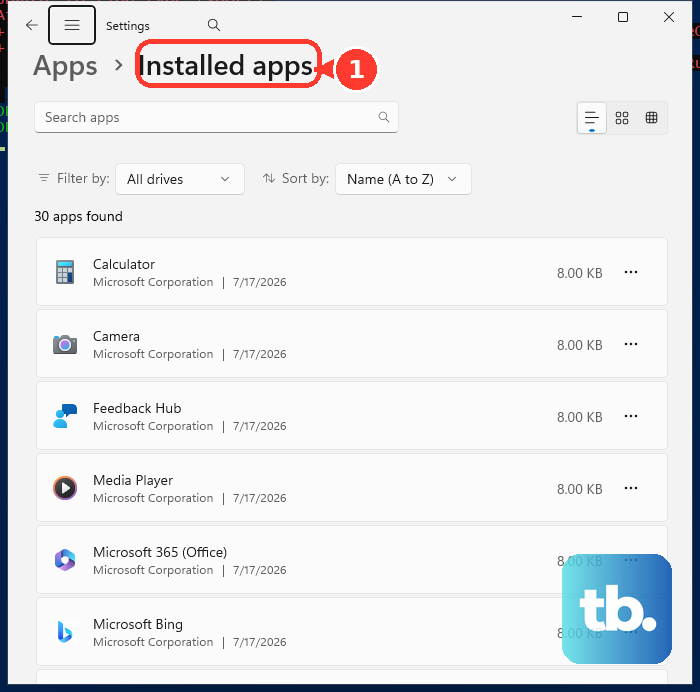
If the taskbar only gets stuck after one app opens, repair that app first. Go to Start, Settings, Apps, Installed apps, select More next to the app, open Advanced options, and choose Repair.
When Repair is not available or does not fix it, use Reset from the same app options page. For traditional desktop programs, search the taskbar for Control Panel, open Programs, choose Programs and Features, right-click the program, then select Repair or Change.
For possible Windows file corruption, search the taskbar for Command Prompt, right-click or press and hold Command Prompt, choose Run as administrator, and select Yes. Run DISM.exe /Online /Cleanup-image /Restorehealth, then run sfc /scannow, wait for Verification 100% complete, type exit, and press Enter.
If this method fails, use System Restore when the problem began recently, or Reset this PC as a last resort because even the keep-files option removes apps and settings.
Last checks for older or managed PCs
Use these only when the normal Windows 11 fixes above do not match your PC.
- 1.On Windows 10, older guides mention separate desktop and tablet auto-hide switches. Windows 10 is now legacy for consumers after October 14, 2025, so current Windows 11 guidance replaces those steps for supported consumer PCs.
- 2.On a work, school, used, or previously managed PC, taskbar settings can be blocked by policy. Ask the device administrator to check Prevent changes to Taskbar and Start Menu Settings and Lock all taskbar settings.
- 3.Do not treat the older Lock the Taskbar policy as an auto-hide fix. Microsoft documents it as a moving and resizing restriction, not a fix for auto-hide.
- 4.Older tutorials that mention Cortana are outdated for this task. Cortana voice assistance in Windows as a standalone app was retired in spring 2023.
Frequently Asked Questions
Why does my taskbar keep showing even when auto-hide is on?
An app is usually asking for attention through a notification, badge, or flashing taskbar icon. Clear notifications, open the highlighted app, and turn off taskbar badges or flashing icons.
How do I make the hidden taskbar appear again?
Move the mouse pointer to the bottom edge of the screen. On a touchscreen, touch the bottom edge of the screen.
Can Focus help with taskbar auto-hide problems?
Yes. A Windows 11 Focus session temporarily turns off taskbar flashing and badges, which reduces interruptions that pull attention back to the taskbar.
Should I use registry hacks to fix taskbar auto-hide?
No. Microsoft does not document a supported registry edit for this consumer fix, so use Settings, notifications, Explorer restart, updates, and repair tools.