Screen flickering can show up as brightness pulsing, flashing, a scrambled or distorted image, or a display that keeps blinking on and off. The right fix depends on where it happens: the whole device, one app, one browser, or one external monitor. Start with the quick reset, then use the section that matches your device.
Reset the graphics driver first
On a Windows PC, press Windows logo key + Ctrl + Shift + B. Windows resets the graphics driver, and the screen may blink while it does it.
If the flickering keeps going, save your work and close your apps. Right-click Start, select Shut down or sign out, then Restart.
If this does not help, open Task Manager next so you can tell whether the driver or an app is causing the flicker.
Use Task Manager to find the Windows cause
The most common Windows split is simple: if Task Manager flickers too, fix the display driver; if it stays steady, fix the incompatible app.
Press Ctrl + Alt + Delete and open Task Manager.
If Task Manager does not appear, press Ctrl + Shift + Esc.
When Task Manager flickers with everything else, update, roll back, or reinstall the display adapter driver.
When Task Manager does not flicker, update the app that was open when the problem started, or uninstall it and restart.
Update or replace the Windows display driver
Use these Windows driver fixes when the whole screen flickers, especially after a Windows update or graphics driver update.
Search the taskbar for Device Manager, open it, and expand Display adapters.
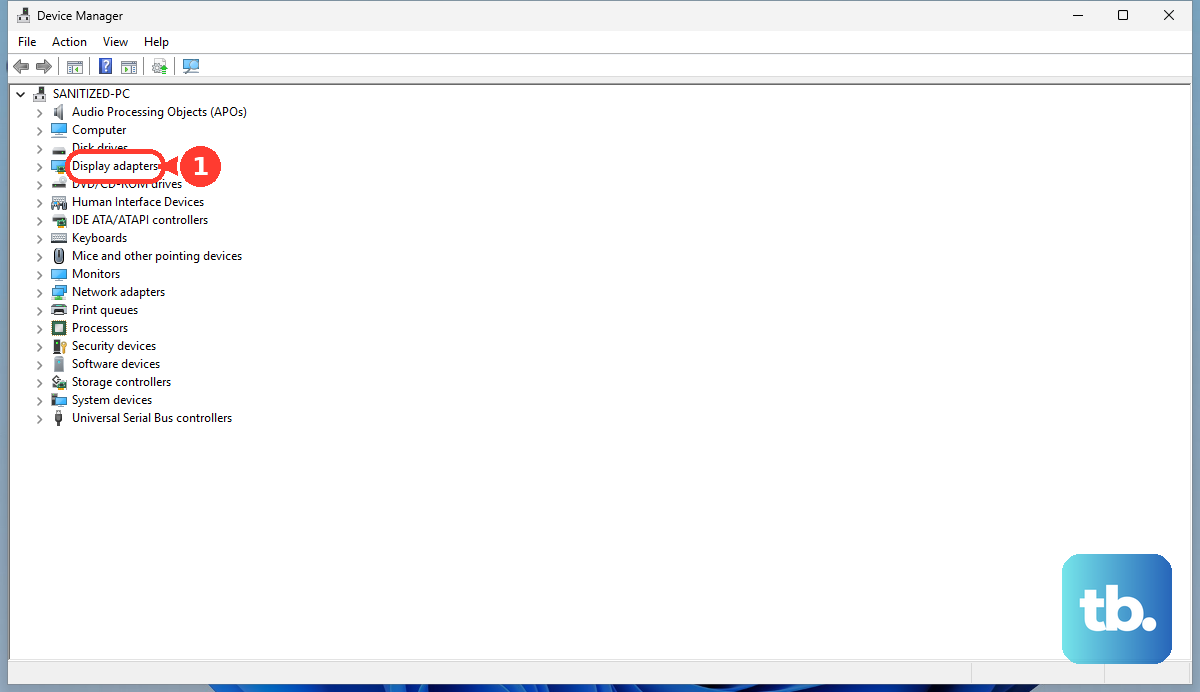
Right-click the display adapter, select Update driver, and follow the prompts.
If flicker started after a recent update, open Properties, choose Driver, select Roll Back Driver, choose Yes, and restart.
To let Windows reinstall the driver, right-click the adapter, choose Uninstall device, select Uninstall, and restart.
On Windows 11, check Settings, then Windows Update, then Advanced options, then Optional updates, install listed driver updates, and restart. On Windows 10, use Settings, then Update & Security, then Windows Update, then Advanced options; return to Windows Update, select Check for updates, and if View optional updates appears, select it, install listed driver updates, and restart.
Adjust refresh rate and variable refresh settings
On Windows 11, open Start.
Go to Settings, then System, then Display, then Advanced display.
Next to Choose a refresh rate, select another available rate. The choices depend on your display and connection.
When your PC supports Dynamic Refresh Rate, use the Dynamic refresh rate toggle in the same area to turn it off or on.
Tip: if flicker happens only in games on an AMD FreeSync display, open AMD Software, go to Display Settings, and turn AMD FreeSync off globally. To turn it off for one game only, go to Gaming, then Games, select that game's profile, and set AMD FreeSync to Off.
Fix flicker on a Mac
On a Mac, open the Apple menu, then System Settings or System Preferences, then Displays. Use the Refresh Rate menu to choose a different rate, including moving away from ProMotion or Adaptive when those options are present.
If brightness or color shifts look like flicker, stay in Displays and turn True Tone on or off. You can also drag the Brightness slider or use Automatically adjust brightness when your Mac or display has an ambient light sensor.
For a software check, update macOS from System Settings, then General, then Software Update. You can also start the Mac in Safe Mode to isolate startup items, extensions, or software causes.
If this does not help and you use an external monitor, check the Mac display connection next.
Check cables, monitors, and external displays
Test the computer with only one display connected.
If flicker stops, reconnect displays one at a time.
Try a different monitor and a different display cable.
Use a direct connection without video adapters or dongles.
Switch to another output when your computer and monitor support it, such as HDMI, DisplayPort, or VGA.
On a Mac with an external display, open Displays, hold Option, and click Detect Displays.
Restart the Mac if the display is still dark, low resolution, or not detected.
Tip: if flicker appears inside the BIOS configuration screen on an Intel graphics PC, contact the PC maker or Intel support.
Stop phone brightness and refresh rate flicker
On phones, automatic brightness changes and low-brightness dimming can make the screen appear to flicker, so start with the brightness and refresh rate settings below.
On iPhone, open Control Center and drag the Brightness control, or go to Settings, then Display & Brightness.
On iPhone, go to Settings, then Accessibility, then Display & Text Size, and turn Auto-Brightness on or off.
On iPhone models with ProMotion, go to Settings, then Accessibility, then Motion, then turn on Limit Frame Rate.
If the iPhone screen seems to flicker only when it is dim, go to Settings, then Accessibility, then Display & Text Size, and turn on Display Pulse Smoothing (PWM) on supported models. Apple notes that disabling PWM may affect low brightness display performance under certain conditions.
On Pixel, open Settings, then Display & touch, then use Brightness level or Adaptive brightness. On Pixel 4 and later, including Fold, you can also turn off Smooth Display. On Pixel 10 Pro, Pixel 10 Pro XL, and Pixel 10 Pro Fold, you can open Settings, then Accessibility, and turn on Adjust brightness for sensitive eyes if the OLED display emission frequency bothers your eyes.
On Samsung Galaxy, open Settings, then Display, turn off Adaptive Brightness, and move the brightness bar higher if flicker happens at low brightness.
Handle one app or browser
This fixes flicker that appears only while one app, web page, or video is active.
On Windows, update the app. For Microsoft Store apps, check app updates in Microsoft Store; for other apps, use the app maker's update path.
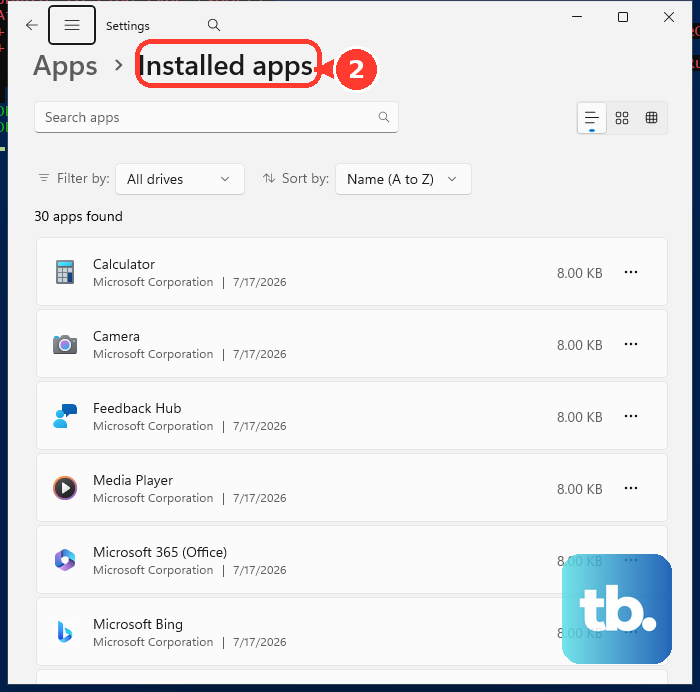
If the Windows app still flickers, open Settings, then Apps. On Windows 11, choose Installed apps; on Windows 10, choose Apps & features. Find the app, choose Uninstall, follow the prompts, and restart the PC.
For classic desktop programs, use Control Panel, then Programs, then Programs and Features.
On iPhone or iPad, close and reopen the app, restart the device, then check App Store updates.
If the iPhone or iPad app still flickers, save or back up important app data before deleting and redownloading the app. Deleting it can remove data stored in it.
On Pixel, open Settings, then Apps, then See all apps, choose the app, and tap Force stop.
Update Pixel apps from Google Play Store, then Manage apps & device, then Update all.
For Firefox desktop, open Settings, then General, then Performance, clear Use recommended performance settings, clear Use hardware acceleration when available, and restart Firefox.
For Chrome desktop, open Settings, then System, toggle Use graphics acceleration when available, and relaunch Chrome.
Use Safe Mode, updates, and repair options last
Use these deeper software steps when normal brightness, refresh rate, app, and driver fixes do not stop the flicker. They also help when the problem started after installing a new app.
On iPhone, restart first. If the screen is unresponsive, use Apple's force restart steps for your model, then update from Settings, then General, then Software Update.
If you choose to factory reset your iPhone after trying the lower-risk steps, back it up first: the reset erases its content and settings. Open Settings, then General, then Transfer or Reset iPhone, then Erase All Content and Settings, and follow the onscreen prompts.
On Pixel, start Safe Mode to disable third-party apps. If flicker stops, leave Safe Mode, remove recently downloaded apps one by one from Google Play Store, and restart normally after each removal.
On Samsung Galaxy, check for screen damage first. If the screen is cracked or smashed, book a repair.
If the Samsung screen is not damaged, use Safe Mode, uninstall the most recent app that came before the problem, restart, update the device software, and seek Samsung service if flicker persists.
For a managed work or school device, some browser and graphics settings may be controlled by your organization. If Chrome flickers only on that managed device, ask IT to review Chrome hardware acceleration settings.
Frequently Asked Questions
Why is my screen flickering all of a sudden?
In Windows, sudden flicker is usually caused by a display driver issue or an incompatible app. Other possible triggers include refresh-rate switching, brightness automation, browser graphics acceleration, a faulty cable, or screen damage.
Can screen flickering be fixed without replacing the screen?
Yes. Start with driver updates, refresh-rate changes, app updates, brightness settings, Safe Mode, and cable checks. Choose service or repair when the screen is visibly damaged or the flicker continues after the software fixes.
Why does my screen flicker only in Chrome or Firefox?
On desktop browsers, graphics or hardware acceleration can trigger flicker on some systems. Toggle Chrome's graphics acceleration setting or Firefox's hardware acceleration setting, then relaunch the browser.
Should I use old fixes that disable Desktop Window Manager?
No. Disabling Desktop Window Manager is not a current general Windows 11 consumer fix. Use the display driver, app, and refresh-rate fixes instead.











