
When your iPhone 17e's keyboard stops suggesting words, it can really slow you down. This is a common early bug for a brand new device like the 17e, which just launched in March 2026. The good news is, it's almost always a quick software fix you can handle yourself.
Toggle Predictive Text On and Off
Start with the simplest fix. Open any app that uses the keyboard, like Messages or Notes. Tap to bring up the keyboard, then look for the predictive text bar above it. If you don't see it, press and hold the emoji or globe icon in the bottom left.
From the menu that pops up, tap Keyboard Settings. On the next screen, find the Predictive Text toggle and turn it off. Wait a second, then turn it back on. This quick refresh often kicks the feature back into gear.
Check Your Text Replacement List
Sometimes, a corrupted or overly long text replacement (the shortcut feature) can interfere with suggestions. Go to Settings > General > Keyboard > Text Replacement.
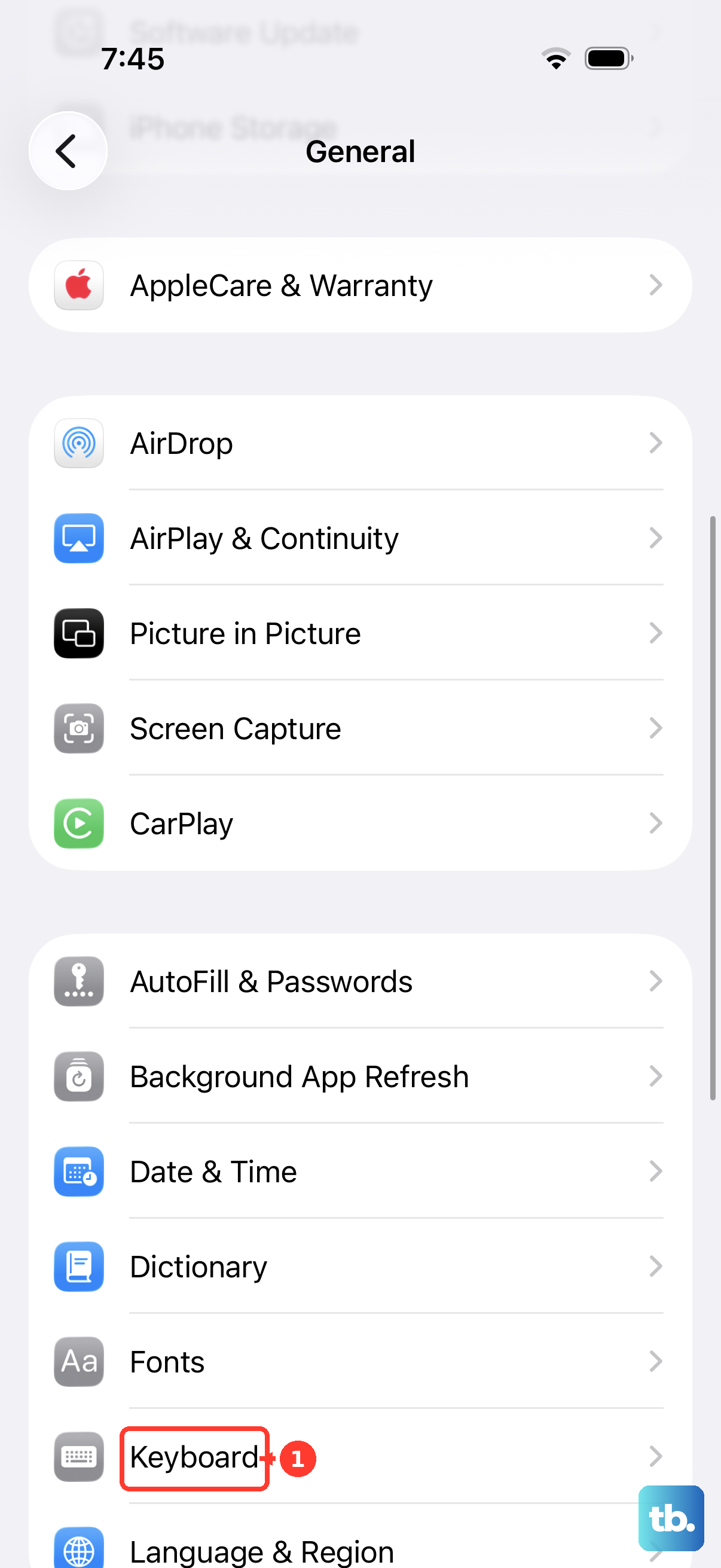
Scroll through your list. If you have a lot of entries, especially very old ones carried over from a previous phone, try deleting a few non-essential ones. I've seen this clear up weird keyboard behavior on new iPhones more than once.
Reset All Keyboard Settings
This is a more thorough reset that won't delete your personal data, but it will wipe your keyboard dictionary and custom settings. Go to Settings > General > Transfer or Reset iPhone.
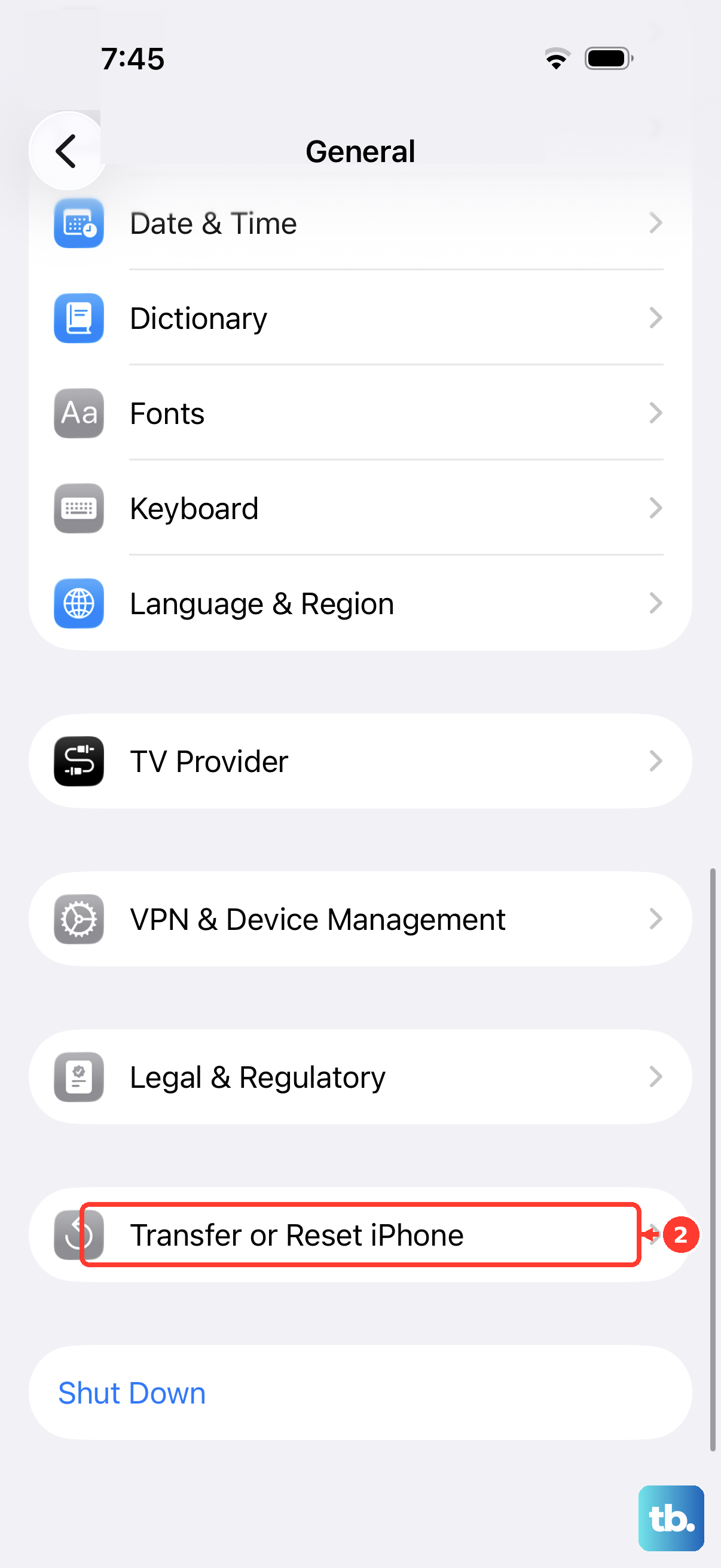
Tap Reset, then choose Reset Keyboard Dictionary. Confirm your choice. After your phone restarts, you'll need to re-allow full access for any third-party keyboards and re-add custom text replacements, but the core predictive engine should be fresh.
Update to the Latest iOS 26 Version
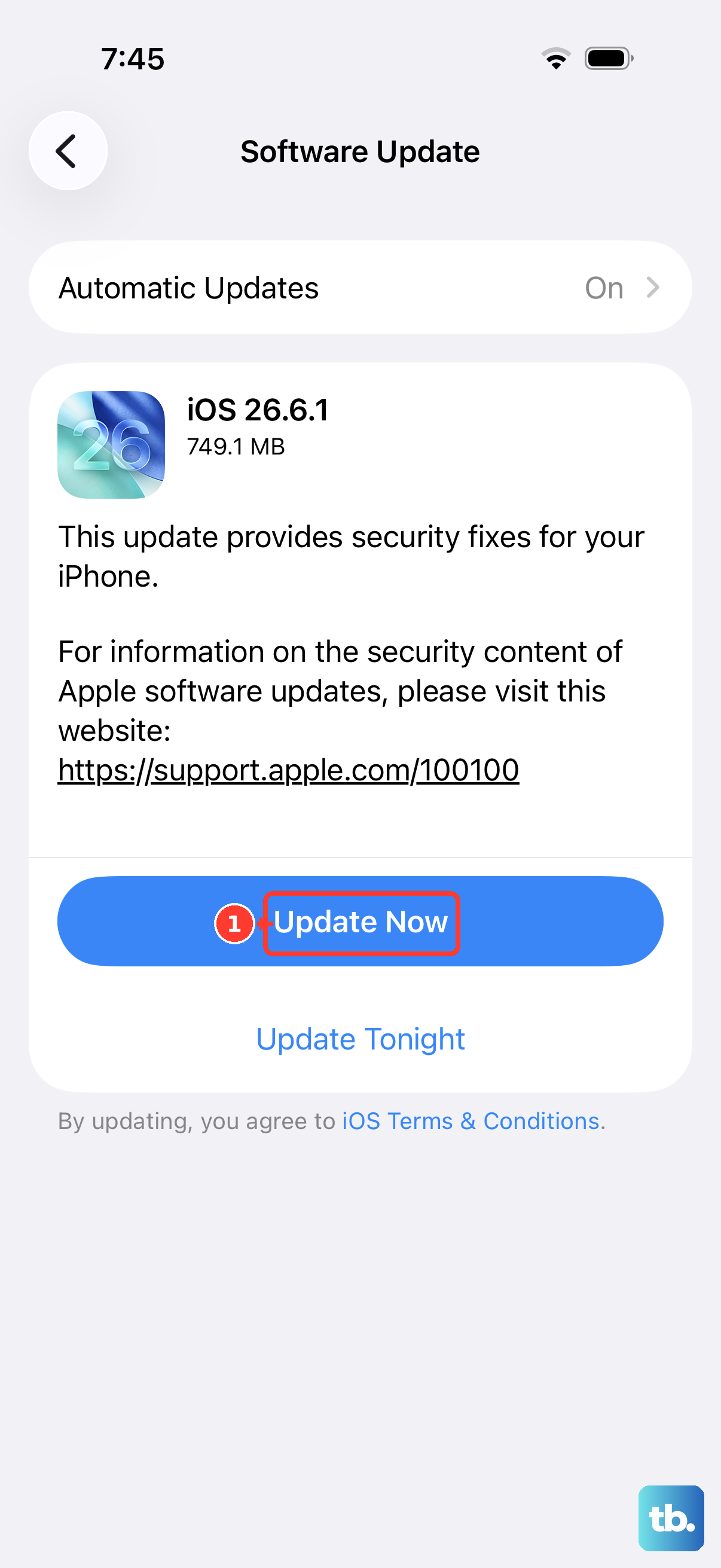
Since the iPhone 17e is so new, Apple is likely pushing out software updates to squash early bugs like this. Connect to Wi-Fi and go to Settings > General > Software Update.
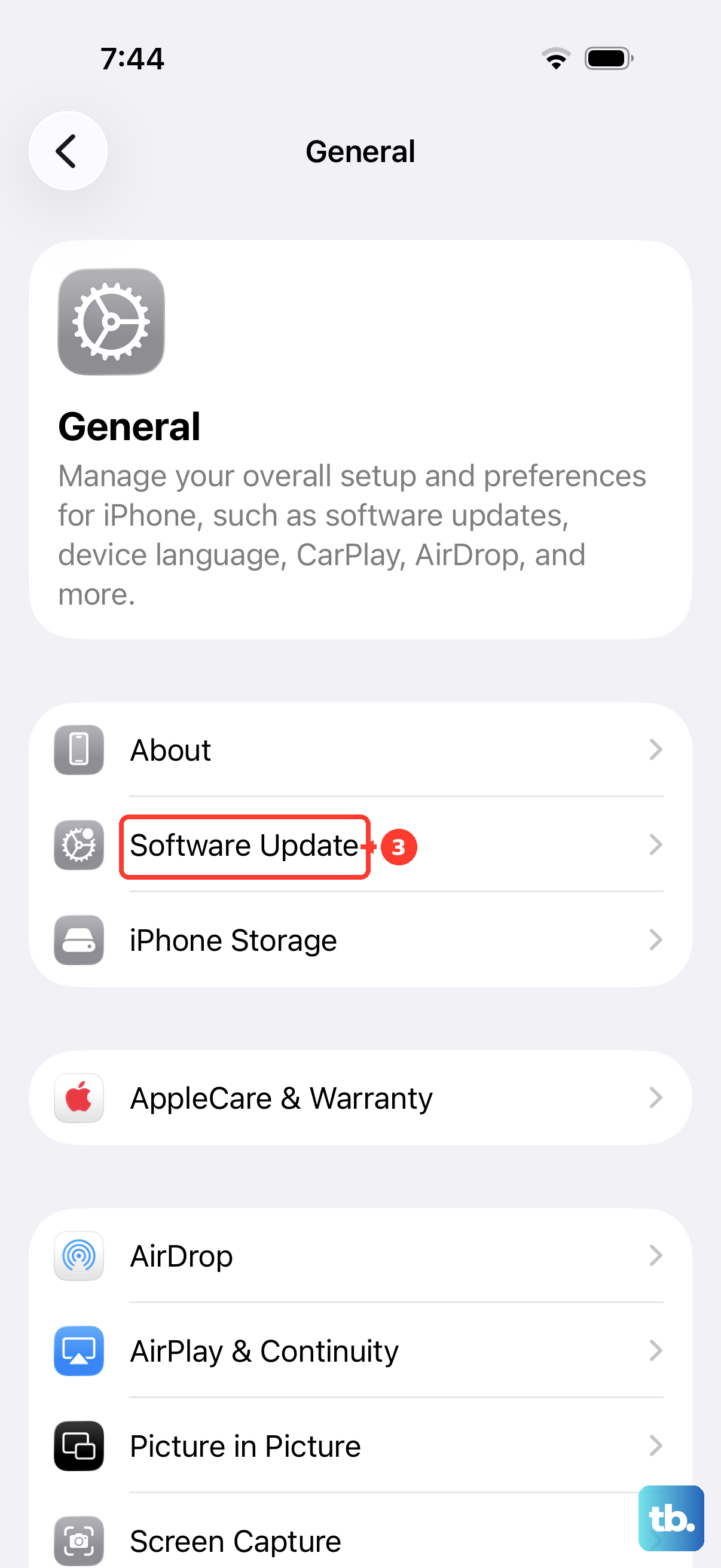
If an update is available, tap to download and install it. The A19 chip in the 17e is plenty powerful for updates, though it may run a bit warm during the process, that's normal. This is often the definitive fix for software-related glitches.
Perform a Force Restart
A standard restart is good, but a force restart clears the device's memory more thoroughly. For the iPhone 17e, quickly press and release the Volume Up button, then quickly press and release the Volume Down button.
Immediately after, press and hold the Side button. Keep holding it even after you see the power off slider. Continue holding until you see the Apple logo appear, then release. This can clear temporary system hiccups affecting the keyboard.
Check Your Language & Region Settings
If predictive text works in some apps but not others, or only suggests words in a different language, your system language might be confused. Head to Settings > General > Language & Region.
Ensure your iPhone Language is set correctly (like English). Also, tap Add Language and make sure only the languages you actually type in are listed. Having multiple keyboards enabled without the corresponding system language can sometimes cause issues.
Disable and Re-enable iCloud for Documents & Data
Your keyboard learns from how you type across devices via iCloud. If that sync gets stuck, it can halt suggestions. Go to Settings > tap your name at the top > iCloud.
Tap Show All under Apps Using iCloud, then find Documents & Data (it might just be listed as a toggle). Turn it off. Your phone will ask if you want to keep data on your iPhone, choose "Keep on My iPhone." Restart your phone, then go back and turn the toggle back on.