If your iPhone 17 has gone silent and you're missing calls or notifications because it won't vibrate, the fix is usually straightforward. Start with a simple restart, which can help resolve temporary glitches.
Restart Your iPhone 17
Perform a standard restart first. Press and hold the Side button and either volume button until the power slider appears. Drag the slider, wait 30 seconds, then press and hold the Side button until the Apple logo appears to turn it back on.
If that doesn't help, try a force restart. This is a bit different on the iPhone 17. Quickly press and release the Volume Up button, then quickly press and release the Volume Down button. Finally, press and hold the Side button until you see the Apple logo appear on the screen.
Check Your Action Button
Look at the left side of your iPhone 17 for the Action button, which replaced the physical Ring/Silent switch on this model. By default, press and hold the Action button to turn Silent mode on. Silent mode silences the ringtone; vibration depends on your haptic settings.
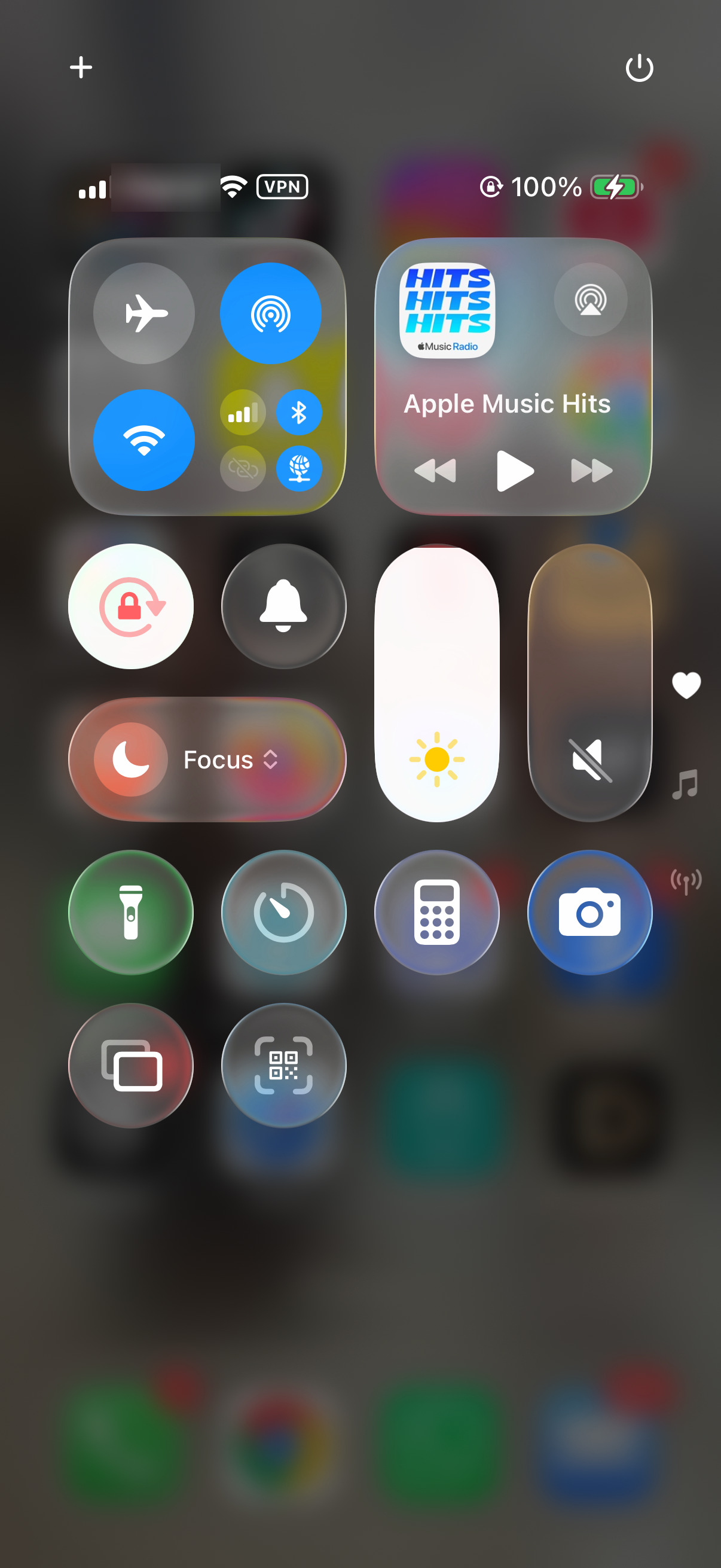
Press and hold the Action button again to turn Silent mode off. You should feel a haptic tap and see a silent mode off indicator on your screen. You can also swipe down from the top-right corner to open Control Center and make sure Silent mode is off.
Verify Your Sound Settings
Open the Settings app and go to Sounds & Haptics. Tap Ringtone, then Haptics and choose a vibration pattern. You can also tap Create New Vibration to record your own pattern if you prefer a different rhythm for incoming calls. On iOS 26 and earlier, also tap Haptics on the Sounds & Haptics screen and choose Always Play, since Never Play stops vibrations for calls and alerts.
For message alerts, tap Text Tone, then Haptics and choose a pattern. Repeat this for any other alert category you want to adjust. For feedback when using system controls, return to Sounds & Haptics and turn on System Haptics.
Test and Adjust Haptic Touch
If haptics are missing, go to Settings > Accessibility > Touch and make sure Vibration is turned on. For keyboard feedback, also turn on Haptic under Settings > Sounds & Haptics > Keyboard Feedback. To adjust how long a touch-and-hold takes, open Settings > Accessibility > Touch > Haptic Touch.
At the bottom of this menu you'll find the touch-duration options Fast, Default, and Slow (iOS has no haptic-strength slider). Choose Fast for the shortest touch duration, then press and hold the sample image at the bottom of the screen to test it.
Review App-Specific Notification Settings
If vibrations are missing for just one app, like Messages or Mail, the issue may be in that app's notification settings. Go to Settings > Notifications and select the problematic app from the list.
First, ensure Allow Notifications is turned on. Check the Sounds option and make sure lock screen or banner alerts are enabled. For text or mail alerts, go to Settings > Sounds & Haptics, select the relevant sound category, then tap Haptics and choose a pattern.
Update to the Latest iOS Version
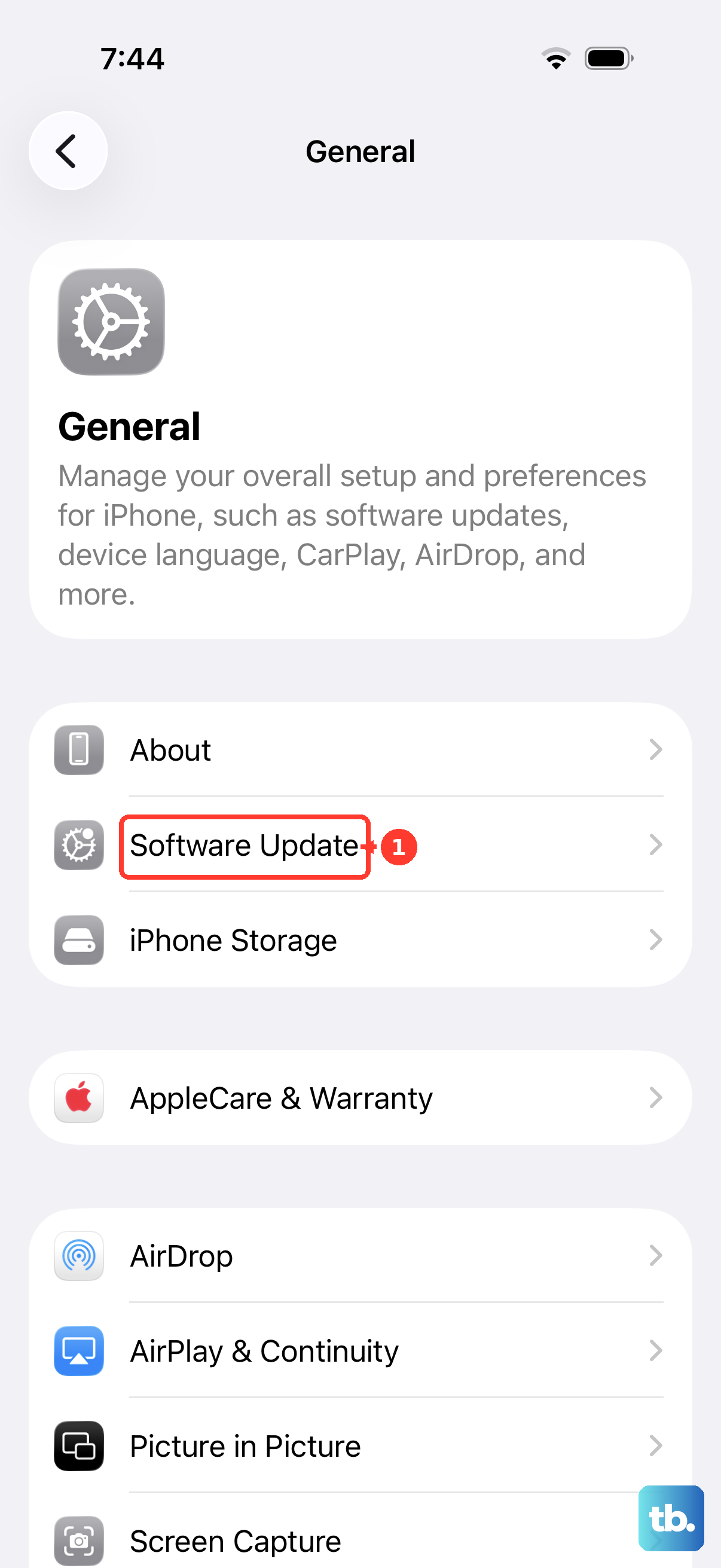
Updating iOS can help resolve software issues that affect haptic feedback. Connect your iPhone 17 to Wi-Fi and go to Settings > General > Software Update.
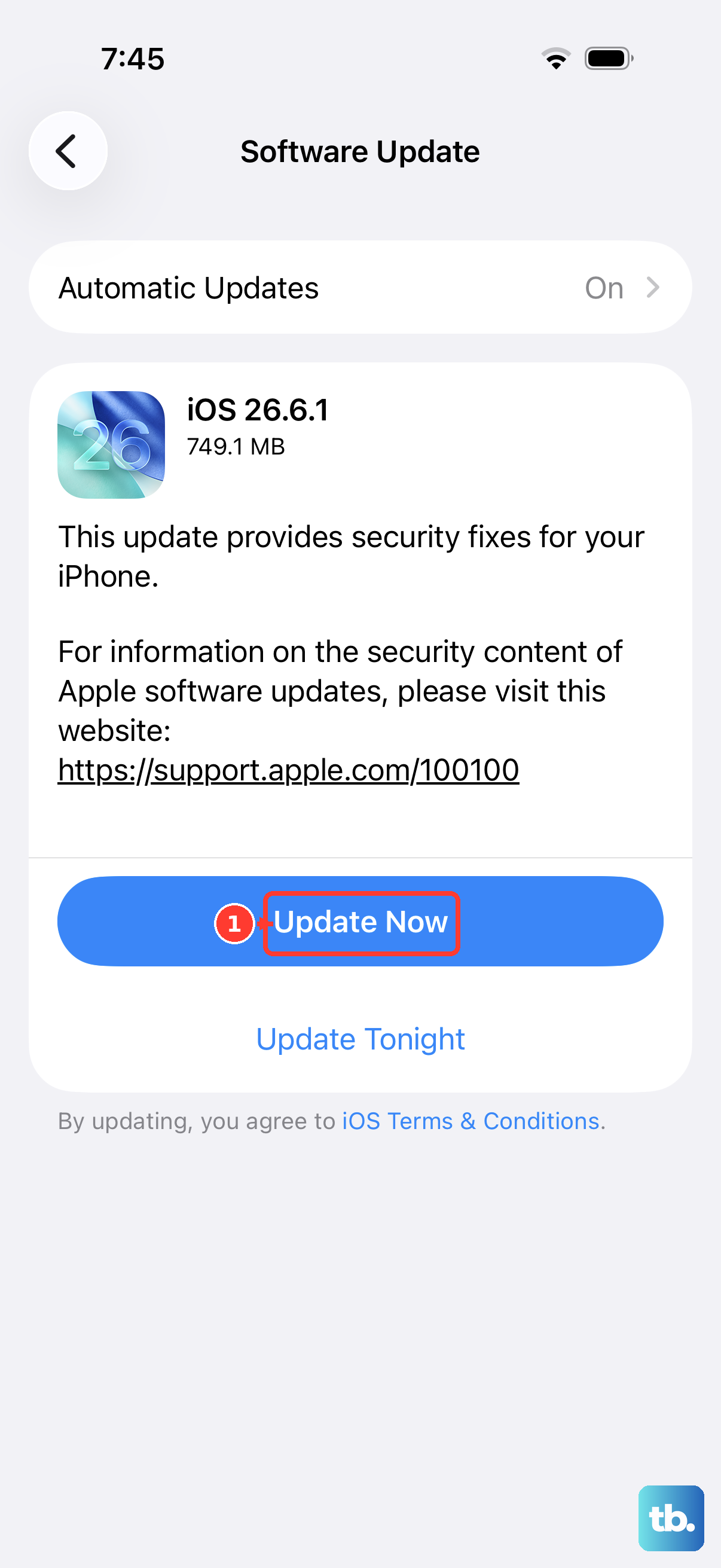
If an update is available, tap Download and Install. It's a good idea to back up your phone first and keep it connected to power during this process. After the update completes, test your vibration again.
Check for Focus Modes
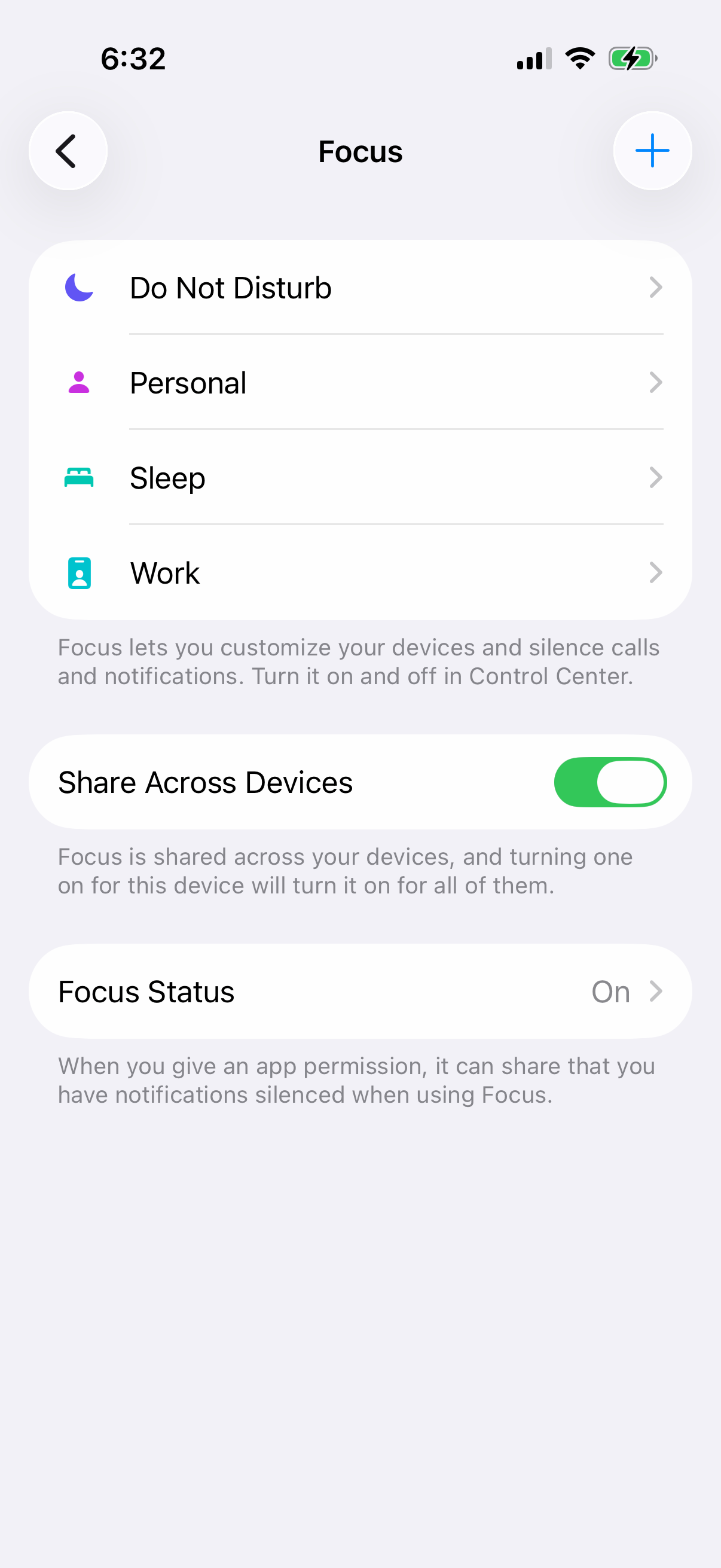
Focus modes can silently filter notifications, including their vibrations. Swipe down from the top-right corner to open Control Center and look at the Focus icon (it might look like a moon or a person).
If a Focus is active, tap the icon to see which one. You can either turn it off completely or customize it by going to Settings > Focus. Select the active Focus, then tap People or Apps to make sure your important contacts and apps can still buzz through.
Reset All Settings
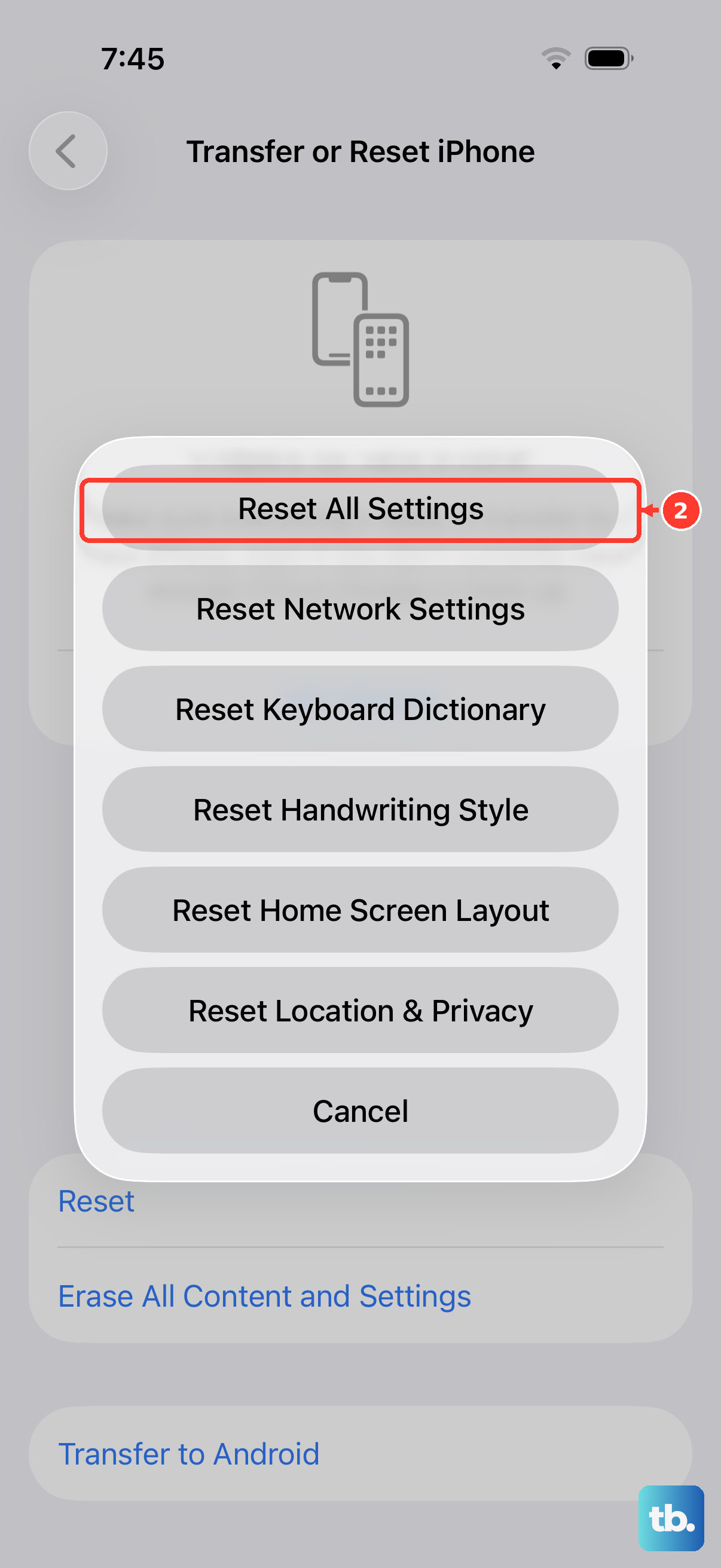
If you've tried everything and the vibration is still dead, this step can help without erasing your data. It resets network settings, wallpaper, display brightness, and other preferences, and removes Apple Pay cards and device pairings. You'll need to rejoin Wi-Fi, re-pair Bluetooth devices and any Apple Watch, and set up Face ID again.
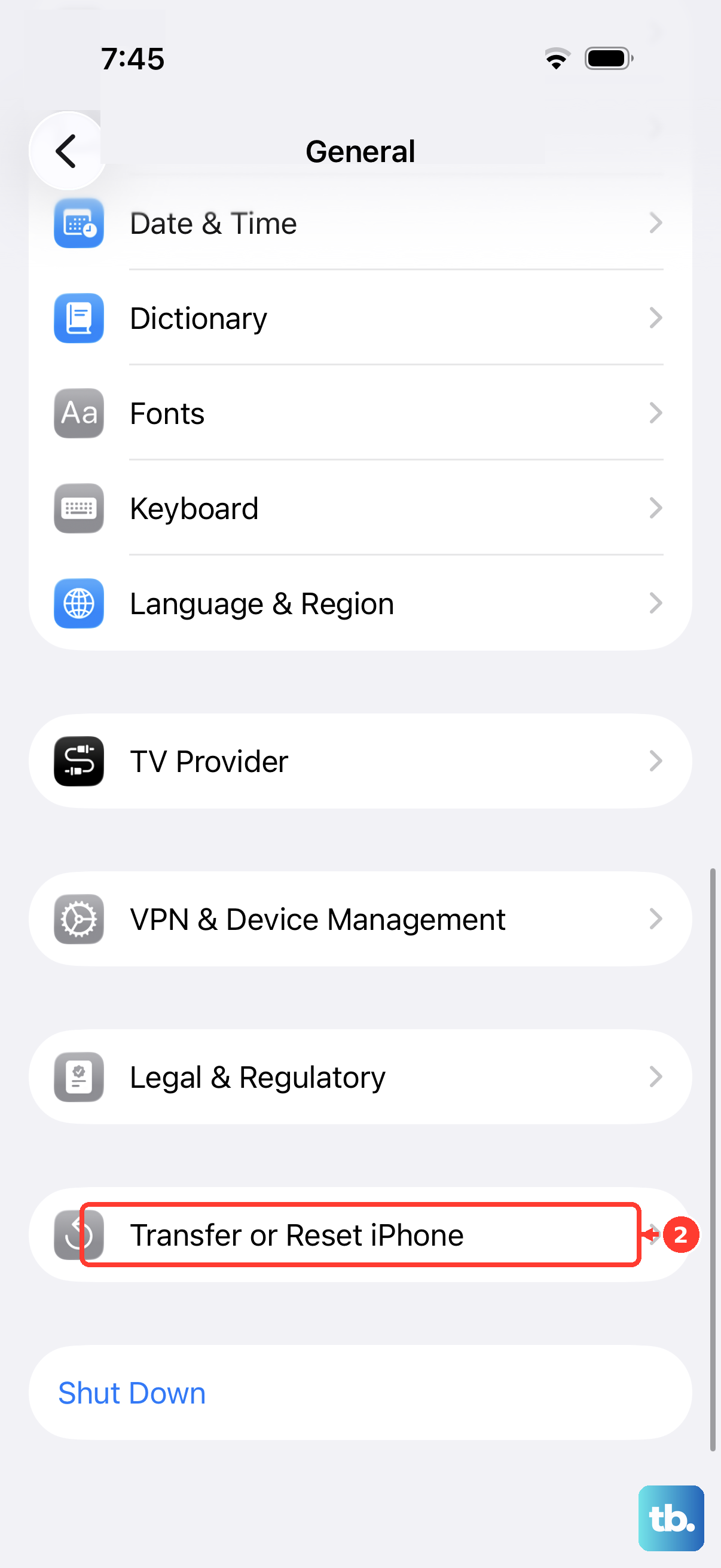
Go to Settings > General > Transfer or Reset iPhone. Tap Reset and then choose Reset All Settings. Enter your passcode and confirm. Your iPhone 17 will restart. Once it's back on, revisit your sound and notification settings to set them up again.