
A frozen or lagging keyboard on your iPhone 17 Pro can really slow you down. It's usually a quick software hiccup, and you can almost always get it working again without losing any data.
I'd start with a simple force restart. This clears the phone's temporary memory and can fix a surprising number of glitches. On the iPhone 17 Pro, you press and quickly release the Volume Up button, then quickly press and release the Volume Down button. Finally, press and hold the Side button until you see the Apple logo appear, then let go.
Close and Reopen Your App
Sometimes the issue is isolated to a single app. If your keyboard is only frozen in Messages or Mail, try closing that app completely. Swipe up from the bottom of the screen and hold in the middle to enter the app switcher. Find the problematic app and swipe it up off the top of the screen to close it. Then, reopen it and see if the keyboard responds.
Check for a Software Update
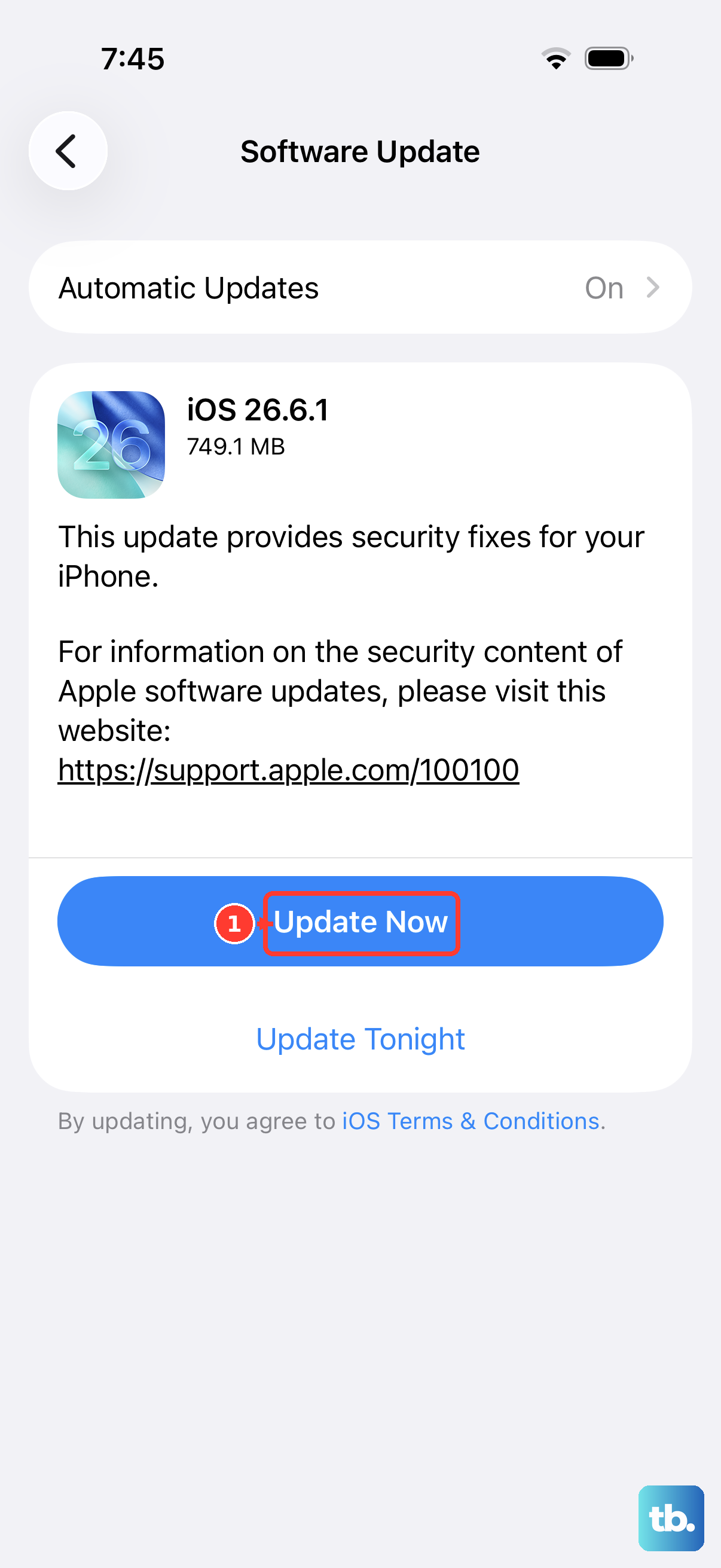
Apple frequently releases iOS updates that include bug fixes for system components like the keyboard. Go to Settings > General > Software Update. If an update for iOS 26 is available, I'd recommend installing it. Make sure your phone is connected to Wi-Fi and has a good charge, preferably using your Apple 40W Dynamic Power Adapter to keep it topped up during the process.
Reset Your Keyboard Dictionary
If the keyboard is lagging when it tries to suggest words, the predictive text database might be corrupted. You can reset this without affecting your personal data. Go to Settings > General > Transfer or Reset iPhone. Tap Reset and then choose Reset Keyboard Dictionary. You'll need to enter your passcode to confirm. This will erase all the custom words you've added.
Disable and Re-enable Predictive Text
As a less drastic step before resetting the whole dictionary, try toggling predictive text off and on. When the keyboard is open, tap and hold the emoji or globe icon in the bottom left corner. Tap Keyboard Settings. On the next screen, simply toggle Predictive Text off, then back on again. Test your keyboard to see if the lag is gone.
Check Your Third-Party Keyboards
If you use a keyboard like Gboard or SwiftKey, the issue might be with that specific app. First, try switching back to the default iOS keyboard. Tap the globe icon on the keyboard until you see "English" or "Emoji." If the default keyboard works fine, the problem is with your third-party app.
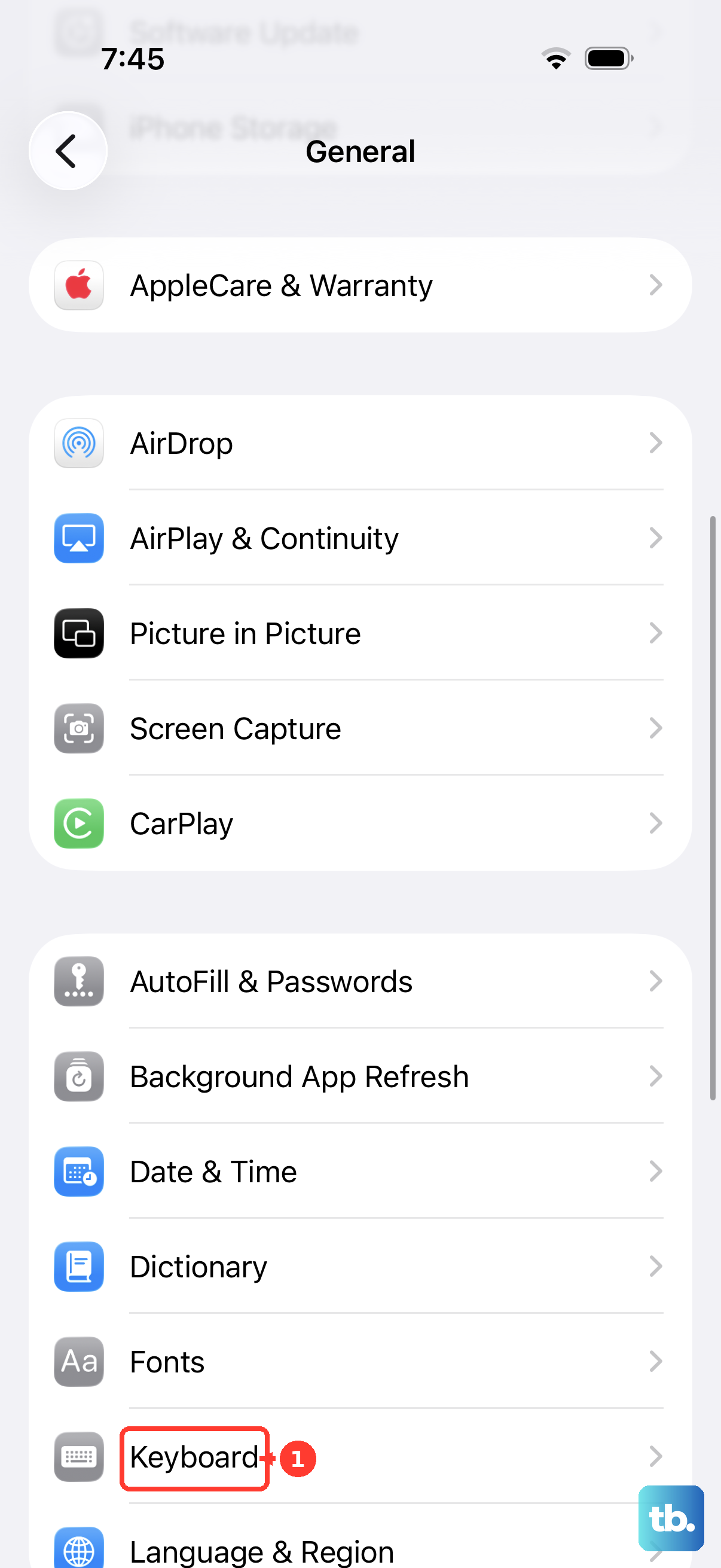
For the third-party keyboard, try going to Settings > General > Keyboard > Keyboards. Tap Edit in the top right, remove the problematic keyboard, then add it back again. Also, check the App Store for any updates to that keyboard app.
Free Up Storage Space
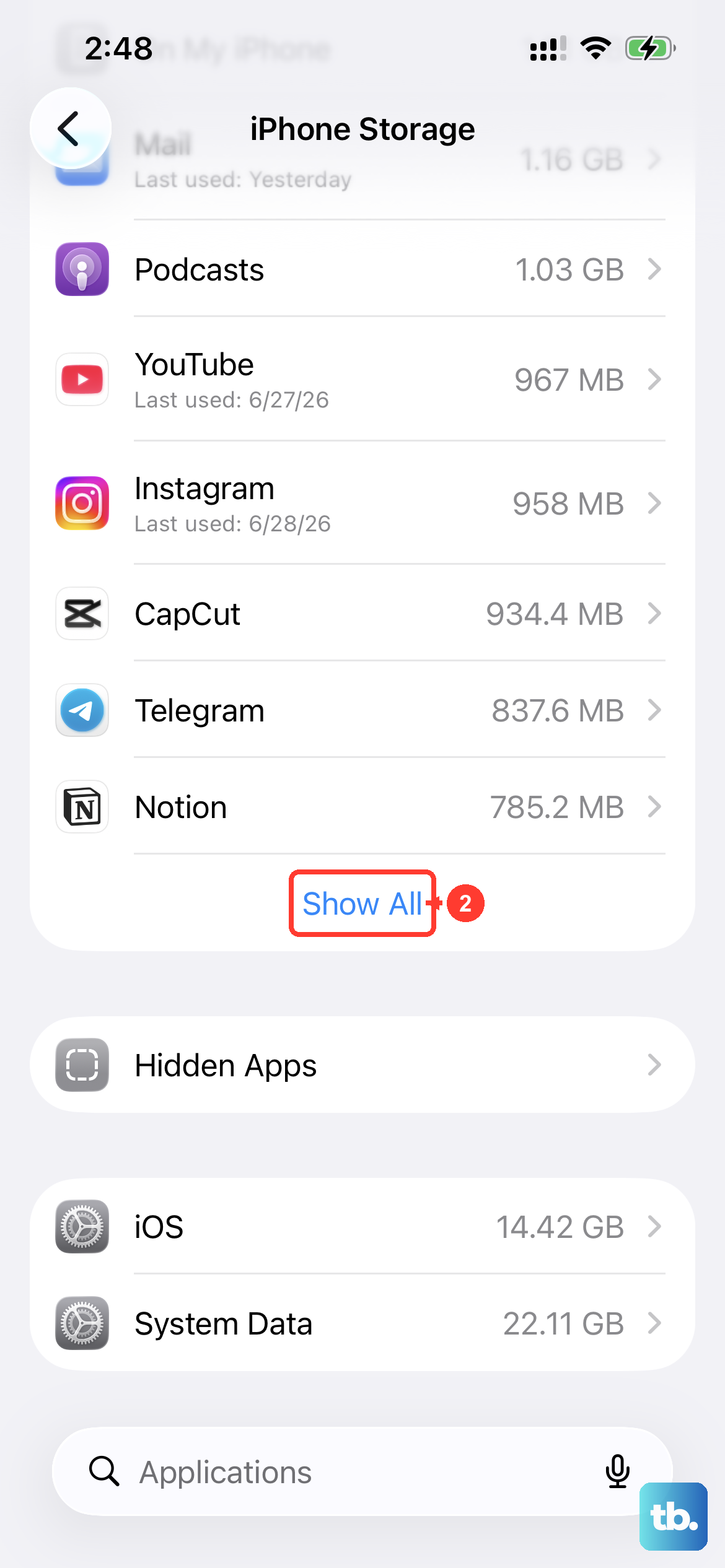
When your iPhone 17 Pro is critically low on storage, system performance can suffer, including keyboard responsiveness. Go to Settings > General > iPhone Storage. iOS will show you a breakdown and may suggest offloading unused apps or reviewing large attachments. Aim to keep at least a few gigabytes free.
Reset All Settings
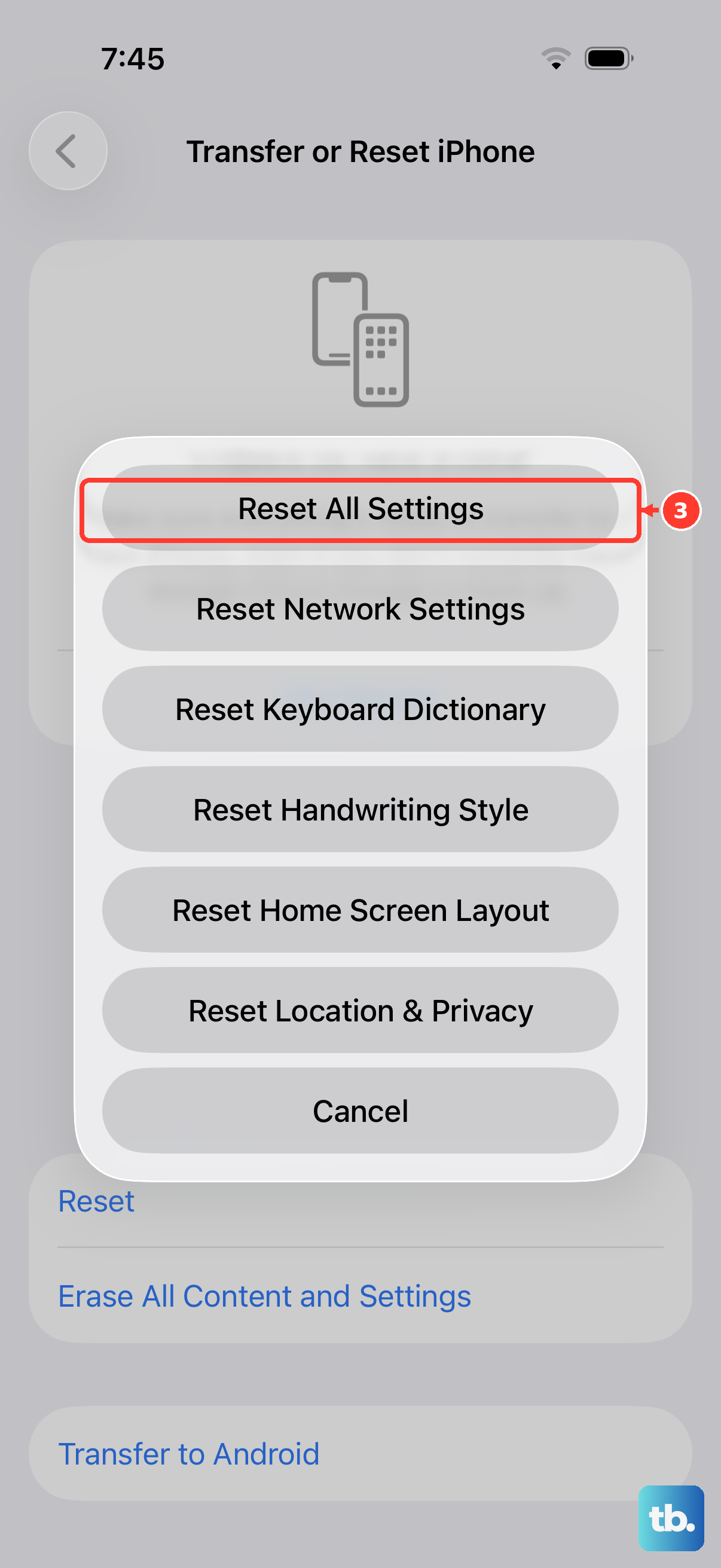
This is a more comprehensive step that resets every system setting on your phone back to factory defaults. It won't delete your photos, messages, or apps, but you will lose all your Wi-Fi passwords, wallpaper choices, and personalized preferences. Go to Settings > General > Transfer or Reset iPhone. Tap Reset and then select Reset All Settings. Enter your passcode to proceed.
Restore Your iPhone via Computer
If the keyboard is still malfunctioning after all other steps, the last software resort is to restore iOS. Connect your iPhone 17 Pro to a Mac or PC with a USB-C cable. On a Mac with macOS 12.3 or later, open Finder. On a PC or older Mac, open iTunes. Select your device, then choose "Restore iPhone." This will install a clean, fresh copy of iOS 26. You'll have the option to set up as new or restore from a backup you made before the keyboard issues started.