
When the microphone on your iPhone 17 Pro Max stops picking up your voice, it can turn simple tasks into a hassle. Calls drop out, Siri goes silent, and your voice memos are just quiet. The first thing to do is figure out which microphone is acting up, as your phone has several.
Start by confirming the basics with a free online mic test. It shows a live level meter and lets you hear a short playback, so you know in seconds whether any signal is coming through.
You can test the primary microphone for calls and Siri by opening the Voice Memos app. Tap the red record button, speak normally for a few seconds, and then play it back. If the audio is muffled or missing, that's a clear sign.
For the front-facing microphone used in FaceTime and video selfies, switch your Camera app to video mode, point the front camera at yourself, and record a short clip while talking. Play it back to check the sound quality there.
Clear Any Physical Blockages
Before diving into settings, take a close look at your phone. The iPhone 17 Pro Max has microphone ports at the bottom next to the USB-C connector, at the top near the front camera, and on the back near the camera array.
Dust, lint, or even a small bit of pocket debris can easily clog these tiny openings. I'd recommend using a soft, dry brush, like a clean, unused makeup brush, to gently sweep over these areas. Compressed air can work, but use very short bursts to avoid pushing moisture into the phone.
Also, take off your case. Some cases, especially rugged ones with port covers, can partially block the bottom microphone. Test your voice memos again without the case to see if that was the culprit.
Disconnect Bluetooth Accessories
This is a common one that people overlook. If your AirPods or any other Bluetooth headphones are connected, even if they're in their case, your iPhone will route all audio through them by default.
Go to Settings > Bluetooth and tap the info icon (i) next to any connected audio devices. Choose Disconnect. For a quicker test, you can just swipe down from the top-right corner to open Control Center and tap the Bluetooth icon to turn it off entirely, then run your microphone test.
Restart and Force Restart Your iPhone
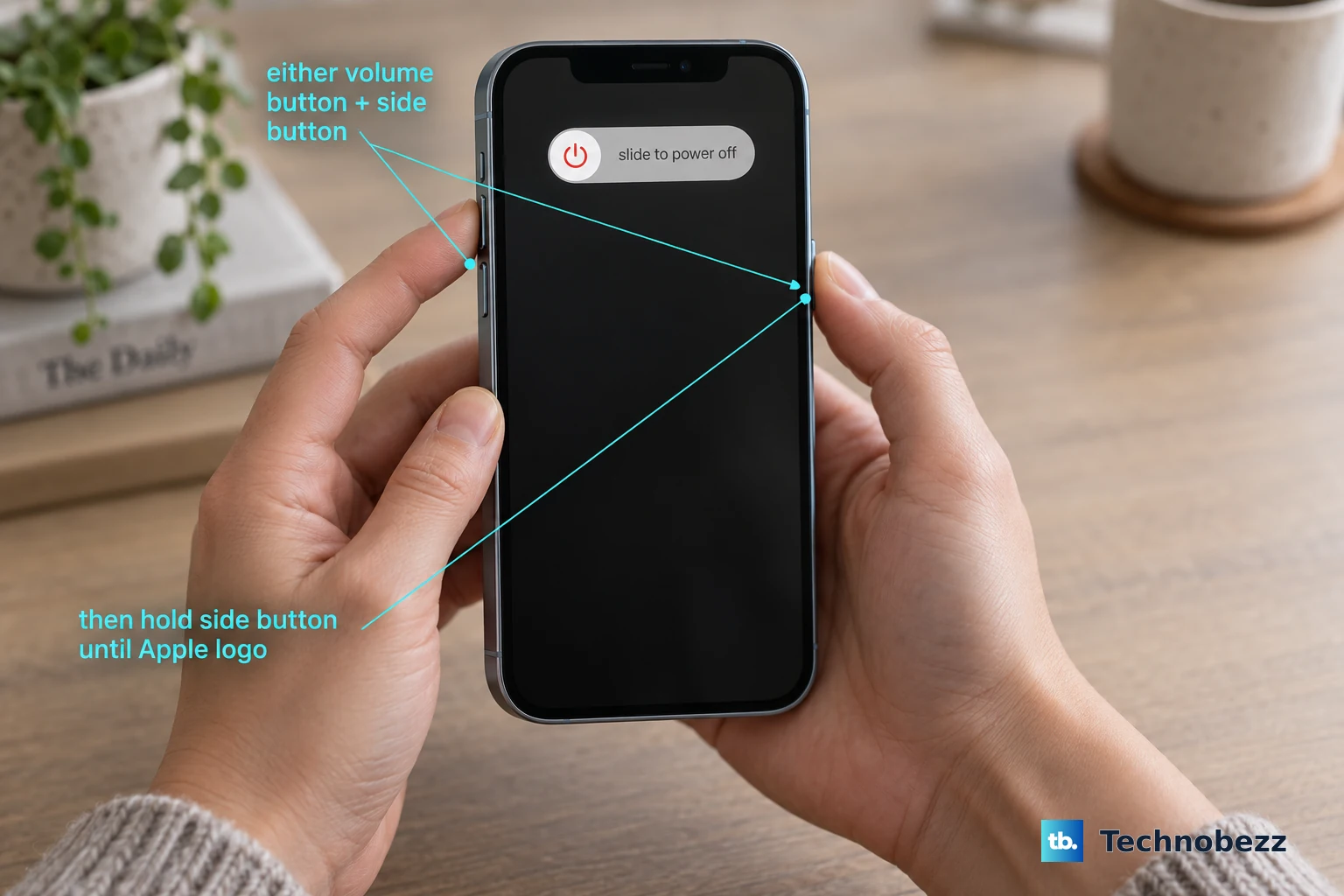
A standard restart clears out minor software glitches that can affect the microphone. Press and hold the Side button and either Volume button until the power-off slider appears, slide it, wait 30 seconds, then press the Side button to turn it back on.
If the problem persists, try a force restart. This doesn't erase any data. On the iPhone 17 Pro Max, you press and quickly release the Volume Up button, then press and quickly release the Volume Down button. Finally, press and hold the Side button until you see the Apple logo appear, then release.
Check App Permissions in iOS 26
Sometimes the issue isn't with the phone, but with a specific app like Zoom, WhatsApp, or Instagram. iOS 26 manages these permissions tightly. Head to Settings > Privacy & Security > Microphone.
You'll see a list of every app that has ever requested microphone access. Make sure the toggle is switched on (green) for the apps where you need the mic to work. If an app is off, turn it on, then force close and reopen the app to test.
Update to the Latest iOS Version
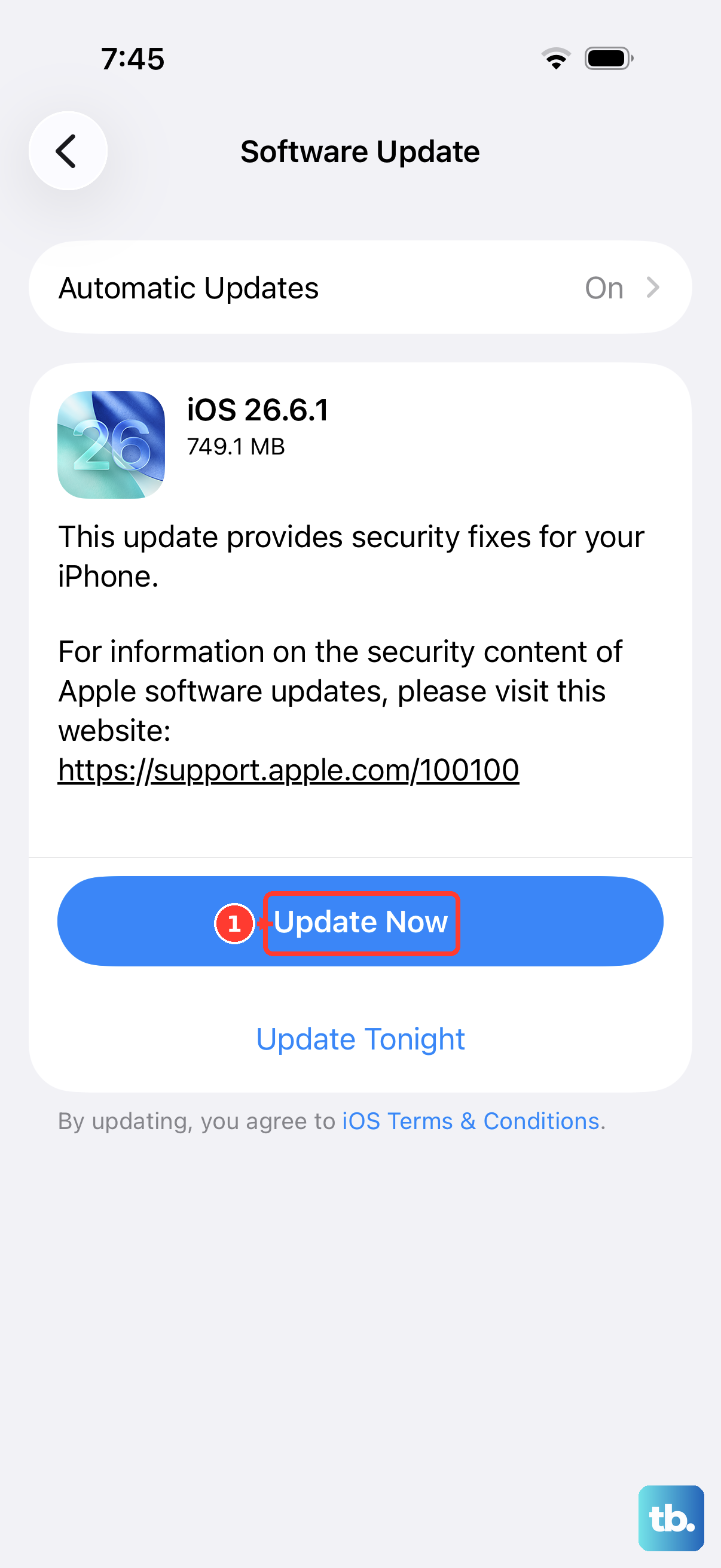
Apple frequently releases iOS updates that include bug fixes for audio and microphone issues. Installing the latest software is a straightforward fix for many problems.
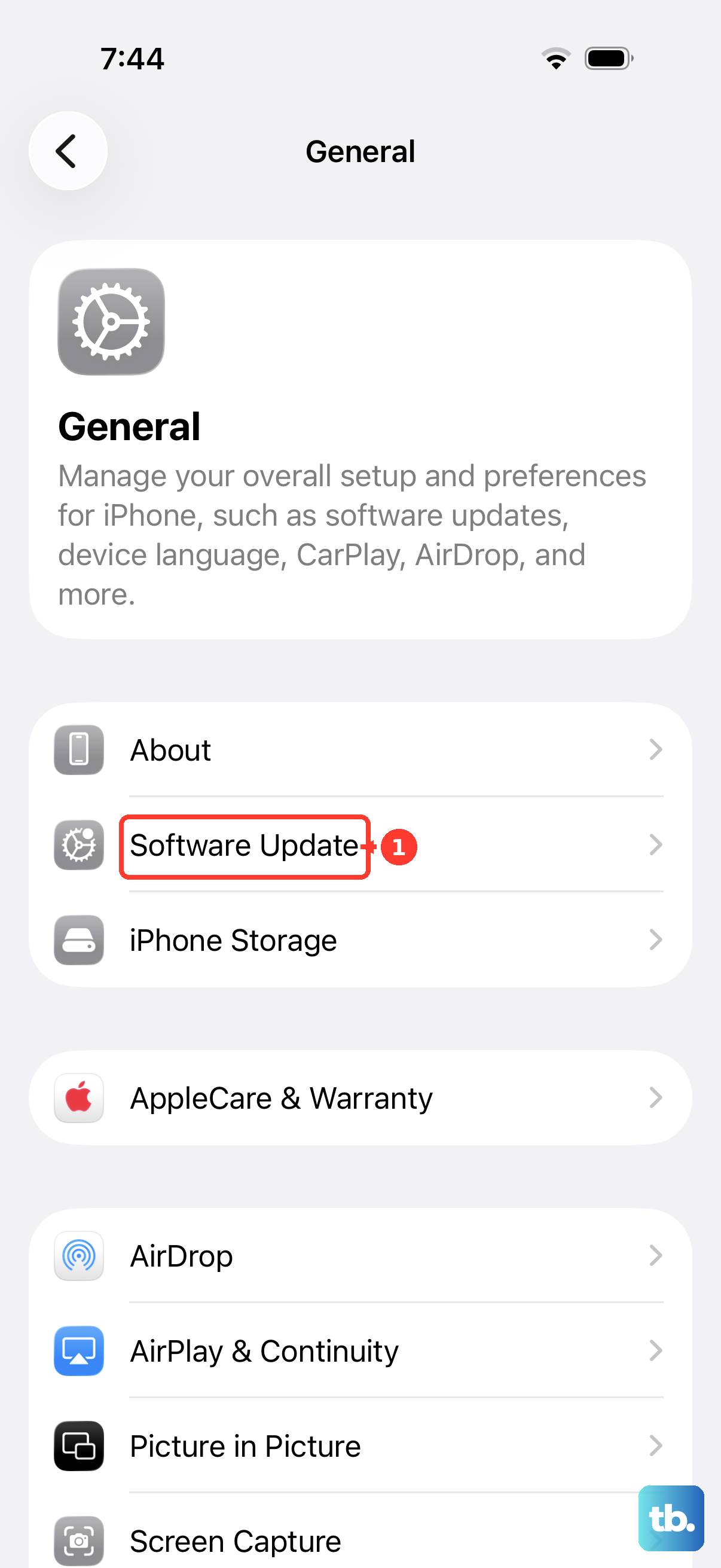
Open Settings > General > Software Update. If an update is available, tap Download and Install. Make sure your iPhone 17 Pro Max is connected to Wi-Fi and has at least 50% battery, or is plugged into a charger. The 60W fast charging with the Apple 40W adapter will get you enough power quickly if you're running low.
Reset All Settings
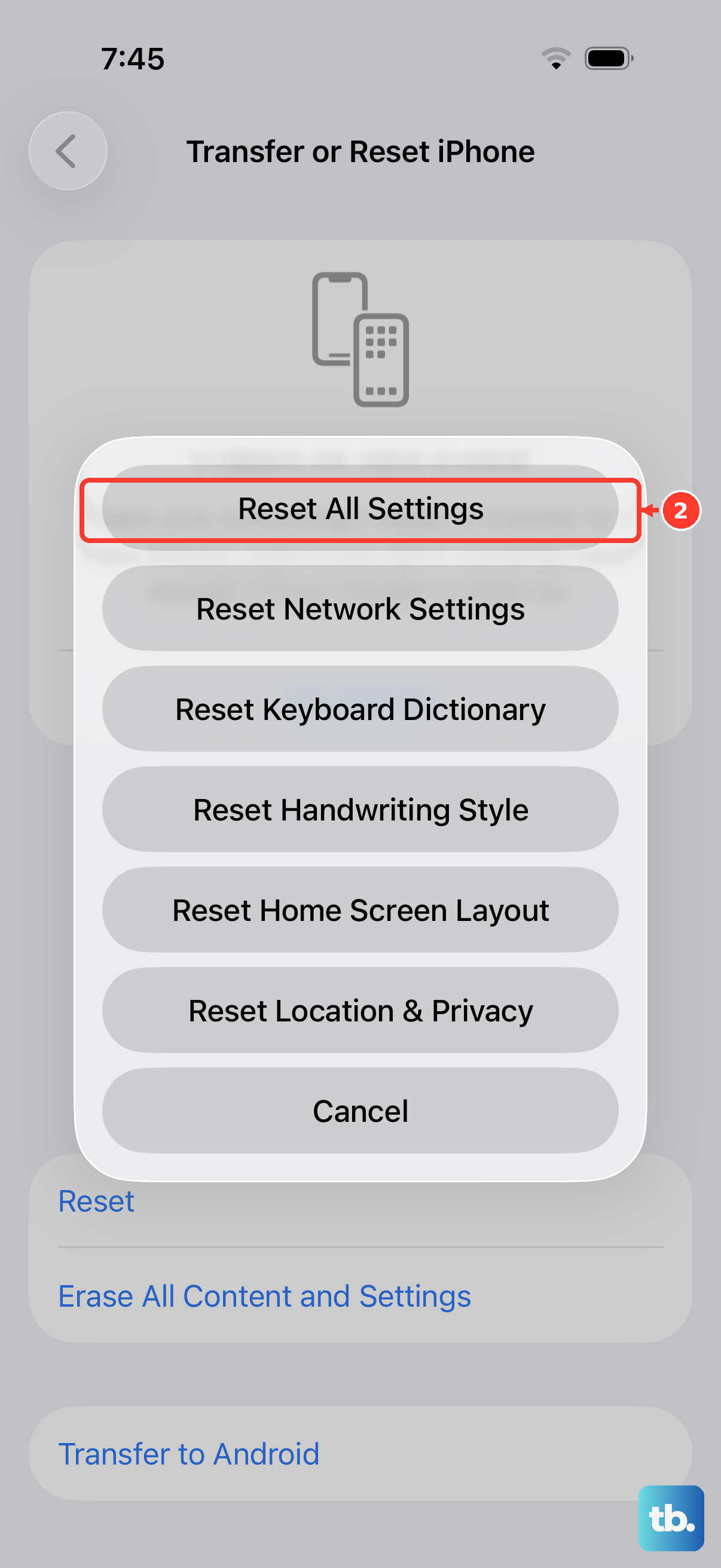
If you're still having trouble, this step can help. It resets all your system settings, like Wi-Fi passwords, wallpaper, and privacy permissions, back to factory defaults without touching your personal data, photos, or apps.
Go to Settings > General > Transfer or Reset iPhone. Tap Reset and then choose Reset All Settings. You'll need to enter your passcode. After the phone reboots, you'll have to reconnect to Wi-Fi and re-customize some preferences, but it often clears up persistent audio bugs.
Restore Your iPhone Using a Computer
This is a more thorough software fix. It involves reinstalling iOS 26 on your iPhone 17 Pro Max, which can resolve deeper system corruption. First, make sure you have a recent iCloud or computer backup.
Connect your iPhone to a Mac or PC using a USB-C cable. On a Mac with macOS or a PC with iTunes, find your device and select the option to Restore iPhone. This will wipe the phone and install a fresh copy of the operating system. After it's done, you can set it up as new or restore from your backup to see if the microphone works.