
When your iPhone 17 keeps closing apps unexpectedly, it pulls you right out of whatever you were doing. This can happen for a handful of reasons, from a simple software hiccup to a more persistent memory or storage issue. The good news is you can almost always get things running smoothly again with a few straightforward steps.
Restart Your iPhone 17
This is the universal first step for a reason. Restarting your iPhone is one of Apple's recommended steps when an app closes unexpectedly. To restart an iPhone 17, press and hold either volume button and the Side button until the power-off slider appears, drag the slider, then wait 30 seconds for the device to turn off. To turn it back on, press and hold the Side button until you see the Apple logo.
Let the phone boot back up completely, then try opening the problematic app again. I'd start with this one, as it solves the issue more often than you'd think.
Update the App and iOS
Outdated software is a common culprit. App developers are constantly pushing updates to fix bugs that cause crashes, and Apple's iOS updates include system-wide stability improvements. Head to the App Store and tap your profile icon in the top right to check for pending app updates.
Next, make sure your iPhone 17 itself is running the latest version of iOS 26. Go to Settings > General > Software Update. If an update is available, I'd recommend installing it while your phone is connected to power, as some updates can be quite large.
Check Your Available Storage
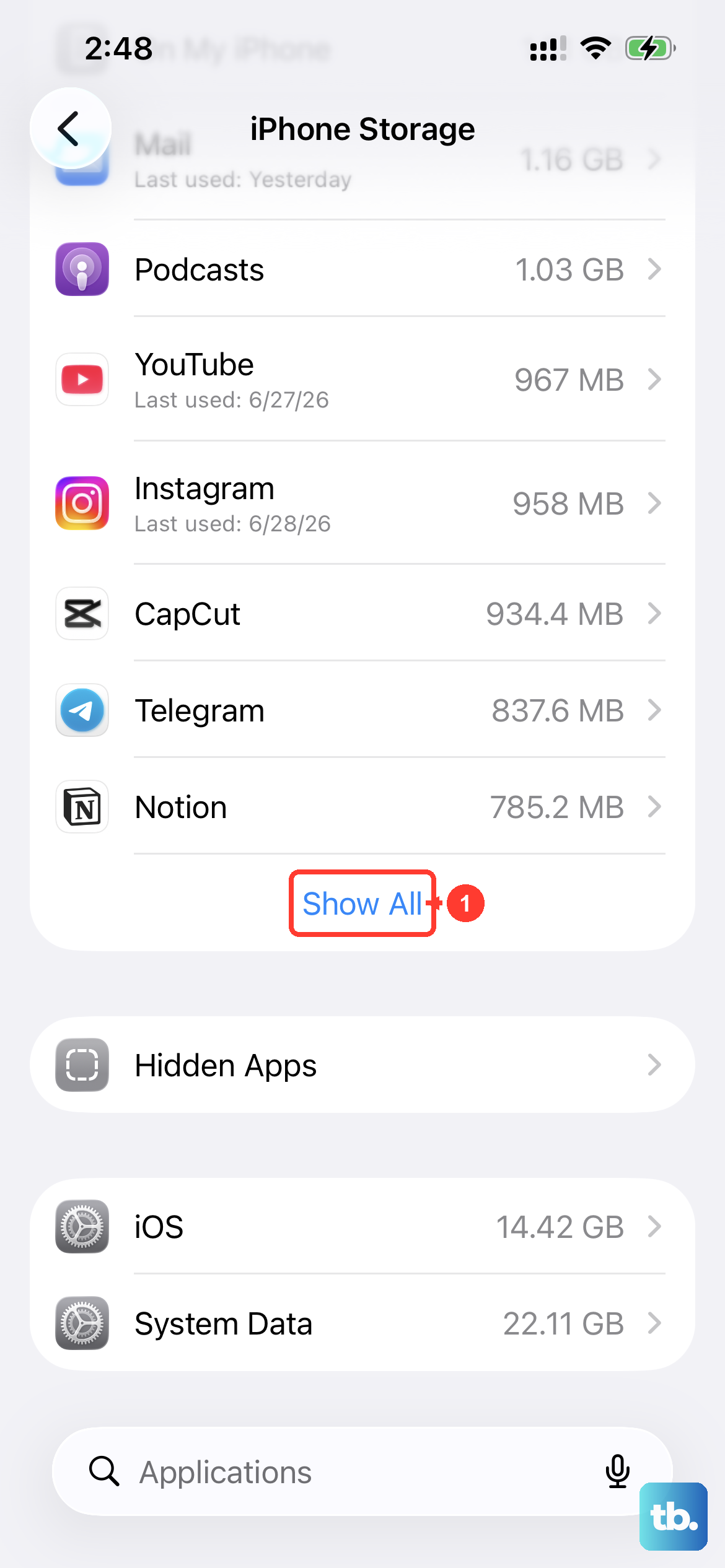
Your iPhone needs free space to operate properly. Apple recommends checking iPhone Storage when your device is low on space, then using storage recommendations or removing content such as apps and videos. To check, go to Settings > General > iPhone Storage.
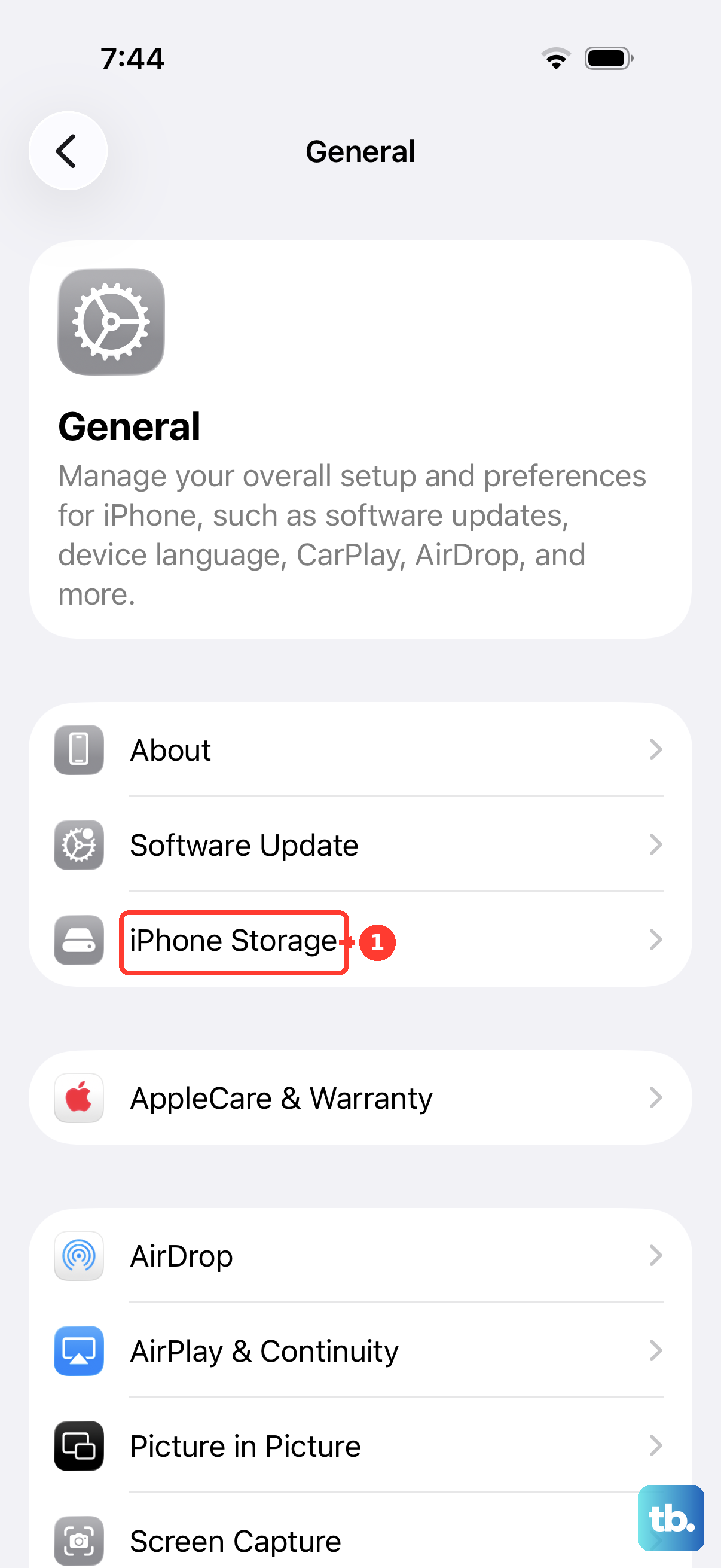
You'll see a breakdown of what's using your space. Aim to keep at least a few gigabytes free. If you're running low, you can offload unused apps (which removes the app but keeps its documents and data), delete old messages, or clear out your photo library's Recently Deleted album.
Force Quit and Relaunch the App
If a single app is misbehaving, force quitting it gives it a completely fresh start. Swipe up from the bottom of the screen and pause in the middle to enter the app switcher. Find the app's preview card and swipe it up and off the top of the screen to close it.
Wait a moment, then tap the app's icon on your Home Screen or in the App Library to reopen it. Apple says quitting and reopening an app can help if the app is not responding; if that does not resolve the issue, try restarting iPhone.
Check for a Problematic iOS Update
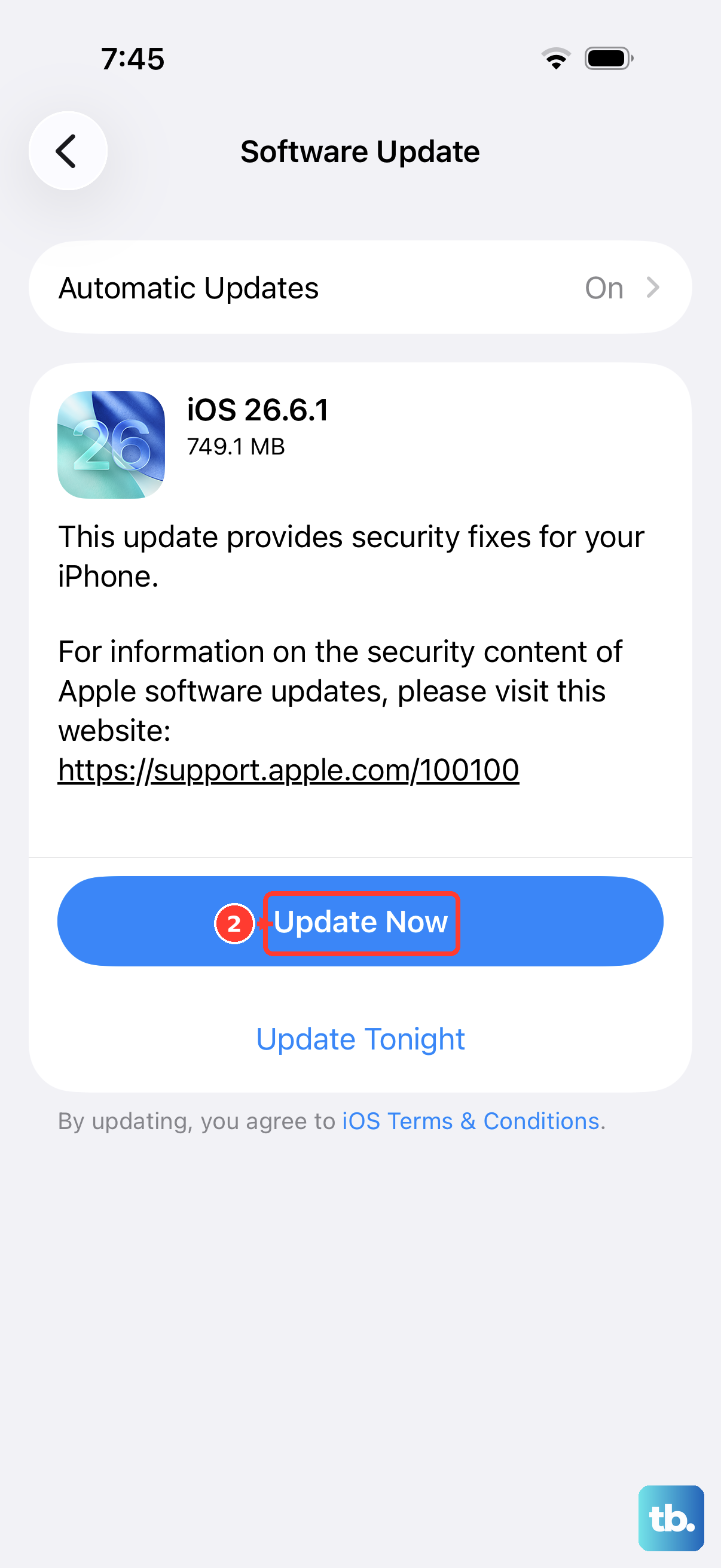
Occasionally, a new iOS update can introduce temporary bugs that affect app stability. This is usually addressed quickly by Apple in a follow-up patch. If your apps started closing right after you updated to a new version of iOS 26, check the Software Update section again for a newer version.
If only one app keeps closing after the app and iOS are up to date, Apple's next documented step is to contact the app developer for help.
Delete and Redownload the App
If the app still keeps crashing after updates and a restart, Apple's documented next step is to delete the app, then redownload it from the App Store. Apple warns that you might lose data that was stored in the app when you delete it.
After redownloading the app, open it again and check whether the crashing problem is fixed.
Reset All Settings
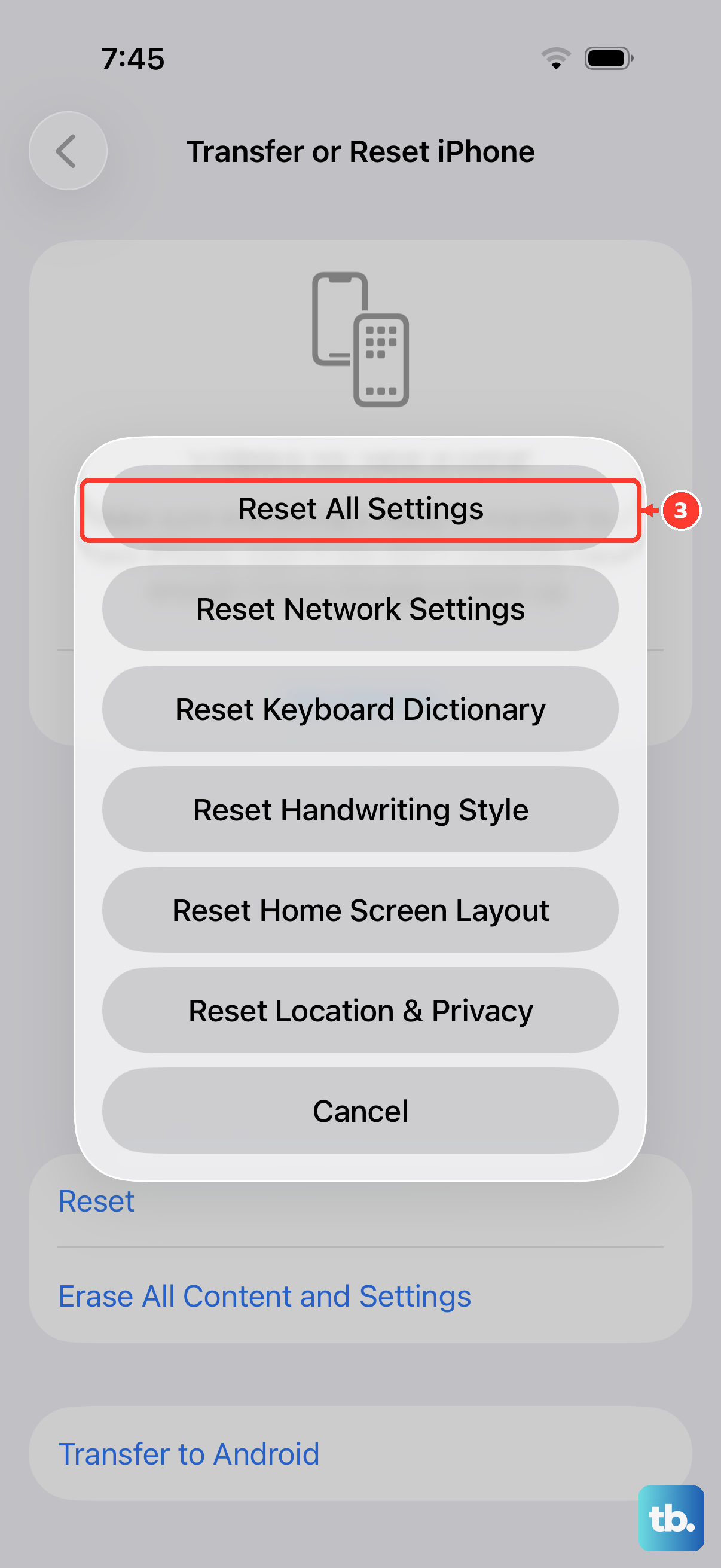
If the problem is widespread and affects many apps, a deeper system setting might be off. Resetting all settings returns things like your wallpaper, privacy permissions, and network configurations back to factory defaults without erasing your personal data.
Go to Settings > General > Transfer or Reset iPhone. Tap "Reset" and then choose "Reset All Settings." You'll need to re-enter Wi-Fi passwords and reconfigure some preferences, but your photos, messages, and apps will remain untouched.