
When your iPhone 17 Pro Max stops ringing for incoming calls, it can leave you feeling completely disconnected. This issue can pop up for a few different reasons, often tied to a setting you might have changed without realizing it. I'd start with the quick checks below, as they resolve the majority of these silent call problems on iOS 26.
The first thing to try is a simple force restart. This clears out any temporary software glitches that could be interfering with the phone app. On your iPhone 17 Pro Max, you do this by pressing and quickly releasing the Volume Up button, then quickly pressing and releasing the Volume Down button. Finally, press and hold the Side button until you see the Apple logo appear on the screen.
While you're at it, take a quick glance at your cellular signal bars. If you're in an area with very poor reception, calls might not come through at all. Try moving to a different location or toggling Airplane Mode on and off from the Control Center to force the modem to reconnect to the network.
Check Your Focus and Silence Settings
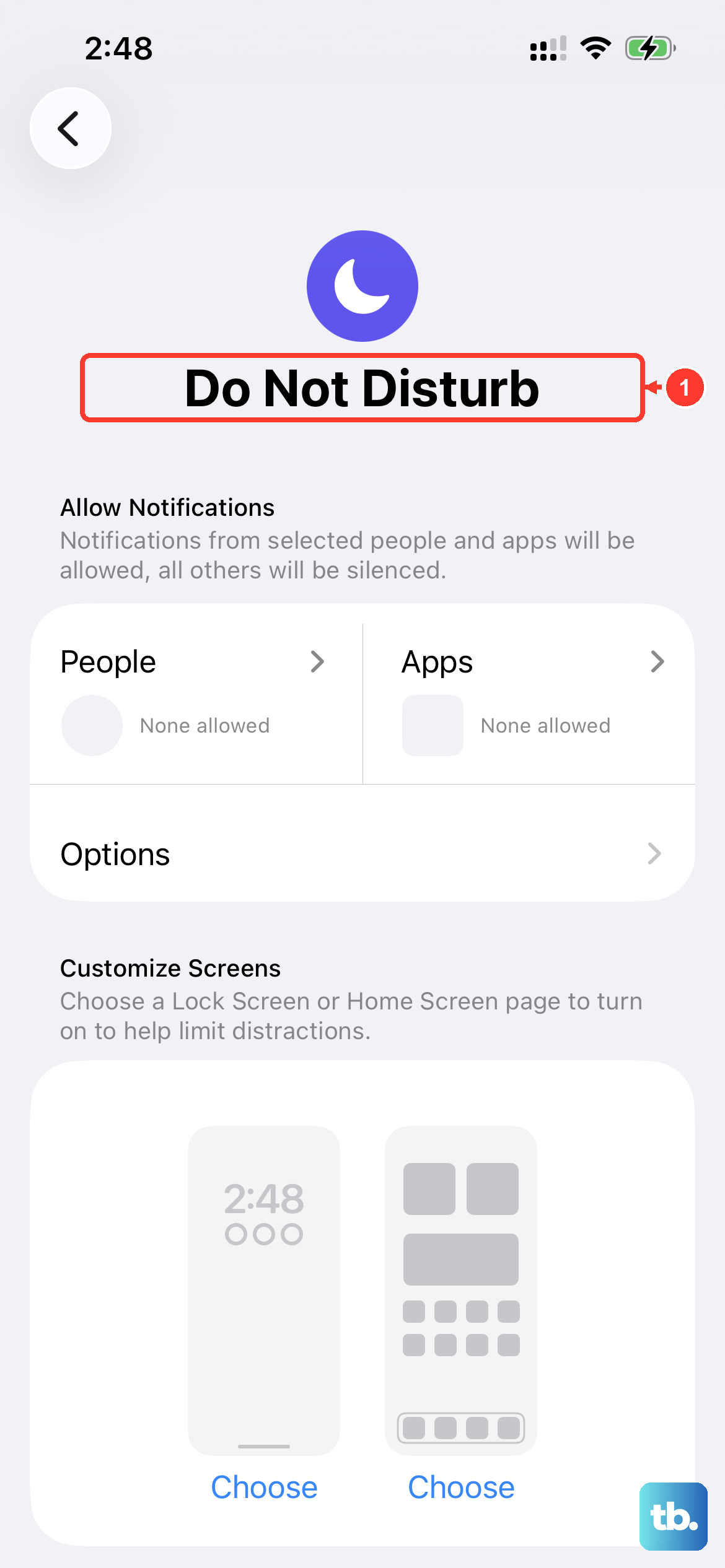
Focus modes in iOS 26 are incredibly powerful, but they can also silently block calls if they're not configured correctly. Swipe down from the top-right corner to open Control Center and look at the Focus tile. If any Focus mode besides "Personal" is active, tap it to see its settings.
Open the Settings app and go to Focus. Tap on the active Focus, then select People. Make sure "Allow Calls From" is set to "Everyone" or at least includes the contacts you're expecting calls from. Some Focus modes are set to allow calls only from your Favorites list by default.
Also, check the physical Silence switch on the left side of your iPhone. If you see an orange strip, the switch is set to silent mode. This will mute all ringtones and alerts, though calls should still come through visually. Flick the switch so the orange is no longer visible.
Review Call Blocking and Silence Unknown Callers
Apple has built-in features to combat spam, but they can sometimes be a little too aggressive. Head to Settings > Apps > Phone. Scroll down and look for "Silence Unknown Callers." If this is turned on, any number not in your Contacts, Mail, or Messages will be sent directly to voicemail without ringing.
This is a common culprit for missed business or delivery calls. If you're expecting calls from numbers you don't know, I'd recommend turning this setting off temporarily. You can always turn it back on later if the spam becomes overwhelming.
In the same Phone settings menu, tap on Call Blocking & Identification. This will show you a list of any third-party spam blocking apps you have installed. You can review their settings or temporarily disable them to see if they are incorrectly filtering legitimate calls.
Verify Your Cellular Network Settings
Sometimes, the issue is with how your phone is registered on your carrier's network. A quick way to refresh this connection is to toggle Airplane Mode on for about 30 seconds, then turn it off again. You can do this from Control Center or in Settings > Airplane Mode.
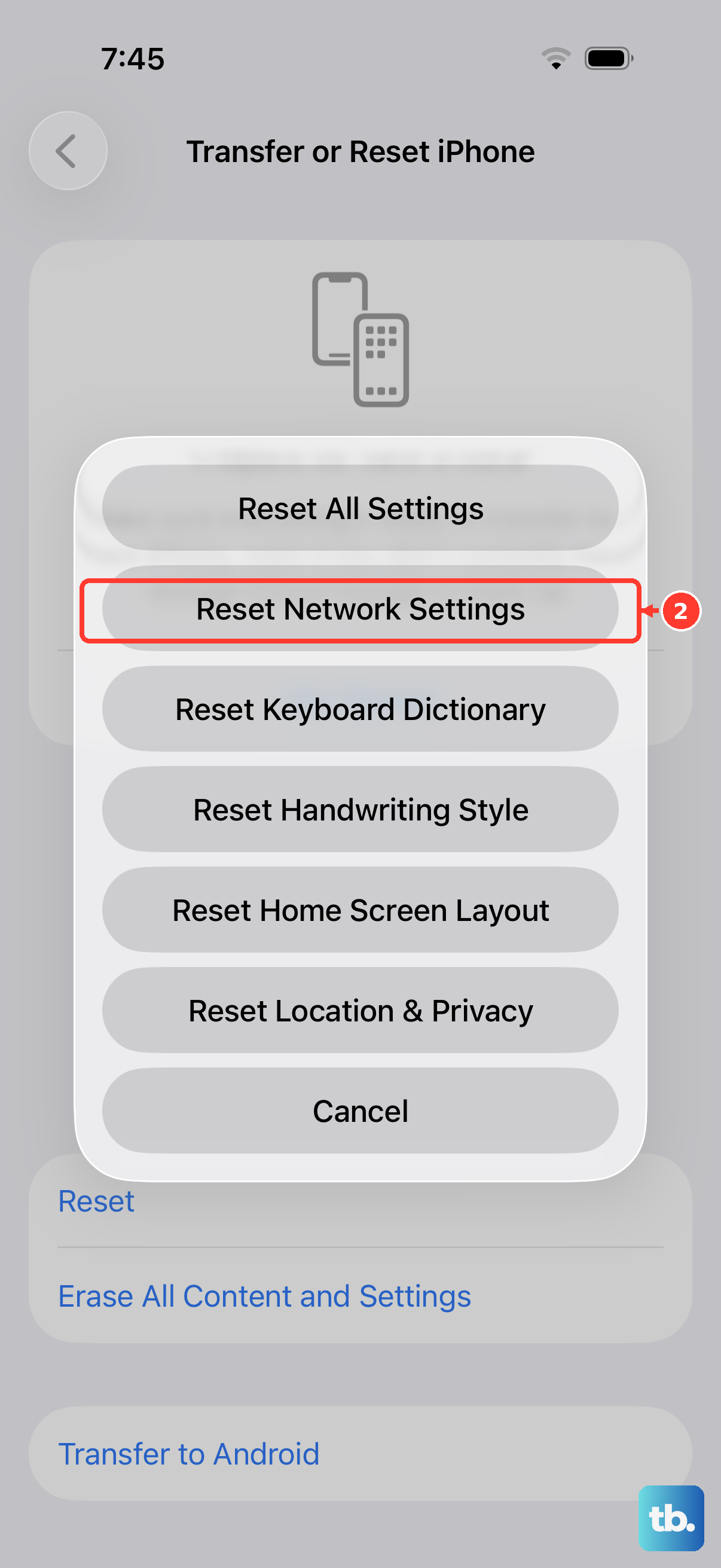
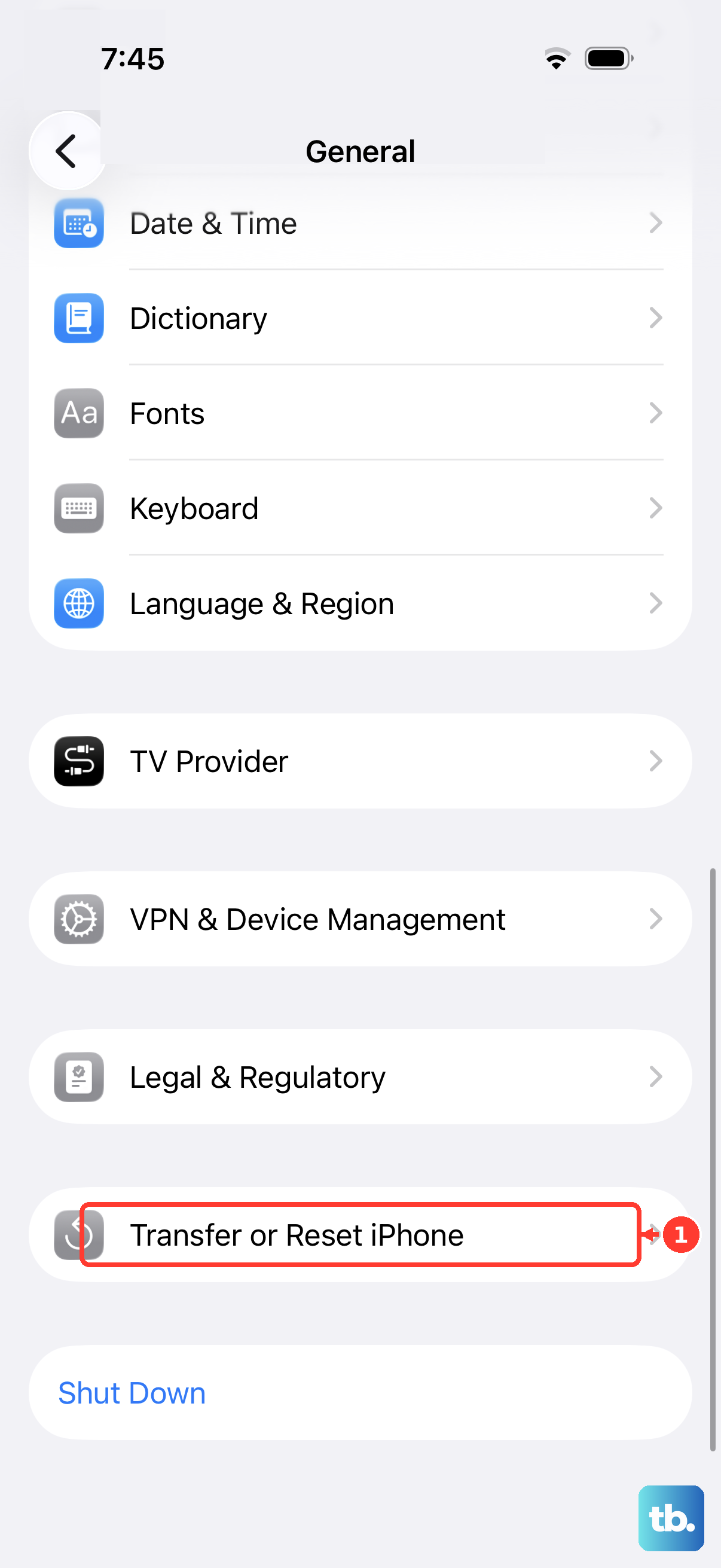
If that doesn't help, the next step is to reset your network settings. This will clear all Wi-Fi passwords, Bluetooth pairings, and cellular network configurations. Go to Settings > General > Transfer or Reset iPhone. Tap Reset, then choose Reset Network Settings. Your iPhone will restart, and you'll need to reconnect to Wi-Fi networks afterward.
It's also worth checking for a carrier settings update. Connect your iPhone to Wi-Fi, then go to Settings > General > About. If an update is available, a prompt will appear. These updates are small but important for network connectivity.
Update iOS and Check for App Conflicts
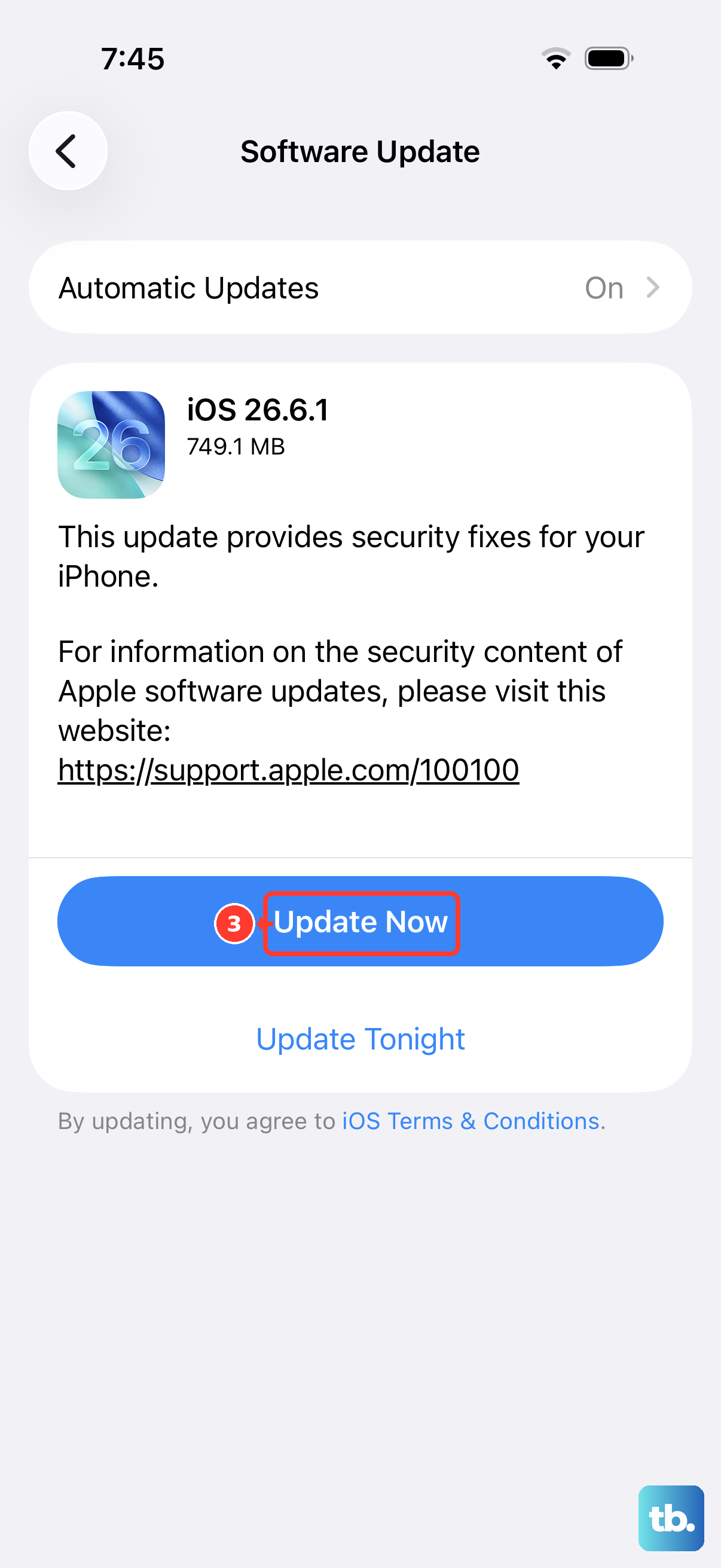
Software bugs in iOS 26 can occasionally affect core functions like calling. Make sure your iPhone 17 Pro Max is running the latest version. Go to Settings > General > Software Update. If an update is available, install it. These updates often contain fixes for issues that weren't apparent during initial testing.
Consider if the problem started after you installed a new app. Some apps, particularly VPNs, call recorders, or network tools, can interfere with the phone's ability to receive calls. Try uninstalling any recently downloaded apps to see if the issue clears up.
You can also try removing and reinserting your SIM card. Use the SIM ejector tool that came with your iPhone to open the tray on the left side. Take the SIM out, inspect it for any obvious damage or dirt, and then firmly reseat it in the tray before sliding it back into the phone.
Check Call Forwarding and Do Not Disturb While Driving
Call forwarding is another setting that can redirect your calls without you noticing. Open the Phone app and tap on the "Keypad" tab. Dial #21# and then tap the call button. This will show you if any unconditional call forwarding is active on your line.
To disable it, dial ##21# and tap call. You can also check this in Settings > Apps > Phone > Call Forwarding to see the status.
Don't forget about the "Do Not Disturb While Driving" feature, which can activate automatically. Go to Settings > Focus > Driving. Look at the "Activate" section. If it's set to "Automatically," it might be turning on and silencing calls when it thinks you're in a vehicle. You can change this to "When Connected to Car Bluetooth" or "Manually" for more control.