
It's frustrating when your iPhone 17 starts to feel sluggish. Even with the A19 chip, performance can sometimes take a hit. The slowdown is usually temporary and caused by something you can fix yourself.
Start with a simple force restart. This clears the phone's memory and stops any stuck processes. For the iPhone 17, you press and quickly release the Volume Up button, then quickly press and release the Volume Down button. Finally, press and hold the Side button until you see the Apple logo appear on the screen.
Holding the Side button might take longer than 10 seconds, and a force restart often solves random lag immediately.
Check for iOS Updates
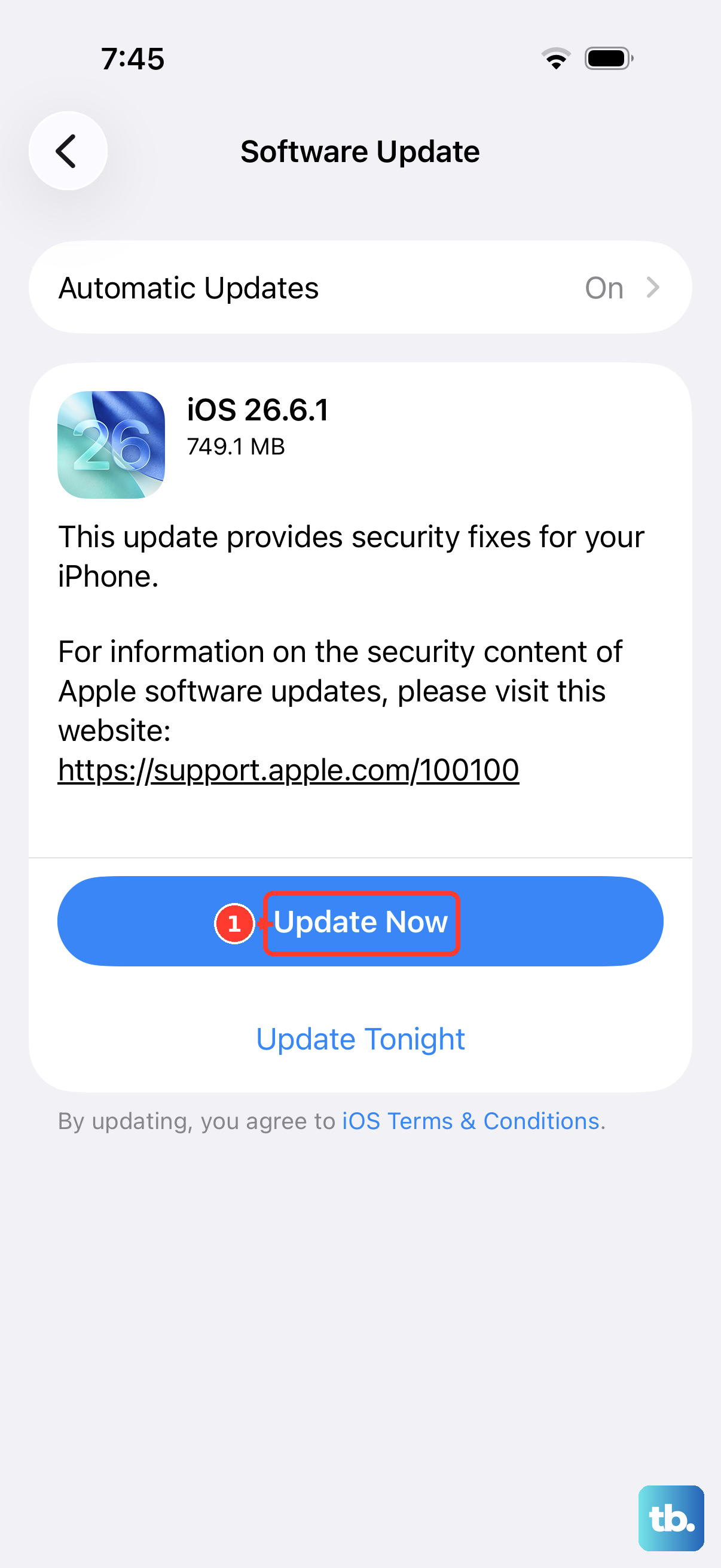
Apple frequently releases updates that include performance improvements and bug fixes. A recent update might be the very thing causing your slowdown, and a newer one could resolve it.
Head to Settings > General > Software Update. If an update is available, install it while your phone is connected to Wi-Fi and power. Major iOS updates can temporarily affect performance as the phone re-indexes files in the background, so give it a few hours after updating before judging the speed.
Manage Your iPhone Storage
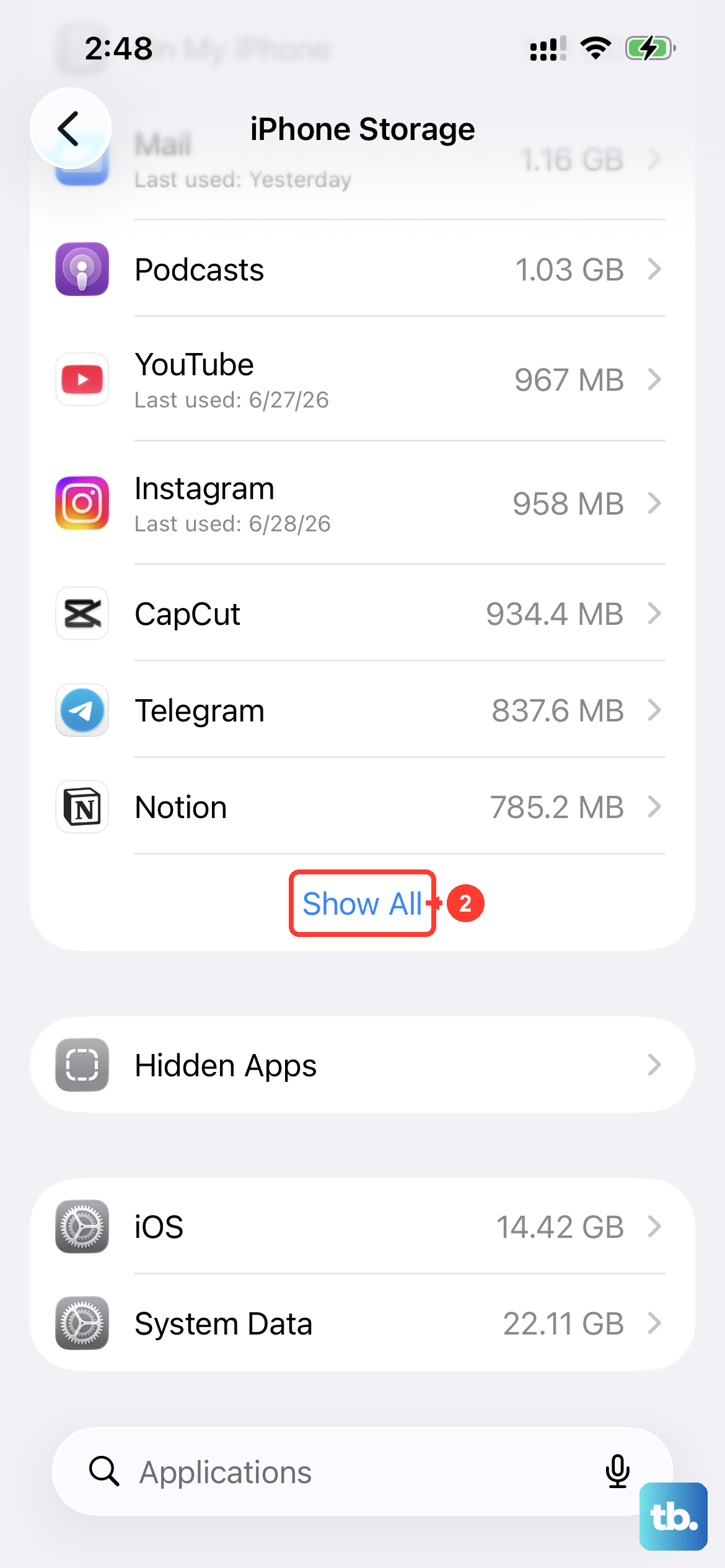
When your storage gets too full, the system doesn't have enough room to operate efficiently. This is a very common cause of slowdowns. Go to Settings > General > iPhone Storage.
The system will show you a breakdown of what's taking up space. Look for the "Recommendations" section at the top, which might suggest offloading unused apps or reviewing large attachments. Try to keep some storage free so the system has room to work properly.
Review Battery Health and Charging Settings
While less common on a new device, it's worth checking your battery's status. Go to Settings > Battery, then tap Battery Health for your maximum capacity or Charging for the optimization options.
Here, you can see your battery's maximum capacity. Also, check the charging optimization settings. A feature called "Optimized Battery Charging" can sometimes pause charging at 80%, which is normal. Under Peak Performance Capability on the Battery Health screen, check that it reads "Your battery is currently supporting normal peak performance."
Close Apps and Manage Background Activity
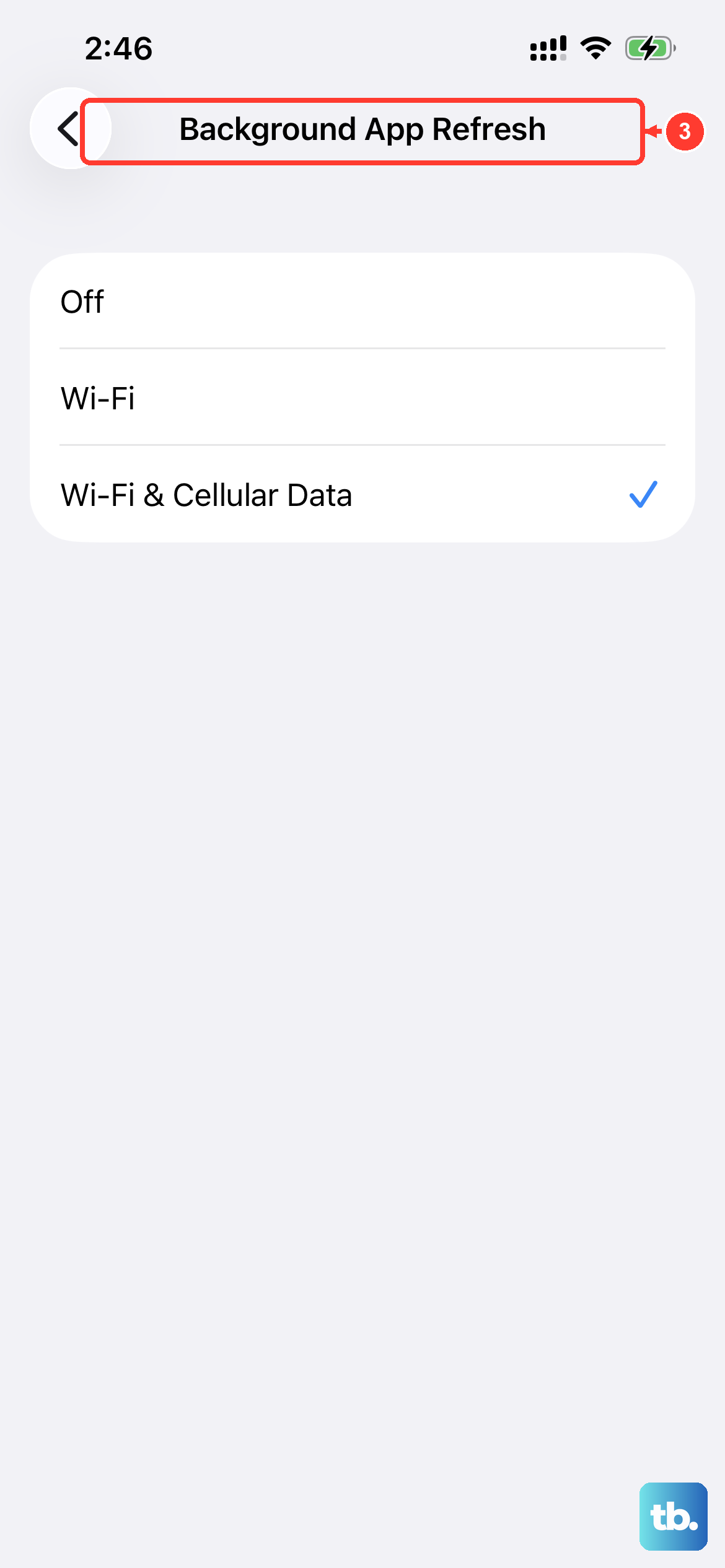
You don't need to constantly close apps, but if one is misbehaving, it can drain resources. Swipe up from the bottom of the screen and pause in the middle to see your recent apps. Swipe up on any app's preview to close it.
For more control, limit what apps can do in the background. Go to Settings > General > Background App Refresh. You can turn this off entirely or just for specific apps that don't need to update content when you're not using them.
Reset All Settings
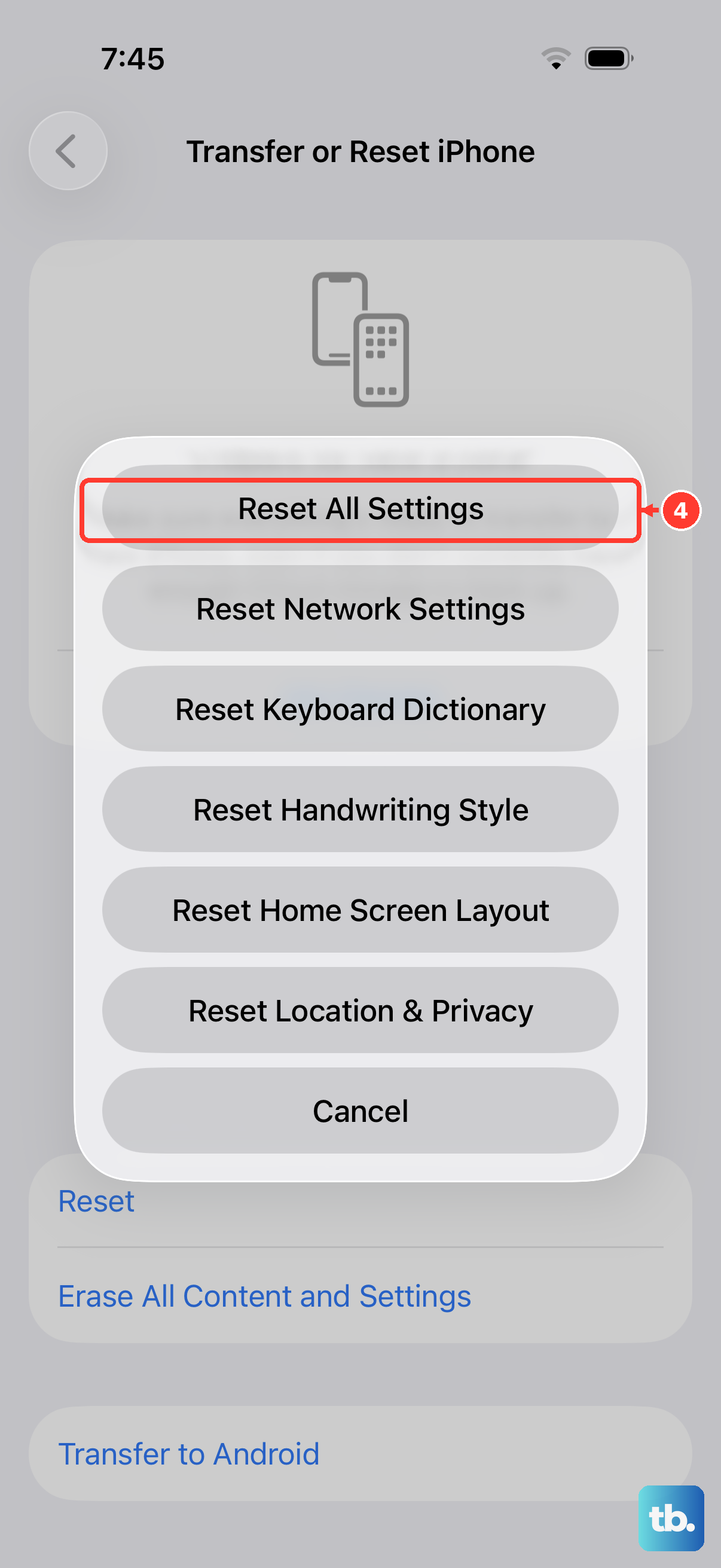
If the slowdown persists and seems system-wide, resetting all settings can help. This won't delete your photos, messages, or apps, but it will reset your Wi-Fi passwords, wallpaper, and preferences back to default.
Go to Settings > General > Transfer or Reset iPhone > Reset. Then, choose "Reset All Settings." You'll need to enter your passcode.
Check for Problematic Apps
A single third-party app could be the culprit. Think about when the slowdown started. Did you recently install a new game or utility?
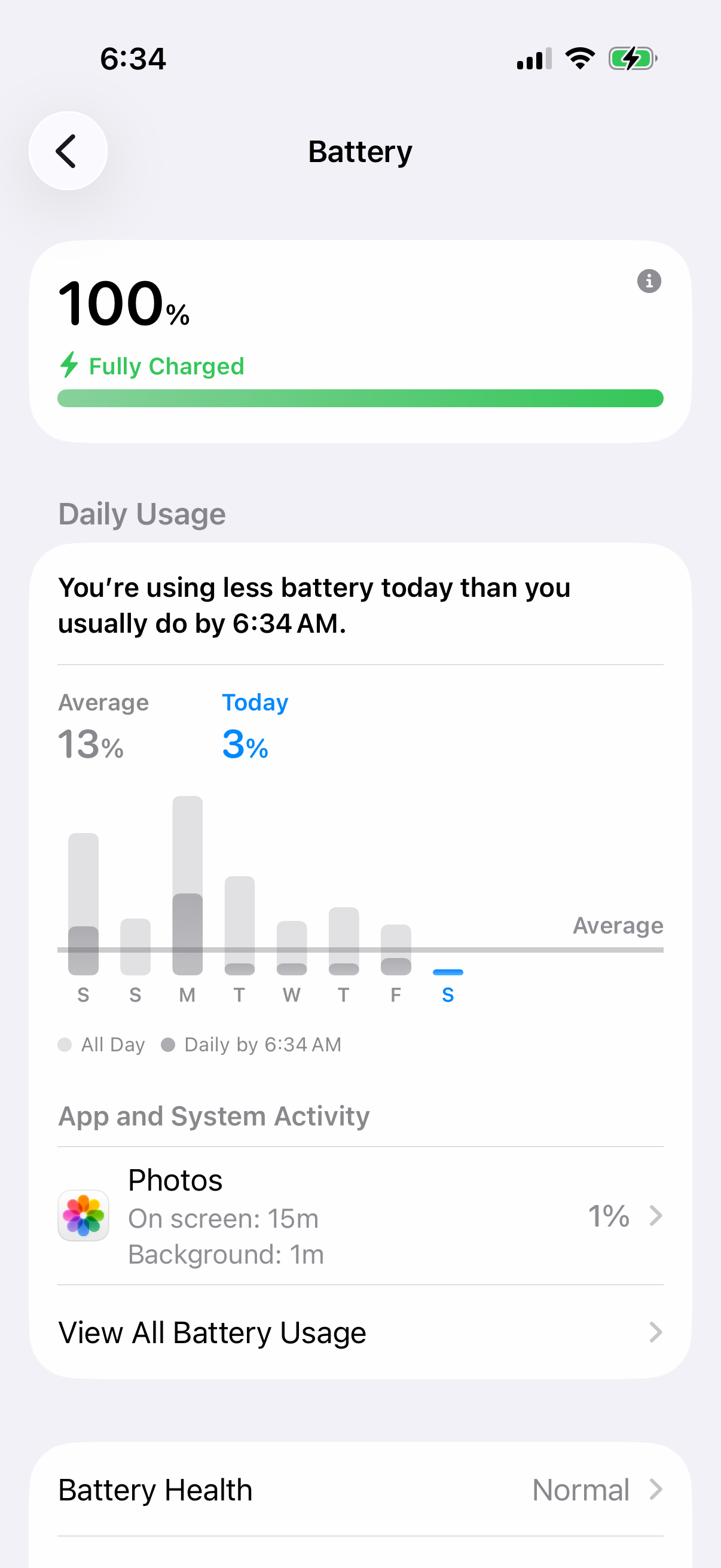
You can check app battery usage in Settings > Battery. Look under App and System Activity for any app using an unusual amount of battery. Try uninstalling a suspicious app to see if performance improves. You can always reinstall it later from the App Store.
Disable Intensive Visual Effects
The iPhone 17 has stunning graphics, but reducing some visual effects can free up processing power. Go to Settings > Accessibility > Motion.
Turn on "Reduce Motion." This replaces the zooming animations with simpler crossfades. You can also go to Accessibility > Display & Text Size and turn on "Reduce Transparency" to make some backgrounds solid instead of blurry.
Clear Safari Website Data
If the slowness is most noticeable in Safari, its cache and history might be overloaded. Open the Settings app and go to Apps > Safari.
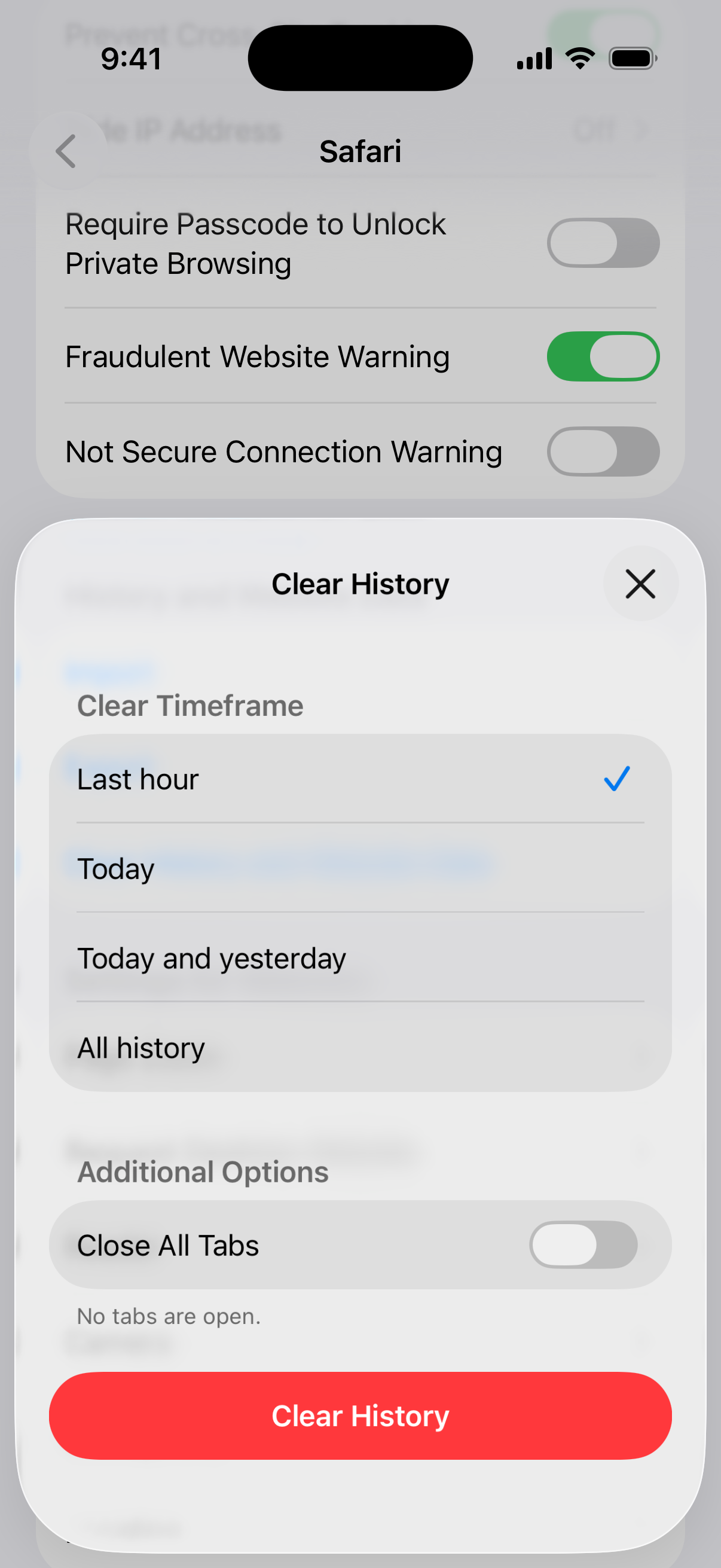
Scroll down and tap "Clear History and Website Data." Choose a timeframe, then tap Clear History. This will log you out of websites, but it often makes browsing feel snappier by removing old, stored data.
Perform a Clean Restore
This is the most thorough step and should be your last resort. It involves erasing your iPhone and setting it up again, either from a backup or as new. First, make sure you have a recent iCloud or computer backup.
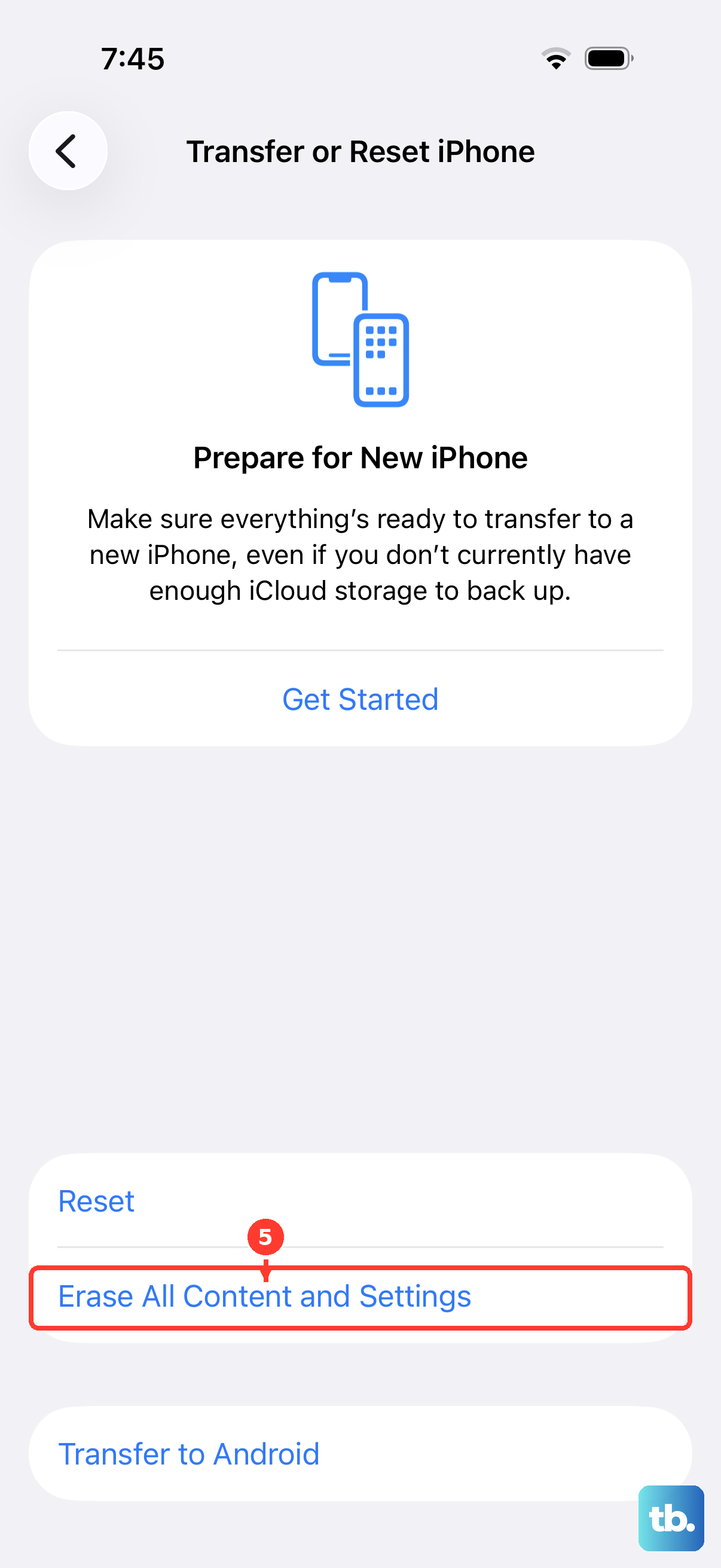
Then, go to Settings > General > Transfer or Reset iPhone > Erase All Content and Settings. After the erase is complete, you can choose to restore from your backup. Setting up as a new device, without restoring a backup, is the surest way to rule out software corruption, but it's also the most time-consuming.