When your iPhone 17 Pro's volume buttons stop responding, it's a jarring experience. You press the tactile buttons on the left side and get no feedback, no volume change, and no haptic click. The good news is that most of the time, this is a temporary glitch you can fix yourself without a trip to the Genius Bar.
I'd start with the simplest fix first, as it often does the trick.
Remove Your Phone Case
Take your iPhone 17 Pro out of its case. Some third-party cases, especially thicker ones or those not perfectly aligned with the new titanium chassis, can press against the buttons and restrict their movement. A case that's seen better days might have warped just enough to cause this issue.
With the case off, test the volume up and down buttons directly. You should feel a distinct, solid click with each press. If they work now, you've found the culprit.
Perform a Force Restart
If the buttons are still unresponsive, a force restart is your next best step. This clears out any minor software hiccups in iOS 26 that might be preventing the system from recognizing your button presses. It doesn't delete any of your data or settings.
For the iPhone 17 Pro, the process is quick. Press and quickly release the Volume Up button. Then, press and quickly release the Volume Down button. Finally, press and hold the Side button. Keep holding it until you see the Apple logo appear on the screen, then you can let go.
Check Your Sound Settings
It's worth a quick look in Settings to make sure a software toggle hasn't been accidentally changed. Open the Settings app and go to Sounds & Haptics. Scroll down and ensure the switch for "Change with Buttons" is turned on (green).
If this was off, your physical buttons would be disabled for adjusting ringer and alert volumes. Toggle it back on and give your volume rocker another try.
Clean Around the Buttons
The iPhone 17 Pro's design, while sleek, can allow pocket lint and dust to accumulate around the button seams. This is one of the most common physical causes for a button to feel mushy or unresponsive.
Grab a can of compressed air and give short, controlled bursts around the edges of both volume buttons. For any sticky residue, a cotton swab dipped in a tiny amount of isopropyl alcohol (90% or higher) can help. Be gentle and avoid pushing any debris further into the device.
Use AssistiveTouch as a Diagnostic Tool
Enabling AssistiveTouch isn't just an accessibility feature, it's a great way to test if the problem is software or hardware. Go to Settings > Accessibility > Touch > AssistiveTouch and turn it on. A small gray button will appear on your screen.
Tap that button, then go to Device > Volume Up (or Down). Use these virtual buttons a few times. If the volume changes on-screen but your physical buttons still don't work, it strongly suggests a hardware or deeper software issue with the button mechanism itself.
Update to the Latest iOS
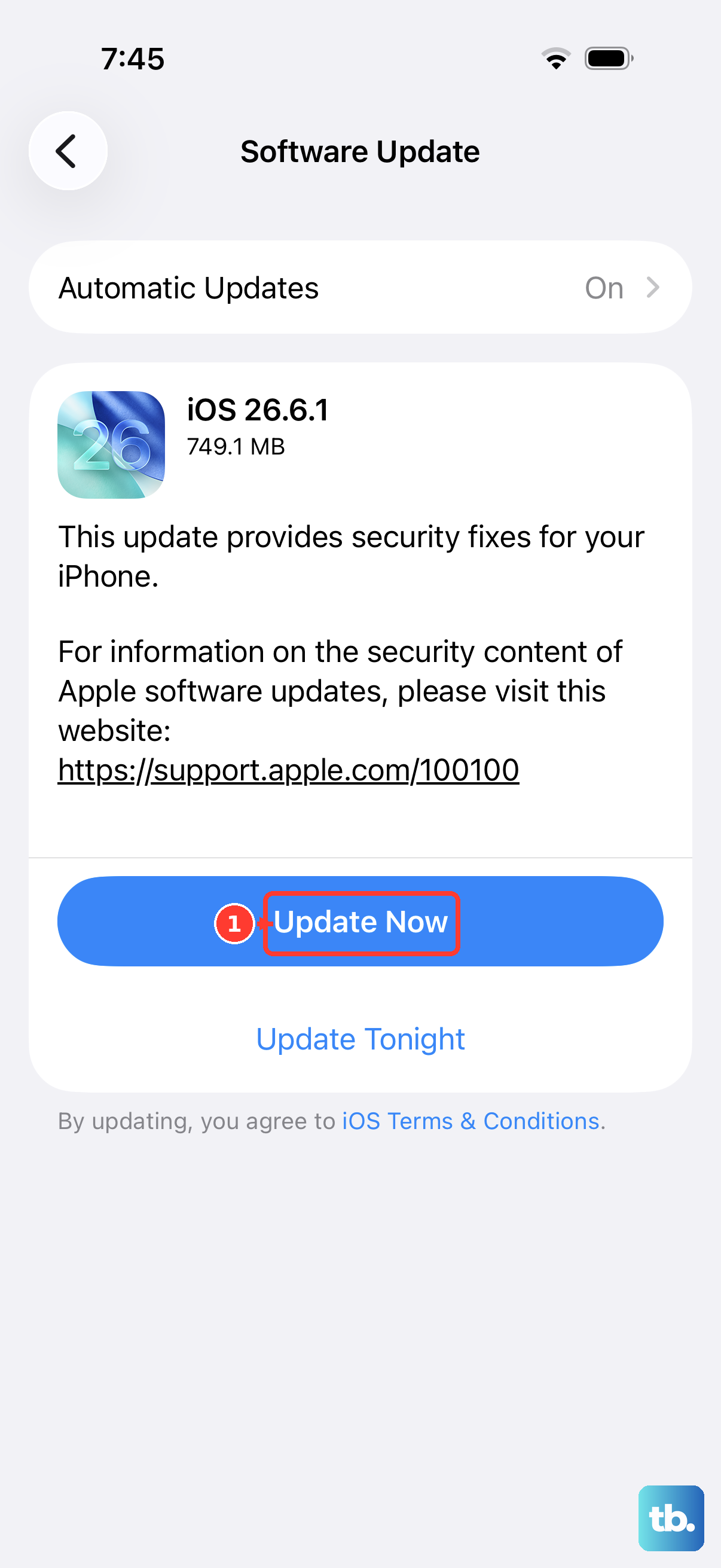
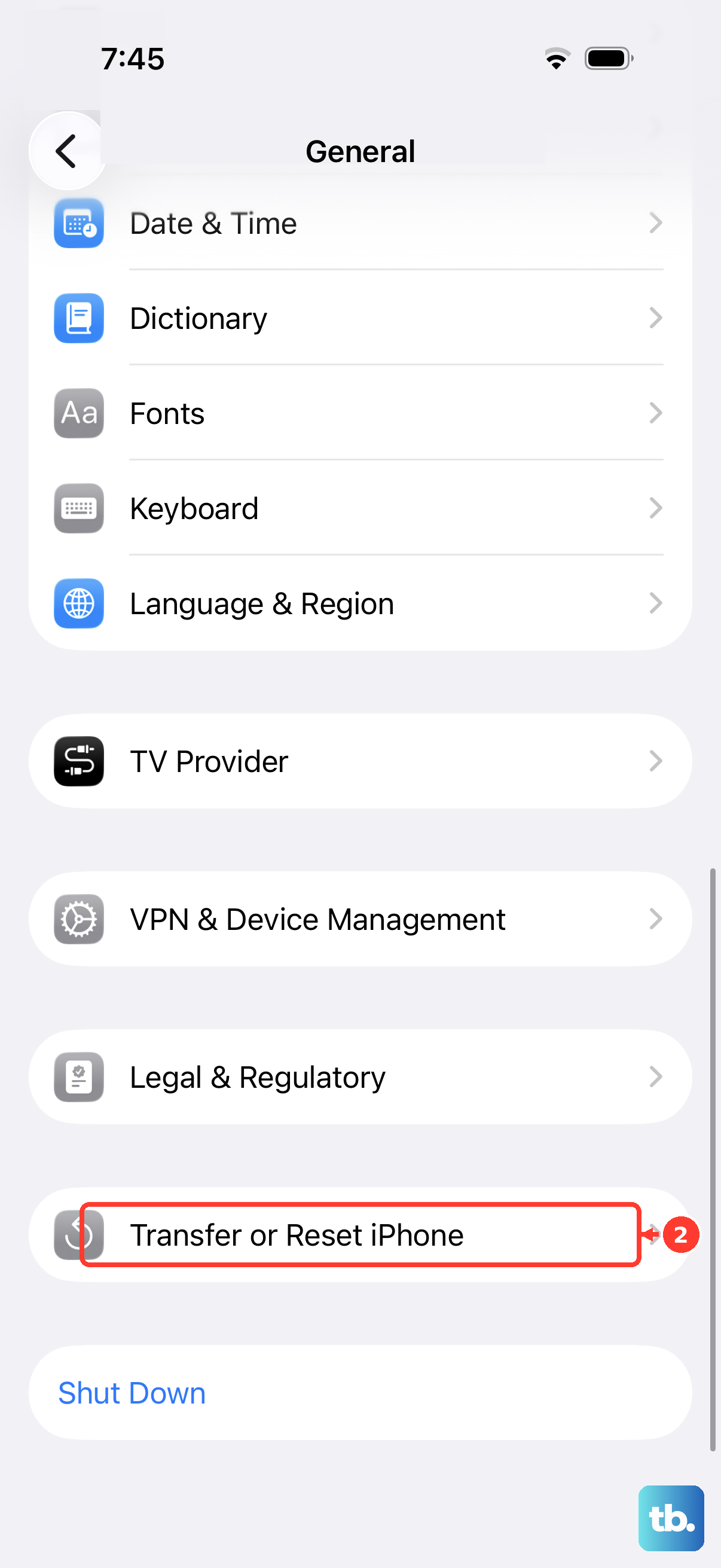
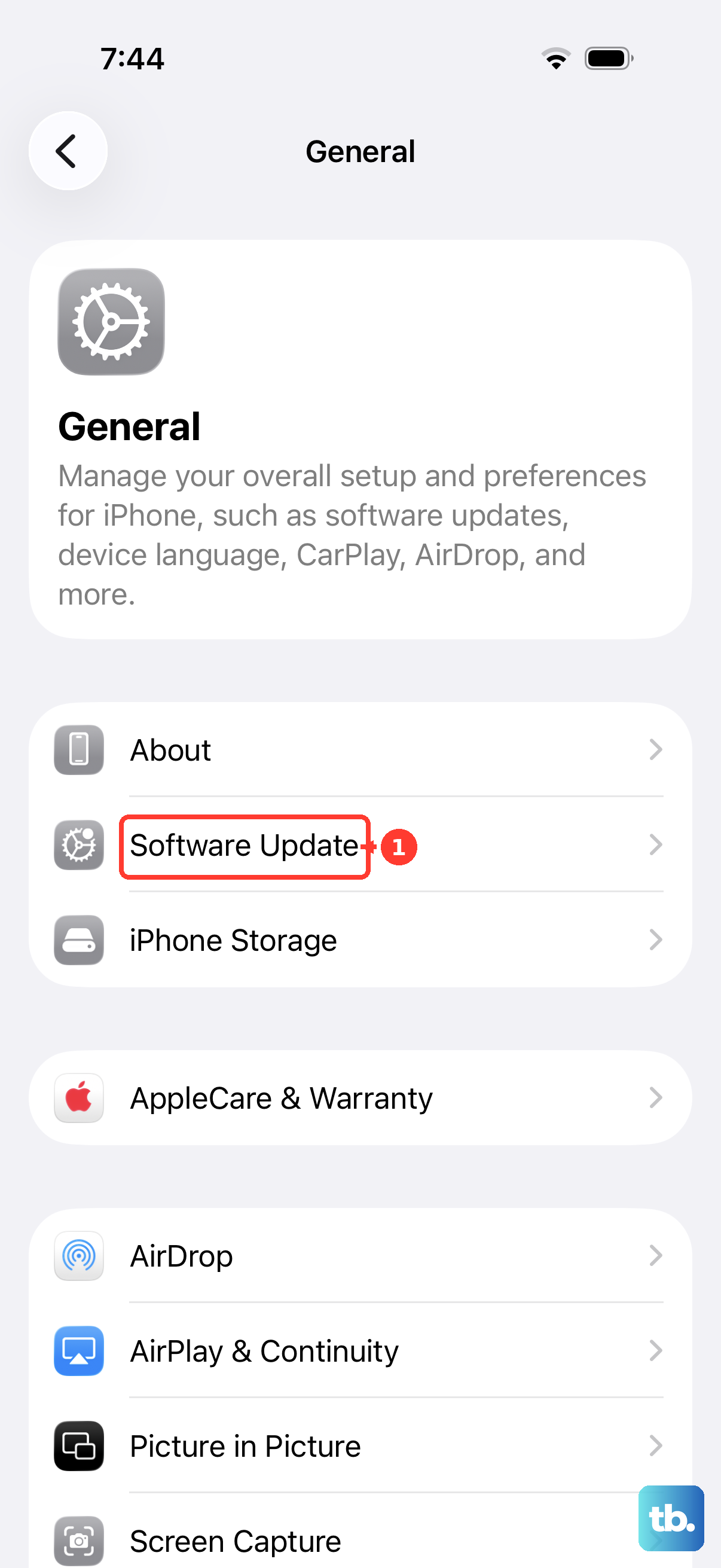
Since you're on iOS 26, Apple is still actively releasing updates that include bug fixes. A software bug specific to your version could be interfering with button input. Connect your iPhone 17 Pro to Wi-Fi and a charger, then head to Settings > General > Software Update.
Download and install any available update. After your phone restarts, test the volume buttons again. I've seen minor point updates resolve quirky input issues like this.
Test in Different Apps and Modes
Sometimes the issue is contextual. Open the Music app and play a song, then try the volume buttons. Try it while watching a video in the TV app or during a phone call. Also, try pressing the Action button (which replaced the traditional ring/silent switch) a few times to make sure it is not stuck.
If the buttons work in some apps but not others, the problem is likely with a specific app's coding. If they don't work anywhere, the issue is system-wide.
Reset All Settings
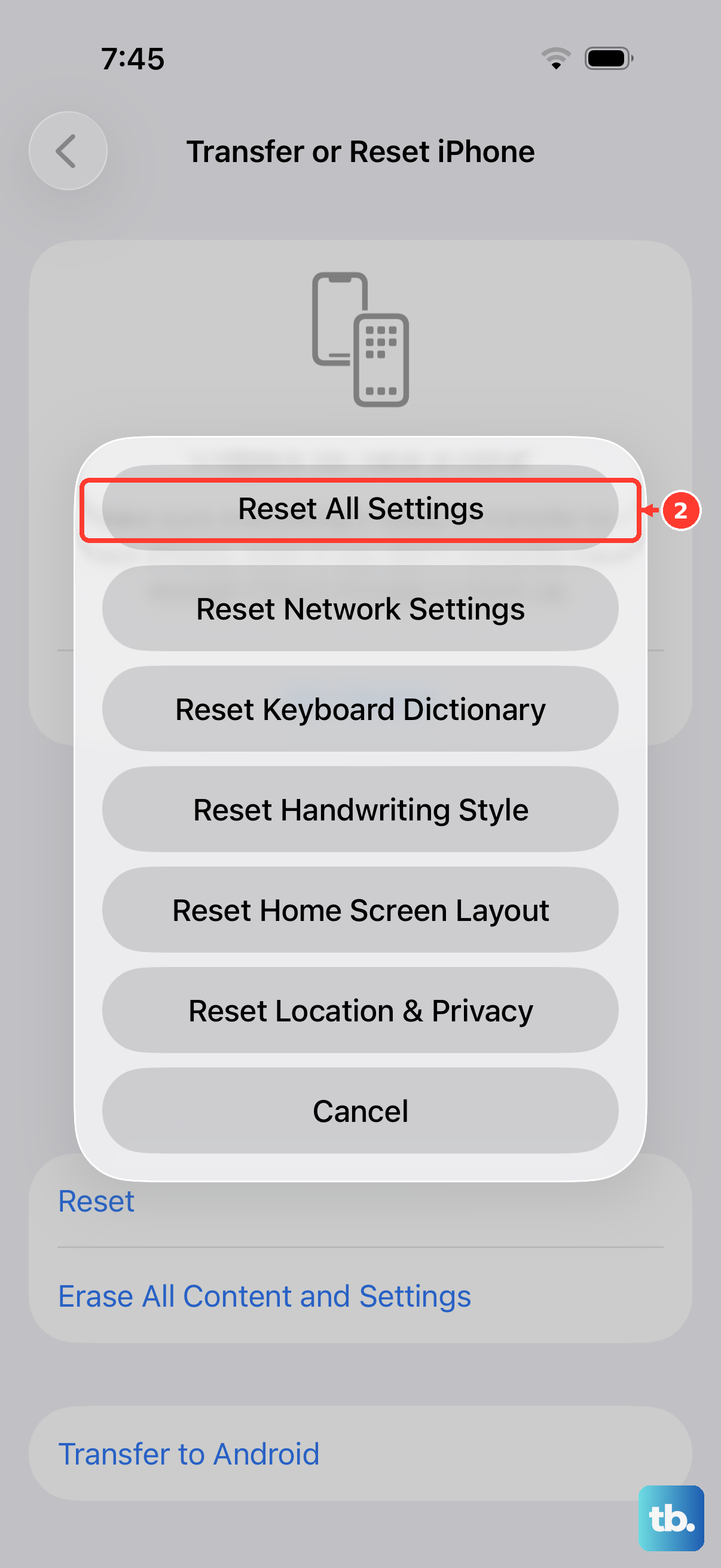
This is a more significant step, but it can resolve deeper configuration conflicts without erasing your personal data like photos and messages. Your iPhone 17 Pro will feel fresh out of the box settings-wise, so you'll need to re-enter Wi-Fi passwords and reconfigure some preferences.
Go to Settings > General > Transfer or Reset iPhone. Tap Reset and then choose Reset All Settings. Enter your passcode and confirm. After the phone restarts, check the volume buttons.