
If your iPhone 17 Pro Max is feeling sluggish, you're not alone. Even with its powerful chip, a few common issues can slow things down. The fixes are usually straightforward and don't take long to try.
Start with a simple force restart. It clears out temporary glitches and refreshes the system without touching your data. For the iPhone 17 Pro Max, press and quickly release the Volume Up button, then quickly press and release the Volume Down button. Finally, press and hold the Side button until you see the Apple logo appear on the screen. It often resolves random lag or unresponsive apps.
Check Your Available Storage
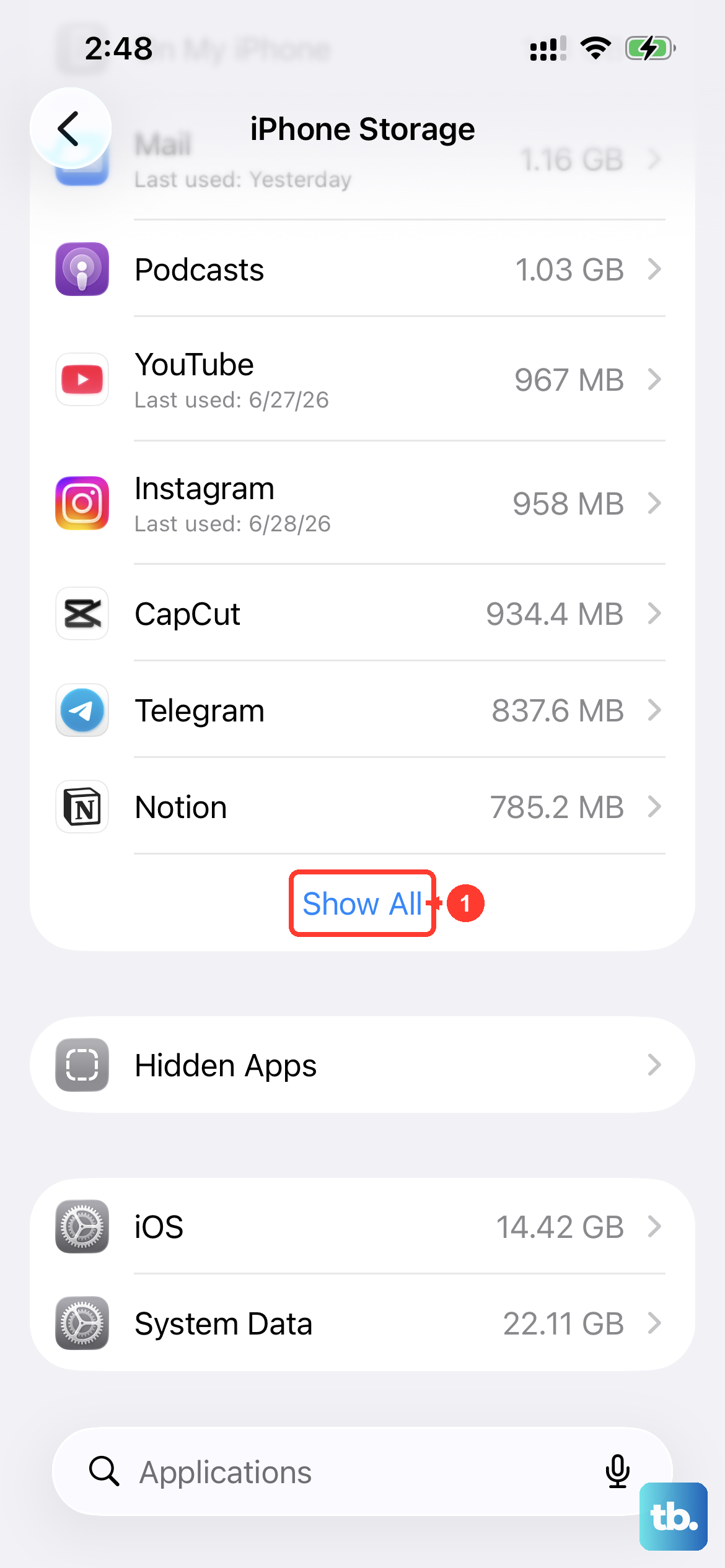
When your phone's storage gets critically low, iOS has less room to operate efficiently. This is a very common cause of slowdowns. Head to Settings > General > iPhone Storage to see what's taking up space.
Look for the "Recommendations" section at the top. iOS is pretty good at suggesting things you can safely delete, like old messages or unused apps. For a quick win, offloading apps you rarely use frees up space while keeping their documents and data intact.
Update to the Latest iOS Version
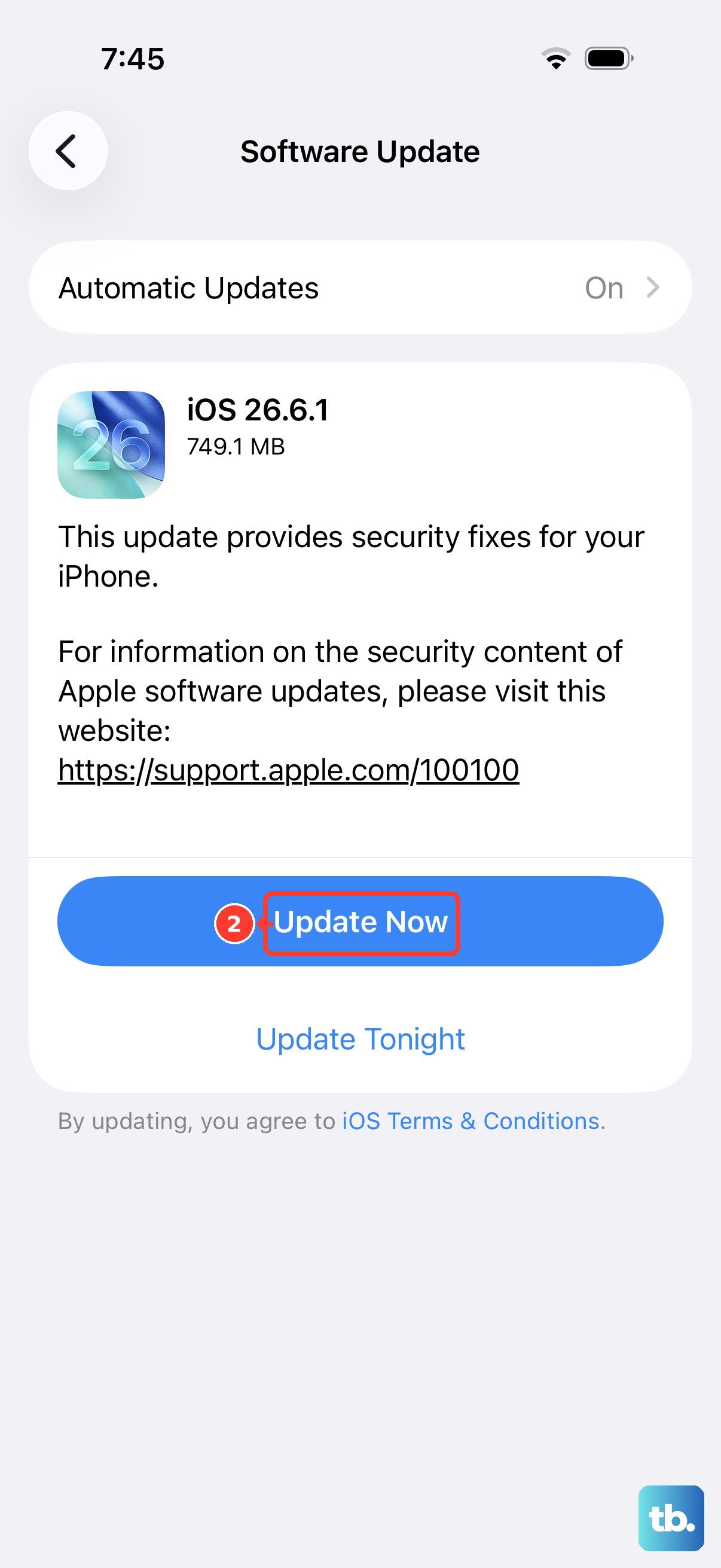
Apple frequently releases software updates that include performance improvements and bug fixes. An outdated version of iOS could be the culprit behind your slowdown.
Go to Settings > General > Software Update. If an update is available, install it while your phone is connected to Wi-Fi and power.
Review Your Battery Health
While the iPhone 17 Pro Max has a robust battery, its health naturally declines over time. If the maximum capacity drops significantly, the phone may slow down to prevent unexpected shutdowns under peak load.
You can check this in Settings > Battery > Battery Health. If it says your battery is currently supporting normal peak performance, you're fine. If you see a message about performance management being enabled, it indicates the battery health is affecting performance.
Remember, the Optimized Battery Charging feature that holds at 80% overnight is designed to prolong battery health, not hinder performance.
Manage Background App Refresh
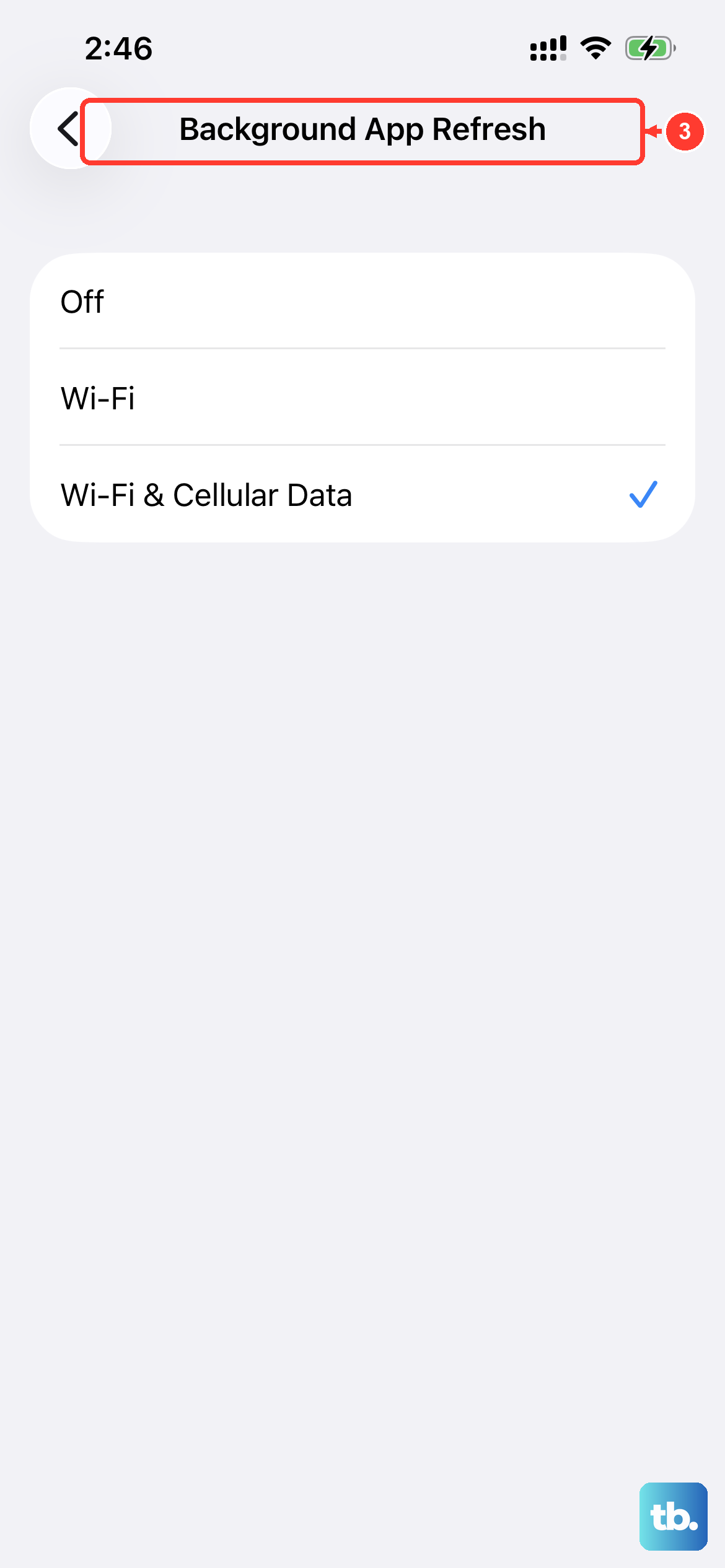
Apps updating in the background are convenient, but they can consume processor resources and data. You don't need every single app refreshing constantly.
Navigate to Settings > General > Background App Refresh. You can turn it off entirely or, better yet, select "Wi-Fi" only or disable it for specific apps you don't need live updates from. This can make a noticeable difference in day-to-day smoothness.
Clear Out Old Safari Data
Safari's cache and website data accumulate over months of browsing. Clearing this out can speed up webpage loading and free up a surprising amount of storage.
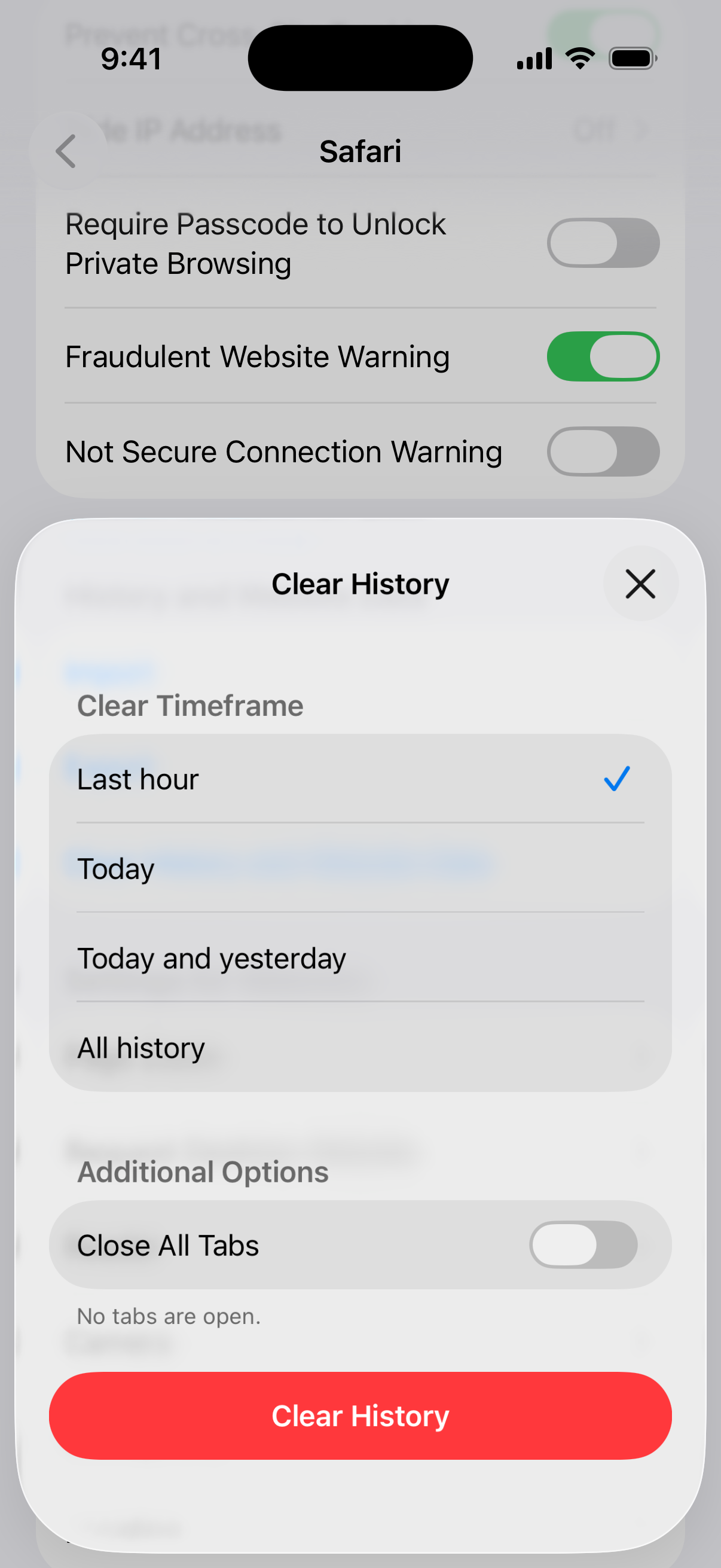
To do this, go to Settings > Apps > Safari, and tap Clear History and Website Data. Choose a timeframe, then tap Clear History. Just be aware this will log you out of most websites, so have your passwords handy.
Reduce Motion and Visual Effects
The parallax and zoom animations on the home screen and within apps look great, but they require graphical processing power. Turning them down can make the interface feel snappier.
Go to Settings > Accessibility > Motion. Toggle on Reduce Motion. This replaces many zoom effects with simpler crossfades. While you're there, you can also try Settings > Accessibility > Display & Text Size > Reduce Transparency.
Check for Problematic Apps
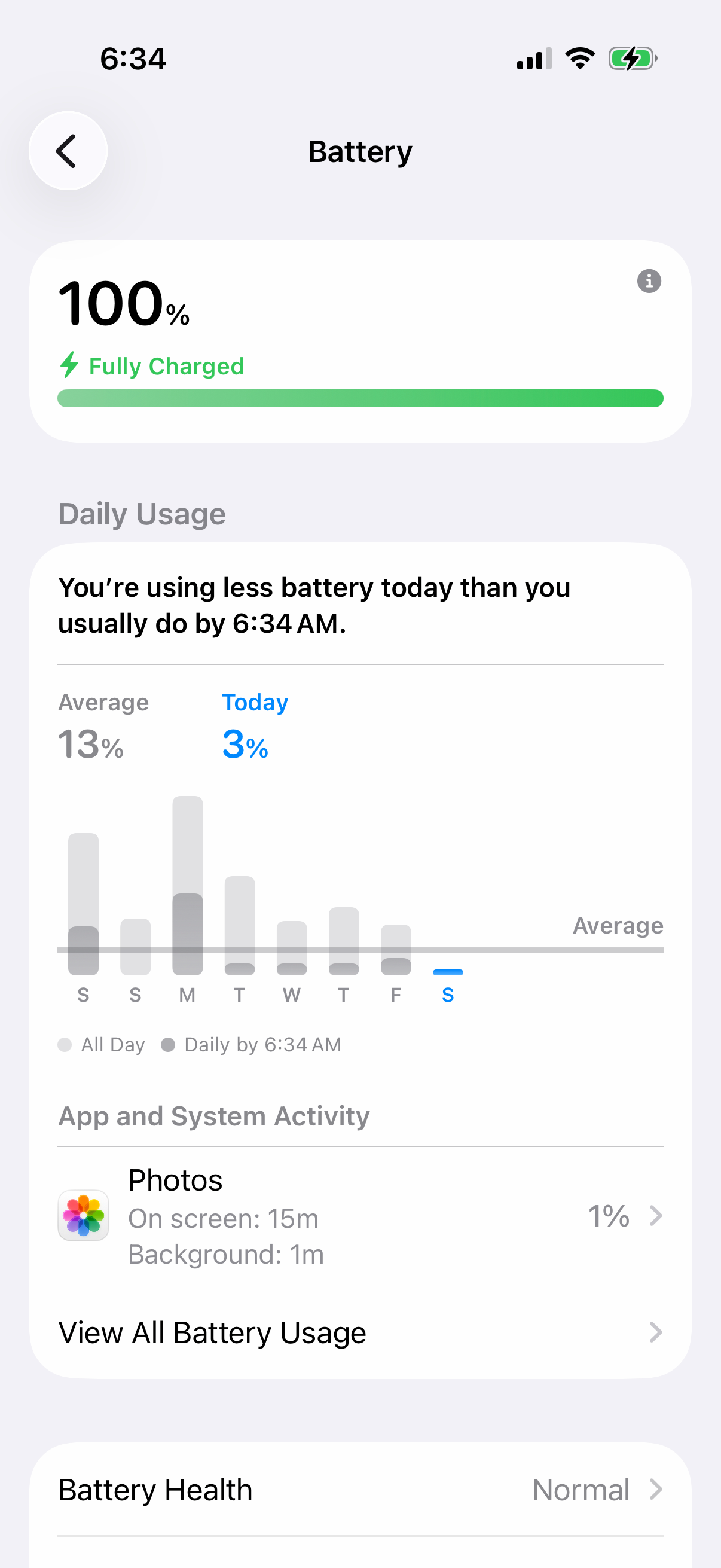
Sometimes, a single misbehaving app can drag down overall performance. A good place to look is your battery usage stats, as a power-hungry app is often a poorly optimized one.
Visit Settings > Battery to see which apps used the most battery today, and tap View All Battery Usage to see the last eight days. If you see a non-essential app with high background activity, try force-closing it or checking for an update in the App Store. If problems persist, consider deleting and reinstalling it.
Reset All Settings
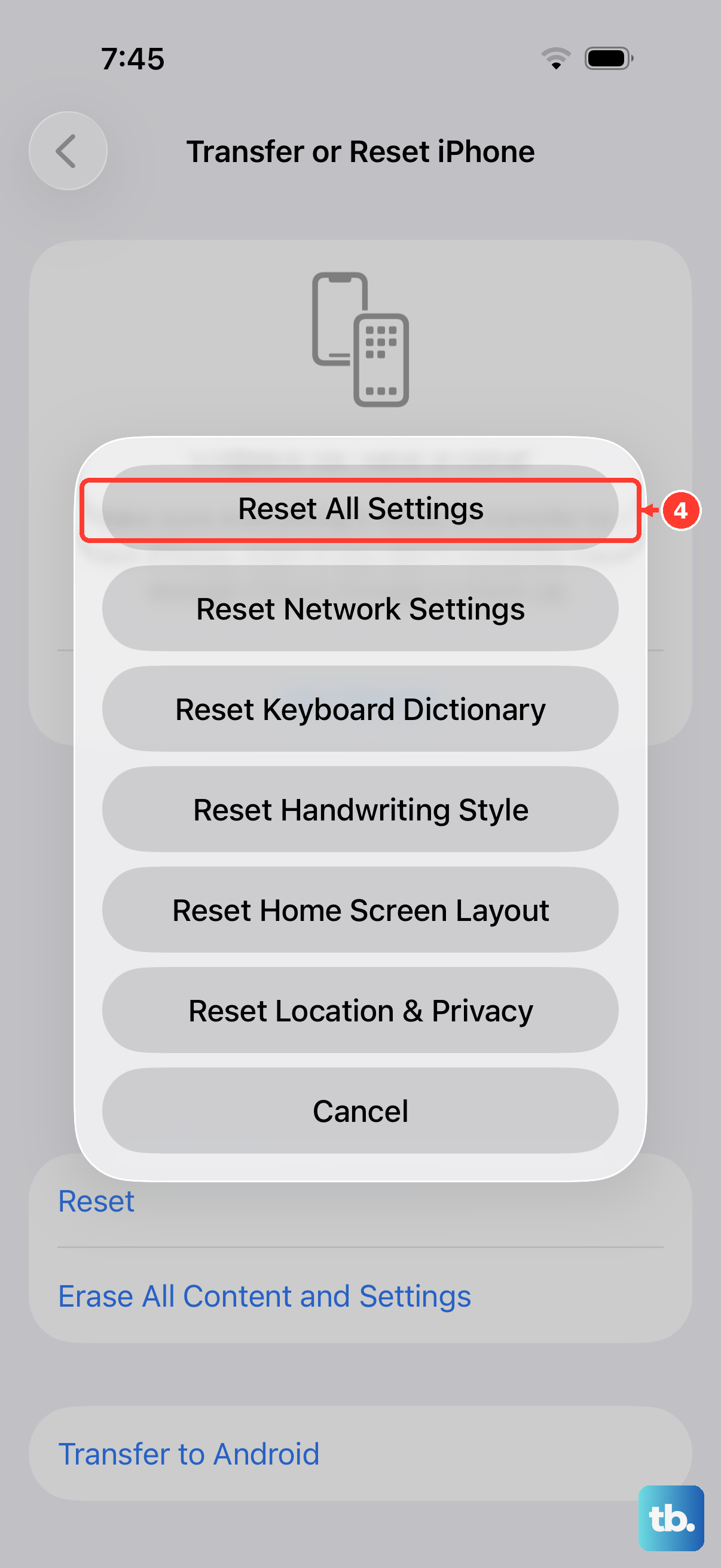
If you've tried everything else and the phone is still slow, this is a strong next step. It resets all your preferences, like Wi-Fi passwords, wallpaper, and privacy settings, back to factory defaults without erasing any of your personal data, photos, or apps.
Go to Settings > General > Transfer or Reset iPhone > Reset. Then, select Reset All Settings. You'll need to enter your passcode. Afterward, you'll have to reconfigure things like Face ID, Apple Pay, and network settings, but it can clear out deep-seated software conflicts.
Ensure a Stable Power Connection During Updates
This is more of a preventative tip. Apple recommends connecting your iPhone to power and Wi-Fi before you update. The iPhone 17 Pro Max can fast-charge to 50% in 20 minutes with a 40W USB-C adapter or higher, like Apple's 40W Dynamic Power Adapter with 60W Max.
Keep it plugged in until the update finishes. A slower charger is fine for this, since it only needs to keep the phone powered while iOS installs.