
Is your iPhone 17 stuck in portrait mode and refusing to flip to landscape when you turn it? It's a common hiccup where the screen rotation just stops responding, and it can happen for a few different reasons. The good news is a simple settings check or restart may help.
Let's start by checking Portrait Orientation Lock.
Toggle the Rotation Lock
The first thing to check is Portrait Orientation Lock in Control Center. It's incredibly easy to tap this icon by accident, which will lock your screen in portrait orientation. The button looks like a circular arrow around a lock.
To turn it off, swipe down from the top-right corner of your screen to open Control Center. Tap the Portrait Orientation Lock button if it's on. Close Control Center, then turn your iPhone sideways in an app that supports landscape mode.
Restart Your iPhone 17
If the lock wasn't on, a simple restart is the next best step. A quick reboot can clear out any temporary software glitches that might be confusing the accelerometer, which is the sensor that tells your phone which way it's being held.
Just press and hold the side button and either volume button until the power-off slider appears, drag the slider, wait 30 seconds, then press and hold the side button until the Apple logo appears. I've found this resolves the issue more often than not.
Check for an iOS Update
It's worth checking for a software update. Updates include bug fixes and can help with software problems. Back up your iPhone before installing an update.
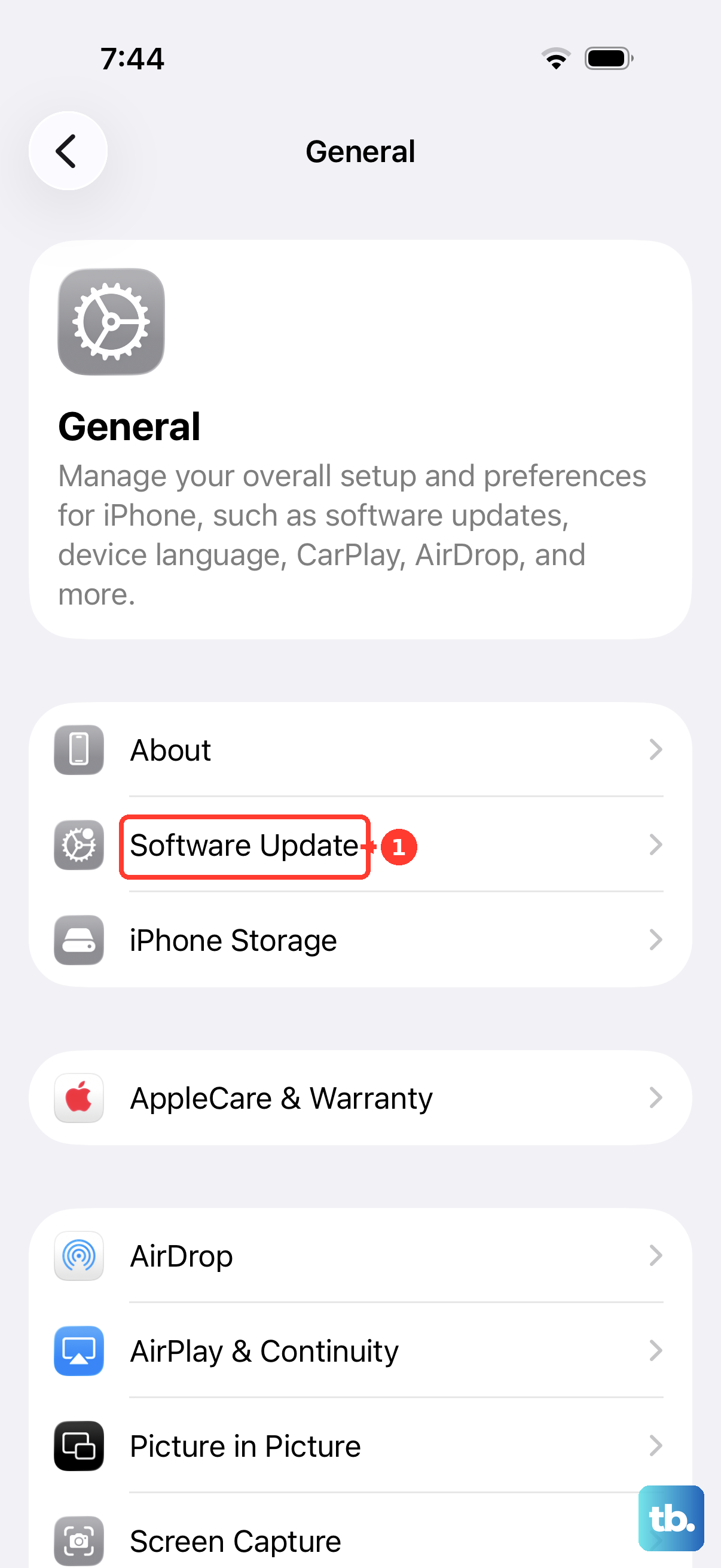
Head to Settings > General > Software Update. If an update is available, tap Download and Install. Make sure your iPhone is connected to Wi-Fi and power before starting.
Test Rotation in Different Apps
Sometimes the issue isn't with your phone, but with a specific app. Not all apps support landscape mode, and occasionally an app can bug out and get stuck. Open a few different apps like Safari, Messages, and Photos to see if the problem is universal or isolated.
If only one app is affected, try closing it completely by swiping it away from the app switcher and reopening it. If that doesn't help, check the App Store for an update to that specific application.
Force Restart Your iPhone
If a standard restart hasn't helped, try a force restart. This doesn't erase any data and may help with temporary system hiccups. The process for the iPhone 17 is a specific button sequence, so follow the steps below in order.
Quickly press and release the Volume Up button, then quickly press and release the Volume Down button. Immediately after, press and hold the Side button. Keep holding it until you see the Apple logo appear, then let go.
Reset All Settings
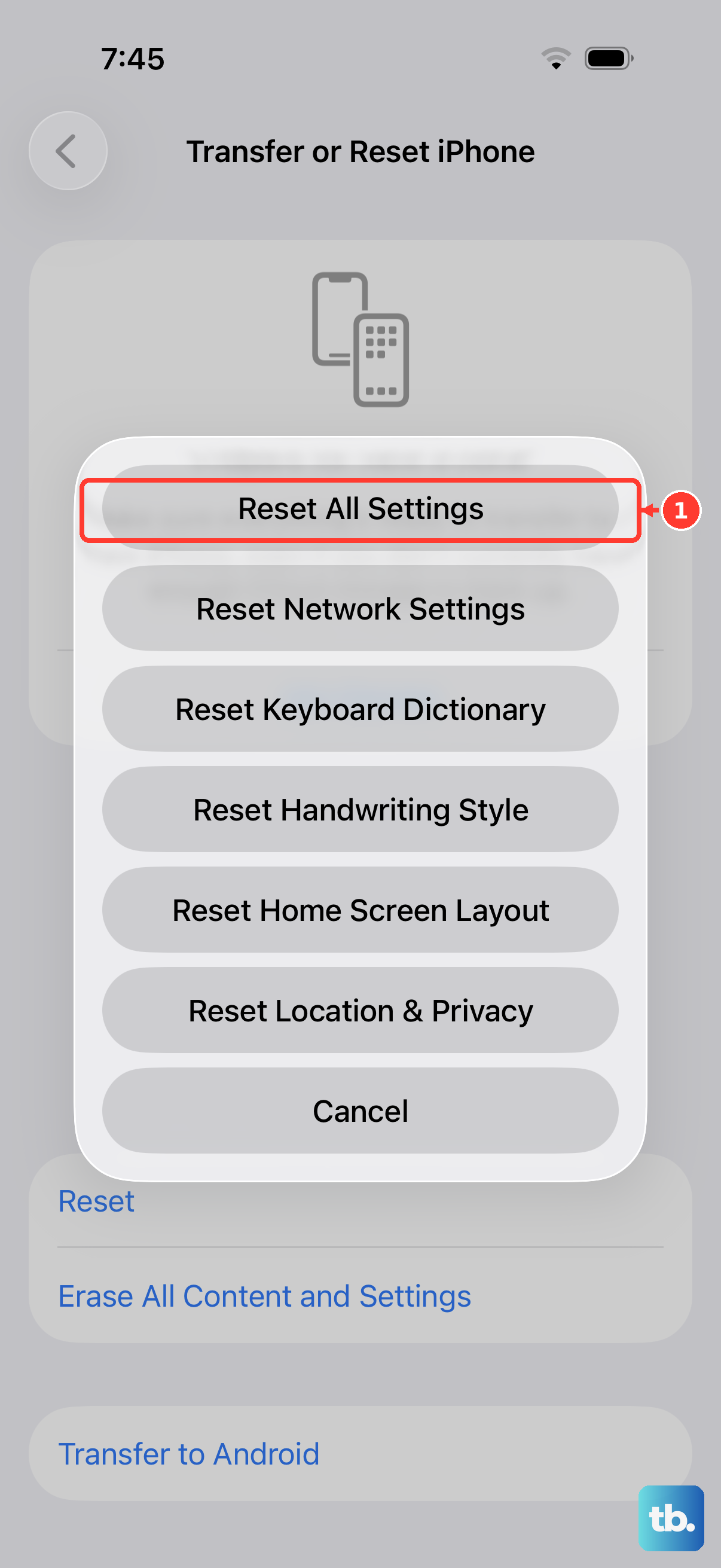
If you're still stuck, a settings reset can help. This will revert all your system preferences, like Wi-Fi passwords, wallpaper, and display brightness, back to their defaults without touching your personal data or apps. It often clears up odd behavior.
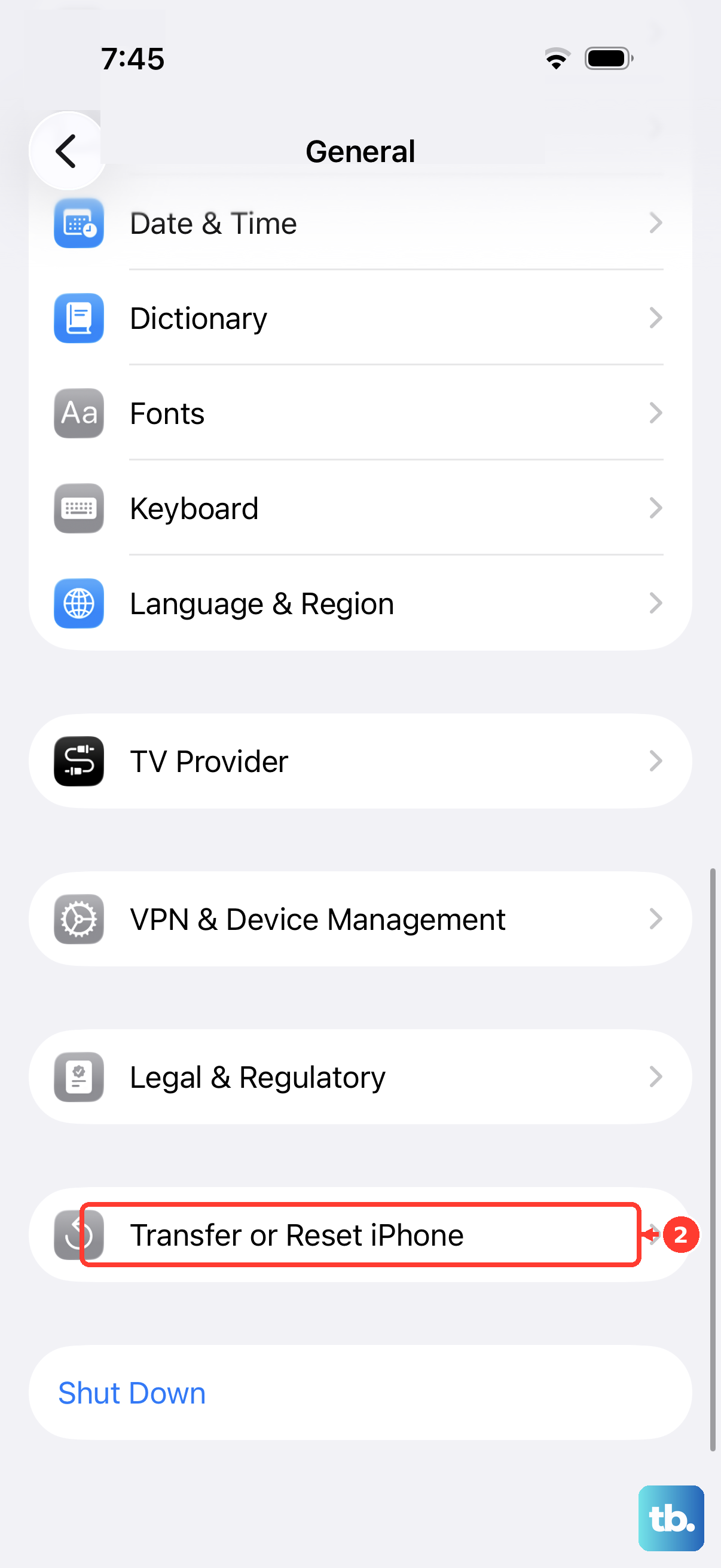
Go to Settings > General > Transfer or Reset iPhone > Reset. Then, tap Reset All Settings. You'll need to enter your passcode and confirm. Your iPhone will restart, and you'll have to reconfigure things like Face ID and Apple Pay.
Check for Physical Sensor Issues
It's possible for the internal gyroscope or accelerometer to have a hardware fault, especially if the phone has been dropped. To check whether your iPhone detects orientation changes, open the Measure app and tap Level.
Hold your iPhone against an object, such as a picture frame, and rotate the object and phone until the screen turns green. If the level is stuck, try restarting your iPhone.
Consider a Software Restore
As a last resort before looking at hardware, restoring your iPhone via a computer may help with software problems. This is a more involved process. First, make sure you have a recent iCloud or computer backup.
Connect your iPhone 17 to a Mac or PC, open Finder on a current Mac or the Apple Devices app or iTunes on Windows, select your device, and choose "Restore iPhone." This erases your data and reinstalls iOS. After it's done, you can set it up as new or restore from your backup to see if the rotation issue is resolved.