

Plug your iPad into a charger and let it sit for at least thirty minutes. I've seen plenty of A16 models get stuck simply because the battery doesn't have enough juice to complete the boot process. Use the official Apple charger or an MFi-certified one if you can, and make sure the cable isn't damaged.
Key Points
- Check Your Charging Setup : Take a close look at your charging cable and power adapter.
- Perform a Recovery Mode Update : Connect your iPad to a computer with a USB cable.
- Try a DFU Restore : If the recovery mode update doesn't work, a Device Firmware Update restore might be necessary.
- Wait Out Software Updates : If you recently installed iPadOS 26 or another update, your iPad might just need more time to complete the process.
- Address iPadOS 26 Specific Issues : Several users have reported A16 iPads getting stuck after updating to iPadOS 26 earlier this year.
- Consider Storage and File Issues : Insufficient storage space can sometimes prevent an iPad from booting properly.
Sometimes that glowing Apple logo is just waiting for a proper charge before it can move forward.
If charging doesn't help, try a force restart next. This clears out minor software glitches that might be hanging up the startup sequence. For iPads without a Home button, quickly press and release the volume up button, then the volume down button, then press and hold the top button until you see the Apple logo appear and disappear.
With Home button models, hold both the Home and top buttons together until the screen goes black and the logo returns.
Check Your Charging Setup
Take a close look at your charging cable and power adapter. Even small amounts of damage or debris in the Lightning port can prevent proper charging. Try a different cable if you have one available, and make sure you're using a wall outlet rather than a computer USB port.
Some users have reported success after switching to a different power source entirely.
Give your iPad at least an hour on the charger before trying to turn it on again. The A16 chip needs a minimum amount of power to initialize properly during boot. If you see a black screen or the Apple logo flashes briefly then disappears, that's often a sign of insufficient battery.
Leave it plugged in overnight if you can spare the time.
Perform a Recovery Mode Update
Connect your iPad to a computer with a USB cable. Open iTunes on Windows or older Macs, or use Finder on macOS Catalina and later. While your iPad is connected, you'll need to enter recovery mode.
For models without a Home button, press and release the volume up button, then the volume down button, then press and hold the top button until you see the recovery screen with a cable icon.
On iPads with a Home button, hold both the Home and top buttons together until the recovery screen appears. Your computer should detect the iPad and give you an option to update or restore.
Choose update first, this reinstalls iPadOS without erasing your data. The process downloads the latest software and applies it directly, which often fixes corrupted system files causing the boot loop.
Try a DFU Restore
If the recovery mode update doesn't work, a Device Firmware Update restore might be necessary. This method reloads the entire firmware from scratch and can resolve deeper software issues. Connect your iPad to your computer and open iTunes or Finder.
After ten seconds, while still holding the top button, press and hold the volume down button for another five seconds. Release the top button but keep holding volume down until your computer recognizes the iPad in DFU mode. With Home button models, hold both the Home and top buttons for ten seconds, then release the top button while continuing to hold Home for another ten to fifteen seconds.
Wait Out Software Updates
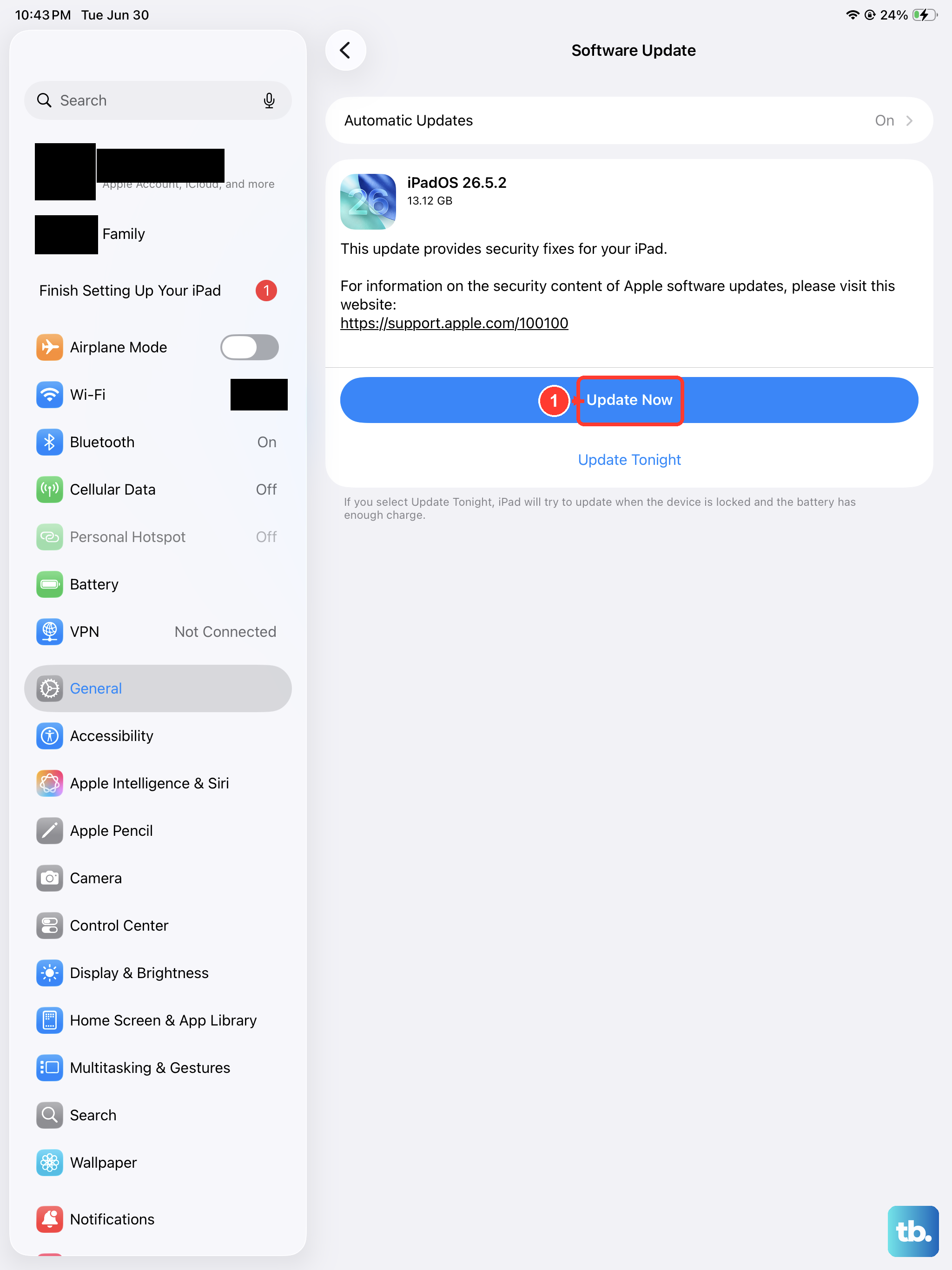
If you recently installed iPadOS 26 or another update, your iPad might just need more time to complete the process. The A16 chip handles updates differently than older models, and sometimes what looks like a freeze is actually normal progress. Leave it connected to power and wait at least an hour before assuming something's wrong.
Watch for a progress bar beneath the Apple logo, if you see one moving slowly, that's a good sign. Some users have reported their A16 iPads taking significantly longer than expected to finish updates.
Don't interrupt the process by trying to restart it, as that can cause file corruption. Just be patient and let the system do its work.
Address iPadOS 26 Specific Issues
Several users have reported A16 iPads getting stuck after updating to iPadOS 26 earlier this year. If this matches your situation, the recovery mode update method is particularly important. Apple has released subsequent updates that fix known boot issues, so forcing an update through recovery mode often resolves these specific problems.
Make sure your computer has the latest version of iTunes or Finder before attempting any fixes. Older software versions might not properly communicate with A16 iPads running iPadOS 26. I'd recommend checking for computer software updates first, then proceeding with the recovery mode process.
Consider Storage and File Issues
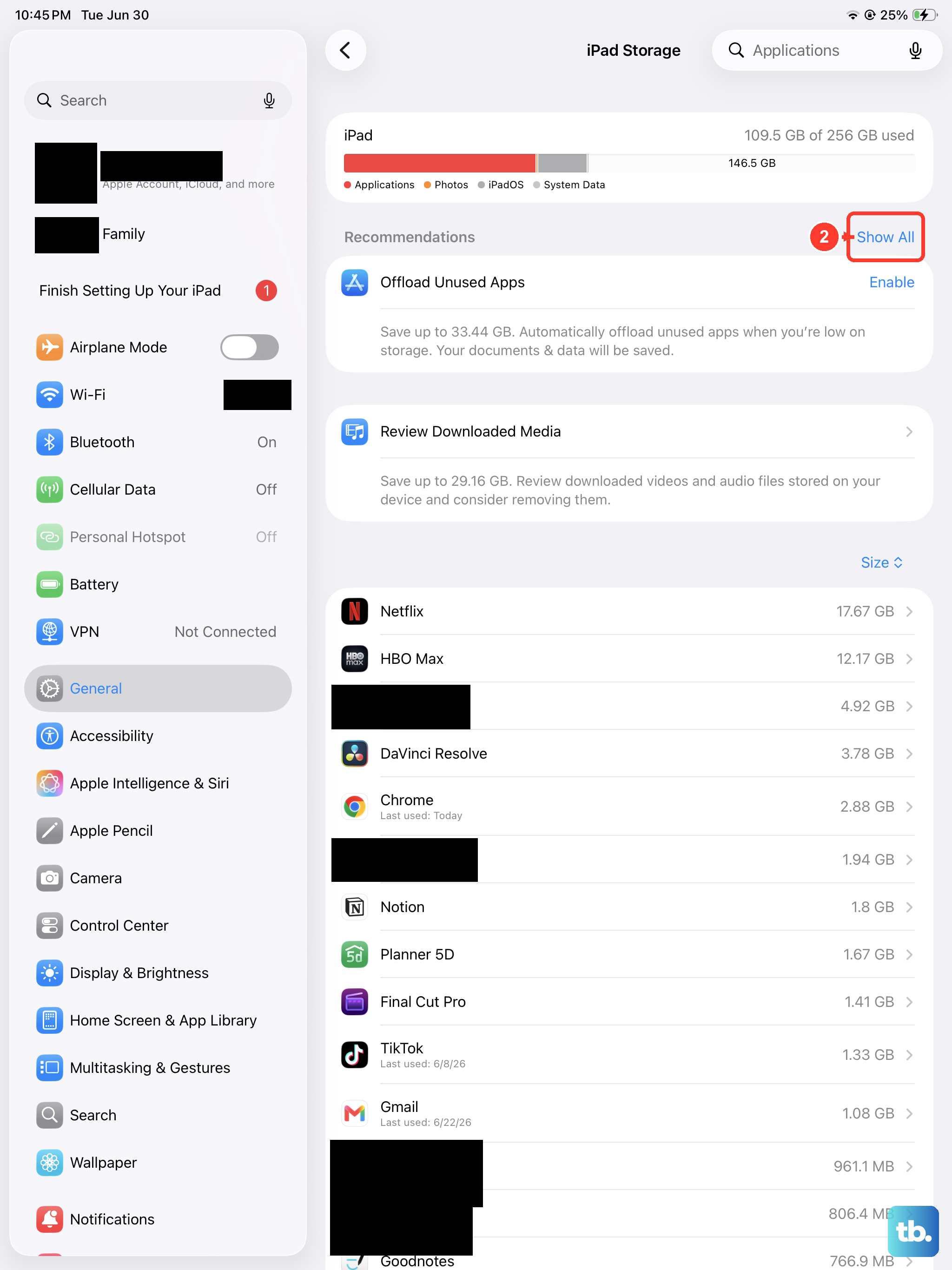
Insufficient storage space can sometimes prevent an iPad from booting properly. If you were close to full capacity before the issue started, that might be contributing to the problem. Unfortunately, you can't check storage while stuck on the Apple logo, but it's worth keeping in mind for prevention once you get your iPad working again.
Corrupted system files are another common culprit, especially if you've experienced interrupted updates or sudden power loss. Both the recovery mode update and DFU restore methods address this by replacing the entire operating system. These approaches essentially give your iPad a fresh start with clean system files.