Your iPhone is ready, but getting CarPlay onto your car’s display depends on the vehicle’s equipment and connection type. Start with the compatibility check, then use the wired or wireless setup below. Once connected, you can get directions, handle calls and messages, and put your most-used apps within reach.
What you need before connecting
CarPlay is built into compatible iPhones, so there is no separate CarPlay installer. Your vehicle or aftermarket stereo must support it too; availability depends on the country, vehicle, and equipment.
Check the supported iPhone list on Apple’s CarPlay page and select See all models that work with CarPlay to check vehicles.
Confirm your vehicle’s equipment and whether it supports wired CarPlay, wireless CarPlay, or both with the manufacturer.
Before connecting, enable Siri. On iOS 27, open Settings > Siri > Turn On Siri and complete the onscreen setup.
Connect with a USB cable
Use this method when your vehicle or stereo supports wired CarPlay.
Start the vehicle.
Connect your iPhone to the vehicle’s CarPlay-capable USB port with an appropriate cable. Look for a CarPlay or smartphone symbol beside the port.
If CarPlay does not open automatically, select the CarPlay logo on the vehicle display.
For a USB-C iPhone with an existing Lightning connection, Apple’s USB-C to Lightning Adapter supports wired CarPlay in most vehicles.
If that adapter and cable combination causes trouble, connect the iPhone with a direct USB cable instead.
In vehicles that support wireless setup through an initial USB connection, accept the iPhone alert offering wireless CarPlay for subsequent connections.
If your car supports wireless CarPlay
Use this pairing sequence for a vehicle or stereo that supports wireless CarPlay.
- 1.On your iPhone, open Settings > Bluetooth and enable Bluetooth.
- 2.Open Settings > Wi-Fi and enable Wi-Fi.
- 3.Hold the steering-wheel voice-command button, or put the stereo into wireless or Bluetooth pairing mode using the manufacturer’s instructions.
- 4.Open Settings > General > CarPlay on your iPhone. Under Available Cars, select your vehicle and complete its pairing prompts.
- 5.Open Settings > Wi-Fi, select the CarPlay network, and enable Auto-Join.
Get comfortable with the screen and Siri
To open an app, tap it on the touchscreen. With a rotary controller, highlight the app and press the controller.
Move between Home pages by swiping or using the vehicle’s controller.
To reopen a recent app, select its sidebar icon.
Switch views with the Dashboard or Home button.
To return to the vehicle’s own interface, select the automaker logo on CarPlay Home, or press the radio’s physical Home button where provided.
For voice commands, hold the steering-wheel voice-command button until Siri responds, then request directions, a call, or music.
In vehicles supporting hands-free Siri, say “Hey Siri” followed by your request. Siri voice activation must be enabled.
If the steering-wheel button does not activate Siri, touch and hold the Dashboard or Home button on the CarPlay touchscreen until Siri responds.
Start directions in Apple Maps
Choosing a destination without starting a route leaves guidance waiting for you to select Go.
Open Maps.
Choose a saved place, Destinations, or Search.
For a search, enter your destination using the microphone, an available keyboard, or a nearby category.
Choose your route.
Select Go to start navigation. You can also ask Siri for directions to your destination.
To add another destination during the trip, select the ETA panel > Add Stop.
To silence spoken guidance, select the volume control, then the mute icon.
To finish navigation, select the ETA panel > End Route, or ask Siri to stop navigation.
To share your arrival time, ask Siri to share your ETA.
Make calls, send messages, and play audio
Once CarPlay is connected, its apps and Siri handle calls, messages, and audio playback. Subscription music requires the relevant subscription.
Open Phone.
Select the calling or voicemail option you need. For a voice-controlled call, ask Siri to call your contact.
Open Messages.
Select a conversation to hear its messages or reply.
Dictate your reply through Siri.
For a new conversation, select the Compose icon in Messages.
Dictate your new message through Siri.
For spoken incoming messages, enable Settings > Announce Messages > Announce Messages on the CarPlay display. This feature supports iOS 15 and later.
Open Announce Options to choose how announcements start for each drive.
For music, open Music or ask Siri to play something.
Control playback through Now Playing, Dashboard, or supported steering-wheel controls.
For a podcast, open Podcasts.
Select an episode. Its onscreen controls include playback speed and backward or forward skipping.
Your apps and Home screen layout
To add an app, install a CarPlay-compatible app on your iPhone and complete its setup. Its interface appears automatically on CarPlay Home. Supported categories include audio, navigation, messaging, calling, EV charging, and parking.
To arrange apps, open Settings > General > CarPlay on your iPhone, select your vehicle, and tap Customize. Use the plus or minus controls to add or remove supported entries, or drag entries to reorder them. Reconnect to see the arrangement; removing an icon here does not uninstall the app.
To change the background on a supported system, open Settings > Wallpaper on the CarPlay display. Choose an available image and select Set.
To add widgets with iOS 26 or later, park, then open Settings > General > CarPlay on your iPhone, select your vehicle, and choose Widgets > Add Widgets. Choose your widgets and complete the onscreen instructions. The vehicle display determines how many widget stacks are available.
When CarPlay will not connect
If CarPlay will not connect, check the USB cable, USB port, or wireless connection, then your iPhone settings and software.
For wired CarPlay, try another USB cable.
If the connection still fails, try another CarPlay-capable USB port.
For wireless CarPlay, enable Settings > Bluetooth > Bluetooth on your iPhone.
Enable Settings > Wi-Fi > Wi-Fi.
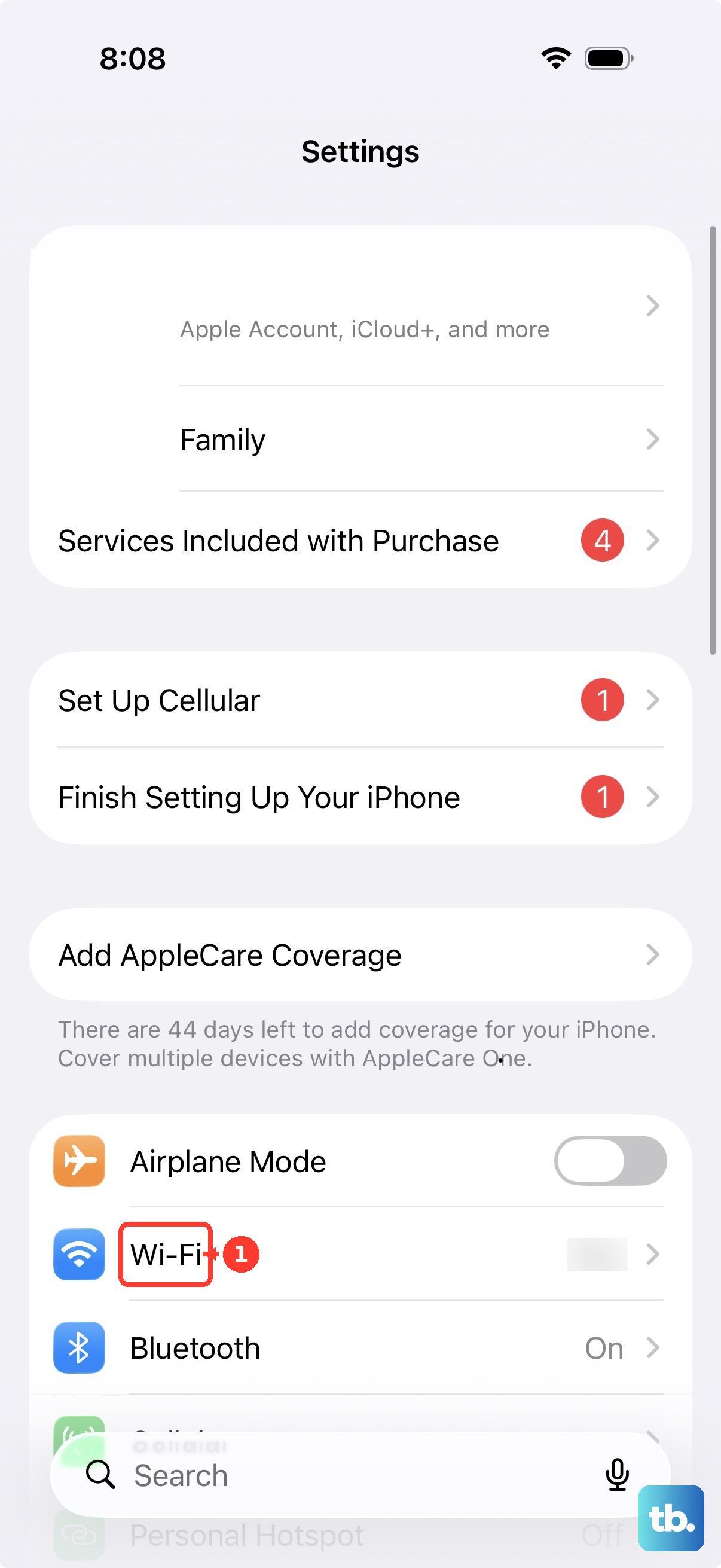
In Settings > Wi-Fi, select the CarPlay network and enable Auto-Join.
Restart your iPhone.
Restart the vehicle.
Try connecting again.
Confirm that Siri is enabled. On iOS 27, open Settings > Siri and select Turn On Siri if setup is needed.
If connection problems continue, remove the saved pairing: open Settings > General > CarPlay on your iPhone, select your vehicle, and tap Forget This Car.
Repeat the wired or wireless setup for your vehicle.
Before updating iOS, back up your iPhone.
Open Settings > General > Software Update.
If an update is offered, select Download and Install and complete the prompts.
Check the vehicle manufacturer’s firmware instructions.
Install applicable firmware updates using those instructions. The procedure depends on your vehicle or stereo.
Frequently Asked Questions
Can I add CarPlay to a car that did not come with it?
Yes, if the vehicle accepts a compatible aftermarket CarPlay receiver. Apple lists suppliers including Alpine, JVC, Kenwood, Pioneer, and Sony. Installation and USB or wireless setup depend on the receiver.
Can passengers control the music through CarPlay?
Yes, through SharePlay when participants have iOS 17 or later. The driver needs an Apple Music subscription; passengers do not. Everyone must also turn on Settings > Apps > Music > Discoverable by Nearby Contacts if it isn’t on already. Select the SharePlay icon on CarPlay’s Now Playing screen. The passenger scans the QR code with Camera, taps the button that appears below the code, then taps Connect. The driver then approves the passenger.
Is CarPlay Ultra available in every CarPlay vehicle?
No. CarPlay Ultra requires a specifically compatible vehicle and an iPhone 12 or later running iOS 18.5 or later. Keep the iPhone connected to a network during pairing to download the additional setup assets. Follow the automaker’s instructions for integrated vehicle controls and display customization.
Can I make Driving Focus turn on when CarPlay connects?
Yes. On the vehicle’s CarPlay display, open Settings > Driving Focus and enable Activate With CarPlay.