


Press Windows + PrtScn to save a screenshot on compatible Windows PCs, then open File Explorer > Pictures > Screenshots to find it. To capture part of your screen, press Windows + Shift + S and select the area you want. Both shortcuts work on Windows 11 and Windows 10, although the direct-save shortcut depends on your hardware.
Your Print Screen key may be labeled PrtSc, PrtScn, or PrntScrn. Pressing it alone can open screen snipping or copy the entire desktop, depending on its setting. On Windows 11, you can choose that behavior in the keyboard settings.
The short version
- Save immediately: Press Windows + PrtScn on compatible hardware to save an image in Pictures > Screenshots.
- Capture an area: Press Windows + Shift + S, choose a capture mode, and select your content.
- Copy one window: Click the window, press Alt + PrtScn, then paste with Ctrl + V.
- Check the key behavior: On Windows 11, the screen-snipping setting determines what pressing PrtScn alone does.
| Method | Keys or controls | Result and requirements |
|---|---|---|
| Save the whole screen | Windows + PrtScn | Saves to Pictures > Screenshots on compatible hardware |
| Copy the entire desktop | PrtScn | Copies to the clipboard with screen snipping turned off |
| Copy the active window | Alt + PrtScn | Copies the selected window to the clipboard |
| Select a capture area or mode | Windows + Shift + S | Opens the screenshot overlay |
| Start from Snipping Tool | Snipping Mode, then New | Starts your chosen capture on Windows 11 |
| Capture after a delay | Delay > 5 seconds | Gives you time to open a menu on Windows 11 |
| Use a Dell secondary key function | Fn + F10 or Fn + Insert | Activates Print Screen on applicable Dell models |
| Save without a Print Screen key | Fn + Windows + Spacebar | Saves to Pictures > Screenshots on compatible hardware |
| Use a Surface Snipping key | Snipping or Windows + Snipping | Opens screen snipping or saves a screenshot on equipped keyboards |
| Use Surface Spacebar combinations | Fn + Spacebar or Fn + Alt + Spacebar | Opens screen snipping or copies the active window on compatible keyboards |
Save your whole screen as an image
Use Windows + PrtScn when you want a saved screenshot without first pasting it into another app. Hold Windows, press PrtScn, then release the keys. Open File Explorer > Pictures > Screenshots to access the saved image.
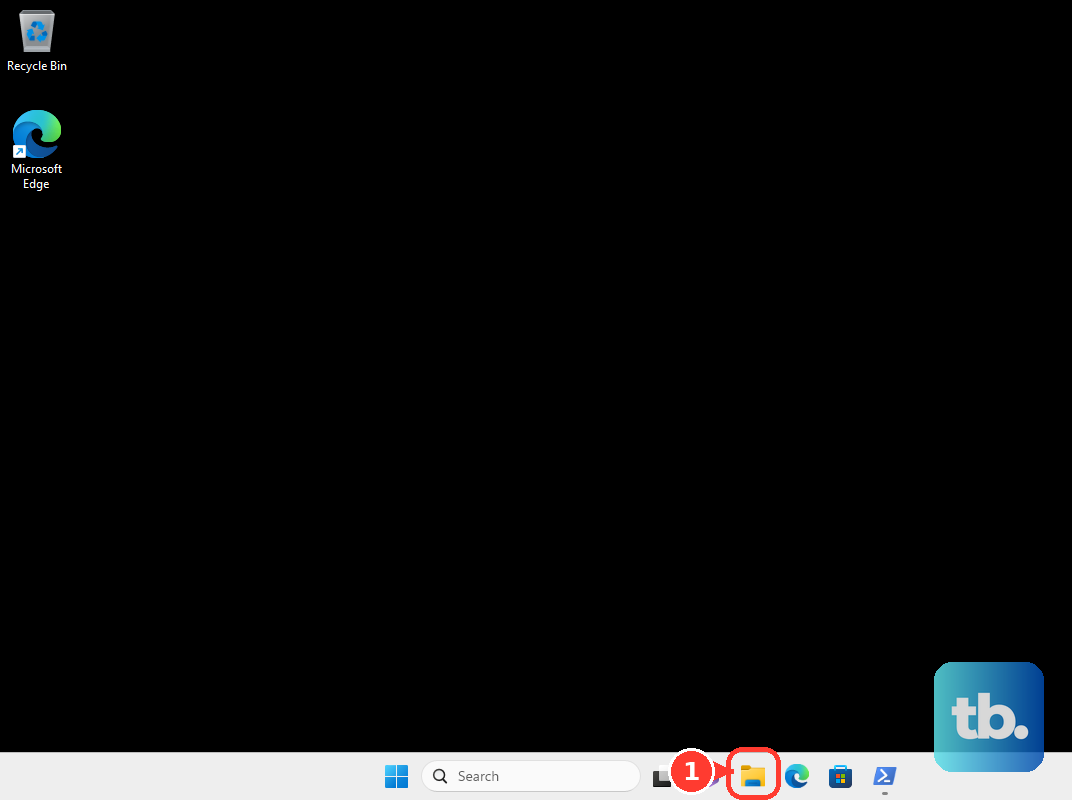
This shortcut depends on your hardware, so check your keyboard's Print Screen function if the combination does not produce a file. The laptop and Surface combinations below cover applicable keyboard models. For captures made through other tools, follow the steps to find your saved Windows screenshots.
Copy the screen or one window
With the Print Screen screen-snipping setting disabled, press PrtScn to copy the entire desktop. Open Paint, an Office document, or another application that accepts images, then press Ctrl + V. Save from that application if you need a file.
For a single window, click the window you want to capture before pressing Alt + PrtScn. Switch to an application that accepts images and press Ctrl + V to paste it. Save from that application if required.
After either clipboard capture, paste the image into your destination instead of looking for a newly saved file. If pressing PrtScn opens a selection overlay instead, use that overlay or change the Windows 11 setting below.
Choose what the Print Screen key does
On Windows 11, open Start > Settings > Accessibility > Keyboard. Turn on the Print Screen switch there to make PrtScn open screen selection. Turn off the same switch to use PrtScn for full-screen clipboard capture.
Microsoft describes screen snipping as the Windows 11 default, but your setting determines how the key behaves. Choose screen snipping to select an area, or turn it off if you prefer copying the entire desktop and pasting it into an app.
Capture part of the screen with Snipping Tool
Press Windows + Shift + S to open the screenshot overlay on Windows 11 or Windows 10. Choose a rectangular, free-form, window, or full-screen capture, then select the area or window as needed. Paste the capture into an application that accepts images with Ctrl + V, or select the notification to edit and save it.
You can also start a capture without a screenshot shortcut on Windows 11. Open Start, search for Snipping Tool, and select Snipping Tool. Choose Snipping Mode, select Rectangle, Window, Full screen, or Freeform, then select New.
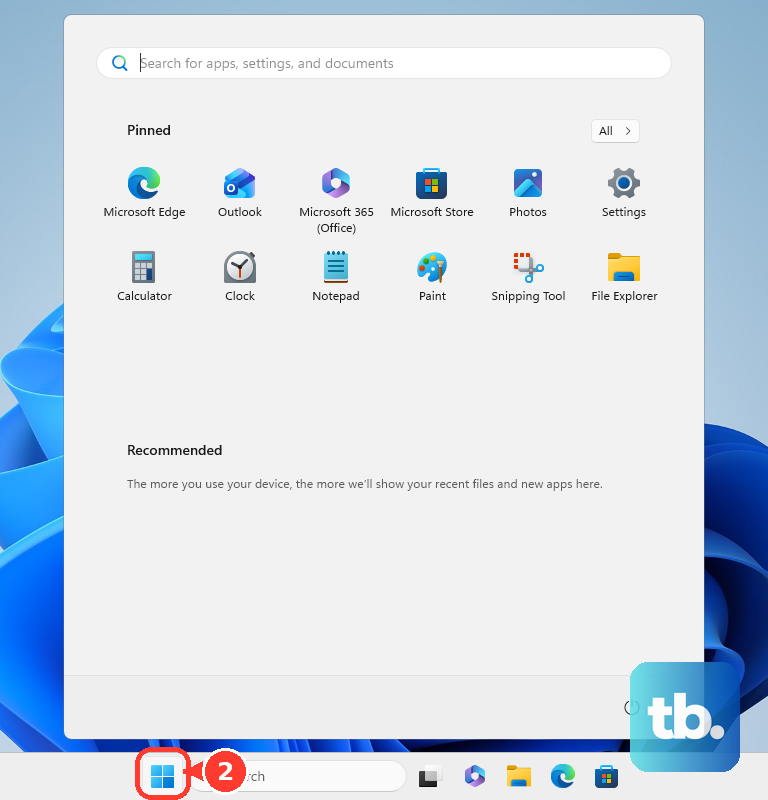
For more detail on selecting a capture shape, see how to capture an area with Snipping Tool. To keep the app within reach of your mouse or touch controls, search for Snipping Tool on the Windows 11 taskbar and select Pin to taskbar.
In the current Windows 11 Snipping Tool, open See More > Settings to change automatic saving or the screenshot destination. To save another copy yourself, select Save as, choose a filename and location, then select Save.
Use a laptop or keyboard without Print Screen
Check your keyboard's layout before choosing a function-key combination. On applicable Dell laptops, the Print Screen function uses Fn + F10; on applicable Dell keyboards, including the KM3322W, it uses Fn + Insert. These combinations depend on the model.
For compatible Windows 11 or Windows 10 hardware without a PrtScn button, press Fn + Windows + Spacebar. Find the saved screenshot in File Explorer > Pictures > Screenshots. If your keyboard does not support that combination, use Windows + Shift + S for screen selection.
On Surface keyboards equipped with a dedicated Snipping key, press it to open screen snipping. Press Windows + Snipping to save a screenshot in Pictures > Screenshots.
On compatible Surface keyboard models, press Fn + Spacebar to open screen snipping. Press Fn + Alt + Spacebar to copy the active window, then paste it with Ctrl + V into an application that accepts images.
Capture a menu before it closes
Use a delayed snip on Windows 11 when you need time to open a menu before capture begins. In Snipping Tool, select Delay > 5 seconds, choose your Snipping Mode, then select New. Open the menu during the delay, then complete the capture. To save it yourself, select Save as, choose a filename and location, then select Save.
Fix a screenshot shortcut that does not work
Start by checking which result your shortcut should produce. If you used a clipboard shortcut, open Paint and press Ctrl + V; if you used the direct-save shortcut, look in Pictures > Screenshots. For a laptop or compact keyboard, confirm its Print Screen function before trying more involved fixes.
On Windows 11, open Snipping Tool through Start to try capturing without the keyboard shortcut. If the app opens but Windows + Shift + S does not, follow the steps to fix the Windows snipping shortcut. For problems across several capture methods, use the broader steps to fix screenshots not working in Windows.
If Snipping Tool itself still fails, you can remove and reinstall it. On Windows 11, open Start > Settings > Apps > Installed apps, find Snipping Tool, and open its three-dot menu. Select Uninstall, select Uninstall again, then obtain the app from the official Snipping Tool download page for a device that meets its requirements.
Frequently Asked Questions
How do you print a screenshot on paper?
On Windows 11, save the screenshot first, then find its image file in File Explorer. Right-click the file and select Print.
Can you take a screenshot on a Surface without a keyboard?
On compatible Surface devices, including Surface Pro, Go, and Book, hold Power and press Volume Up. Find the saved screenshot in Pictures > Screenshots. This button combination does not apply to Surface Laptop.
How do you save a screenshot while playing a game?
With Xbox Game Bar enabled on Windows 11 or Windows 10, bring a supported game or application into view and press Windows + Alt + PrtScn. Find the PNG screenshot in Videos > Captures.
Can you capture an entire webpage instead of just the visible screen?
In current Firefox desktop on Windows, right-click an empty part of a supported webpage and select Take Screenshot. Select Save full page, then choose Download or Copy. This captures webpage content beyond the ordinary Print Screen view of your display.