


To fix screenshots not working in Windows, try Windows + Shift + S and repair Snipping Tool if capturing directly from the app also fails. After selecting an area, paste it into Paint with Ctrl + V to check whether the capture worked.
A missing file or notification does not necessarily mean the capture failed. Check the clipboard and save location first, then move to keyboard settings and app repairs as needed.
The short version
- Check the clipboard: Paste into Paint with Ctrl + V before assuming nothing was captured.
- Try another shortcut: Use Windows + Shift + S to bypass the PrtScn key.
- Find the file: Screenshots taken with Windows + PrtScn go to Pictures > Screenshots.
- Repair the app: Reopen, update, and repair Snipping Tool before resetting or reinstalling it.
| What happens | What to try | What it checks |
|---|---|---|
| No image file appears | Paste into Paint with Ctrl + V | Whether the capture reached the clipboard |
| Your usual shortcut fails | Try Windows + Shift + S, then capture directly in Snipping Tool | Whether another capture method works |
| Only the physical shortcut fails | Check the key assignment, keyboard settings, and connection | Keyboard input problems |
| Capture works but saving or notifications fail | Check the save destination and notification settings | Where the image and notification go |
| Snipping Tool freezes or will not capture | Reopen it, restart Windows, and install updates | Whether restarting or updating resolves the failure |
| The app still fails | Repair, reset, then reinstall as needed | Persistent app problems |
| Another utility opens or one window is blank | Check competing shortcuts and capture restrictions | App conflicts or protected content |
| Capture and other Windows features malfunction | Repair system files, then use Get Help if needed | Broader Windows problems |
Check whether the screenshot was captured
Press PrtScn once, and finish selecting an area if a capture overlay opens. Open Paint and press Ctrl + V. If your screenshot appears, capture is working; a clipboard capture does not necessarily create a file.
For a full screen image saved directly to a file, press Windows + PrtScn. Open File Explorer and go to Pictures > Screenshots. You can also find screenshots saved by other methods when your usual folder is empty.
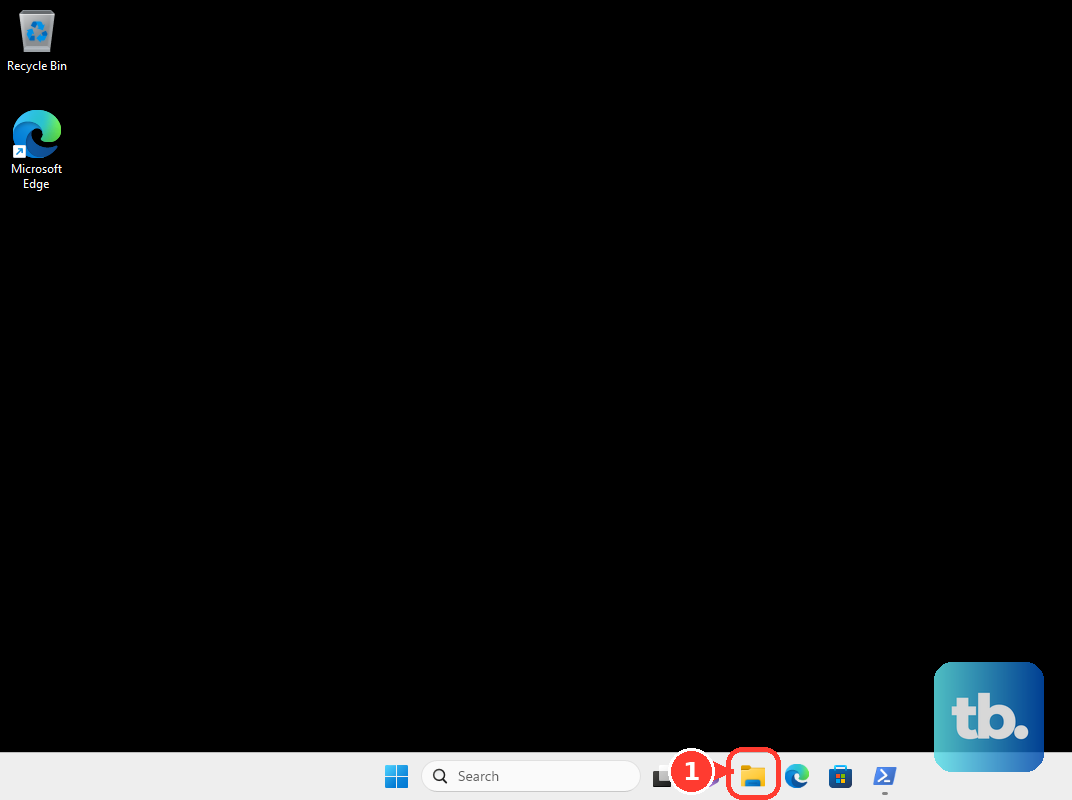
To capture just one window, select it and press Alt + PrtScn, then paste into Paint with Ctrl + V. These shortcuts have different destinations, so choose the matching method when you take a screenshot on Windows. If the image pastes successfully, focus any remaining troubleshooting on saving, notifications, or your usual shortcut.
Try Snipping Tool without your usual shortcut
Press Windows + Shift + S, choose a capture mode, and complete the selection. Paste the result with Ctrl + V or open the capture notification. If this works while PrtScn does not, continue with the keyboard checks below.
Next, open Start, search for Snipping Tool, and open it directly. In the current Windows 11 app, select Snipping Mode, choose Rectangle, Window, Full screen, or Freeform, then select New. You can choose a different snipping mode to match the content you need.
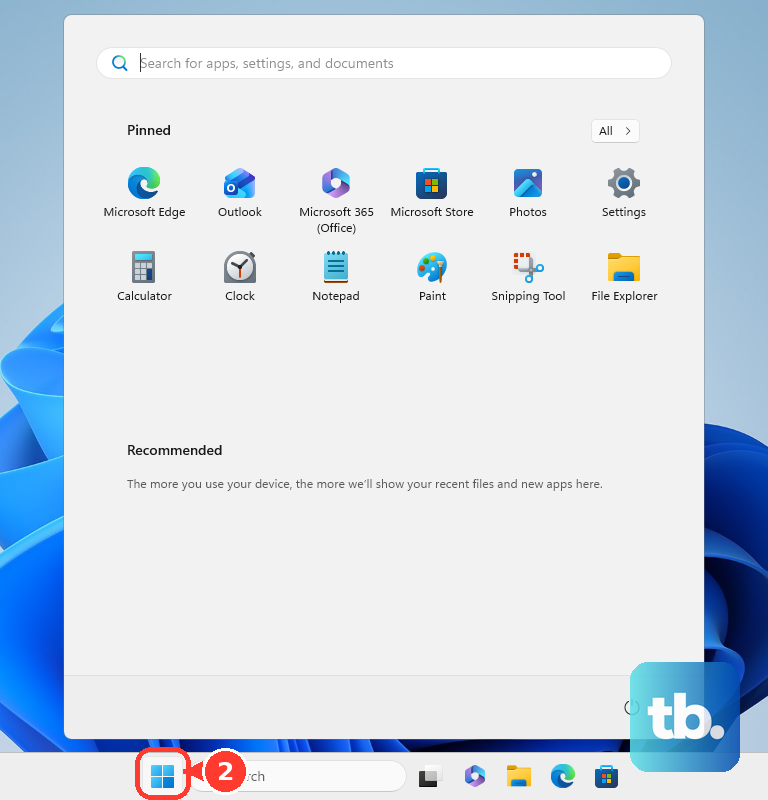
If capturing directly from the app works, check the shortcut and keyboard before repairing the app. Search for Snipping Tool on the taskbar and select Pin to taskbar for direct access while you address the shortcut. If the app also fails, continue to reopening and repairing it.
Check Print Screen and keyboard settings
On Windows 11, open Start > Settings > Accessibility > Keyboard. Turn on Use the Print Screen button to open screen snipping to make PrtScn launch the selection overlay, or turn it off to remove that assignment. Microsoft also uses the label Use the Print screen key to open screen capture for this setting.
When PrtScn shares a key with another function, hold Fn while pressing it. On keyboards with F Lock, toggle that key and retry; other lock combinations depend on the keyboard manufacturer's instructions. For compatible hardware without PrtScn, Microsoft provides Fn + Windows + Spacebar, which saves to Pictures > Screenshots.
Under Accessibility > Keyboard, turn off Filter keys if it was enabled unintentionally, since it can ignore brief presses. Press Windows + Ctrl + O to open the on-screen keyboard and try the capture shortcut using its displayed keys. If simultaneous presses are difficult, turn on Sticky keys to enter the shortcut keys sequentially. On Windows 10, these accessibility options are under Settings > Ease of Access > Keyboard.
For an external keyboard, reconnect it or its receiver, try another USB port without a hub, and check batteries and blocked keys. Try that keyboard on another PC to help separate a keyboard problem from a Windows capture problem. Continue with app repairs if direct capture also fails.
Restore missing saves and notifications
In the current Windows 11 Snipping Tool, open See More > Settings and review automatic saving and the screenshot destination. The current Windows 11 app normally saves captures automatically. After a capture in that app, select Save as, choose a known folder and filename, then select Save to check manual saving. On Windows 10, select Save Snip after capturing, enter a filename and location in the Save As box, then select Save.
If pasting works but no editing notification appears, open Settings > System > Notifications on Windows 11. On Windows 10, open Settings > System > Notifications & actions, turn on Get notifications from apps and other senders, and check the app under Get notifications from these senders. Press Windows + A to review Action center. Turn on Notifications. If Snipping Tool appears under Notifications from apps and other senders, turn it on, select it, and enable Show notification banners and Show notifications in notification center. Press Windows + N to look for missed notifications.
Use the bell button in notification center to turn off Do not disturb when it is suppressing capture notifications. Review Turn on do not disturb automatically if the suppression returns. These changes restore notification access but do not repair a capture that never happened.
When Windows Security displays App is blocked during saving, note the blocked application's path. Select that notification, choose Add an allowed app, and locate the trusted capture program. Allow only the identified program that you trust.
Reopen and update Snipping Tool
Close Snipping Tool with its X button, reopen it from Start, and try another capture. If it is unresponsive, press Ctrl + Shift + Esc, open Processes in Task Manager, select Snipping Tool, and choose End Task. Ending the process can lose unsaved work in that app. Reopen Snipping Tool and try again.
Save your other work, then select Start > Power > Restart and retry after signing in. If Windows itself is frozen, follow the steps to restart an unresponsive computer. If capturing now works, you can stop troubleshooting.
For an app that still fails, open Microsoft Store > Downloads and select Check for Updates. Older Store layouts use Library > Get updates. If the Windows 10 Store shows See more instead, select See more > Downloads and updates > Get updates. On supported Windows 11 releases, also open Settings > Windows Update > Check for updates, install available updates, and restart when required. On Windows 10, use Settings > Update & Security > Windows Update > Check for updates; regular free Windows 10 updates ended October 14, 2025.
Repair or reinstall the capture app
On Windows 11, open Settings > Apps > Installed apps, find Snipping Tool, and open More > Advanced options if available. On Windows 10, open Settings > Apps > Apps & features, select Snipping Tool, then select Advanced options if available. Select Repair, then reopen the app and try a capture. If repair does not resolve the failure, return to the same page and select Reset, then confirm with Reset. Resetting removes the app's local settings and data.
If the failure continues, open the app's More menu under Installed apps, select Uninstall, and confirm with Uninstall. Reinstall it from the official Snipping Tool Store listing, then try a capture before changing its settings. Make sure the app works with your version of Windows. On a managed PC, your organization may restrict removal or installation.
If Microsoft Store prevents the update or reinstallation, clear its cache before retrying. Press Windows + R, enter the following command, then select OK:
wsreset.exeWait for Microsoft Store to open, then retry the update or installation. Clearing its cache addresses Store problems; it does not directly repair screenshot capture.
Check competing apps and protected windows
Close another capture utility before trying Windows capture again, especially when the problem affects only PrtScn. Snagit can compete for capture hotkeys, while keyboard utilities can change what a key does. If closing a utility restores the shortcut, review its assignments before removing software.
For a compatible Logitech keyboard managed through Logi Options+, open the app, select the keyboard, and select Keys. Select the Print Screen key assignment, open Other Actions, and select Print Screen. Try the shortcut again after correcting that assignment.
A blank or missing window in a screenshot can also be an app restriction. Try capturing an ordinary unprotected window, since Windows allows applications to exclude their windows from capture. If only one app is affected, use that app's supported sharing or export options.
Repair Windows when broader problems remain
Reserve system file repair for persistent failures after the shortcut and app checks, particularly when other Windows features also malfunction. Install Windows updates and restart first, then search for Command Prompt, right-click it, select Run as administrator, and select Yes. Run this command:
DISM.exe /Online /Cleanup-image /RestorehealthAfter it completes successfully, run the following command and wait for it to finish checking your system files. These tools address Windows system file corruption, but they are not a guaranteed screenshot fix.
sfc /scannowIf screenshots still fail, open Start, search for Get Help, and open it. Enter the screenshot problem in its search box and follow the relevant guidance, or select Contact Support if offered. Describe whether pasting works, whether direct Snipping Tool capture works, and whether the failure affects every window.
Frequently Asked Questions
Can you recover a screenshot that was copied but never saved?
Press Windows + V and select a retained screenshot from clipboard history to paste it. If history was disabled, select Turn on to retain future captures. History supports bitmap items up to 4 MB and retains up to 25 entries.
How do you capture a menu that disappears when you start snipping?
In the current Windows 11 Snipping Tool, select Delay > 5 seconds. Choose Snipping Mode, select New, and open the target menu before the countdown ends.
Why is the OneDrive screenshot saving switch missing?
Microsoft says Save screenshots to OneDrive is no longer available; you can use Pictures folder backup instead. Select the OneDrive cloud icon, open Help & Settings > Settings > Sync and backup > Manage backup, enable Pictures, and select Save changes. This backs up saved files rather than enabling capture, and on a work or school account your IT admin may have disabled folder backup.
Can you capture a webpage while Windows screenshots are failing?
In Microsoft Edge, right-click the page and select Screenshot, choose Capture full page or select an area, then copy or save the result. In Firefox, right-click an empty page area and select Take Screenshot, then choose an area, Save full page, or Save visible. Select Download to save the Firefox capture or Copy for the clipboard. These tools capture webpages rather than arbitrary Windows desktop content.
Where does Game Bar save screenshots?
Game Bar saves screenshot PNG files under Videos > Captures. Press Windows + Alt + Print Screen in a game or supported app to take one. Game Bar is not a universal desktop capture replacement.