


To fix a Lenovo display issue, check power and display cables, press Windows + Ctrl + Shift + B to reset the graphics driver, then correct your display settings or update the driver. Choose the fixes that match your symptom, such as a blank screen, flickering, blurry text, or a missing monitor. The Windows steps apply to Windows 11, while Lenovo hardware shortcuts depend on your model.
The short version
- Blank screen: Check power, reconnect display cables, and reset the graphics driver with Windows + Ctrl + Shift + B.
- Missing monitor: Connect it directly, then press Windows + P to choose the display output.
- Wrong appearance: Restore recommended resolution and scaling, then check brightness and color settings.
- Persistent trouble: Investigate apps and drivers, then check for hardware faults before repairing or resetting Windows.
| Fix | When to use it | If it fails |
|---|---|---|
| Check power and connections | No image or an external monitor has no signal | Try a working cable and another computer |
| Recover the Windows display | A powered PC has a blank screen | Check output selection or enter Safe Mode |
| Choose and detect the display | The wrong screen works or a monitor is missing | Test one directly connected monitor |
| Correct resolution and layout | Text is blurry or the picture is rotated | Check the graphics driver |
| Adjust brightness and color | The screen dims or has unusual colors | Check power settings and HDR |
| Isolate app flickering | Flickering affects desktop content | Compare behavior in Task Manager |
| Update or recover the driver | Flickering involves the driver or follows an update | Use Safe Mode and hardware diagnostics |
| Check firmware and hardware | The fault persists or changes with lid position | Contact Lenovo if it occurs outside Windows |
| Restore or repair Windows | Connection, settings, app, and driver fixes fail | Back up before considering a reset |
Check power and external connections
Check your Lenovo PC’s power indicators and reconnect its power cable. Test the outlet with another device, then check the external monitor’s power connection and Power button. Resolve a missing power connection before changing Windows settings.
Reconnect the video cable securely at both ends, then substitute a working cable. Disconnect docks, dongles, adapters, and other accessories so you can test the monitor directly from the PC. If the display still fails, try another supported video output and test the monitor on another computer.
On a desktop, connect the monitor to the correct graphics card. If you use a ThinkStation, check whether its processor supports onboard video before using a motherboard display connector.
Select the monitor input that matches your cable. On a ThinkVision P27h-30, open its onscreen menu, choose Port Settings > Input Signal, and select Auto, USB-C, DisplayPort, or HDMI. Other monitors use model-specific input labels.
Recover a blank Windows screen
Press Windows + Ctrl + Shift + B to reset the graphics driver. A beep or brief flicker can indicate that the reset occurred.
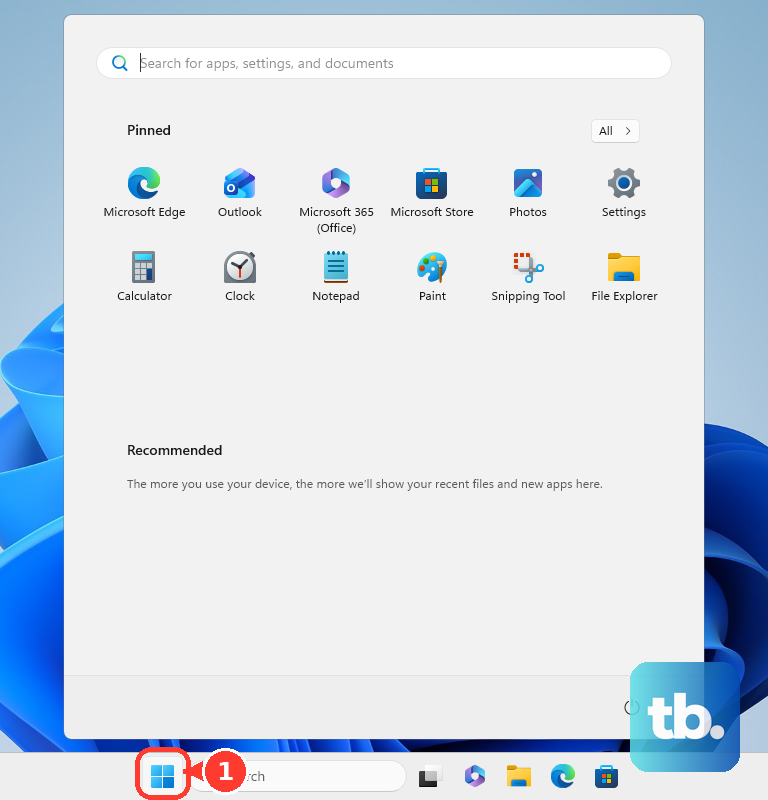
If you can access the desktop, select Start > Power > Restart. You can also select Shut down, then turn the PC on again. For an unresponsive blank screen, hold the Power button for 20 seconds to force a restart; use this route to restart an unresponsive computer only when normal controls are unavailable.
Do not force a restart during an update or recovery operation, even when the screen goes black. Check your model manual for its specific reset procedure. Emergency-reset holes and hard-reset timings vary by Lenovo model.
If your black desktop shows a cursor, press Ctrl + Shift + Esc to open Task Manager. Right-click Windows Explorer and select Restart. If it is missing, select Run new task, enter the following command, and press Enter.
explorer.exeChoose and detect the correct display
Press Windows + P to check where Windows is sending the picture. Select PC screen only for the laptop display, Duplicate for the same image on both screens, Extend for separate desktop space, or Second screen only for the external display.
For an undetected monitor, open Settings > System > Display, expand Multiple displays, and select Detect. For a compatible wireless display, press Windows + K and select it. If a wired monitor remains undetected, return to a direct connection and a working cable before changing drivers.
Test one external monitor first when a multiple-monitor setup fails. Check how many displays your graphics adapter supports. A splitter duplicates one signal; if you need additional independent display outputs, use a supported dock or display adapter.
Once both monitors work, select Identify in Display settings. Drag the numbered displays into their physical arrangement and select Apply. This aligns pointer movement with the screens’ positions.
Restore sharp text and the right orientation
Open Settings > System > Display and select the affected monitor. Set Display resolution to the option marked Recommended. Under Scale & layout, set Scale to its recommended option as well.
For a sideways or upside-down picture, choose the appropriate option under Display orientation to rotate your screen in Windows. If the entire desktop is unexpectedly magnified, press Windows + Esc to close Magnifier.
For refresh-related trouble, open Advanced display, select the monitor, and change Choose a refresh rate to a supported rate. The available choices depend on the display, connection, and driver. If the problem persists, continue with the app and graphics-driver checks.
Correct dimming and unusual colors
Adjust Brightness in Settings > System > Display for a controllable built-in screen. For an external monitor, use its own brightness controls. On the ThinkVision P27h-30, open Monitor Controls in the onscreen menu and adjust Brightness and Contrast.
For a laptop that changes brightness with onscreen content, expand Brightness and set Change brightness based on content to Off, if available. For dimming during energy saver, open Settings > System > Power & battery > Energy saver. Turn off Lower screen brightness when using energy saver.
If your display turns off after inactivity, open Settings > System > Power & battery > Screen, sleep & hibernate timeouts. Adjust Turn my screen off after and Make my device sleep after.
For a warm tint, open Settings > System > Display > Night light and select Turn off now or reduce Strength. For grayscale or inverted colors, open Settings > Accessibility > Color filters and turn unwanted filters off. For unexpected high-contrast colors, open Settings > Accessibility > Contrast themes, select None from the Contrast themes menu, and then select Apply. To use a different theme instead, select it and then select Apply.
For HDR brightness, open Settings > System > Display > HDR. Adjust SDR content brightness or HDR content brightness, then restart affected apps if their appearance does not update. If HDR is unavailable while duplicating displays, change to Extend these displays.
Separate app flickering from driver trouble
Open Task Manager with Ctrl + Shift + Esc while the screen flickers. Microsoft says flickering in Task Manager points toward the display driver. If it stays steady while other content flickers, investigate incompatible apps first.
Close the affected app and try another application. Check the problem app’s display settings and install its manufacturer’s updates. For Microsoft Store apps, open Microsoft Store > Downloads > Check for updates and install applicable updates.
Remove an incompatible app if updating it does not resolve the flickering. Open Settings > Apps > Installed apps, select the app’s menu, then choose Uninstall and confirm with Uninstall. Restart and check the display again.
On a ThinkPad with internal-screen flickering, change the lid angle several times. Watch whether the flicker consistently changes at the same angle, and include that detail if you need hardware service.
Update or roll back the graphics driver
Install Windows updates through Settings > Windows Update > Check for updates, then restart when required. Check Advanced options > Optional updates for an applicable graphics driver. Select the relevant offered update and choose Download & install.
For Lenovo’s model-specific packages, open the Lenovo support and downloads portal and identify your PC by model or serial number. Choose Drivers & Software > Manual Update, select your operating system, and download the relevant graphics package. Follow that package’s installation instructions.
If the problem began immediately after a graphics-driver update, try rolling it back. Open Device Manager, expand Display adapters, and open your adapter’s Properties > Driver. Select Roll Back Driver, choose Yes, and restart. You need administrator access and a retained previous driver.
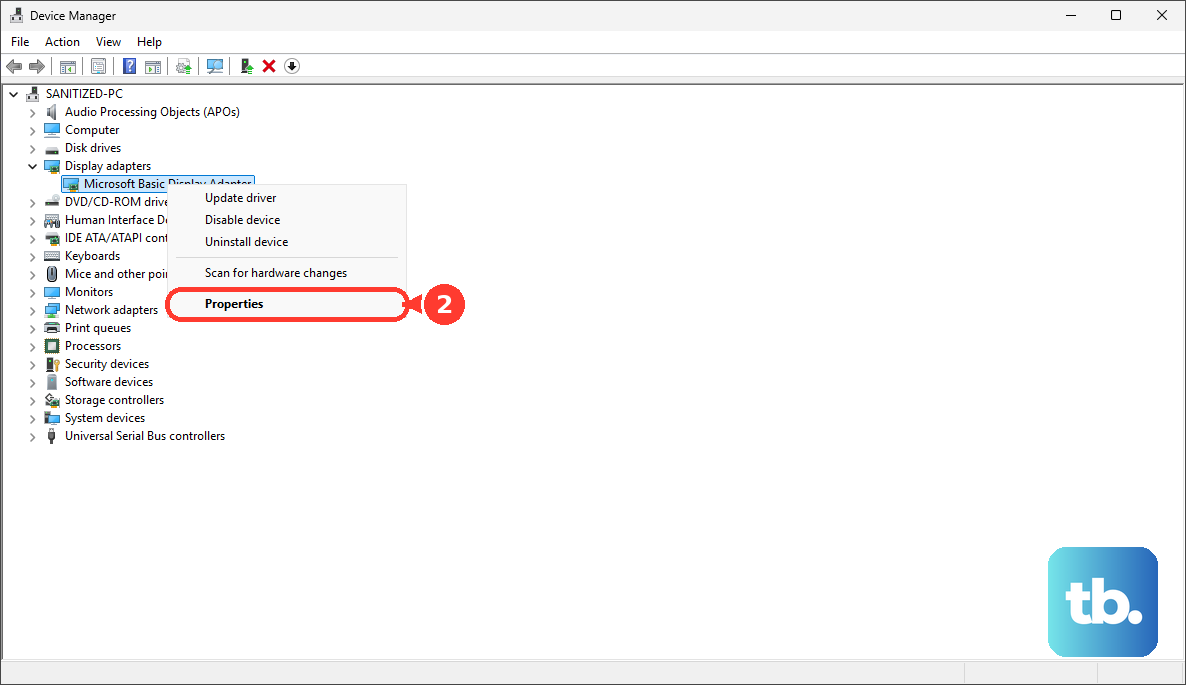
If rollback is unavailable or does not help, right-click the adapter under Display adapters and select Update driver. Follow the driver-search prompts. If the normal desktop prevents these steps, enter Safe Mode using the recovery options below.
For persistent driver trouble, use an administrator account and open the adapter’s Properties > Driver > Uninstall Device. Select Attempt to remove the driver for this device when available, confirm, and restart. Windows attempts to reinstall the driver after restarting.
Use Safe Mode and Lenovo hardware tests
To enter Safe Mode, hold Shift while selecting Restart, then choose Troubleshoot > Advanced options > Startup Settings > Restart. Press 4 or F4 for Safe Mode, or 5 or F5 for Safe Mode with Networking. Some keyboards require Fn with the function key.
If you cannot reach the desktop or restart controls, Microsoft provides another recovery route: interrupt startup with the Power button two or three times. In recovery, select Troubleshoot > Advanced options > Startup Settings > Restart, then press F5. Reserve this route for a persistent blank screen, and never interrupt an update or recovery operation.
Restart and check whether the Lenovo logo or BIOS screen remains visible. A visible firmware screen helps distinguish a Windows-related symptom from a fault present before Windows loads. To inspect it, open BIOS on your Windows PC using your model’s startup method.
For an LCD self-test, first confirm that your laptop supports it in the Hardware Maintenance Manual and Lenovo’s supported-model list. Turn the laptop off, connect AC power, and press Fn + Left Ctrl + Power together. Observe the full-screen solid colors; the test ends after approximately 20 seconds.
For a broader hardware check, open Lenovo Vantage > Device diagnostics > Hardware scan > Quick scan > Scan. Other Vantage interfaces use Hardware scan or Support > Hardware scan, then QUICK SCAN or CUSTOMIZE. If the fault also appears before Windows loads or during the LCD test, contact Lenovo or your service provider with those details.
Repair Windows only after simpler fixes fail
For a persistent Windows fault, use an available restore point from before the problem began. In Windows Recovery Environment, choose Troubleshoot > Advanced options > System Restore, then select the restore point. An encrypted device may require your recovery key.
On an eligible Windows 11 installation, open Settings > System > Recovery > Fix problems using Windows Update. Select Reinstall now, then OK, and keep AC power and internet connected. This repair option may be unavailable on managed PCs or installations missing required updates.
Back up before considering a full reset as your last software step. To reset your laptop through recovery, open Settings > System > Recovery > Reset PC. Choose Keep my files or Remove everything, followed by Cloud download or Local reinstall. Even Keep my files removes apps and settings, so pursue hardware service first when the fault is present outside Windows.
Frequently Asked Questions
How do you fix display settings on a Lenovo Chromebook?
Select the time, then open Settings > Device > Displays and choose the built-in display or external monitor. Adjust Display and text size, Orientation, Resolution, or the refresh rate for that screen. For a warm tint, check Night Light under Displays.
What should you try when a Lenovo monitor is not detected by a Mac?
Open the Apple menu > System Settings > Displays, hold Option, and select Detect Displays. Reconnect monitor power and video, then try connecting directly instead of through a dock. For closed-lid use, connect your Mac laptop to power and use an external keyboard and mouse.
Why does a Lenovo privacy screen look different during password entry?
On supported ThinkPad X1 2-in-1 Gen 10 Aura Edition configurations, your screen can activate Privacy Guard when you type passwords. In Lenovo Vantage, open Display & Camera and, under Privacy Guard, clear Enable this feature when typing passwords. This control requires the corresponding privacy hardware.
Can you fix a Lenovo touchscreen that was disabled in Windows?
You can re-enable it by right-clicking Start and opening Device Manager > Human Interface Devices. Right-click HID-compliant touch screen and select Enable device. Repeat for additional listed touchscreen devices.
What should you do about a persistent bright or dead pixel?
Compare the defect count with Lenovo’s pixel policy for your exact monitor or all-in-one. Contact Lenovo or your service provider when the applicable warranty threshold is exceeded. Lenovo provides a one-bright-pixel warranty condition for ThinkVision P and T Gen-40 monitors, but that condition does not apply to every model.
What should you try first on a blank Lenovo Android tablet?
Charge your tablet for at least two minutes, then turn it on. If the screen turned off automatically, press Power and check whether the operating system reappears. Check your model’s instructions before attempting a forced restart because button combinations and timings vary.