

To transfer apps to another iPhone, use Quick Start during setup, restore an iCloud or computer backup, or redownload individual apps from the App Store. Quick Start suits a replacement phone, while redownloading lets you add selected apps to an iPhone you already use. Recovering the information inside those apps may also require iCloud sync, an app account, or the app’s own transfer process.
The short version
- Replacing your phone: Use Quick Start with both iPhones nearby and connected to power.
- Adding selected apps: Redownload them through the App Store without erasing the receiving iPhone.
- Old phone unavailable: Restore an existing iCloud or computer backup.
- Keeping app data: Complete any app-specific restoration before removing data from the old phone.
| Method | What it does | Main requirement |
|---|---|---|
| Wireless Quick Start | Moves your phone’s setup and data | Both phones nearby during setup |
| Wired migration | Transfers directly through a cable | Compatible cable or adapter combination |
| Quick Start with iCloud | Downloads apps and data during setup | Nearby old phone and iOS 17.2 or later |
| iCloud backup restoration | Restores a saved backup | Completed backup and Wi-Fi |
| Finder or Apple Devices backup | Restores a computer backup | Computer holding the backup |
| iTunes backup fallback | Restores a computer backup on Windows | iTunes when Apple Devices is absent |
| App Store redownload | Installs selected apps without erasing | Purchasing account and compatible apps |
| App account sign-in | Recovers information stored by the service | Same service account |
| iCloud app sync | Recovers supported synced information | Same Apple Account and sync enabled |
| WhatsApp chat restoration | Recovers backed-up chats | Existing backup and matching accounts |
| Google Authenticator transfer | Recovers codes through sync or QR export | Google Account sync or the old phone |
Prepare the receiving iPhone
Start by deciding whether you want the old phone’s setup and data or just a few apps. Quick Start and backup restoration are whole-phone methods, while App Store redownloads install individual apps without copying their local data. For the broader move, follow the steps to transfer your iPhone to another iPhone.
To access setup-time migration on an already configured destination, back up anything you need from that phone before erasing it. Open Settings > General > Transfer or Reset iPhone > Erase All Content and Settings, then tap Continue. This removes the destination’s existing data.
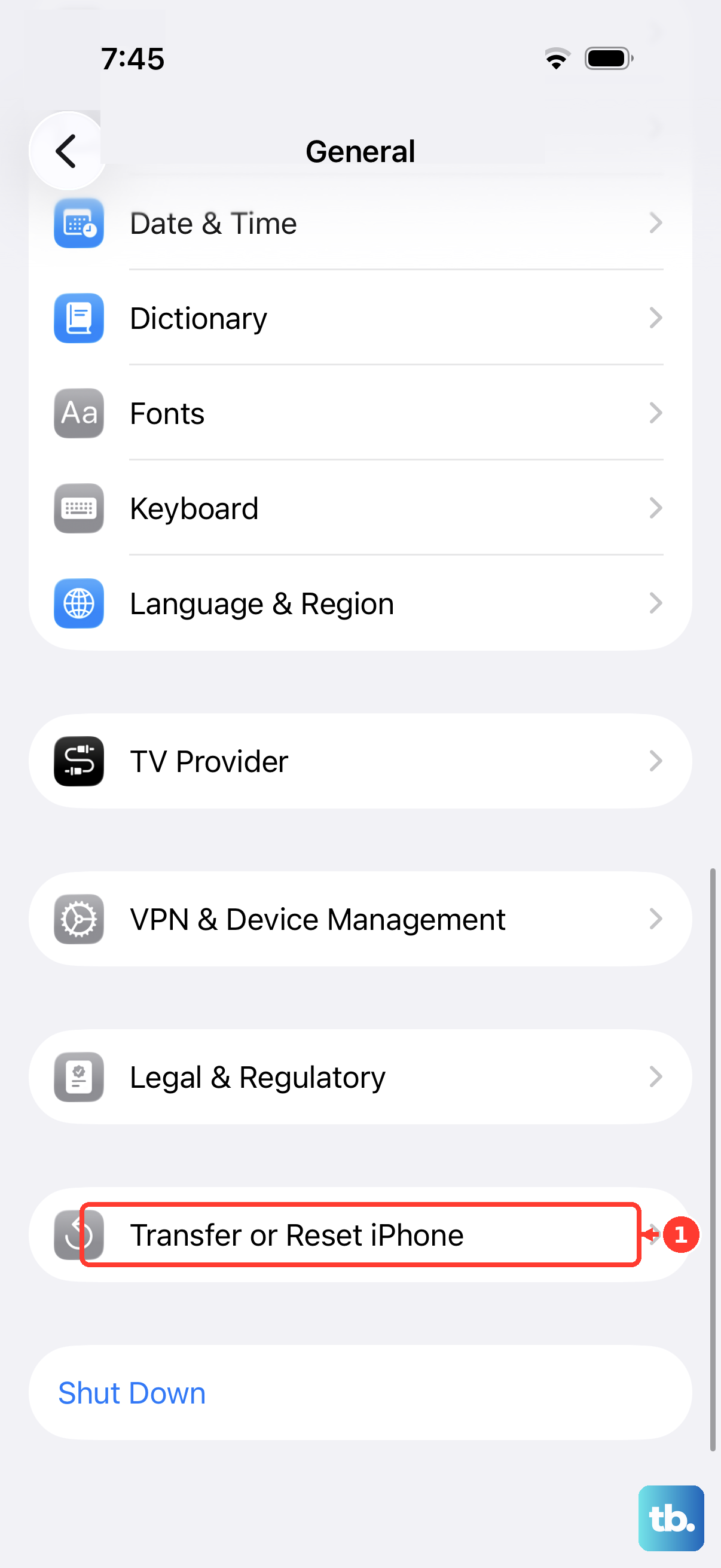
Where offered, tap Keep eSIM and Erase Data to retain its eSIM, or tap Delete eSIM and Erase Data to remove it. Enter the requested passcode and Apple Account password, allow any backup to finish, and wait for the Hello screen. Follow the full instructions to erase your iPhone before starting if needed.
Transfer apps with Quick Start
On the old iPhone, connect to Wi-Fi, turn on Bluetooth, and unlock the phone. Leave it on the Home Screen, turn on the new or erased iPhone, and place it nearby. Follow the Quick Start prompts, connect the destination to a network, and configure Face ID or Touch ID.
Choose the direct transfer option when setup offers it. Keep both phones close together and connected to power until migration finishes. Leave the old phone’s data intact until you have opened your important apps on the replacement and confirmed that the information you need is there.
Quick Start also offers an iCloud download route with the old phone nearby, for which Apple specifies iOS 17.2 or later. With Wi-Fi and Bluetooth enabled on the old phone and both phones connected to power, scan the setup animation using the old phone’s camera. Enter the old phone’s passcode on the destination, then tap Download from iCloud at Transfer Your Data.
Quick Start is unavailable when the destination is enrolled in Apple School Manager or Apple Business. For a managed work or school phone, ask your administrator to assign or reinstall the apps and check whether their data can be restored.
Use a cable for direct migration
For two iPhone 15 or later devices, connect their charging ports with a USB-C Charge Cable. When moving from an iPhone 14 or earlier to an iPhone 15 or later, use a USB-C to Lightning Cable. Apple documents neither of those configurations for moving from a USB-C iPhone to a Lightning iPhone, so use wireless Quick Start or a backup for that direction.
Two iPhone 14 or earlier devices need a Lightning to USB 3 Camera Adapter. Power the adapter with a 12W or higher power adapter, attach it to the old phone, then connect the new phone using a Lightning to USB Cable.
Once the appropriate cable connection is in place, turn on both phones and follow setup. Connect the destination to a network, configure Face ID or Touch ID, and wait for the transfer to finish.
Move apps through an iCloud backup
To make a fresh backup, connect the old iPhone to Wi-Fi and open Settings, tap your name, then select iCloud > iCloud Backup. Tap Back Up Now and stay connected until the backup finishes. You need enough iCloud storage unless you qualify for Apple’s temporary storage option.
When buying a replacement iPhone, you may qualify for free temporary iCloud storage if your existing storage is insufficient. Update the old phone to its latest iOS, open Settings > General > Transfer or Reset iPhone, and under Prepare for New iPhone, tap Get Started. If offered, tap Turn On Backup to Transfer, then tap Continue when offered additional storage and wait for completion.
Start the new or erased iPhone and continue to Transfer Your Apps & Data. Tap From iCloud Backup, sign in to your Apple Account, and choose the old phone’s backup by its date and size. Sign in again for purchases when requested, then keep Wi-Fi and power connected while restoration and app downloads finish.
An existing backup lets you restore even when the old phone is unavailable. A backup made with newer software may require a software update on the destination before restoration can proceed. Follow the full steps to restore your iPhone from a backup if you need help completing the process.
Restore apps through a computer backup
On a Mac running macOS Catalina or later, connect the old iPhone and click Allow if requested. Open Finder and select the phone in its sidebar. If prompted, click Trust on the Mac, tap Trust on the iPhone, and enter the phone’s passcode.
Select Encrypt local backup to preserve additional protected information, including Health and Activity data. Create and verify a password, retain it for restoration, and click Set Password. Click Back Up Now and wait for completion.
On Windows, get Apple Devices from Apple’s download page, connect the old phone, and complete the trust and passcode prompts. Select the phone and click General. Select Encrypt local backup if needed, create and retain its password, then click Back Up Now and wait for completion.
Connect the destination to the computer, open Finder or Apple Devices, and select the phone in the sidebar. Click Restore Backup and, under Backup, choose the old phone’s backup by date and size. Enter its encryption password when requested and click Restore. Keep the phone connected through its restart and synchronization, then leave it on Wi-Fi and power for remaining downloads.
If your Windows PC does not have Apple Devices, Apple also supports iTunes for backup and restoration. To create the backup, connect the old phone, open iTunes, complete the trust and passcode prompts, select the phone, and click Summary. Select Encrypt local backup if needed, create and retain the password, then click Back Up Now.
To restore with iTunes, choose the option to restore from a Mac or PC during destination setup, then connect it to the computer holding the backup. Open iTunes, select the phone, click Restore Backup, and choose the appropriate backup. Enter its encryption password if requested, complete restoration and setup, and allow app downloads to finish over Wi-Fi.
Computer restoration replaces destination contents rather than selectively merging apps. The old iTunes App Store and app-sync feature was removed, so use backup restoration or redownload individual apps on the iPhone.
Download individual apps without erasing
On the receiving iPhone, sign in to the Apple Account that purchased the app. Open App Store, tap your photo or tap My Account, then open Apps & Purchase History > Your Apps > Not on this iPhone. Find the app and tap the cloud-shaped Redownload button.
This installs the app without erasing the receiving phone, but it does not copy local app data. You can also open App Store > Search, find the app, and tap Get, its price, or the Redownload control. For an Apple Arcade game, search for the game and download it again.
When requested on a Face ID iPhone, double-click the Side button and authenticate. On a Touch ID model, authenticate using the Home button, and enter your Apple Account password if requested. To locate other previous purchases, follow the steps to find and reinstall deleted apps.
A hidden purchase will be missing from the redownload list. Open App Store, tap your photo, tap your name, authenticate if requested, and open Hidden Purchases. Find the app and tap Unhide, then redownload it; unhiding alone does not reinstall it.
Recover the information inside your apps
For apps that keep information in an online account, install the app and sign in to the same service account. Let the service load its stored information before checking for missing data. Locally stored information may still need a backup or the app’s own transfer process.
Apps supporting iCloud sync can populate an already configured destination without restoring the whole phone. Use the same Apple Account on both iPhones, then on each phone open Settings, tap your name, select iCloud, and tap See All beside Saved to iCloud. Select the app and enable its available sync control, then let the old phone finish uploading before relying on the destination copy.
Check messaging and authentication apps separately before clearing the old phone. For WhatsApp, open its Settings > Chats > Chat Backup on the source and confirm that a backup exists. Install WhatsApp on the destination, verify the same phone number and Apple Account, then tap Restore Chat History.
If you need to restart WhatsApp’s restoration process, uninstall and reinstall it on the destination while keeping the source data intact. You need sufficient space for restoration, and encryption or account verification may add prompts. Messages newer than the backup will not return through that backup.
Install Google Authenticator on the destination and sign in to the same Google Account to recover synchronized codes. For manual transfer, update the app on the old phone, open Menu > Transfer accounts > Export accounts, unlock the phone, select the accounts, and tap Next. On the destination, open Menu > Transfer accounts > Import accounts and scan every generated QR code.
Fix missing apps and blocked downloads
Keep the receiving iPhone connected to Wi-Fi and power while the remaining apps download. Confirm that you are using the purchasing Apple Account when an app is missing from your library. Availability, region, compatibility, and minimum iOS requirements can prevent installation. Backups exclude App Store content itself, so they cannot guarantee recovery of an unavailable app.
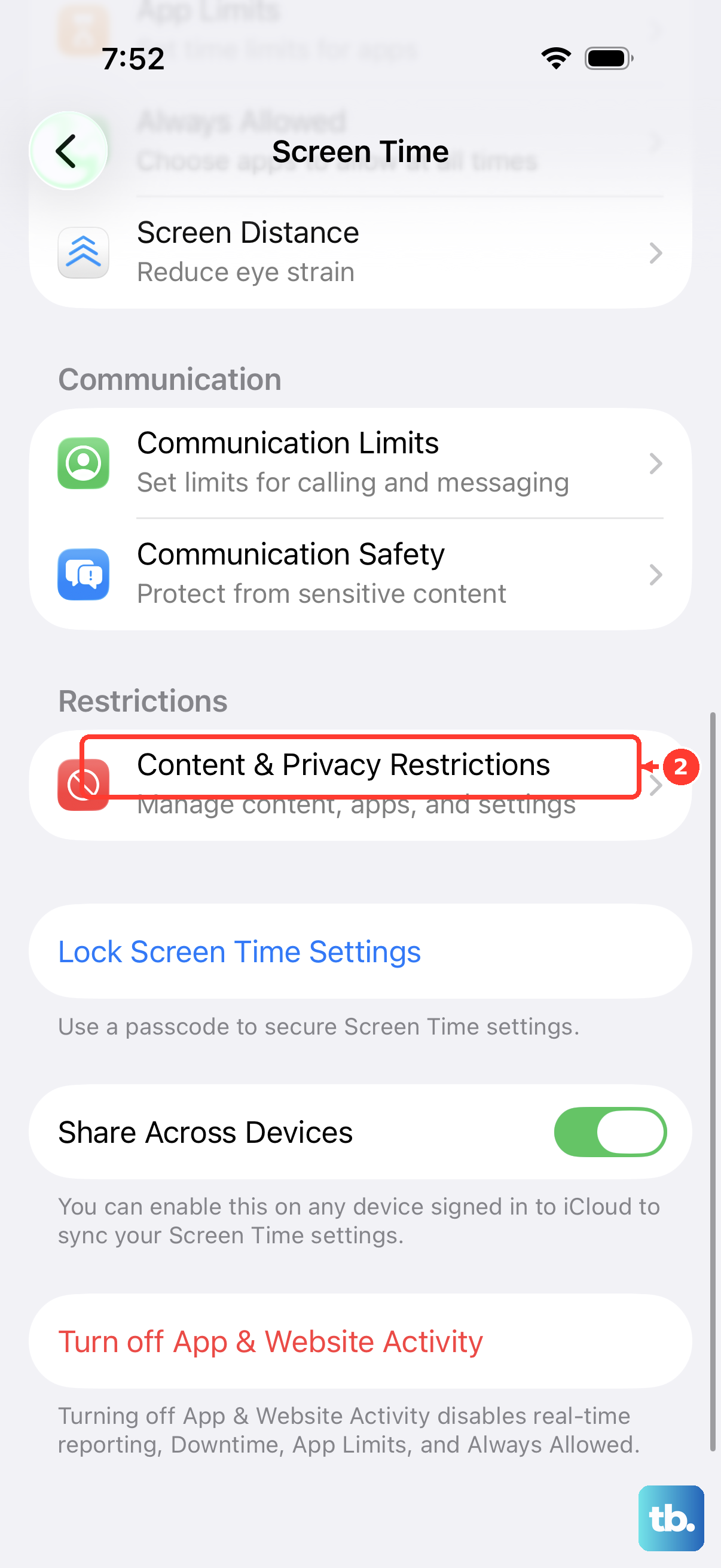
When Screen Time blocks installation and you have the device owner’s or parent’s authorization, open Settings > Screen Time > Content & Privacy Restrictions > iTunes & App Store Purchases > Installing Apps. Select Allow, then retry the download. Also check age restrictions under Content & Privacy Restrictions > App Store, Media, Web & Games > Apps; family approval requirements may still apply.
For missing eligible in-app purchases, sign in to the purchasing Apple Account and use the app’s restoration option in its store or menus. The exact control varies by app, and consumable purchases such as spent currency cannot be restored through that mechanism. Confirm that your essential apps and their information have returned before removing source data.
Frequently Asked Questions
Can you AirDrop an app to another iPhone?
You can AirDrop its App Store link, then download the app on the receiving phone. Enable Wi-Fi and Bluetooth on both phones and set the receiver’s AirDrop visibility to Contacts Only or Everyone for 10 Minutes. Open the app’s App Store page, tap Share, choose AirDrop and the recipient, then accept on the receiver if prompted and complete any code prompt. This sends a link without transferring the installed app, purchase ownership, or local data.
Can family members download an app you purchased?
Yes, Family Sharing with Purchase Sharing gives separate family accounts access to eligible shared apps. With Family Sharing configured, the organizer opens Settings > Family > Purchase Sharing, taps Turn On, and reviews Payment Methods; members must also opt in. On the recipient’s iPhone, open App Store, tap your photo, open Apps & Purchase History > Your Apps, choose the purchasing family member, and tap the app’s Redownload button. Purchase ownership and personal app data remain separate.
Can new app purchases install automatically on both iPhones?
Yes, use the same purchasing Apple Account and turn on App Downloads under Settings > Apps > App Store on the second iPhone. This allows apps purchased on your other devices to install automatically. It does not perform a one-time migration of existing local app data, and the separate App Updates switch only updates installed apps.
How long do you have to restore a temporary iCloud backup?
You normally have 21 days to restore the temporary backup. If you need longer, open Settings on the old phone and select Keep My Backup Longer.
How do you reinstall a TestFlight beta app on another iPhone?
Install TestFlight on the destination, which requires iOS 16 or later, and open the developer’s invitation or public invitation link. For an invitation, tap View in TestFlight, tap Accept if you are a new tester, then tap Install. Returning testers may see Update or Open. A compatible available build is required, builds expire after up to 90 days, and reinstalling does not guarantee recovery of beta-app data.