

To take a screenshot on a Windows computer, press Windows + Shift + S, choose a capture mode, and select what you want to capture. Paste the image with Ctrl + V, or select the screenshot notification to open the editor; on Windows 11, Snipping Tool also saves it to the Screenshots folder by default. This shortcut also works on Windows 10; the Snipping Tool menus and Windows Settings paths below use Windows 11.
The short version
- Select an area: Press Windows + Shift + S and select the content you want.
- Save the whole screen: Press Windows + PrtScn to save a screenshot in Pictures > Screenshots.
- Copy one window: Activate the window, press Alt + Print Screen, then paste with Ctrl + V.
- Capture a menu: Use Snipping Tool’s Delay option to give yourself time to open the menu before capturing it.
| What you need | Method | Result |
|---|---|---|
| Select content with a shortcut | Windows + Shift + S | Clipboard image, saved to Screenshots by default on Windows 11 |
| Choose a capture through the app | Snipping Tool’s Snipping Mode, then New | Rectangle, freeform, window, or full-screen capture |
| Save the whole screen immediately | Windows + PrtScn | File in Pictures > Screenshots |
| Save without a dedicated screenshot key | Fn + Windows + Space Bar on supporting hardware | File in Pictures > Screenshots |
| Copy the active window | Alt + Print Screen | Clipboard image |
| Open snipping with one key | PrtScn with screen snipping enabled on Windows 11 | Capture interface for selecting content |
| Copy the whole screen | Print Screen, with screen snipping disabled on Windows 11 | Clipboard image |
| Capture an open menu | Snipping Tool’s Delay option | Capture after a countdown |
| Capture an entire webpage in Edge | Ctrl + Shift + S, then Capture full page | Image to copy or save |
| Capture an entire webpage in Firefox | Ctrl + Shift + S, then Save full page | Image to download or copy |
| Capture the visible webpage in Firefox | Ctrl + Shift + S, then Save visible | Image to download or copy |
| Capture a selected webpage area in Firefox | Ctrl + Shift + S, then drag a region | Image to download or copy |
Capture part of the screen with Snipping Tool
Press Windows + Shift + S to start a capture. Choose the capture mode, then select the area or window you need. The image goes to the clipboard, ready to paste into an application that accepts images with Ctrl + V. On Windows 11, Snipping Tool also saves the snip to your Screenshots folder by default; select the screenshot notification to open the editor.
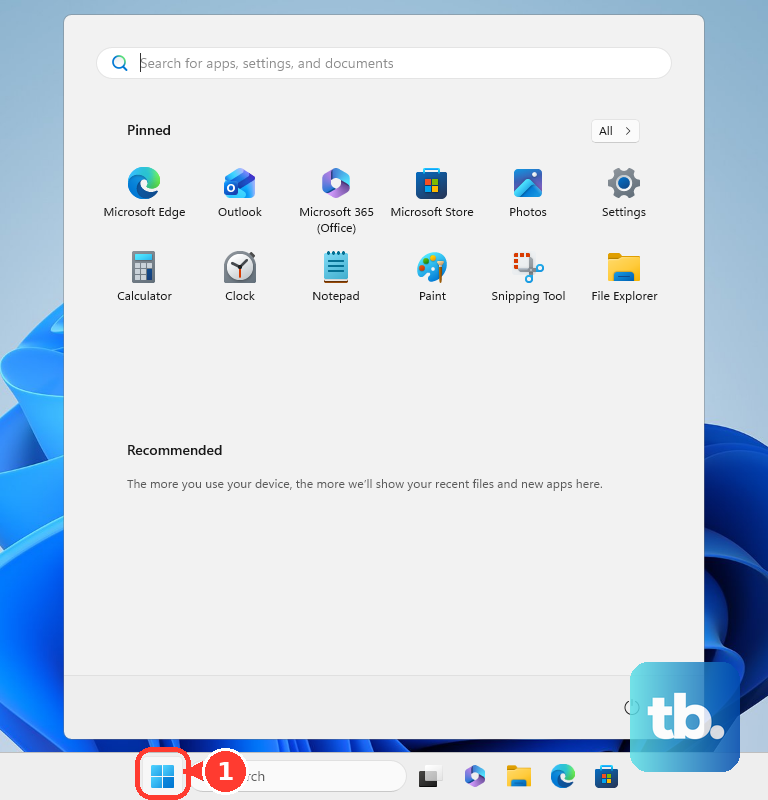
To start from the app on Windows 11, open Start, search for Snipping Tool, and open it. Select Snipping Mode, choose a mode, then select New. Choose Rectangle to drag a box around the content or Freeform to draw an outline around it.
Select Window to capture a window, or Full screen to capture the whole screen. For more detail on these selections, see how to use Snipping Tool on Windows.
If older instructions tell you to open Snip & Sketch, use Snipping Tool on Windows 11 instead. Microsoft replaced Snip & Sketch with Snipping Tool, while keeping the Windows + Shift + S shortcut available.
Save the whole screen with a keyboard shortcut
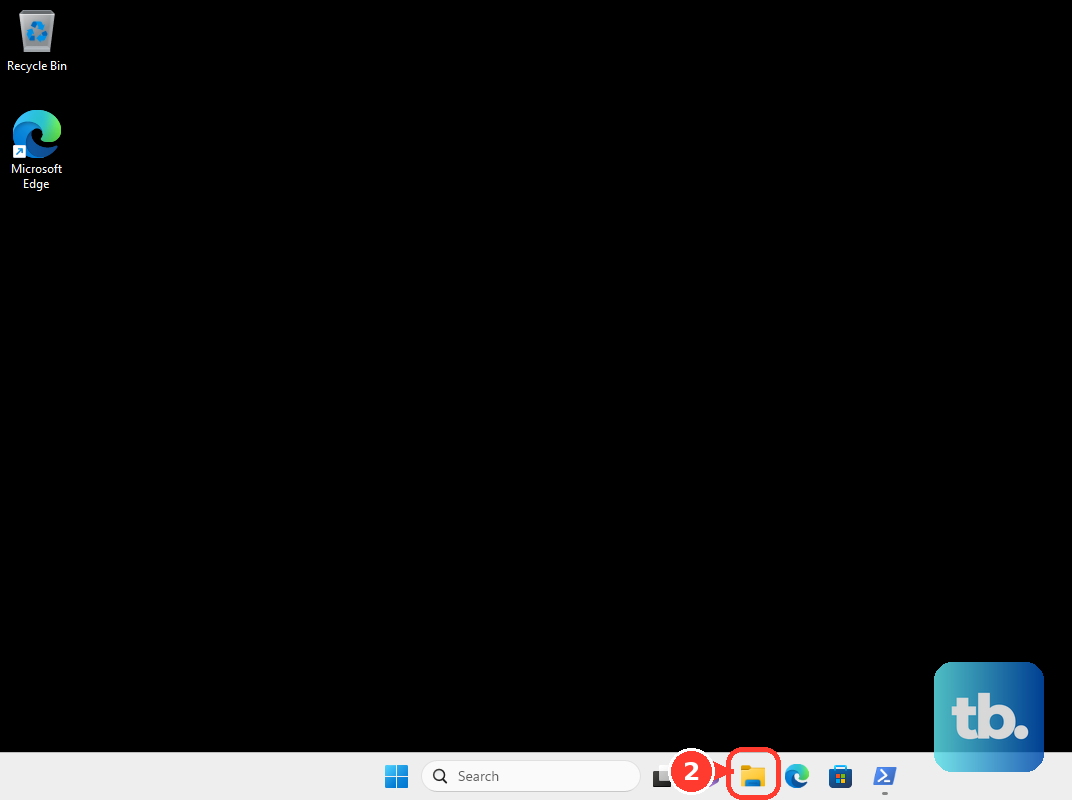
Press Windows + PrtScn when you want a full-screen image saved directly as a file. Open File Explorer, then go to Pictures > Screenshots to find it. This shortcut works on Windows 11 and Windows 10, though keyboard implementations can vary.
On Windows 11 or Windows 10 hardware without a Print Screen key that supports Microsoft’s alternative shortcut, press Fn + Windows + Space Bar. Look in the same Pictures > Screenshots folder afterward. If that combination does not work on your Windows 11 keyboard, open Snipping Tool through Start, choose Full screen under Snipping Mode, then select New.
Copy just the active window
Activate the window you want to capture, then press Alt + Print Screen. This copies that window’s image to the clipboard on Windows 11 and Windows 10. Open Paint or another application that accepts images, then press Ctrl + V. Save the pasted image in that application when you need a file.
A clipboard capture needs to be pasted or saved to become a file, so check the destination application if you cannot find it in a folder. Alternatively, on Windows 11, choose Window under Snipping Mode in Snipping Tool, select New, and select the window to capture.
Choose what your screenshot key does
On Windows 11, open Start > Settings > Accessibility > Keyboard. Turn on Use the Print Screen button to open screen snipping to make PrtScn open the capture interface. Press PrtScn, choose what to capture, and complete your selection.
For traditional whole-screen copying on Windows 11, open Start > Settings > Accessibility > Keyboard and turn off Use the Print Screen button to open screen snipping. Press Print Screen, then paste with Ctrl + V into Paint, a document, or another application that accepts images. Windows 10 also supports traditional Print Screen capture.
Use a delay to capture an open menu
Open Snipping Tool on Windows 11 and select Delay > 5 seconds. Choose your Snipping Mode, then select New. Open the menu you want before the countdown ends, then complete the capture selection. Save the result from the editor.
Save a copy and find your screenshots
The current Windows 11 Snipping Tool automatically saves captured snips to the Screenshots folder. On Windows 11, open See More > Settings inside Snipping Tool to control automatic saving and its destination folder. To save another copy yourself, select Save as, specify the destination, then select Save.
Keep the capture method in mind when looking for the result. The Windows + PrtScn shortcut saves to Pictures > Screenshots, and Snipping Tool, including its keyboard shortcut, saves snips to the Screenshots folder by default on Windows 11, while other clipboard methods require you to paste or save the image. For help locating an existing capture, see where screenshots go on Windows.
Capture an entire webpage
For webpage content below the visible screen, use your browser’s full-page capture option. In current Microsoft Edge for Windows, press Ctrl + Shift + S and select Capture full page. Copy or save the image from the resulting screenshot overlay.
In current Firefox for Windows, press Ctrl + Shift + S, then select Save full page. Choose Download to save the image or Copy to put it on the clipboard. Choose Save visible instead when you only need the visible part of the page.
For a selected page area in Firefox, open its screenshot interface with Ctrl + Shift + S on a page where the interface is available. Drag the region, then choose Download or Copy. These browser captures focus on webpage content; use a Windows full-screen or window capture when you also need to show the surrounding browser controls.
Fix shortcuts that do not capture what you need
If Windows + Shift + S does not start a capture on Windows 11, open Snipping Tool through Start, choose a mode under Snipping Mode, then select New. You can use the app while addressing the Windows screenshot shortcut failing. If Snipping Tool has been removed, obtain it again from the official Microsoft Store listing on a compatible Windows device.
If Print Screen opens a selection interface when you expected a whole-screen copy, check Use the Print Screen button to open screen snipping under Start > Settings > Accessibility > Keyboard on Windows 11. Turn it off for whole-screen clipboard capture. If a clipboard capture produces no saved file, paste it into an application that accepts images and save it there. For broader capture failures, follow the steps to fix screenshots not working in Windows.
Frequently Asked Questions
How do you take a screenshot on a Surface without using the keyboard?
On supported Surface Pro, Surface Go, and Surface Book hardware, hold the Power button, then press Volume Up. Find the image in Pictures > Screenshots. Microsoft excludes Surface Laptop from this button shortcut.
How do you take a screenshot in a game?
With Game Bar available and a supported game or application active, press Windows + Alt + Print Screen on Windows 11 or Windows 10. The PNG saves under Videos > Captures.
Can you back up screenshots automatically with OneDrive?
Yes, back up the Pictures folder and save your screenshots inside it. On Windows 11, select the OneDrive cloud icon, then open Help & Settings > Settings > Sync and backup > Manage backup. Enable backup for Pictures, then select Save changes.
Can you put Snipping Tool on the taskbar?
Yes, on Windows 11, search for Snipping Tool and select Pin to taskbar. You can then launch it from its taskbar icon whenever you need a capture.