Hey Google can stop responding when Android loses a solid connection, microphone access gets blocked, or Gemini and Assistant settings fall out of line. Start with the quick checks, then move through the exact Google, Gemini, and Android settings that control voice activation.
Check your connection and restart the phone
Use this first when Hey Google stopped responding after weak Wi-Fi, mobile data trouble, or a long stretch without restarting the phone.
Make sure the Android phone or tablet has a strong internet connection.
If the connection was the problem, restart the device after reconnecting.
After it boots back up, move to a quieter area, turn off background noise, and say Hey Google in a normal conversational voice.
Turn on Hey Google and Voice Match
The most common cause is that Hey Google or Voice Match is off.
Say Hey Google, open Assistant settings.
Under Popular settings, tap Voice Match.
Turn on Hey Google, then complete the Voice Match setup prompts.
If you use Google Home, open the Google Home app and go to Settings > Google Assistant > Voice Match.
Turn on Use Voice Match in this home, turn on Hey Google, then follow the setup prompts.
Retrain your voice model
When the feature is already enabled but Android misses your voice, rebuild the model.
- 1.Open the Google Home app.
- 2.Tap Settings > Google Assistant > Voice Match.
- 3.Turn on Use Voice Match in this home.
- 4.Tap Voice model.
- 5.Choose Retrain voice model and follow the prompts.
Allow microphone access
Assistant and Gemini cannot hear the hotword when Android blocks microphone access for the Google app. Open Settings > Apps > Google > Permissions > Microphone, then choose an allow option.
On Android 12 and later, the system microphone privacy control blocks access globally when it is off. Swipe down twice from the top of the screen, open Quick Settings, and tap the microphone tile to turn microphone access on.
If the microphone tile is missing, tap Edit or Add and drag the microphone tile into Quick Settings.
If this method fails, update the Google app next because the current Google app is the supported path for Assistant voice activation.
Update Google, Gemini, and Google Home
Use this when the settings look right but the assistant still fails, or after switching between Google Assistant and Gemini.
Open the Google Play Store, go to the Google app page, and tap Update. If the page says Installed, the latest version is already installed.
Open the Gemini app page in the Google Play Store and tap Install or Update when you use Gemini as your mobile assistant.
Open the Google Home app page in the Google Play Store and tap Install or Update when you manage Voice Match through Home.
For manual app updates, open Google Play Store > your profile icon > Manage apps & device > See details, then tap Update next to the relevant app or tap Update all.
Fix Gemini and default assistant settings
If Gemini is your mobile assistant, open the Gemini app. Tap Menu, tap your profile picture or initial, then open Settings > Talk to Gemini hands-free. Turn on Hey Google and follow the Voice Match prompts.
You can also use the account path in Gemini. Open Gemini > Menu > your profile picture or initial > Manage your Google account > Data & privacy > Voice Match, turn on Hey Google, then finish the prompts.
Set Google as the default assistant from Android settings. Open Settings > Apps > Default apps > Digital assistant app > Default digital assistant app, then select the Google app. Use this screen when a non-Google assistant took over the slot. It will not move you between Assistant and Gemini, because Google says Google stays selected whether Google Assistant or Gemini is your assistant.
To return from Gemini to Google Assistant, open Gemini > Menu > your profile picture or initial > Switch to Google Assistant > Google Assistant, then tap Switch in the confirmation dialog.
Turn off battery restrictions
Open Settings and go to Battery.
Tap Battery Saver.
Choose Turn off now.
Return to Battery and open Adaptive Battery.
Turn off Adaptive Battery, then test Hey Google again.
Keep background noise down while testing so the microphone is hearing your voice, not the room.
Install Android updates and clear app cache
Use these cleanup fixes after the main Assistant, Gemini, microphone, and battery settings are correct.
- 1.Open Settings > System > Software updates, then follow the on-screen instructions.
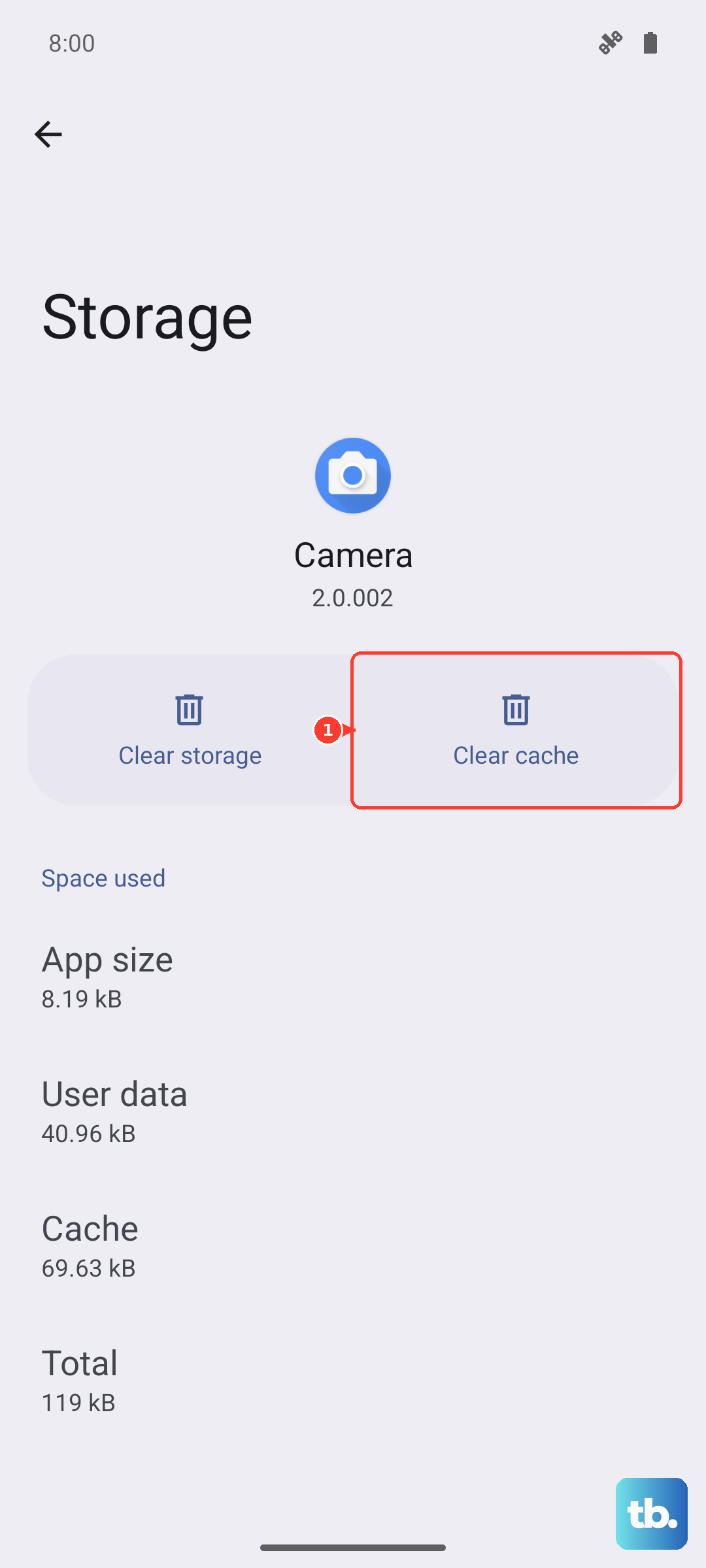
- 2.Open Settings > Apps > Google > Storage & cache.
- 3.Tap Clear cache.
- 4.If Gemini is your assistant, repeat Storage & cache > Clear cache for Gemini.
- 5.Use Clear storage or Clear data only when you are ready to delete app data and set the app up again.
Check lock screen and managed account limits
This fixes locked-phone voice access and account blocks.
For Gemini, open Gemini > Menu > your profile picture or initial > Settings > Gemini on lock screen.
Turn on Use Gemini without unlocking.
For Google Assistant, open Assistant settings and turn on the Assistant lock screen setting.
Some locked-device actions still require unlocking.
For supervised child accounts, Google says Hey Google and Voice Match with Gemini are not available.
If you are signed in to a Google Workspace for Education account and cannot turn on Hey Google, contact your administrator, because Google says the admin might have turned off settings that Hey Google needs.
Use current Google labels: Hey Google, Voice Match, Hey Google & Voice Match, and Gemini’s Talk to Gemini hands-free.
Frequently Asked Questions
Why does Hey Google only work when my phone is unlocked?
The lock screen assistant setting is off. For Gemini, turn on Use Gemini without unlocking under Gemini on lock screen. Some actions still require unlocking.
Does Gemini replace Google Assistant for Hey Google?
On many Android devices, Gemini can be the primary mobile assistant, while Google Assistant still powers Hey Google and Voice Match behavior behind the scenes.
What should I do if the wrong assistant opens?
If a non-Google assistant opens, set Google as the default digital assistant app in Settings > Apps > Default apps > Digital assistant app > Default digital assistant app. Google stays selected for both Google Assistant and Gemini, so to move between those two, use Gemini > Menu > your profile picture or initial > Switch to Google Assistant instead.
Can a child account use Hey Google with Gemini?
Google says Hey Google and Voice Match with Gemini are not available for supervised accounts.