


To restart Windows with your keyboard when Windows uses English menus, press Windows + X, release both keys, then press U followed by R. This works in Windows 11 and Windows 10. Save your work before starting.
For menus in another language, press Windows + X, then use the arrow keys to select Shut down or sign out and Restart, and press Enter. If that menu does not respond, try the desktop dialog or security screen.
The short version
- Fastest route: With English menus, press Windows + X, release both keys, then press U and R.
- Desktop option: Press Windows + D, then Alt + F4, select Restart, and press Enter.
- Security screen: Press Ctrl + Alt + Delete, then use keyboard navigation to choose Power and Restart.
- Command option: Open Run with Windows + R, enter
shutdown /r /t 0, and press Enter.
| Method | How to start | When to use it |
|---|---|---|
| Quick Link menu | Windows + X, then U, then R | Quick restart with English menus |
| Desktop dialog | Windows + D, then Alt + F4 | Selecting the restart action explicitly |
| Start menu | Windows or Ctrl + Esc | Using the standard power controls |
| Update and restart | Start > Power > Update and restart | Installing updates when this action is offered |
| Security screen | Ctrl + Alt + Delete | Trying another route when the desktop does not respond |
| Sign-in screen | Tab or Shift + Tab to focus Power | Restarting before signing in, if permitted |
| Immediate restart command | Windows + R | Running a restart command without a countdown |
| Delayed restart command | shutdown /r /t 60 | Allowing a countdown after saving your work |
| Cancel a delayed restart | shutdown /a | Stopping a pending restart before its timeout expires |
| Task Manager | Ctrl + Shift + Esc | Launching a command when the desktop shell malfunctions |
| Personal shortcut | Your assigned combination | Repeated use after initial setup |
| Recovery restart | Hold Shift while activating Restart | Opening Windows Recovery Environment |
| Firmware restart | UEFI Firmware Settings in recovery | Opening firmware settings on compatible PCs |
| Physical power button | Your device's forced restart procedure | Last resort when software methods cannot respond |
Use the Quick Link menu
Press Windows + X to open the Quick Link menu. Release both keys, press U to open Shut down or sign out, then press R to select Restart. Press those last two keys separately rather than holding the whole sequence together.
The letter shortcuts apply to English menus, so follow the menu labels when Windows uses another language. Move through the menu with the arrow keys, open Shut down or sign out, select Restart, and press Enter. If the menu does not respond, try the desktop dialog or security screen.
Restart from the desktop dialog
Press Windows + D to show the desktop, then press Alt + F4 to open the shutdown dialog. Use the arrow keys to select Restart, then press Enter. Check the selected action before confirming instead of assuming that Restart is the default.
Some keyboards require Fn + Alt + F4 to open the dialog. If the dialog still does not respond, try the Start menu or security screen.
Choose Restart from the Start menu
Press the Windows key or Ctrl + Esc to open Start. Use Tab, Shift + Tab, and the arrow keys to move focus to Power, then press Enter. Select Restart with the arrow keys and press Enter again.
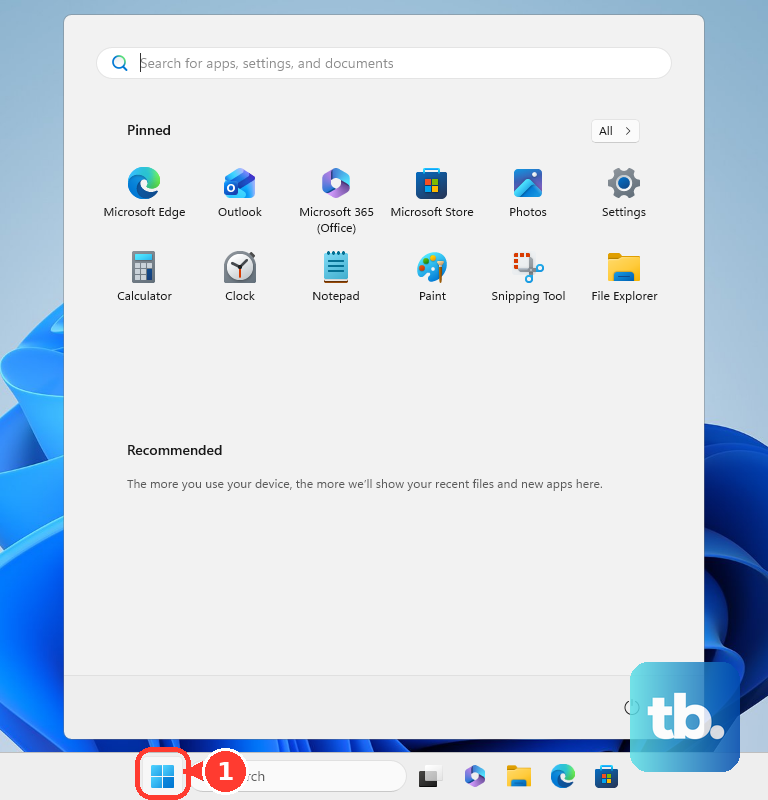
Follow the focused control rather than counting a fixed number of key presses, since focus and layouts vary. When Windows offers Update and restart, use the same keyboard navigation to select it and press Enter to install the pending updates and restart. Save your work before confirming either action.
Use the security or sign in screen
Press Ctrl + Alt + Delete to open the Windows Security screen. Use Tab or Shift + Tab to focus Power, then press Enter. Select Restart with the arrow keys and press Enter.
This route requires the security screen to respond and its power commands to be available. If you want to close a single frozen app instead, follow the steps to force quit a frozen app.
At the sign-in screen, use Tab or Shift + Tab to focus Power, press Enter, then select Restart and press Enter. From a signed-in desktop, save your work, press Windows + L to lock the PC, then dismiss the lock screen to reach the sign-in controls. An administrator can restrict the power commands available on this screen.
Enter a restart command
Press Windows + R to open Run. Type the following command, then press Enter to restart without a countdown:
shutdown /r /t 0The /r option requests a restart, and /t 0 sets the timeout to zero seconds. Save your work before running it, since there is no countdown in which to finish up. You can also enter the same command in Command Prompt, Windows PowerShell, or a Windows Terminal shell.
For a 60-second delay, enter the command below and press Enter. Microsoft says a positive timeout implies forced app closure, so save your files before starting the countdown.
shutdown /r /t 60During that countdown, open a new Command Prompt window and enter the cancellation command below. Press Enter before the timeout expires to cancel the pending restart.
shutdown /aRestart commands require the Shut down the system user right. Command shells can also be restricted in S mode or managed environments. If your organization restricts these tools, use an available power menu or contact your administrator.
Launch the command through Task Manager
When the desktop shell is malfunctioning but Task Manager responds, press Ctrl + Shift + Esc. On Windows 11, use keyboard navigation to focus Run new task and press Enter. On Windows 10, open File > Run new task instead.
Type the following command into the new-task dialog. Use Tab to focus OK, then press Enter to run it:
shutdown /r /t 0Choosing Restart for Windows Explorer in Task Manager only restarts the desktop shell; it does not reboot Windows. Use the command when you need a full PC restart. This method still depends on Task Manager and its task launcher responding.
Create your own restart shortcut
For a keyboard combination you can reuse, create a desktop shortcut first. Press Windows + D, open the desktop context menu with Shift + F10, then use the arrow keys and Enter to select New > Shortcut. Enter the following command as the shortcut location:
shutdown /r /t 0Select Next, name the shortcut Restart, then select Finish. Open the shortcut's context menu with Shift + F10 and select Properties. On the Shortcut tab, focus Shortcut key, assign an unused combination such as Ctrl + Alt + R, then select OK.
After setup, press your assigned combination to restart Windows. Because the shortcut uses a zero-second timeout, save your work before pressing it.
Restart into recovery or firmware settings
Holding Shift while activating Restart opens Windows Recovery Environment. To access the Windows Recovery Environment, use keyboard navigation in the Start or sign-in power menu to highlight Restart. Hold Shift and press Enter to activate it.
Recovery also provides a route to get to BIOS on Windows on compatible PCs with UEFI firmware and the corresponding recovery option. Select Troubleshoot > Advanced options > UEFI Firmware Settings > Restart. Use this route when you need firmware settings rather than an ordinary restart.
Fix an unresponsive PC or missing restart controls
If the desktop does not respond, try the Windows Security screen or launch the restart command through Task Manager. If power commands are missing on a managed PC, your administrator may have restricted them. Ask your administrator to check the applicable policy rather than changing unrelated settings.
If none of the software methods responds, you may need to restart an unresponsive computer with its physical power button. Microsoft documents holding the button for 20 seconds to force a restart. Follow your device manufacturer's model-specific procedure when it differs, because physical button behavior varies and unsaved work can be lost.
Frequently Asked Questions
Can you restart Windows directly into Safe Mode?
Yes, on Windows 11 and Windows 10, enter Windows Recovery Environment and select Troubleshoot > Advanced options > Startup Settings > Restart. After restarting, press 4 or F4 for Enable Safe Mode, or 5 or F5 for Safe Mode with Networking. Press Enter instead to start Windows normally; encrypted devices may require a BitLocker recovery key.
How do you schedule a restart for a pending Windows update?
Press Windows + I to open Settings, then navigate with Tab, the arrow keys, and Enter. On Windows 11, open Settings > Windows Update > Schedule the restart. On Windows 10, open Settings > Update & Security > Windows Update > Schedule the restart. Choose an offered time when the pending update permits scheduling; organizational policies can limit your choices.
Does the graphics reset shortcut restart Windows?
No, pressing Windows + Ctrl + Shift + B resets the graphics driver. It does not reboot your Windows 11 or Windows 10 PC.
Can you still use an old WMIC restart command on Windows 11?
Microsoft says WMIC has been removed from currently supported Windows 11 versions and is no longer available as a Feature on Demand. Use shutdown or PowerShell's Restart-Computer instead.