


To restart an Acer laptop, select Start > Power > Restart. Save your work before selecting it. The Windows steps below use Windows 11 menus and apply across Acer ranges, including Aspire, Swift, Nitro, and Predator.
The short version
- Normal restart: Save your work, then select Start > Power > Restart.
- Keyboard alternative: Press Windows + X, then select Shut down or sign out > Restart.
- Frozen desktop: Press Ctrl + Alt + Delete, then select Power > Restart.
- Completely unresponsive laptop: Hold the physical power button until the laptop switches off, then release it and press it again to start up, knowing unsaved work can be lost.
| Method | When to use it | Main catch |
|---|---|---|
| Start menu | Windows responds normally | Save open work first |
| Windows + X | You want keyboard access to restart | Letter shortcuts depend on interface language |
| Desktop shutdown dialog | You want another keyboard route | Focus the desktop before pressing Alt + F4 |
| Security screen | The desktop stops responding | The security screen must still open |
| Sign-in screen | You have not signed in | Policy must permit power controls |
| Emergency restart | The security screen opens but normal restart fails | Unsaved work is lost |
| Immediate restart command | You prefer a typed command | Command execution must be permitted |
| Delayed restart command | You want a 60-second countdown | The delay implies forced application closure |
| Update and restart | The power menu offers an update restart | Save work before completing updates |
| Windows Update in Settings | An installed update requires a restart | Restart now appears when applicable |
| Scheduled update restart | You want to finish updates later | Administrator deadlines can limit scheduling |
| Physical power button | Windows restart controls fail | Unsaved work can be lost |
| Shift with Restart | You need recovery from a power menu | Opens recovery instead of the desktop |
| Advanced startup | You need recovery through Settings | You may need to confirm after saving work |
| Chromebook restart menu | Your Acer runs ChromeOS | Managed-device policies can affect controls |
| Chromebook shutdown and power-on | You want to switch off and start again | You must press the physical power button afterward |
| Chromebook update notification | A downloaded update needs completion | Work or school notification wording can differ |
Restart from the Start menu
Save open documents, select Start, then select Power > Restart. Use this method when Windows responds normally. You do not need a download or an Acer utility.
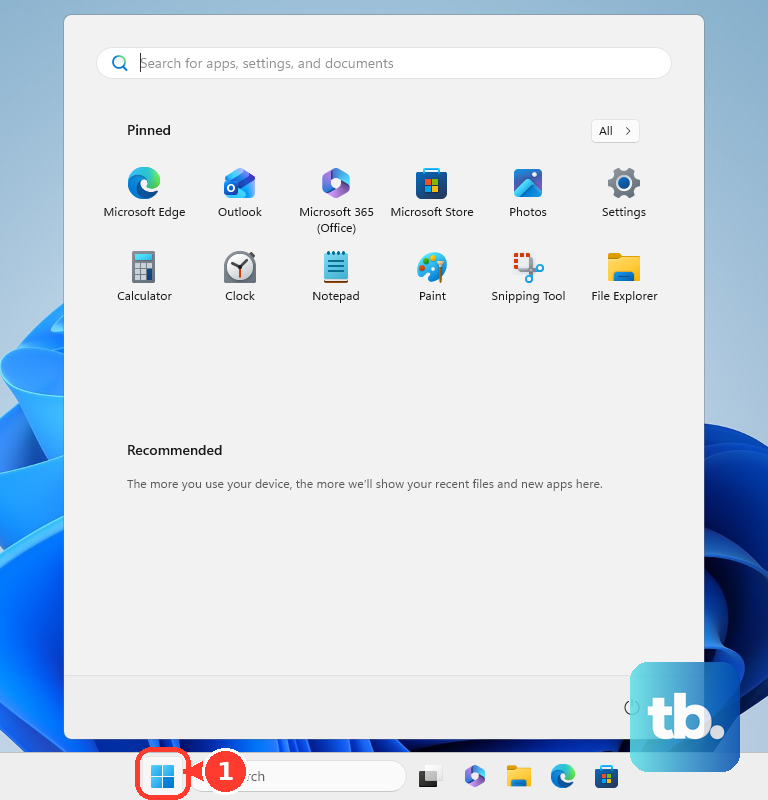
Choose Restart explicitly, because putting the laptop to sleep, closing its lid, or signing out does not reboot it. A normal shutdown followed by power-on can retain Windows kernel state through Fast Startup. Use Restart when you need Windows to restart.
If only one application is frozen, you can follow the steps to close the frozen Windows app. Save any work you can before forcing an application to close. If the Start menu itself will not respond, try a keyboard method.
Restart with the keyboard
Press Windows + X to open the Start context menu, then select Shut down or sign out > Restart. On an English Windows interface, press Windows + X, followed by U, then R. The letter shortcuts depend on your interface language.
Another option is to press Windows + D to focus the desktop, then press Alt + F4. Choose Restart from the list and press Enter. Select it explicitly because the default choice can differ.
Desktop focus matters: Alt + F4 closes the active application when an app has focus. You can also press Windows to open Start, then use Tab and the arrow keys to reach Power > Restart. Press Enter to activate your selection.
Restart from the security or sign in screen
Press Ctrl + Alt + Delete when the desktop stops responding. Select Power in the lower-right corner, then select Restart. If the pointer is unavailable, use Tab, the arrow keys, and Enter to reach and activate those controls.
You can also restart from the Windows sign-in screen without signing in. Select Power > Restart there. This option is available when your device's policy permits power controls before sign-in.
When the security screen opens but an ordinary restart fails, you can use Windows emergency restart. Hold Ctrl while clicking Power, then select OK. Emergency restart loses unsaved work, so reserve it for a failed normal restart.
Use a restart command
Press Windows + R to open Run. Save your work, enter the following command, then press Enter. The same command works in Command Prompt or PowerShell.
shutdown /r /t 0This requests an immediate restart. Command restrictions can apply in S mode or on managed laptops. If Windows is too unresponsive to open Run, try the security-screen method.
For a 60-second delay, enter the following command. Microsoft says a positive timeout also implies forced application closure, which can discard unsaved work. Save everything before starting the countdown.
shutdown /r /t 60You can cancel the pending restart by entering the following command during the delay. Run it before the countdown ends.
shutdown /aRestart to finish Windows updates
When installed updates are waiting for a restart, save your work and select Start > Power > Update and restart if offered. This completes the pending update restart.
On Windows 11, open Settings > Windows Update and select Restart now when an installed update requires it. Microsoft documents this control for Windows 11 24H2, 25H2, and 26H1. To choose a later time, select Schedule the restart and choose a convenient time. Administrator deadlines can limit your scheduling choices.
If you also need to update Acer software and drivers, follow the instructions for that separate task. Use the Windows update restart controls when Windows shows a pending restart.
Use the power button when Windows will not respond
When normal restart controls fail, hold the physical power button until the laptop switches off, then release it. Press and release the button again to start the laptop. This forces a shutdown and can lose unsaved work.
Acer gives different button timings across its instructions, including more than four seconds and approximately ten seconds or until shutdown. Use the laptop switching off as your cue to release the button, and follow your model's user guide for its button location and specific timing. Reserve this method for when the Windows controls fail.
If the laptop switches off but will not start again, follow the steps to troubleshoot Acer laptop startup problems. Acer power resets and internal-battery resets address power or startup faults and use different procedures from an ordinary restart. If the laptop has power but the display stays blank, continue with troubleshooting for a blank display.
Restart into Windows recovery when needed
To open Windows troubleshooting options, select Start > Power, hold Shift, and select Restart. You can do the same from the sign-in screen's Power menu. This restarts into Windows recovery instead of returning directly to the desktop.
On Windows 11, another route is Settings > System > Recovery. Under Advanced startup, select Restart now, save your work if prompted, and confirm with Restart now. For other entry routes, follow the steps to access the Windows Recovery Environment.
Opening recovery does not mean you need to reset the laptop. Do not select Reset this PC just to restart, because a factory reset is a separate recovery task. If Windows has boot problems after restarting, follow the instructions to use Startup Repair for boot problems.
Restart an Acer Chromebook
On an Acer Chromebook, select the time at the bottom right, then select Power > Restart. For keyboard access, press Alt + Shift + S to open the status area, then move to Power > Restart. Managed-device policies can affect which controls are available.
You can also select the time, then Power > Shut down, and press the physical power button to start again. When a downloaded update needs completion, open the update notification at the bottom right and select Restart. On a work or school Chromebook, the notification may instead offer Restart to update.
A Chromebook hardware reset is a separate troubleshooting procedure to use after ordinary troubleshooting fails. Google warns that it might delete some files in Downloads.
Frequently Asked Questions
Does an Acer laptop have a universal battery reset hole?
Only some Acer laptops have a battery-reset pinhole, so confirm the feature in your model's user guide or underside labeling. Do not assume every Aspire, Swift, Nitro, or Predator model has one.
Can Windows reopen applications after restarting?
You can run shutdown /g /t 0 to restart and reopen registered applications when Automatic Restart Sign-On conditions are satisfied. This does not preserve every application or unsaved document, so save your work first.
How do you restart an Acer laptop into Safe Mode?
In Windows recovery, select Troubleshoot > Advanced options > Startup Settings > Restart. After rebooting, select the appropriate numbered Safe Mode option, or press Enter for normal Windows startup. You may need BitLocker recovery credentials.
Can you restart an Acer laptop running Linux?
On a GNOME desktop, open the system menu at the right of the top bar, select the power icon, then choose Restart…. If other users are signed in, you may not be allowed to restart, because restarting would end their sessions. On Ubuntu 24.04 LTS, run reboot in a terminal with the required authorization, or use sudo reboot if you are an administrator.
Can Cortana restart an Acer laptop?
Microsoft has retired standalone Cortana voice assistance in Windows, so you cannot rely on older Cortana restart instructions as a supported method. Use Start > Power > Restart instead.