


To fix Windows + Shift + Left arrow or Right arrow not working, activate the window you want to move and set your displays to Extend. These shortcuts move the active window between monitors, so you need at least two usable displays with an extended desktop. If the display setup is already correct, check keyboard locks and shortcut remapping next.
Start with the check that matches your symptoms, then retry the shortcut after each change. The Settings steps below use Windows 11 menus.
The short version
- Check the destination: Press Windows + P and select Extend before moving a window between monitors.
- Activate the window: Select the intended window, then hold Windows + Shift and press Left arrow or Right arrow.
- Check the keyboard: A gaming keyboard's own gaming mode can disable the Windows key.
- Remove conflicts: Temporarily close keyboard remapping and macro utilities, then retry the shortcut.
| Check or fix | When to use it |
|---|---|
| Activate the intended window | The wrong window moves or nothing happens |
| Compare another app | Only one window refuses to move |
| Drag the title bar | You need to move a window immediately |
| Select Extend | Both monitors show the same desktop |
| Detect and arrange displays | A monitor is missing or the arrangement is wrong |
| Check the monitor connection | A display remains undetected |
| Reset the graphics driver | An existing display setup suddenly stops responding |
| Restart Windows | The shortcut remains unresponsive |
| Restart Windows Explorer | The desktop or taskbar also malfunctions |
| Enable Snap windows | Window arrangement also behaves unexpectedly |
| Disable Logitech Game Mode | A supported keyboard blocks the Windows key |
| Check Corsair Win Lock | A K65 RGB Mini blocks the Windows key in hardware mode |
| Check Filter keys | Brief keystrokes are ignored |
| Adjust Sticky keys | Modifier behavior is unexpected or simultaneous presses are difficult |
| Compare the On-Screen Keyboard | You need to check whether physical input is involved |
| Check keyboard connections and power | Physical keys also fail |
| Reconnect the wireless receiver | A receiver-based keyboard loses its connection |
| Reconnect Bluetooth | A Bluetooth keyboard has connection problems |
| Try the keyboard on another PC | Physical-key problems continue |
| Disable PowerToys remapping | You have custom key or shortcut assignments |
| Remove an iCUE assignment | A Corsair assignment changes the shortcut's keys |
| Disable a utility at startup | A suspected conflict returns after restarting |
| Uninstall a conflicting utility | You have identified an app you no longer need |
| Repair the affected app | The failure is confined to one app |
| Install Windows updates | Applicable updates are available |
| Install optional drivers | An update matches the malfunctioning hardware |
| Update a device driver | The keyboard, Bluetooth connection, or display also fails |
| Roll back a device driver | The problem began after a driver update |
| Reinstall a device driver | The device continues malfunctioning |
| Repair system files | Broader Windows problems remain after targeted checks |
Check the shortcut and active window
Select the window you want to move, or press Alt + Tab to activate it. Hold Windows + Shift, then press Left arrow or Right arrow. Try both directions before changing settings.
The arrow direction changes what this combination does. Windows + Shift + Up arrow stretches a desktop window vertically, while Windows + Shift + Down arrow restores a snapped or maximized window. Pressing Windows + Left arrow or Right arrow without Shift snaps the window instead.
Activate another ordinary desktop window and try the shortcut there. If it works, check the original app's custom shortcuts or window behavior, because keyboard shortcuts do not necessarily work in every app. Drag that window by its title bar onto the other display when you need a workaround.
Fix the extended display setup
Connect and power on the second display, then press Windows + P and select Extend. In Duplicate mode or with only one display, there is no second extended screen for the window to move to. Retry the shortcut after switching modes.
Open Settings > System > Display. Expand Multiple displays and select Detect when a connected monitor is missing. Select Identify to match the numbered display rectangles to your physical monitors.
Drag the rectangles into the arrangement that matches your monitors, then select Apply. Select your window again and retry both shortcut directions.
For a monitor that remains undetected, reconnect its display cable and bypass a dock or adapter where possible. Try another cable or video output, then test the monitor with another computer. Check the graphics adapter's supported display count if you are connecting several screens.
When an existing external-monitor setup suddenly stops responding, press Windows + Ctrl + Shift + B to reset the graphics driver. Check whether both displays work again before retrying the window shortcut.
Restart Windows and check Snap settings
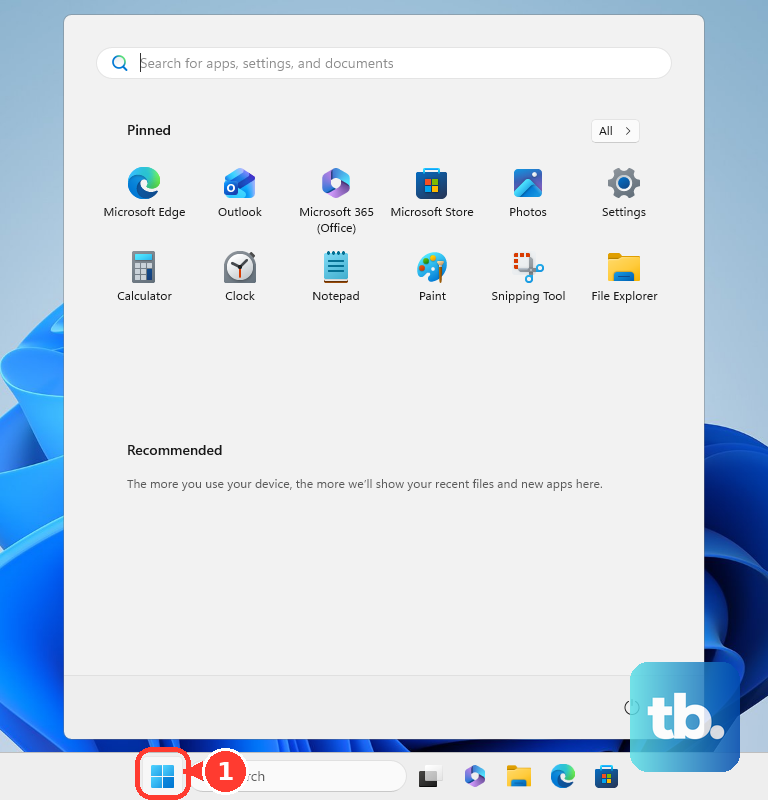
Save your work, then select Start > Power > Restart. Sign back in and retry the shortcut. If the computer is frozen, follow the steps to restart an unresponsive computer.
When the desktop or taskbar is also behaving incorrectly, press Ctrl + Shift + Esc to open Task Manager. Find and right-click Windows Explorer, then select Restart. Wait for the desktop and taskbar to return before trying again.
Open Settings > System > Multitasking and turn on Snap windows. This controls window arrangement, but enabling it does not guarantee that moving windows between monitors will work. If it changes nothing, continue with the keyboard checks.
Check keyboard locks and accessibility settings
Press Windows by itself, then retry the full shortcut. A gaming keyboard's own gaming mode or key lock can disable this key and prevent combinations that depend on it. Check the control for your exact keyboard model.
On Logitech G413, G512, and G513 keyboards, press Fn + F8 until Game Mode is off. The Game Mode indicator lights when the mode is active. On a Logitech keyboard with a dedicated Game Mode button, press that button to turn the mode off.
For a Corsair K65 RGB Mini operating in hardware mode, press Fn + Windows to change the Win Lock state, then press Windows by itself to check that the key responds. Hardware mode applies when iCUE is not running or installed, so closing iCUE alone does not necessarily remove the restriction. Other Corsair models have different controls.
Next, open Settings > Accessibility > Keyboard. Turn off Filter keys if brief keystrokes are being ignored, and turn off Sticky keys if its modifier-key behavior was enabled unintentionally. Retry the shortcut after each relevant change.
If holding three keys together is difficult, turn on Sticky keys in the same menu. You can then enter the shortcut's modifier keys sequentially. Keep this feature enabled if you rely on it.
Compare the physical and on screen keyboards
Press Windows + Ctrl + O to open the On-Screen Keyboard. You can also open and use the on screen keyboard through Settings > Accessibility > Keyboard by turning on On-Screen Keyboard. If it opens in the Nav layout, select the General key to show the full keyboard. Try the combination using its displayed Windows, Shift, and Left arrow or Right arrow keys, then compare the result with your physical keyboard.
If the displayed keys work but the physical keyboard does not, check its connection, power, and keys. Unplug a USB keyboard, wait briefly, and reconnect it directly to the PC using another USB port. Check for a damaged cable, dirt obstructing keys, or depleted batteries.
For a wireless keyboard with a USB receiver, unplug the receiver, wait about 10 seconds, and reconnect it. If you use Bluetooth, make sure the keyboard is charged and nearby. Open Settings > Bluetooth & devices, turn off Bluetooth, wait 10 seconds, then turn it on again.
For a Bluetooth keyboard that still will not connect, open its More options menu and select Remove device. Put the keyboard in pairing mode, select Add device, and pair it again. These connection checks are most relevant when multiple keys or shortcuts fail.
Connect an external keyboard to another computer if the problem continues, installing any required manufacturer driver first. Microsoft says a keyboard that also fails there may need replacement. If both physical and on-screen input fail on your original PC, continue with software checks.
Remove shortcut remapping conflicts
Temporarily close utilities that remap keys, run macros, or manage windows, then retry the shortcut. In PowerToys, close the app or open PowerToys Settings > Keyboard Manager and disable the utility. Microsoft warns that remapping Windows or Shift can interfere with special-key behavior.
Inspect Remap a key and Remap a shortcut for assignments affecting the combination. For a Corsair keyboard configured through iCUE, select the keyboard's Key Assignments from Home. Under Assignments, open the menu beside an assignment that changes Windows, Shift, Left arrow, or Right arrow, then delete that assignment and retry.
If closing a utility helps, stop it opening on startup so you can check again after a restart. Open Settings > Apps > Startup and turn off the suspected utility. Restart and compare the result.
Remove a confirmed conflicting app if you no longer need it. Open Settings > Apps > Installed apps, find the utility, and select More > Uninstall. Complete its uninstaller and retry the native shortcut.
Repair an affected app or device driver
When only one app is affected, open Settings > Apps > Installed apps and select that app's More menu. Open Advanced options and select Repair. If that option is unavailable, open Control Panel > Programs > Programs and Features, select the program, and choose Repair or Change if offered.
For problems affecting multiple windows, open Settings > Windows Update and select Check for updates. Install applicable updates and restart when required. For optional drivers, open Settings > Windows Update > Advanced options, then select Optional updates under Additional options. Select an update that matches the malfunctioning device, choose Download and install, and restart afterward.
Match driver troubleshooting to the actual fault. If keys malfunction, update or reinstall keyboard drivers; if monitors are missing or malfunctioning, find and update your graphics driver. Reserve driver changes for the affected device.
To update a device, right-click Start, select Device Manager, and expand Keyboards, Bluetooth, or Display adapters as appropriate. Right-click the affected device, then select Update driver > Search automatically for drivers.
If the problem began after a driver update, sign in as an administrator and open the device's Properties > Driver. Select Roll Back Driver when a previous driver is available. Choose a reason if prompted, select Yes, and restart if requested.
If the device continues malfunctioning, save your work and return to its entry in Device Manager. Right-click it, select Uninstall device, then select Uninstall. Restart Windows so it can attempt to reinstall the driver, then check the device and shortcut again.
Repair system files when Windows has wider problems
Consider system-file repair after the display, keyboard, app, and remapping checks if other Windows features also malfunction. To repair Windows using Command Prompt, search for Command Prompt, right-click it, and select Run as administrator. Select Yes, then run this command.
DISM.exe /Online /Cleanup-image /RestorehealthWait for DISM to finish successfully before starting System File Checker. Run the following command and allow the scan to complete.
sfc /scannowRestart Windows and retry the shortcut after signing in. If only one app still refuses to move, return to that app's window behavior and shortcut settings. You can continue moving compatible windows between extended displays by dragging their title bars.
Frequently Asked Questions
Does FancyZones block the monitor moving shortcut?
Microsoft says FancyZones does not override Windows + Shift + Left arrow or Right arrow for moving a window to an adjacent monitor. Its Override Windows Snap hotkeys (Win + arrow) to move between zones setting affects ordinary Windows + Left arrow or Right arrow snapping instead.
Can a basic display splitter give you another desktop for moving windows?
A basic display splitter duplicates the same signal instead of creating two independent signals, so it cannot extend your desktop across separate screens. You need displays set to Extend before you can move a window from one screen to another.
Why does the shortcut behave differently in Remote Desktop?
Remote Desktop Connection controls where your Windows-key combinations are sent. Before connecting, open Show Options > Local Resources, then find Apply Windows key combinations under Keyboard. Choose On this computer, On the remote computer, or Only when using the full screen to match where you want the shortcut handled, then reconnect. Microsoft says hotkeys do not work in nested Remote Desktop or RemoteApp sessions.
Can accessibility shortcuts accidentally change keyboard behavior?
Holding Right Shift for eight seconds toggles Filter keys, and pressing Shift five times toggles Sticky keys when those accessibility shortcuts are enabled. On Windows 11, open Settings > Accessibility > Keyboard to check their resulting state.
Should you run the old Keyboard troubleshooter?
Microsoft lists the old Keyboard and Hardware and Devices troubleshooters among its retired MSDT troubleshooters, so they are not a dependable option on current Windows 11. If your Bluetooth keyboard has a connection failure, use the current Bluetooth troubleshooter in Get Help. That troubleshooter addresses Bluetooth connectivity rather than a single failing window shortcut.