


Press Windows + Ctrl + O to open the on-screen keyboard in Windows. To open it without a working physical keyboard on Windows 11, select Start > Settings > Accessibility > Keyboard, then turn on On-Screen Keyboard.
The built-in On-Screen Keyboard, also called OSK, lets you type with a mouse or another pointing device without a touchscreen. Windows also has a separate touch keyboard with its own taskbar icon, layouts, and automatic-opening settings.
The short version
- Fastest opening: Press Windows + Ctrl + O to open OSK.
- Mouse access: Turn on On-Screen Keyboard under Settings > Accessibility > Keyboard.
- Basic typing: Select your text field, then click or tap the keyboard keys.
- Before signing in: Select Accessibility in the lower-right corner, then select On-Screen Keyboard.
- Touchscreen typing: Use the separate touch keyboard for touch layouts and automatic opening when you tap text fields.
| Method | What to do | Best use |
|---|---|---|
| Keyboard shortcut | Press Windows + Ctrl + O | Quick access with working keys |
| Windows Settings | Open Accessibility > Keyboard and turn on On-Screen Keyboard | Opening OSK with a mouse |
| Accessibility shortcut | Press Windows + U, select Keyboard, and turn on On-Screen Keyboard | Reaching the keyboard setting |
| Start search | Search for and select On-Screen Keyboard | Finding the built-in app |
| Run | Run osk | An alternative launch method |
| Control Panel | Select Start On-Screen Keyboard in Ease of Access Center | Opening OSK from Control Panel |
| Sign-in screen | Select Accessibility > On-Screen Keyboard | Entering a password or PIN |
| Pinned taskbar icon | Open OSK and select Pin to taskbar from its taskbar icon's menu | Keeping OSK within reach |
| Control Panel automatic opening | Check Use On-Screen Keyboard and select Apply, then OK | Starting OSK automatically |
| Touch keyboard icon | Choose Always for Touch keyboard in Taskbar settings | Opening the separate touch keyboard |
| Touch keyboard automatic opening | Choose an opening option under Show the touch keyboard in Typing | Opening it when you tap a text field |
Open the keyboard from Settings or search
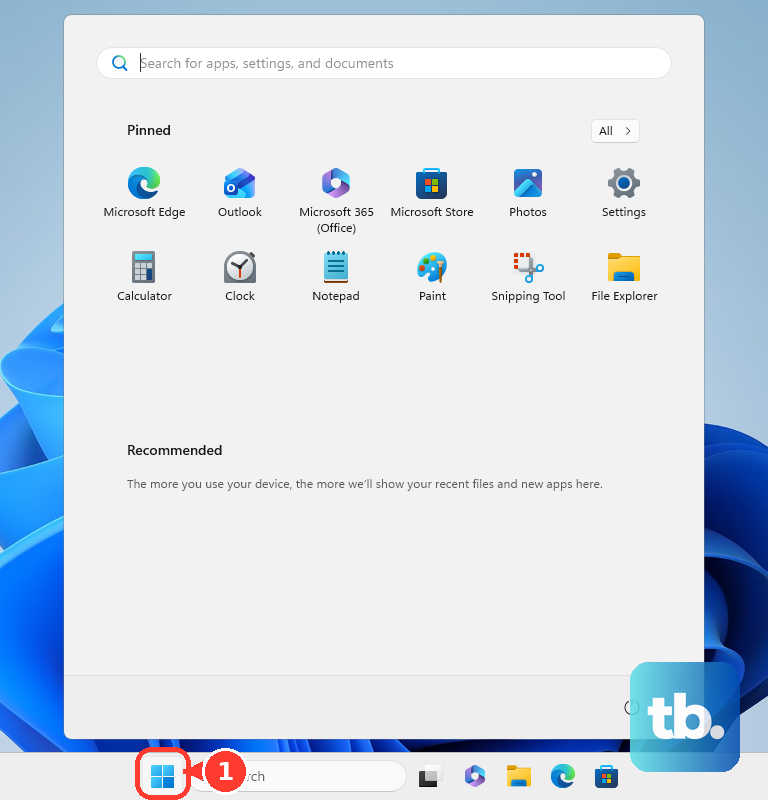
For mouse-only access on Windows 11, select Start, open Settings, and choose Accessibility. Select Keyboard, then turn on On-Screen Keyboard. You can complete this route without typing a search or command.
With working physical keys, press Windows + Ctrl + O for direct access. Alternatively, select Start, type On-Screen Keyboard, and select the On-Screen Keyboard result. Both launch methods work on Windows 11 and Windows 10.
To reach accessibility settings with a shortcut, press Windows + U. On Windows 11, select Keyboard and turn on On-Screen Keyboard. On Windows 10, select Keyboard under Ease of Access and turn on Use the On-Screen Keyboard. If your physical keyboard cannot enter either shortcut, use the mouse-based Settings path.
Open the keyboard before signing in
On the Windows 11 sign-in screen, select Accessibility in the lower-right corner, then select On-Screen Keyboard. Select the password or PIN field and use the on-screen keys to enter your credentials. You can enter them without reaching the desktop first.
After signing in, use the keyboard shortcut or accessibility settings to open OSK whenever you need it. Windows includes OSK, so you do not need a separate download or Microsoft-account subscription.
Open the keyboard through Run or Control Panel
You can also launch OSK through Run on Windows 11 and Windows 10. Press Windows + R and enter this command.
oskPress Enter to open the keyboard. Alternatively, select Start, search for Run, and select Open. Enter osk, then select OK.
For the Control Panel route, open Control Panel > Ease of Access > Ease of Access Center. Select Start On-Screen Keyboard to open OSK. This older interface remains a supported launcher.
Type and choose the keyboard layout
Click the text field where you want your typing to appear, then select the on-screen keys with your mouse or pointing device. On a touchscreen, tap the keys instead. To choose this input method explicitly, open Options in OSK and select Click on keys.
If you see mainly navigation controls, select General to restore the full typing keyboard. Select Nav when you want navigation keys. OSK remembers your selection, so closing and reopening it may leave you in the navigation layout.
For number entry, open Options, check Turn on numeric keypad, and select OK. For audible feedback, open Options and check Use click sound. These settings affect OSK; the touch keyboard has separate controls.
Adjust how you select keys
To enter characters without clicking each key, open Options, select Hover over keys, and adjust Hover duration. Hold your pointer over each desired key for the selected duration to enter it.
For scanning input, open Options, select Scan through keys, and adjust Scanning speed. Select highlighted keys using your configured keyboard key, switch input, mouse click, or gaming device. You need suitable input hardware and configuration for this mode.
To enable word suggestions, open Options and check Use Text Prediction. If the language you want to use is not installed, install its language files. Optionally, check Insert space after predicted words to add spaces automatically after those words. Prediction supports English, French, Italian, German, and Spanish.
To add controls for repositioning OSK on Windows 11, open Options and check Show keys to make it easier to move around the screen. You can then use the added repositioning keys to move the keyboard. On Windows 10, this option makes keys light up as you type.
Open and customize the touch keyboard
To open Windows 11's separate touch keyboard, right-click or press and hold the taskbar, then select Taskbar settings. Under Personalization > Taskbar > System tray icons, find Touch keyboard and select Always. Select the Touch keyboard icon in the system tray to open it.
Choose When no keyboard attached instead if you want the icon to appear only without an attached physical keyboard. Both wired and Bluetooth keyboards count as attached keyboards. If you need the icon while either is connected, choose Always.
To control automatic opening, open Settings > Time & language > Typing > Touch keyboard, then find Show the touch keyboard. Select Always to open it when you tap a text field even with a physical keyboard attached, or choose When no keyboard attached. Tap the field where you want to type, then tap the keyboard keys with your fingertip or pen.
Inside the touch keyboard, select the keyboard settings icon in the upper-left corner to choose a default, split, small, traditional, or handwriting layout. Some layouts depend on your input language. Select the docking icon next to Close to dock or undock it; undocking a default, split, or traditional layout changes it to the small layout.
To change its appearance, open Settings > Personalization > Text input. Adjust the touch keyboard's theme, size, key background, and key text size using the available controls. Their availability and arrangement can vary by Windows build.
Keep the keyboard ready to use
To keep OSK on your taskbar, open it, right-click its taskbar icon, and select Pin to taskbar. Select that pinned icon whenever you need the keyboard. To remove the shortcut, right-click it and select Unpin from taskbar.
You can also enable automatic OSK opening through Control Panel. Search for ease of access center, open Ease of Access Center, and select Use the computer without a mouse or keyboard. Check Use On-Screen Keyboard, then select Apply and OK.
Stop the keyboard from opening automatically
To close OSK, select X in the keyboard window's upper-right corner. If a startup shortcut keeps reopening it, press Windows + R, enter shell:startup, and press Enter. If the OSK shortcut is not there, enter shell:common startup in Run and check that folder for an OSK shortcut. Delete the OSK shortcut from that folder, or follow the steps to stop apps opening on startup to manage that launch method.
If automatic opening is enabled through Control Panel, search for ease of access center and open Ease of Access Center. Select Use the computer without a mouse or keyboard, then uncheck Use On-Screen Keyboard. Select Apply and OK to save the change.
To stop the touch keyboard from opening automatically, open Settings > Time & language > Typing > Touch keyboard. Under Show the touch keyboard, choose Never. Microsoft says this option suppresses the touch keyboard even when no hardware keyboard is attached.
To hide the touch keyboard's taskbar icon too, open Taskbar settings and find Touch keyboard under System tray icons. Choose Never to hide the icon. Microsoft notes that this option also prevents the touch keyboard from appearing. Select Close on any touch keyboard that is already open.
Frequently Asked Questions
Can the on-screen keyboard turn off Scroll Lock?
Yes, open OSK and select ScrLk to turn Scroll Lock off. This helps when Excel's arrow keys scroll the worksheet instead of moving between cells.
Can you open the touch keyboard with your voice?
Yes, with voice access configured and listening, say Show keyboard or say Show touch keyboard. Enter characters by saying the numbers displayed over them. To dismiss it, say Hide keyboard or say Hide touch keyboard.
Can you write by hand instead of tapping keys?
Yes, select the handwriting-panel layout from the touch keyboard's keyboard settings icon. For finger writing, open Start > Settings > Bluetooth & devices > Pen & Windows Ink > Handwriting, then select Write with your fingertip. Handwriting language support varies.
How can you keep OSK one click away?
Open OSK, right-click its taskbar icon, and select Pin to taskbar. Select that pinned icon whenever you need OSK, or right-click it and select Unpin from taskbar to remove it.