

To fix Windows Problem Reporting not responding, end the stuck reporting task in Task Manager, restart Windows, then update or repair the app that keeps triggering it. Closing the reporter stops the current reporting session but does not repair the underlying fault. If the message returns, identify the failing app before moving on to Windows repairs.
The short version
- Clear the stuck task: Press Ctrl + Shift + Esc, open Details, select
WerFault.exe, and select End task. - Find the trigger: Use Reliability Monitor to identify the app or module failing around the time reporting hangs.
- Repair in order: Update Windows and the affected app, try app repair, then run Windows system repair commands if needed.
- Save recovery for later: Use a Windows repair reinstall or reset only after the more targeted fixes fail.
| Fix or diagnostic | When to use it | What it does |
|---|---|---|
| End the reporting task | The reporter is stuck now | Closes the current reporting session |
| Command line termination | Task Manager does not close the reporter | Forcibly closes matching reporter processes |
| Restart Windows | After closing the stuck task | Lets you retest the affected app |
| Reliability Monitor | The message keeps returning | Identifies the failing app or module |
| Windows and driver updates | Relevant updates are offered | Installs available Windows or device fixes |
| App updates | A particular app keeps crashing | Updates the app triggering reports |
| App repair or reset | The affected app offers these controls | Repairs the app or resets its data |
| Desktop program repair | The program's installer supports repair | Repairs through Control Panel |
| DISM and SFC | Targeted app repairs fail | Repairs Windows components and protected files |
| Malware scan | Malware may be involved | Checks for threats |
| Clean boot | Background software may conflict | Helps isolate conflicting software |
| Disable a startup app | A known app causes trouble at startup | Prevents that app from starting automatically |
| Recovery tools | You need Safe Mode or recovery | Opens the Windows recovery menu |
| Safe Mode | The cause remains unclear | Provides another diagnostic test |
| Repair through Windows Update | Targeted repairs fail on an eligible Windows 11 PC | Preserves apps, files, and settings |
| Repair with installation media | You can run Setup from Windows | Reinstalls while keeping personal files and apps |
| Reset Windows | Earlier repairs fail | Removes apps and settings while optionally preserving files |
Close the stuck reporter and restart Windows
Press Ctrl + Shift + Esc to open Task Manager, then open Details. Select WerFault.exe, the Windows Error Reporting process, then select End task.
Ending the original unresponsive app can lose its unsaved work. Check which process you select: closing the reporter ends the reporting session, while closing the affected app ends the app itself.
If Task Manager does not close the reporter, open Command Prompt and run the following command to forcibly close matching reporter processes. If access is denied, reopen Command Prompt using Run as administrator and retry.
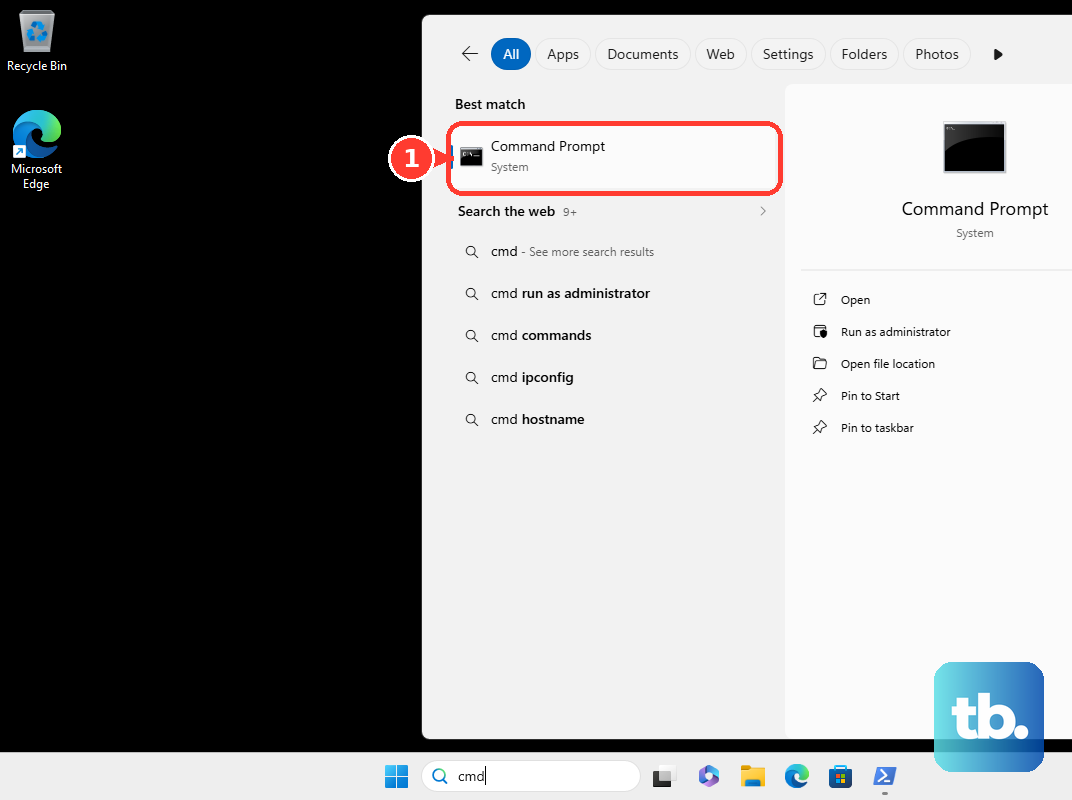
taskkill /IM WerFault.exe /FSave your work wherever possible, then select Start > Power > Restart to restart your Windows computer. After Windows starts, reopen the affected app and check whether reporting hangs again. If the message returns, identify its trigger before repeating the same steps.
Find the failing app and install updates
Reliability Monitor helps you identify the application or module failing around the time reporting hangs. Press Windows + R, enter the following command, and press Enter.
perfmon /relAlternatively, search for View reliability history. Select a failure near the time of the hang and inspect its details, then use the application or module listed there to target your app or driver repairs.
On Windows 11, open Start > Settings > Windows Update and select Check for updates. Install offered updates and restart when required. If the failure points to a device, on Windows 11 open Windows Update > Advanced options > Optional updates and install the update appropriate to that device.
On Windows 10, open Settings > Update & Security > Windows Update to check for updates. Availability of new updates depends on your PC's servicing eligibility.
For an affected Microsoft Store app, open Microsoft Store, then open Downloads or Library to check for and install app updates. If the publisher updates the app directly, follow that publisher's update procedure. These steps update the triggering app, not WerFault.exe separately.
Repair the app that keeps crashing
On Windows 11, open Start > Settings > Apps > Installed apps. Select More next to the affected app, open Advanced options, and select Repair. Reopen the app afterward to check whether the failure continues.
On Windows 10, open Settings > Apps > Apps & features, select the affected app, and open Advanced options. Select Repair to try the targeted repair.
Resetting the app can remove its app data. If repair fails and you accept that loss, select Reset in the app's Advanced options. These controls are not available for every app, so try the desktop program repair route when its installer supports it.
Search for and open Control Panel, then select Programs > Programs and Features. Right-click the affected program and select Repair, or select Change when Repair is unavailable. Follow the program's installer controls, which vary by program.
Repair Windows files and check for malware
If targeted app repairs do not resolve the problem, repair Windows using Command Prompt. Search for Command Prompt and select Run as administrator. Run this command first and wait for it to finish.
DISM.exe /Online /Cleanup-image /RestorehealthThese Windows repair tools address components and protected system files. Next, run the System File Checker command and allow verification to finish.
sfc /scannowReview the result, then restart Windows and test the affected app again. If reporting still hangs, continue with the checks for malware and conflicting software.
When Microsoft Defender Antivirus is available, open Windows Security > Virus & threat protection and select Quick scan. For a fuller check, open Scan options and choose Full scan, then review Protection history afterward. Other antivirus products use their own scanning controls.
For suspected persistent malware, you can also use an offline scan, which restarts your PC. Save your work, open Scan options, select Microsoft Defender Antivirus (offline scan), and start the scan. Review Protection history afterward.
Check for conflicting background software
A clean boot helps isolate software conflicts when the same failure keeps returning. Organization policies may restrict these changes; on a managed PC, ask your administrator if those restrictions prevent you from proceeding. Sign in as an administrator, search for msconfig, and open System Configuration.
Open Services, check Hide all Microsoft services, then select Disable all followed by Apply. Open Startup and select Open Task Manager. Record which startup items are enabled, then disable them. Close Task Manager, select OK in System Configuration, and restart.
Test the affected app after the restart. If the reporting hang stops, re-enable items in groups to identify which software brings it back, then restore normal startup afterward. If the problem continues, restore normal startup and move on to another diagnostic or repair.
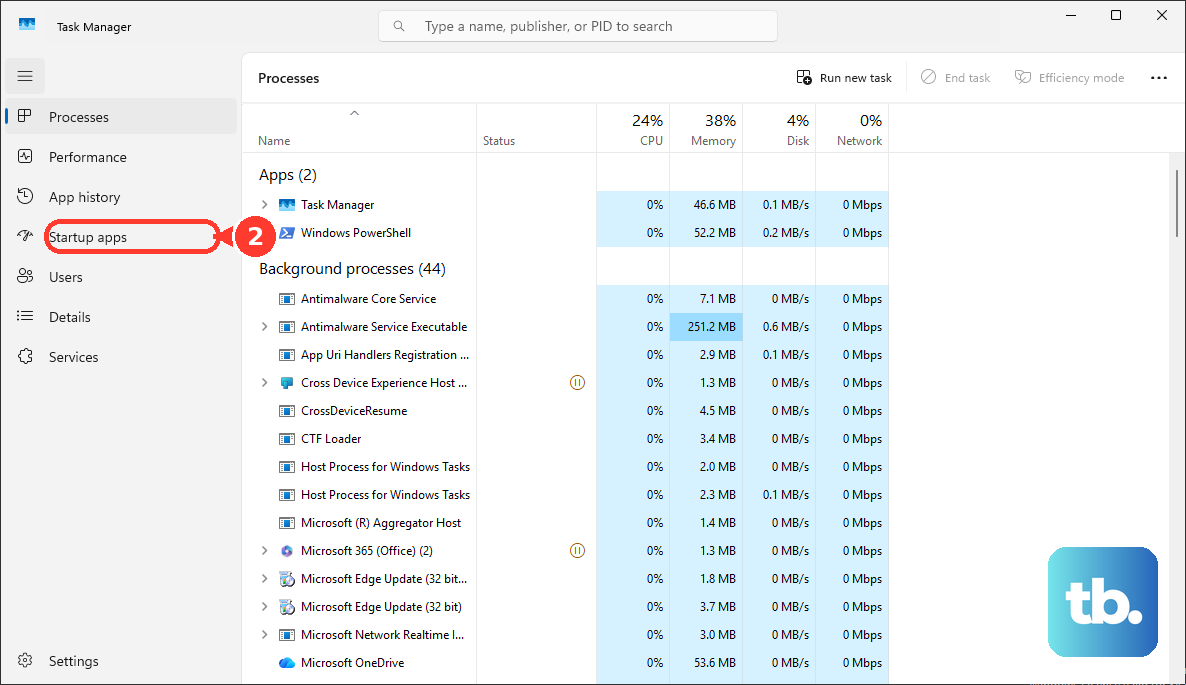
When you already know which app causes trouble at startup, you can stop that app from opening automatically. On Windows 11, press Ctrl + Shift + Esc, open Startup apps, right-click the implicated app, and select Disable. Restart and retest, then re-enable it if it was not responsible. Windows 10 also provides startup app management in Task Manager, with a different layout.
Test the problem in Safe Mode
Safe Mode helps isolate the failure but does not repair it by itself. An encrypted device may require its BitLocker recovery key. On Windows 11, to access the Windows Recovery Environment, hold Shift while selecting Power > Restart.
Alternatively, on Windows 11 open Settings > System > Recovery > Advanced startup and select Restart now. On Windows 10, open Settings > Update & Security > Recovery to reach the recovery options.
From the recovery menu, select Troubleshoot > Advanced options > Startup Settings > Restart. Press 4 or F4 for Enable Safe Mode. If you need networking for the test, press 5 or F5 for Enable Safe Mode with Networking.
Check whether the same failure recurs, then restart normally to leave Safe Mode. Use the result alongside the app or module identified in Reliability Monitor when choosing the next repair. If targeted repairs still have not resolved the problem, consider a Windows repair reinstall.
Reinstall Windows while keeping apps and files
Windows 11 offers a repair reinstall through Windows Update that preserves apps, files, and settings. It requires the 2022 annual update or later and the February 2024 optional update or later. On an eligible Windows 11 PC, open Start > Settings > System > Recovery, find Fix problems using Windows Update, and select Reinstall now.
Leave the automatic restart option unselected if you want to restart manually, then select OK. Keep the PC powered and connected while Windows downloads and installs the repair version, then restart and test the affected app. Certain managed update configurations prevent this option from appearing; if it is missing, an in-place repair with compatible installation media is another route.
Back up important files before reinstalling Windows with installation media. For a compatible Windows 11 PC, get the media through Microsoft's Download Windows 11 page. Use media compatible with your PC and its licensed Windows edition.
While signed in to your existing Windows installation, open the installation media in File Explorer and run setup.exe, then select Yes. Select Change what to keep > Keep personal files and apps > Next > Install. You can also use this in-place repair method on Windows 10 with compatible installation media.
Reset Windows if the repairs fail
A reset removes apps and settings even when you preserve personal files, so back up your files and retain your BitLocker recovery key if applicable. On Windows 11, open Settings > System > Recovery and select Reset PC. On Windows 10, open Settings > Update & Security > Recovery to access reset.
To reset Windows while preserving personal files, choose Keep my files. Choose Cloud download or Local reinstall, then review the wizard's settings before completing the reset. If you cannot access Windows, the recovery menu also provides Troubleshoot > Reset this PC.
Frequently Asked Questions
Would disabling Windows Error Reporting fix the crashes?
Disabling reporting suppresses report collection and submission rather than fixing the crashes that trigger it. Hiding the reporting interface likewise does not resolve an unresponsive app, so treat either change as a workaround.
What if the problem started immediately after a driver update?
You can roll back the implicated driver when a previous driver is available and you have administrator access. Right-click Start, open Device Manager, expand the device category, and open the device's Properties > Driver > Roll Back Driver. Choose the applicable reason, select Yes, and restart if prompted.
Should you check RAM when Windows Problem Reporting hangs?
A RAM test is appropriate when the crashes suggest a memory problem, rather than as a universal fix for reporting hangs. Windows Memory Diagnostic can check memory and provides an Extended test option for a more thorough check. Save your work before starting a test that restarts the PC.
Can System Restore help after a recent system change?
System Restore can return system configuration to a suitable existing restore point from before the problem. Select Scan for affected programs to review the consequences before proceeding. It restores system configuration rather than serving as a backup of personal files.