

To fix images that fail to load on your iPhone, try another internet connection, close and reopen the affected app, then check that app’s image or photo sync settings. Check whether other websites can load before changing settings. This helps you choose between connection troubleshooting and a fix for Safari, Photos, Messages, or email.
The short version
- Check the connection: Retry using cellular data or another Wi-Fi network.
- Restart the affected app: Close and reopen a malfunctioning app, then install any available update.
- Match the fix to the app: Browser blockers, paused Photos syncing, and email privacy controls need different fixes.
- Save resets for last: Reset network settings only for persistent connection failures after simpler fixes fail.
| Fix | When to use it |
|---|---|
| Test another network | Websites or image downloads fail |
| Restore Wi-Fi | Your Wi-Fi connection is broken |
| Enable cellular access | The affected app cannot use cellular data |
| Close and reopen the app | One app malfunctions |
| Update the app | An app update is available |
| Restart your iPhone | The app still malfunctions |
| Force restart | Your iPhone cannot restart normally |
| Update iOS | A compatible software update is available |
| Disable Safari extensions | An extension blocks page resources |
| Enable JavaScript | Images depend on webpage scripts |
| Allow cookies | A website requires cookies to work |
| Clear Safari website data | Safari loading problems persist |
| Reload Chrome | A Chrome page fails to load |
| Compare browsers and reduce Chrome memory use | Reloading Chrome does not help |
| Check Photos sync status | Your iCloud photo library is incomplete |
| Allow syncing on power and Wi-Fi | A transfer is incomplete or syncing pauses |
| Check Apple service status | An Apple online service may be affected |
| Turn off Low Power Mode | Power saving pauses Photos syncing |
| Turn off Low Data Mode | Data saving pauses Photos syncing |
| Enable iCloud Photos | Syncing was never enabled for your library |
| Let Messages finish indexing | Conversation media is missing after an update or transfer |
| Retry a picture message | An outgoing message has a red exclamation mark |
| Check carrier messaging support | MMS or RCS fails while iMessage works |
| Correct iMessage registration | Receiving problems begin after changing devices |
| Load content in Mail | Mail cannot load remote content privately |
| Enable protected background loading | You need remote email content in Mail |
| Display images in a Gmail message | Automatic image loading is disabled |
| Enable automatic Gmail images | You want external images displayed automatically |
| Load blocked Outlook images | An email contains blocked external images |
| Free local storage | Downloads or incoming images lack space |
| Optimize Photos storage | iCloud Photos uses space on a full device |
| Reinstall the app | A deletable app still malfunctions |
| Reset network settings | Other network fixes have failed |
Check your internet connection first
Try loading another website, then retry the affected page using cellular data or another Wi-Fi network. A failure limited to one website may need help from that website’s operator. Testing another connection also helps narrow down image download problems in other apps.
For Wi-Fi, open Settings > Wi-Fi, turn on Wi-Fi, and select your network. Make sure Airplane Mode is off in Settings. If the connection remains broken, restart your router and modem by disconnecting and reconnecting their power.
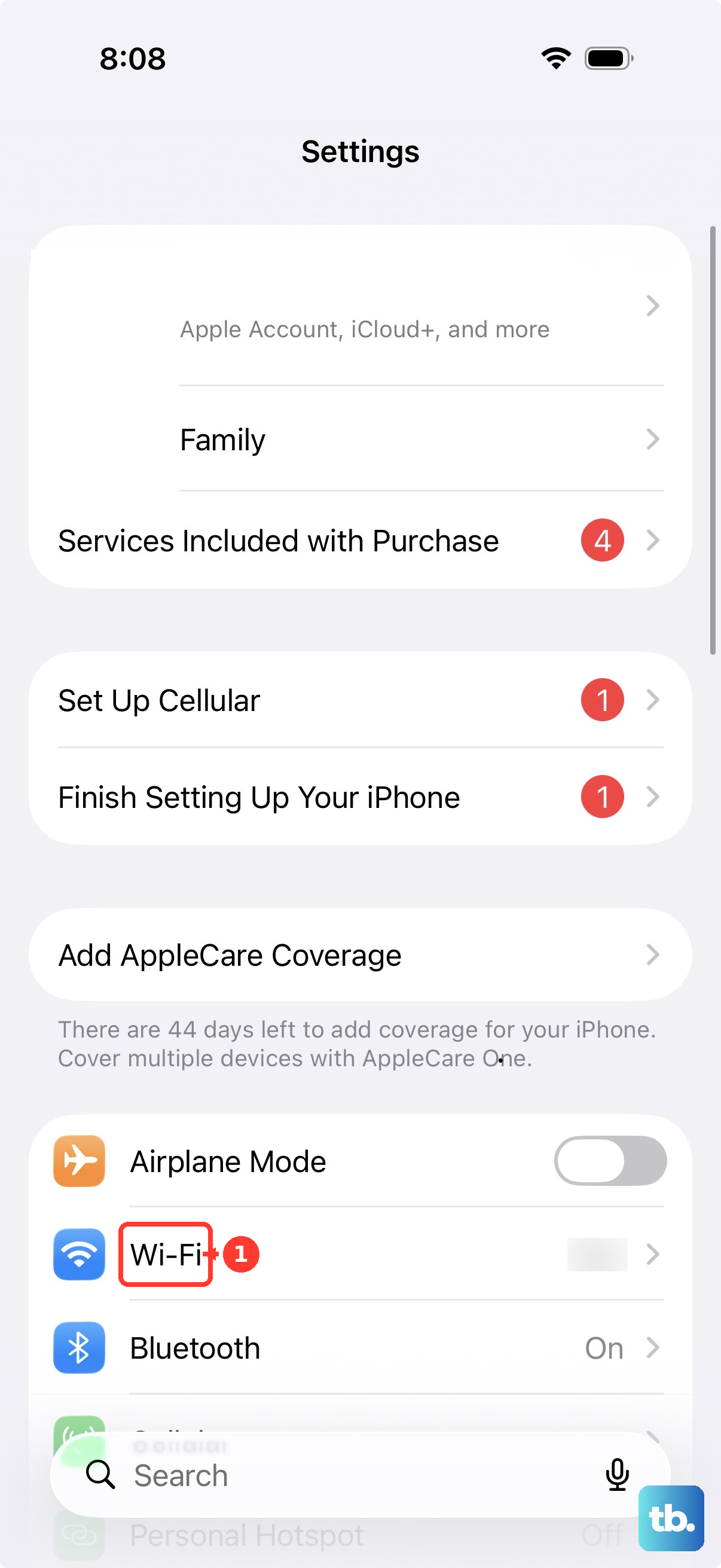
For cellular access, open Settings > Cellular and turn on Cellular Data. Scroll to the app list, tap Show All if needed, and enable the affected app. This requires an active cellular data plan, and regional labels can differ.
Reopen the app and restart your iPhone
If the affected app stops responding or otherwise malfunctions, open the App Switcher, find the app, and swipe its preview upward. Reopen it from the Home Screen or App Library, then retry the image.
Next, update the affected iPhone app by opening App Store, tapping your profile icon, and opening App Updates. Install the available update for that app. If images still fail, open Settings > General > Shut Down, drag the power slider, then hold the Side button to turn your iPhone back on.
Use a force restart for a frozen iPhone only when it cannot restart normally. On current supported iPhones, quickly press and release Volume Up, then Volume Down, and hold the Side button until the Apple logo appears. On iPhone Duo, Volume Up is the volume button nearest the Side button.
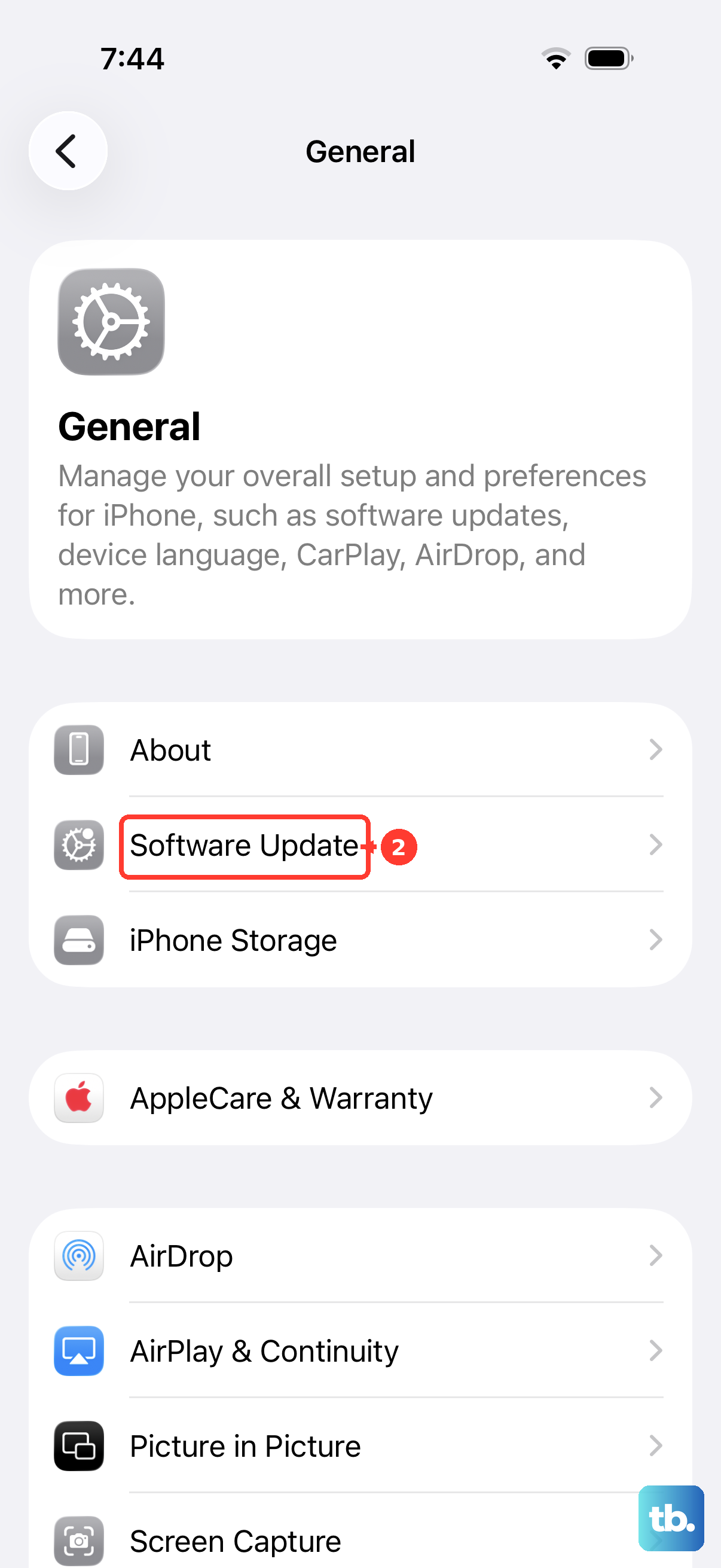
If the problem persists, check for an available iOS update. Back up your iPhone, connect it to power and Wi-Fi, then open Settings > General > Software Update. If an update is offered, tap Download and Install and follow the installation instructions.
Fix images missing from Safari or Chrome
Safari extensions can block images and other page resources. On the affected website, open Page Menu > Manage Extensions and disable the relevant extension. For broader testing, open Settings > Apps > Safari > Extensions, select the extension, and turn off Allow Extension, checking the applicable Safari profile.
Some images depend on webpage scripts. Open Settings > Apps > Safari > Advanced and enable JavaScript, then retry the page. If the website requires cookies, allow cookies on your iPhone by turning off Block All Cookies on that same screen.
Clearing website data removes cookies and cache, and you may need to sign in to websites again. To keep your browsing history while clearing that data, open Settings > Apps > Safari > Advanced > Website Data. Tap Remove All Website Data, then Remove Now.
In Chrome, check the page address, then tap More > Reload. If loading still fails, open the same address in Safari or another browser to distinguish a Chrome problem from a website or connection problem. You can also close unnecessary Chrome tabs, quit other running apps, pause downloads, and retry.
Resume photos that are waiting for iCloud
For images in Photos, start with the library’s synchronization status. On iOS 26 and 27, open Photos > Collections, tap your profile button, and read the status. Tap Sync Now when it is offered; otherwise, address the reason syncing paused or allow it to resume automatically.
Connect your iPhone to a charger and reliable Wi-Fi, then leave synchronization uninterrupted overnight for a large library or incomplete transfer. Charge a low battery, or let an overheated iPhone cool before retrying. You can also check Apple’s System Status page for the affected service; if an outage is listed, retry after service recovers.
Low Power Mode can pause iCloud Photos synchronization. On iPhone 15 and later with current iOS, open Settings > Battery > Power Mode and turn off Low Power Mode. On iPhone 14 and earlier, open Settings > Battery and turn off Low Power Mode.
Low Data Mode can also pause syncing. For Wi-Fi, open Settings > Wi-Fi, tap the network’s Info button, and turn off Low Data Mode. For LTE, open Settings > Cellular > Cellular Data Options and turn off Low Data Mode; for 5G, open Data Mode and select a mode other than Low Data Mode. With Dual SIM, select the relevant number first; cellular paths vary by carrier.
If the library has never synced to this iPhone, confirm that Settings shows the Apple Account used for those photos. Open Settings, tap your name, then open iCloud > Photos and enable Sync this iPhone if it was never enabled. This applies to photos stored in that account’s iCloud library.
Check missing pictures in Messages
After an iOS update or a transfer to another iPhone, missing conversation photos can be temporary while Messages indexes shared media. Keep your iPhone connected to Wi-Fi and locked while indexing finishes. Also check local storage if Messages cannot receive images.
For an outgoing picture message with a red exclamation mark, tap that mark and choose Try Again. If MMS or RCS picture messages fail while iMessage works, contact your carrier to check support for the messaging type and attachment size. Carrier support and limits vary by country and plan.
Receiving problems after changing devices may involve iMessage registration. Confirm that the intended phone line is enabled in Settings > Cellular, then open Settings > Apps > Messages. Switch iMessage off and back on, open Send & Receive, and select the intended phone number.
Load blocked pictures in email
If Apple Mail says it cannot load remote content privately, loading it manually bypasses Mail Privacy Protection for that content. To proceed, tap Load Content in the affected message.
For protected background loading in current Mail, open Settings > Apps > Mail > Privacy Protection and enable Protect Mail Activity. Also open Settings > Wi-Fi, tap the network’s Info button, and ensure Limit IP Address Tracking is enabled. These controls concern remote email content, rather than PDF or other file attachments.
In Gmail, open an affected message and tap Display images when automatic loading is disabled. To load images automatically, open Menu > Settings, then under Inbox, open Email preferences > Images and select Always display external images. Suspicious messages can still require individual approval.
In Outlook, open the email and tap the Some images were blocked banner to load externally hosted images. This control applies to external images, rather than embedded image attachments. If your organization controls image blocking, ask its IT administrator about the Block external images policy.
Check storage and reinstall a persistently broken app
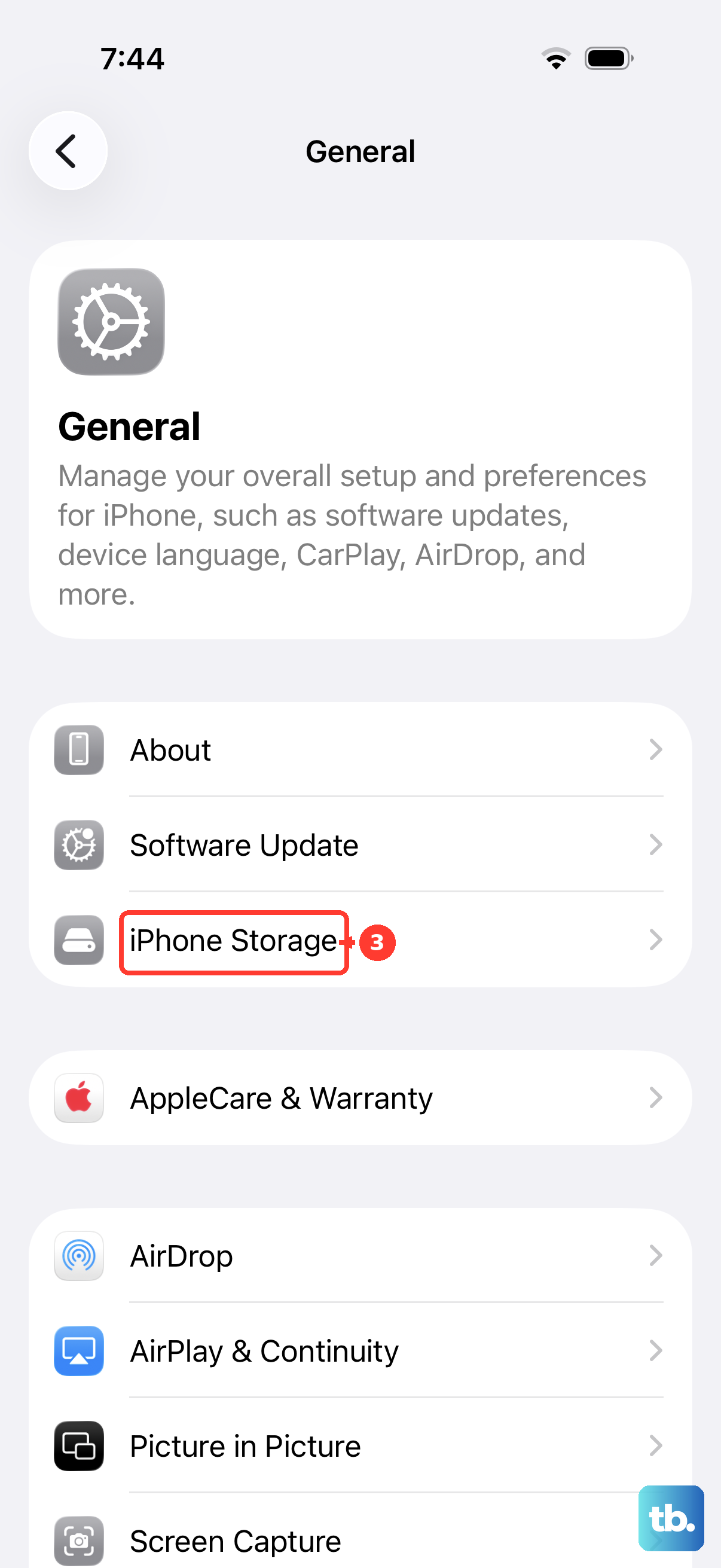
When downloads lack space or Messages cannot receive images, open Settings > General > iPhone Storage. Review the recommendations and individual apps to identify ways to free up iPhone storage space. Offloading removes an app while preserving its documents and data.
For a full device using iCloud Photos, you can also optimize photo storage. On iOS 27, open Settings, tap your name, then choose iCloud > Photos > iPhone Storage > Optimize Storage. This saves device space, but full-resolution originals still depend on network access.
On iOS 26 or earlier, the storage choice is directly within the iCloud Photos settings. Open Settings, tap your name, then open iCloud > Photos to find it.
If one deletable app still malfunctions after reopening, restarting, and updating, reinstalling is a later option. Deleting an app can remove locally stored app data, so preserve any necessary app data first. To delete the affected iPhone app, hold its icon, tap Remove App, tap Delete App, then tap Delete. Afterward, reinstall it from the App Store and retry.
Reset network settings after other connection fixes fail
Save a network reset for persistent connection failures that remain after the earlier network fixes. If you use a managed network, consult its administrator first.
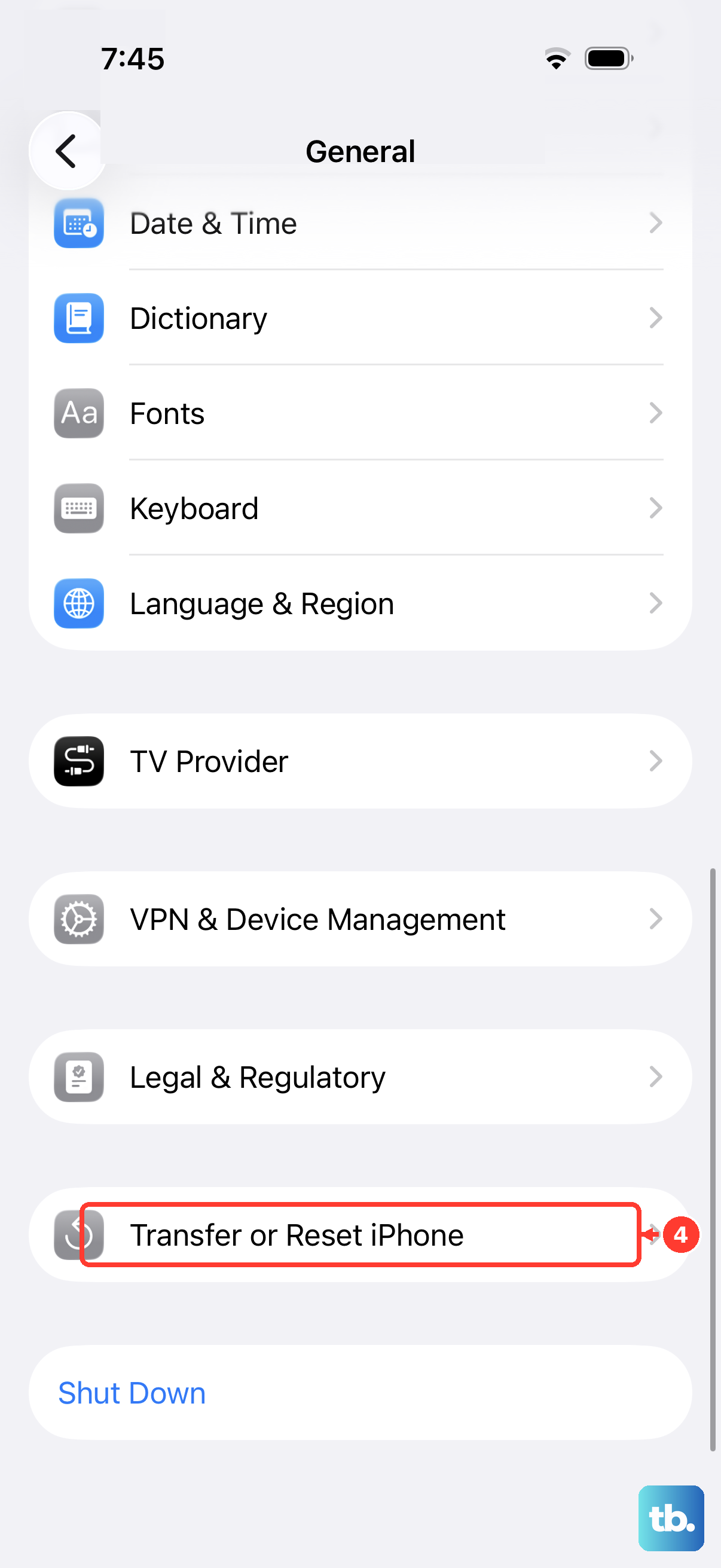
Resetting network settings resets saved Wi-Fi networks and passwords, along with cellular, VPN, and APN settings. To proceed, open Settings > General > Transfer or Reset iPhone > Reset > Reset Network Settings.
Frequently Asked Questions
Why can another app see only some of my iPhone photos?
The app’s permitted photo-library access may limit which local images it can see. Open Settings > Privacy & Security > Photos, select the affected app, and review its permitted access. This check applies to an app’s own view of your photo library, rather than Apple’s system photo picker or images downloaded from websites.
How can I keep full-resolution iCloud photos available offline?
On iOS 27, open Settings, tap your name, then choose iCloud > Photos > iPhone Storage > Download and Keep Originals. You need sufficient local storage and working access to the originals in iCloud. Let the downloads finish before relying on offline access.
Why does an image show a sensitive content warning instead of loading?
Sensitive Content Warning intentionally blurs an image rather than indicating a loading failure. Select Show on the warning to reveal it. On iOS 17 and later, you can review the protection settings in Settings > Privacy & Security > Sensitive Content Warning.
Where can I find the GIF image search in Messages?
In iOS 26, open a Messages conversation, tap the Add button, then tap #images, swiping upward if needed. Tap Find images and enter a search term. If it is absent, open Settings > General > Language & Region and verify a supported language and region. Supported regions are the United States, United Kingdom, Canada, Australia, New Zealand, Ireland, France, Germany, Italy, India, Singapore, Philippines, and Japan.
Can smaller photo previews help pictures send in Messages?
On the sender’s iPhone running iOS 27, open Settings > Apps > Messages and enable Send Low Quality Photo Previews. This can improve initial delivery, but it does not repair an already damaged attachment. Turn off Low Data Mode if you want full-resolution delivery; with it enabled, only the preview is sent.