
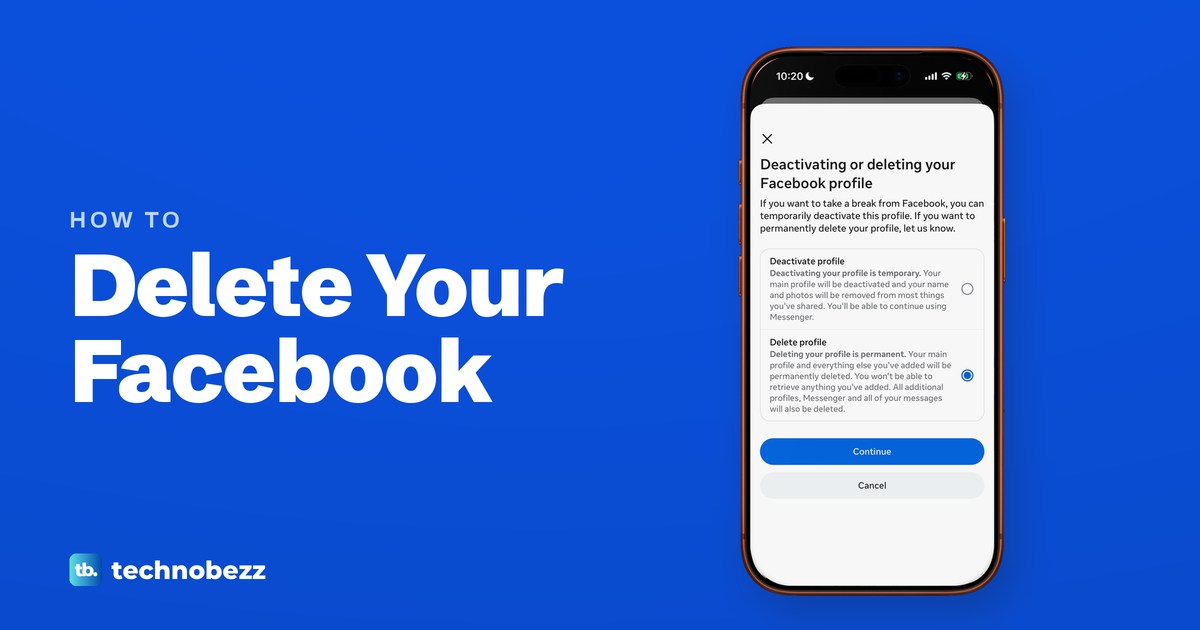
To delete your Facebook account permanently, open the Facebook app's Menu, then Settings and privacy, Settings and Meta Account. Tap Manage account, Manage next to Facebook and Deactivation or deletion, choose Delete profile and tap Continue. If your settings still say Accounts Center instead of Meta Account, the route differs slightly and is covered below.
On our iPhone, Menu was the three lines at the top left, and Meta puts it at the top right in the Android app. On a computer, start from your profile picture at the top right of facebook.com instead.
Before you press anything, download your information and sort out any Page you run. Meta may not let you export a profile that is already scheduled for deletion, and Pages only you control are deleted with you. After you confirm, Meta keeps the account for 30 days, and logging back in and choosing Cancel deletion stops it. Deleting also ends Messenger, so if you only want a break, deactivate your Facebook account instead.
The short version
- Path: Settings and privacy, Settings, Meta Account, Manage account, Manage, Deactivation or deletion, Delete profile.
- Download first: Meta may not let you export a profile that is already scheduled for deletion.
- Pages: give someone else full control of any Page you want to keep, or connect it to a business portfolio.
- 30 days to change your mind: log in and choose Cancel deletion. Meta says the period varies by region.
- Messenger goes too. To keep it, deactivate instead.
Delete or deactivate your Facebook account
Facebook puts both ways out on one screen, and they behave very differently. In the Facebook app on our iPhone 17 Pro with iOS 26.6, they were called Deactivate profile and Delete profile, although Meta's help pages still call the second one Delete account. Deactivating is temporary and keeps Messenger working. Deleting is permanent once Meta's waiting period ends, and the app warns that additional profiles, Messenger and all of your messages go with it.
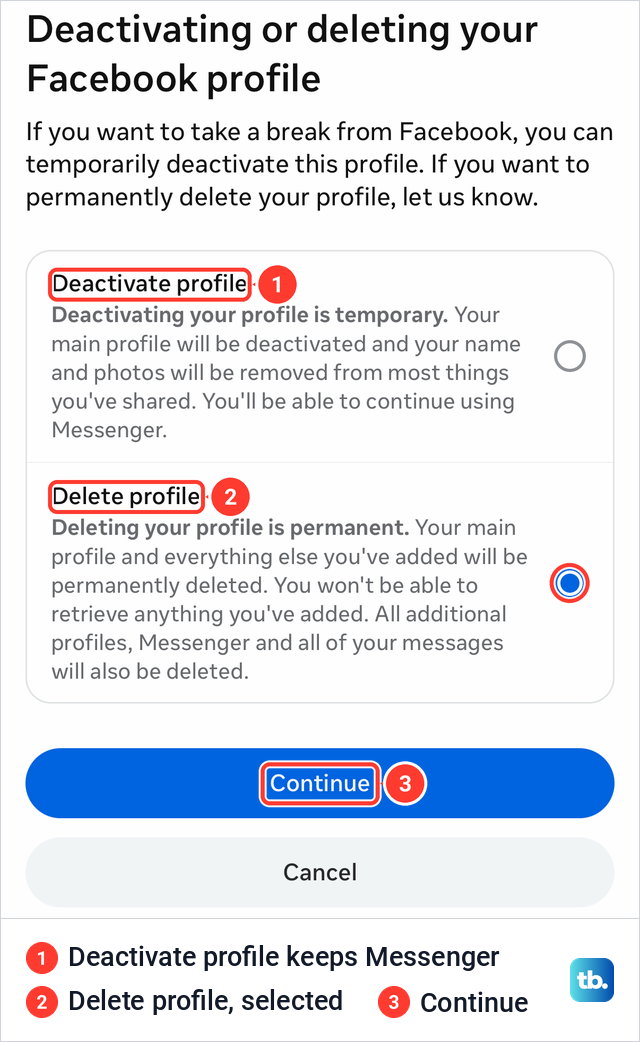
If you are not sure, deactivate first. Meta says people can't see or go to a deactivated profile, your photos, posts and videos aren't deleted, and you can come back whenever you want. You stay findable in Messenger, and you can't use Facebook to access Meta Quest while you're deactivated. On our iPhone the deactivate path also offered to reactivate the profile automatically after 1 to 7 days, or not at all, before it asked for the password.
Sometimes the account is not really the problem. If it is a handful of old photos, you can delete Facebook pictures one album at a time and keep everything else. If you mainly want strangers out, lock your Facebook profile, though the app told us profiles in professional mode can't turn it on. If tracking is the reason, you can limit Facebook tracking and ad personalization while you decide.
| What you want | Where to go | What happens |
|---|---|---|
| Delete Facebook for good | Meta Account > Manage account > Manage next to Facebook > Deactivation or deletion > Delete profile | Meta deletes it once its 30-day window ends |
| A break you can undo | The same screen, Deactivate profile | People can't see your profile, and your posts and photos are kept. Log in to come back |
| Keep using Messenger | Deactivate profile, not Delete profile | Messenger keeps working |
| A copy of your photos and posts | Meta Account > Your information and permissions > Export your information | A file in HTML or JSON, ready to download for 4 days |
| Keep a Page you run | Give someone else full control, or connect the Page to a business portfolio | The Page stays when your profile goes |
| Change your mind | Log in within the window and choose Cancel deletion | The deletion is cancelled |
| Remove one extra profile only | Meta Account > Manage account > Manage > Deactivation or deletion, then pick that profile | That profile is deleted after 30 days and your main profile stays |
What deleting your Facebook account removes
Meta's help page lists what goes. Your photos, posts, videos and everything else you added are permanently deleted, and you can't reactivate the profile or retrieve anything later. You can no longer use Messenger, and Facebook Login stops working on apps you signed up for with Facebook, such as Spotify or Pinterest.
Two more losses catch people out. If you use Facebook to log into Meta Quest, Meta says your Quest information goes too, including app purchases, achievements and any store credit. Pages that only you control are deleted with your profile as well, which is why the Pages section below comes before the steps.
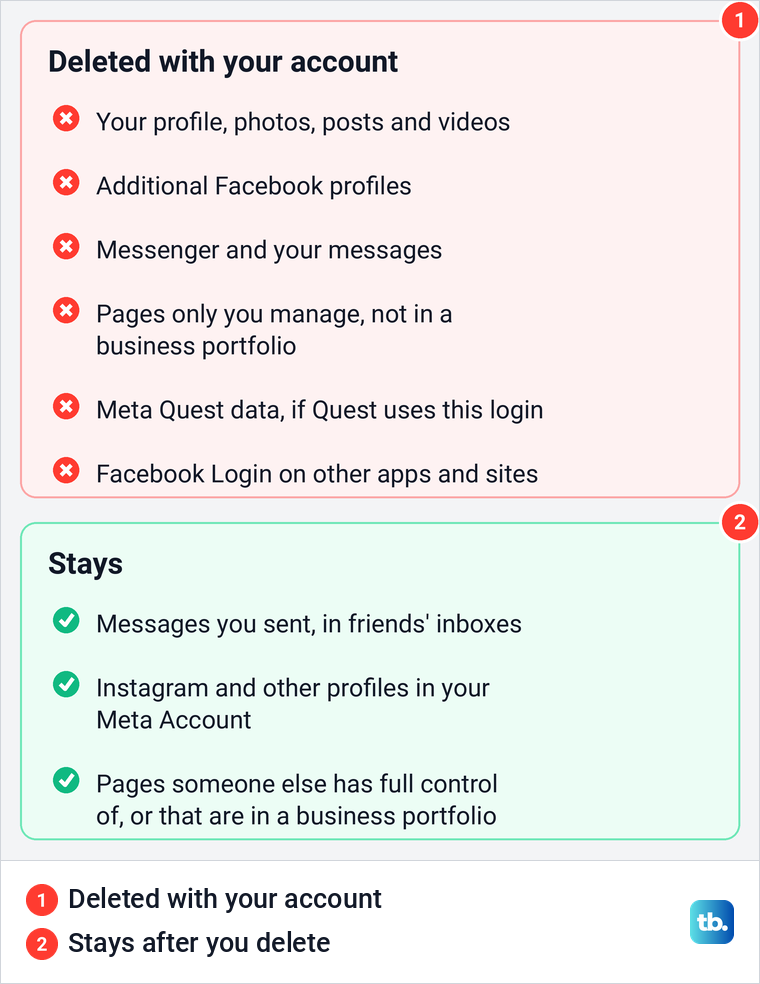
The app's warning and Meta's help page seem to disagree about messages, but they describe different copies. The app says Messenger and all of your messages will be deleted, which is your side of each conversation. Meta's help page adds that copies of messages you sent are stored in your friends' inboxes, so they can still read them.
Meta also says the other profiles in your Meta Account will not be affected. On our iPhone, Manage account listed a Facebook profile and an Instagram profile side by side, each with its own Manage button, so deleting the Facebook one leaves Instagram where it is. To close Instagram as well, use the Deactivation or deletion row under its own Manage button, and if you only want a break from it, here is how to deactivate Instagram.
Download your Facebook information first
Do this before anything else. Meta lists Scheduled for deletion as a reason you may not be able to export information from a profile, and its only fix is to cancel the deletion. Once the profile is gone, Meta says you won't be able to retrieve anything you added.
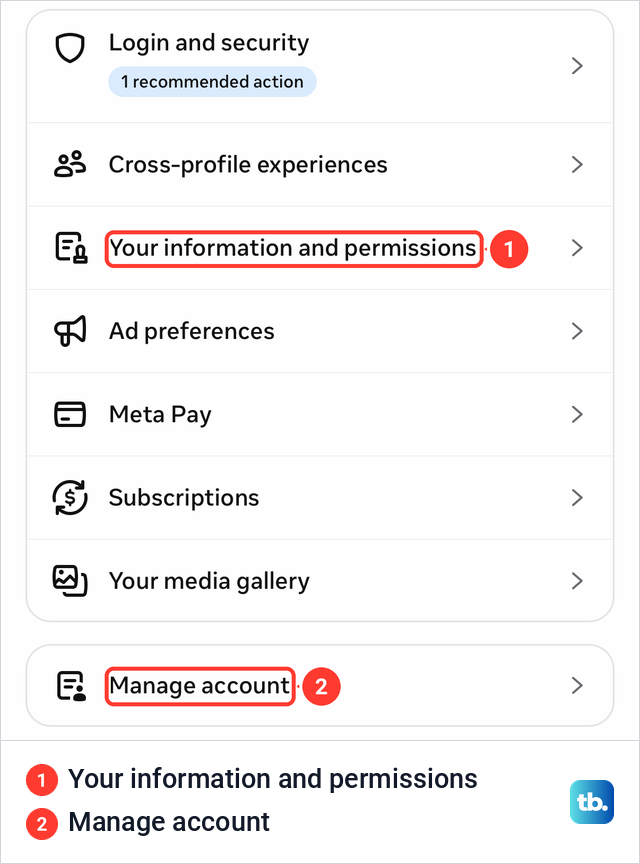
In the Facebook app, Meta's steps are Settings and privacy, Settings, Meta Account, then Your information and permissions, Export your information and Create export. Pick your Facebook profile, tap Next and choose Export to device. On our iPhone, Your information and permissions sat in the middle of the Meta Account screen, a few rows above Manage account, which is where the delete path continues.
Meta says you can choose the information, a date range, the format, the notification email and the media quality before you tap Start export. HTML opens like a web page once you extract the ZIP file, while JSON is meant for moving your data to another service. High-quality videos make the file larger, so Meta suggests checking your free storage first.
When the export is ready, Meta sends an email and a Facebook notification, and the file waits for 4 days under Available downloads in the same tool. Download it before you start the deletion. The delete flow also shows an Export info button on its last review screen, but by then you are one step from the password prompt.
Keep your Facebook Pages before you delete
If you run a Facebook Page, sort it out first. Meta's rule is that Pages only you control are deleted with your profile unless you give someone else full control. When we chose Delete profile on our iPhone, the very next screen spelled it out: deleting the profile also deletes any Pages you manage individually that aren't connected to a business portfolio.
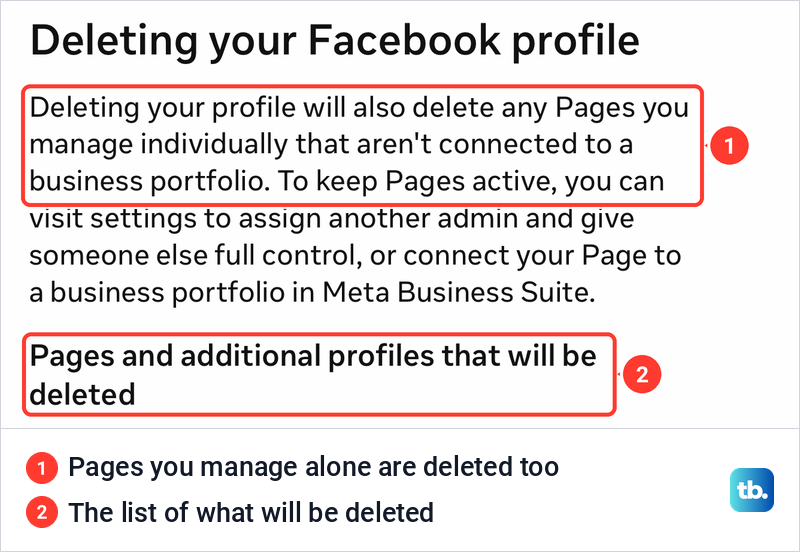
That screen offered two ways to keep a Page. You can assign another admin and give them full control in the Page's settings, or connect the Page to a business portfolio in Meta Business Suite. Below the warning it listed the Pages and additional profiles that will be deleted, so read that list before you tap Continue.
Meta's steps for the handover, on a computer, are to switch into the Page, click Settings & privacy, Settings, Page setup and Page access, then Add New next to People with Facebook access. Choose the person, select them for full control, click Give Access and confirm with your password. Meta says the person then gets an email to accept the invitation, so wait until they have accepted before you delete your account.
Full control is a real handover. Meta says a person with full control can give access to others, remove anyone from the Page, including you, and delete the Page. The deactivate path showed the same warning with Pages deactivated instead of deleted, so the rule applies either way.
Delete your Facebook account in the iPhone app
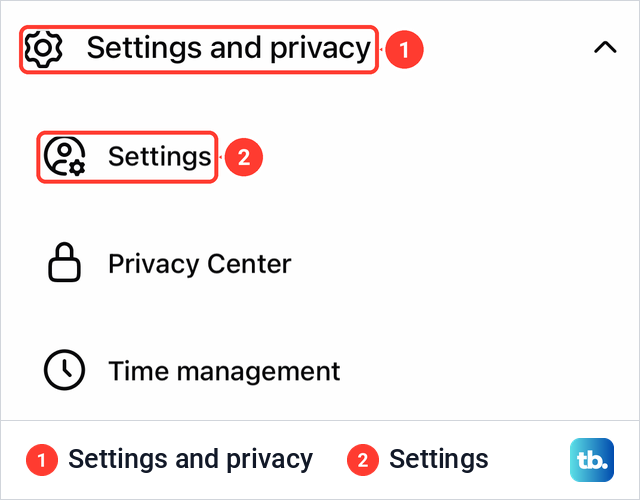
These are the steps as they appeared in the Facebook app on our iPhone 17 Pro with iOS 26.6. Open Facebook on your main profile and tap the menu icon, the three lines at the top left (if your app shows no three lines there, Meta's iPhone help puts Menu at the bottom right). Scroll down, tap Settings and privacy to open the group, then tap Settings.
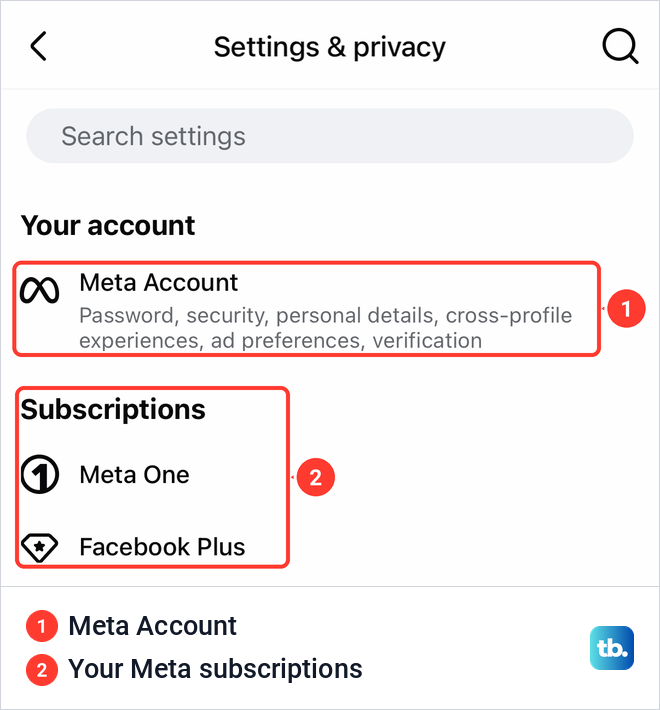
At the top of the Settings & privacy screen, under Your account, tap Meta Account. Its description reads Password, security, personal details, cross-profile experiences, ad preferences, verification. If you pay for Meta One or Facebook Plus, they sit in the Subscriptions group just below, so check them before you go.
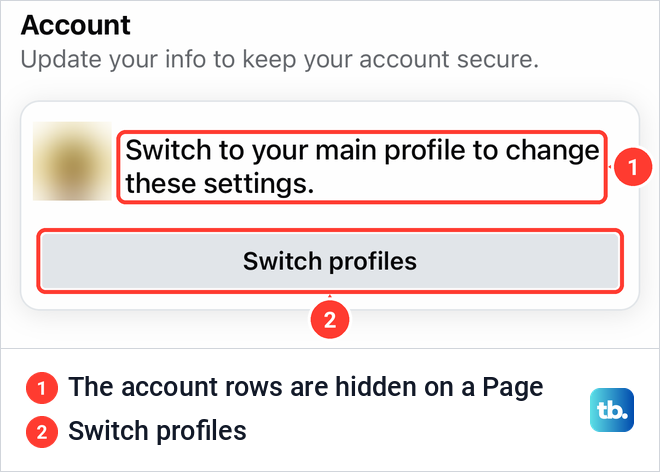
If Facebook is set to a Page rather than your profile, you won't see Meta Account at all. Our Settings & privacy screen showed "Switch to your main profile to change these settings." and a Switch profiles button instead of the account rows. Tap Switch profiles, choose your own profile and open Settings again.
In Meta Account, scroll down and tap Manage account, the separate card below the main list shown in the download section. It lists the profiles in your Meta Account, each with a Manage button. Tap Manage next to Facebook, then Deactivation or deletion, which sits between Move out of this Meta Account and Memorialization.
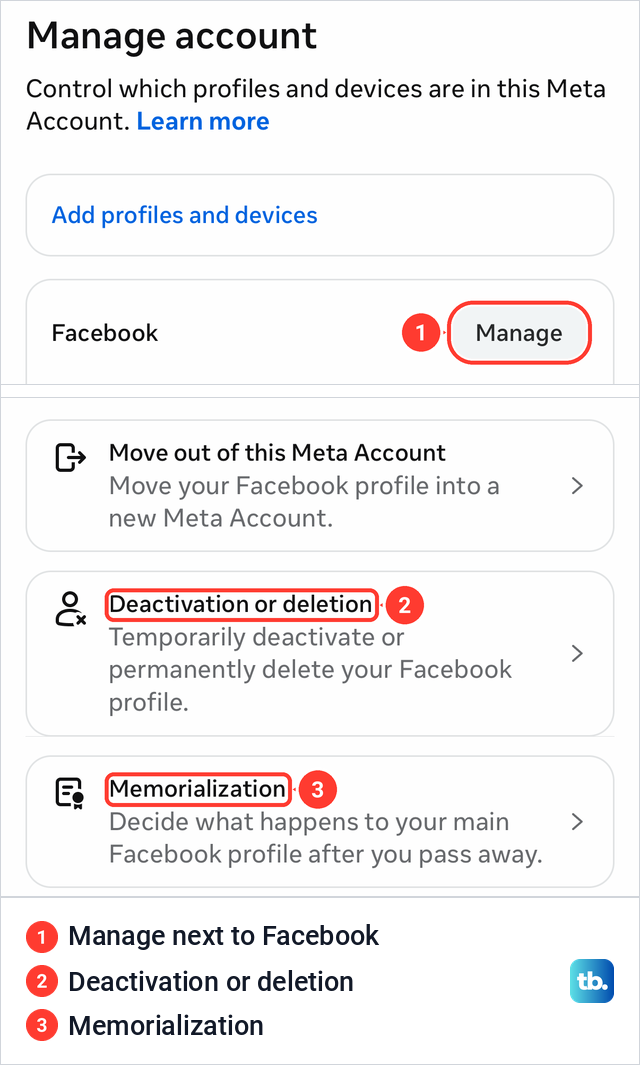
Neither neighbour deletes anything. Move out of this Meta Account only moves your Facebook profile into a new Meta Account, and Memorialization decides what happens to your main profile after you pass away. On the next screen, Deactivating or deleting your Facebook profile, select Delete profile and tap Continue.
What Facebook asks before the password
After Continue, the app took us through up to three screens before it asked for the password. If you manage Pages, the first is the Pages screen shown above, so check its list and tap Continue.
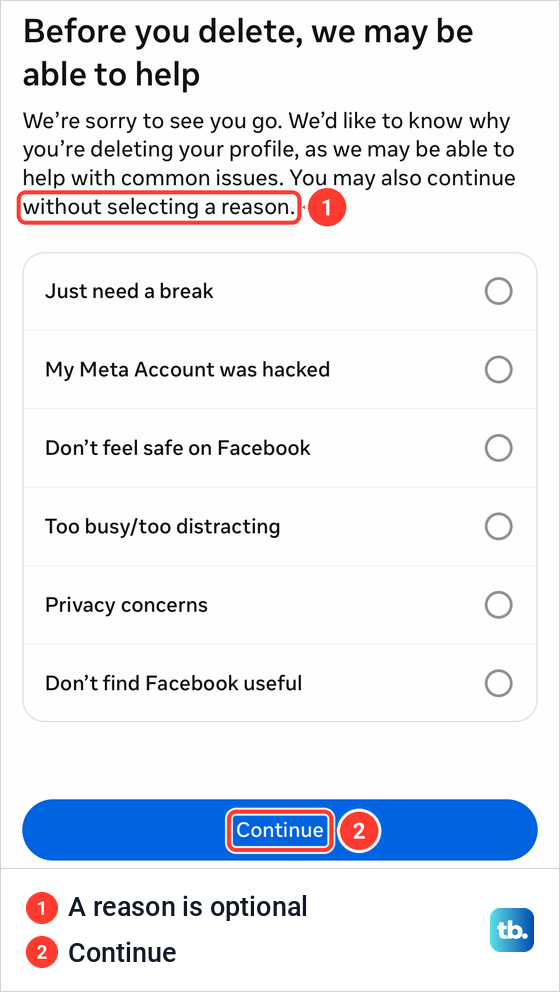
Next, a screen titled Before you delete, we may be able to help asks why you are leaving, with six reasons from Just need a break to Don't find Facebook useful. The screen itself says you may continue without selecting a reason, so the reason is optional.
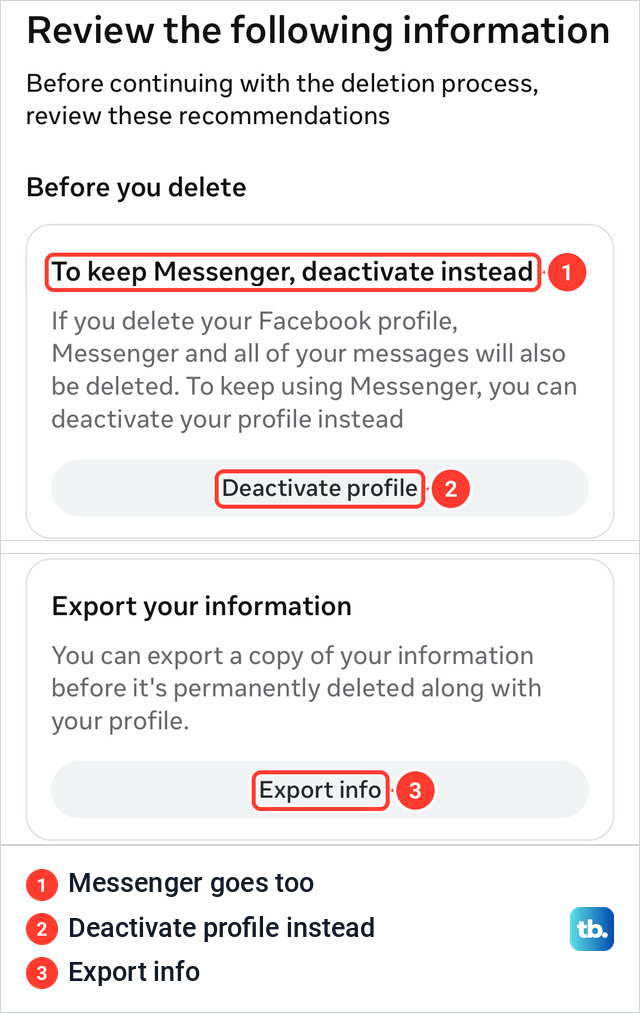
The last screen, Review the following information, makes one more case for staying. Its first card, To keep Messenger, deactivate instead, has a Deactivate profile button. Further down are Save posts in your archive with Go to Activity Log, Export your information with Export info, and, if you are the only developer of apps on Meta's developer platform, a card warning that those apps will be deactivated.
If only some posts bother you, the archive card is the gentler route, or you can remove a Facebook post one at a time. Otherwise tap Continue at the bottom and the app asks you to re-enter your password. From there, Meta's instruction is to follow the instructions on screen to confirm, and the waiting period below begins.
Delete your Facebook account on a computer or Android
On facebook.com in a desktop browser, Meta's steps are to click your profile picture at the top right, select Settings and privacy, then Settings, and click Meta Account at the top left of the screen. Click Manage account, Manage, then Deactivation or deletion. Meta then says to follow the instructions and click Continue, then follow the instructions to confirm.
In the Facebook app for Android, Meta's steps start from your main profile with Menu at the top right of Facebook. The rest matches the iPhone: Settings and privacy, Settings, Meta Account, Manage account, Manage and Deactivation or deletion, then the profile you want to delete and the delete option, which Meta's help page labels Delete account.
If you see Accounts Center instead of Meta Account
Meta is moving people from Accounts Center to Meta Account gradually, and its help pages say you may see either name. We saw both on the same iPhone. The Facebook account we used showed Meta Account, while the Instagram app, signed in to a different Meta login, still showed Accounts Center with a banner about the upcoming update to Meta Accounts.
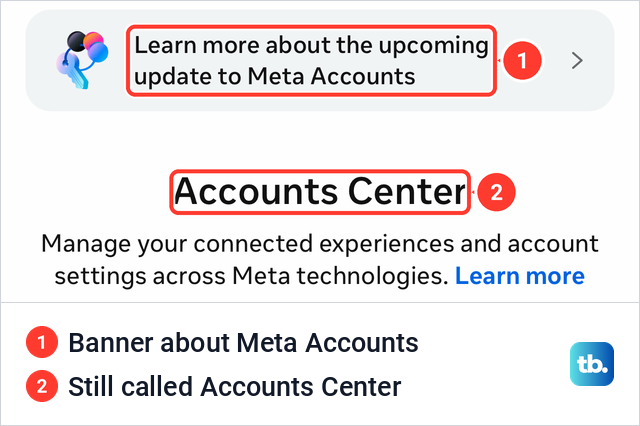
Meta's help says that when Accounts Center is at the top of your Settings & privacy menu, you delete your account through it, so on those accounts open Accounts Center where Meta Account would be. If you see Accounts at the bottom of Accounts Center instead of Manage account, Meta's steps are Personal details, Account ownership and control, Deactivation or deletion, then the profile you want to delete and Continue.
In a phone browser, Meta's steps go through See more in Accounts Center, Manage Accounts and Manage next to the account. From there it is Deactivation or deletion, the profile you want to delete, Delete account and Continue.
What happens in the 30 days after you delete
Deletion is not instant. Meta says that if it has been less than 30 days since you started the deletion, you can cancel it, and that after 30 days your account and all your information are permanently deleted. Meta also notes that the number of days you can cancel varies by region.
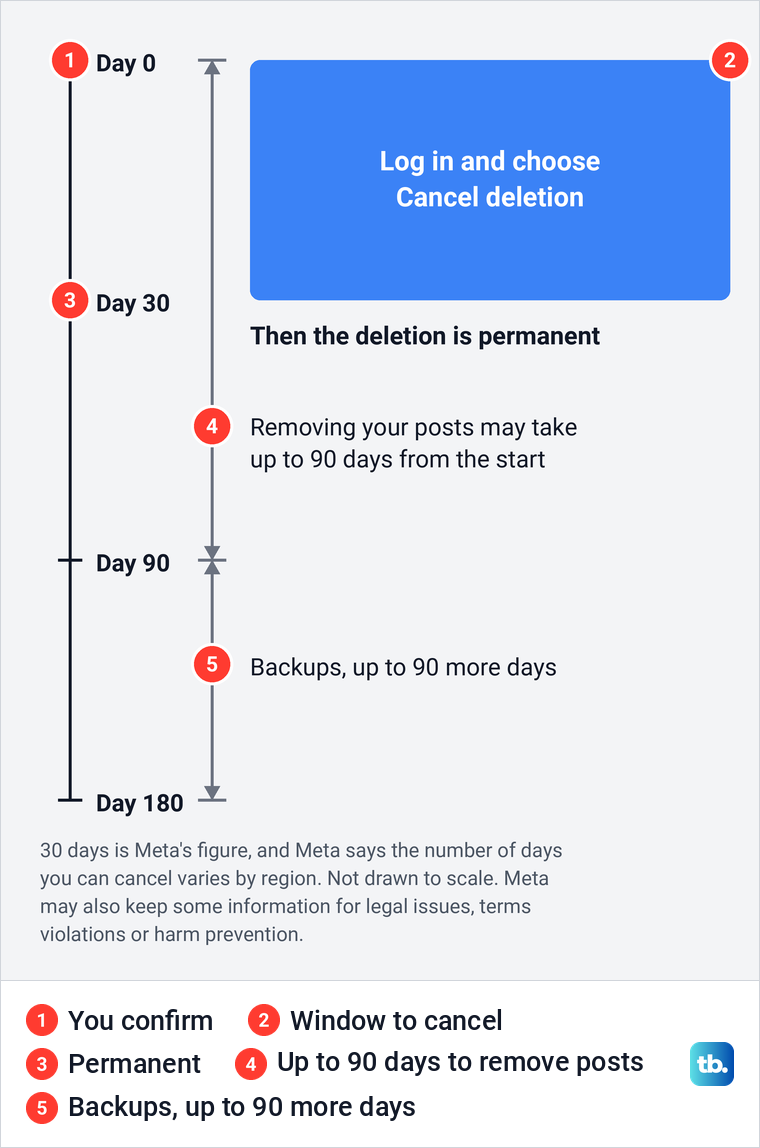
Removing what you posted takes longer. Meta says it may take up to 90 days from the beginning of the deletion process, and that while it happens the information is not accessible to other people on Facebook. Its Terms of Service add that removing content from backups and disaster recovery systems can take up to another 90 days.
Meta may also keep some information for things like legal issues, terms violations or harm prevention. Some log records can stay in its database too, but Meta says they are disassociated from personal identifiers.
You can cancel a deletion by mistake simply by logging back in. Meta says a deletion request is cancelled if you log back into your Facebook profile during that time. So before you confirm, sign out of Messenger on every device and log out of Facebook on your phone and computer, except the device you are deleting from. Until the period is over, stay signed out and avoid signing in to Facebook or to apps that use Facebook Login.
How to cancel a Facebook account deletion
Meta's steps to cancel are to log into your Facebook account within 30 days of deleting it and click Cancel deletion. That stops the deletion, and our guide to recovering a deleted Facebook account walks through logging back in before the window closes. Once the window has passed, Meta says your information can't be retrieved.
Apps you sign in to with Facebook
Meta says Facebook Login stops working on apps you signed up for with Facebook, like Spotify or Pinterest, and that you may need to contact those apps to recover the accounts. Before you delete, check each service's other sign-in options, make sure you can get in without Facebook, and contact the service if you can't. Spotify is one of the apps Meta names, and our guide shows how to set a Spotify password if you signed up with Facebook.
Paid subscriptions need their own step. Our Settings & privacy screen listed Meta One and Facebook Plus under Subscriptions, and Apple says deleting an app doesn't automatically cancel in-app subscriptions. If you pay for one through the App Store, cancel subscriptions on an iPhone before you delete anything.
Delete an extra profile without closing your account
If you made additional Facebook profiles under your main one, you can delete one on its own. Meta says deleting an additional profile permanently deletes all its data after 30 days, and that you can download a copy of that profile's data first. On accounts that show Meta Account, Meta's steps reach the same Deactivation or deletion screen through Manage account and Manage next to Facebook, where you choose the account or profile you want to delete.
Meta's page on additional profiles gives the Accounts Center route on a computer: Settings & privacy, Settings, Accounts Center, Manage accounts, Account ownership and control and Deactivation or deletion, then the additional profile and Continue. Either way, check that the profile you pick is the additional one, not your main profile.
It does not work the other way round. Meta says deleting your account deletes all profiles under it, and the choice screen on our iPhone warned that all additional profiles, Messenger and all of your messages will also be deleted.
If you cannot log in to your Facebook account
The delete path sits inside your settings, so you need to get back in first. Meta's advice is to use a phone or computer you have logged in on before, type facebook.com/login/identify into your usual browser and select No longer have access to these? if the old email or number is gone. Our guide shows how to use Facebook's Find your account page step by step.
If the email and number on file no longer work, here is how to recover a Facebook account without the old phone number or email. If someone else changed the password, check the signs your Facebook account was hacked and go to facebook.com/hacked from a device you have used before.
How we tested this guide
We tested this in the Facebook app on an iPhone 17 Pro with iOS 26.6, following the delete path through Meta Account, stopping at the password prompt.
Frequently Asked Questions
How long does it take Facebook to delete an account?
Meta keeps the account for 30 days in case you change your mind, then deletes it for good, and notes that the number of days varies by region. Removing everything you posted can take up to 90 days from the start, and backup copies up to another 90 days.
Can I cancel a Facebook account deletion?
Yes, inside the window. Log into your account and choose Cancel deletion. After the window ends, Meta says your information can't be retrieved.
Can I still use Messenger after deleting Facebook?
No. Messenger needs a Facebook account, and the delete screen warns that Messenger and all of your messages are deleted. If you want to keep Messenger, deactivate Facebook instead.
Does deleting Facebook delete my Instagram account?
No. Meta says the other profiles in your Meta Account are not affected. Instagram has its own Deactivation or deletion option if you want to close it too.
Will my friends still see messages I sent them?
Yes. Meta says copies of messages you sent are stored in your friends' inboxes, so they can still see them after your profile is deleted.
How do I delete a Facebook account I can't log in to?
Recover it first through facebook.com/login/identify or facebook.com/hacked, from a device you have used before. Once you are back in, delete it from Meta Account as described above.
What happens to my Facebook Page when I delete my account?
A Page only you control is deleted with your profile. Give someone else full control first, or connect the Page to a business portfolio, if it should stay.
Does deleting the Facebook app delete my account?
No. You can uninstall the Facebook app at any time and the account stays exactly as it was. Deleting the app does not cancel an App Store subscription either.