
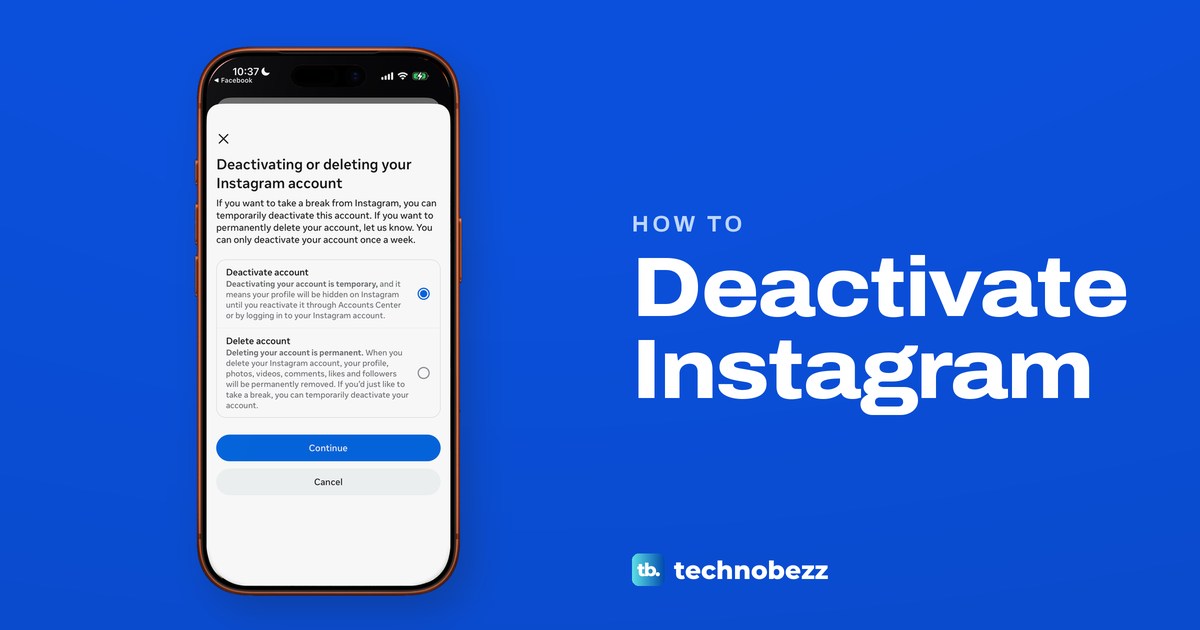
To deactivate Instagram, tap Menu at the top right of your profile in the app. Tap Meta Account (still called Accounts Center on some accounts), Manage account, Manage next to Instagram, Deactivation or deletion and Deactivate account. Tap Continue, re-enter your password, choose a reason and confirm with Deactivate account. Your profile stays hidden until you log back in.
We went through every screen up to the password prompt in the Instagram app on our iPhone 17 Pro with iOS 26.6. Three things stood out. Instagram allows one deactivation a week, Delete account sits directly under Deactivate account on the same screen, and no reasons screen came before the password, unlike on the delete path.
The short version
- In the app: Profile > Menu > Meta Account (Manage account) or Accounts Center (Manage accounts) > Manage next to Instagram > Deactivation or deletion.
- Pick Deactivate account, not Delete account, which sits right below it. Then tap Continue, re-enter your password, choose a reason and tap Deactivate account to confirm.
- Once a week: Instagram lets you deactivate only once a week.
- Coming back: log in again and your photos, comments and likes show again.
- Threads and Edits go too: the Threads profile made with this account and Edits are deactivated with it.
Where to deactivate Instagram
Every route ends at the same Deactivation or deletion screen. What changes is the name of the hub you open first and the device you start from, so find your row and follow it.
| Where you are | What to tap | What happens |
|---|---|---|
| Instagram app, menu shows Meta Account | Profile > Menu > Meta Account > Manage account > Manage next to Instagram > Deactivation or deletion > Deactivate account | Continue, re-enter your password, pick a reason, confirm |
| Instagram app, menu shows Accounts Center | Profile > Menu > Accounts Center > Manage accounts > Manage next to Instagram > Deactivation or deletion > Deactivate account | A summary of what you lose, the password, a reason, then Deactivate account to confirm |
| Accounts Center with Accounts at the bottom | Accounts Center > Personal details > Account ownership and control > Deactivation or deletion | Pick your profile, then follow the steps on screen |
| instagram.com on a computer | More > Settings, then the same hub route | The same choice, in Meta's steps |
| A phone browser | instagram.com > Settings, then the same hub route | The same steps as a computer |
| You want the account back | Log in again | Photos, comments and likes show again |
| You want it gone for good | Delete account on the same screen | Removed 30 days after the request |
How to deactivate Instagram in the app
Instagram's help pages print the same steps for the iPhone and Android apps. Go to your profile with the Profile tab or your profile picture at the bottom right, then tap Menu at the top right. The menu opens on Settings and activity, and the first card under Your account is the way in.
On our iPhone, that card read Accounts Center, with password, security, personal details, connected experiences and ad preferences listed under it. The Facebook app on the same iPhone, signed in to a different account, already showed Meta Account in the same spot. Both lead to the same kind of hub, so tap whichever name your app shows.
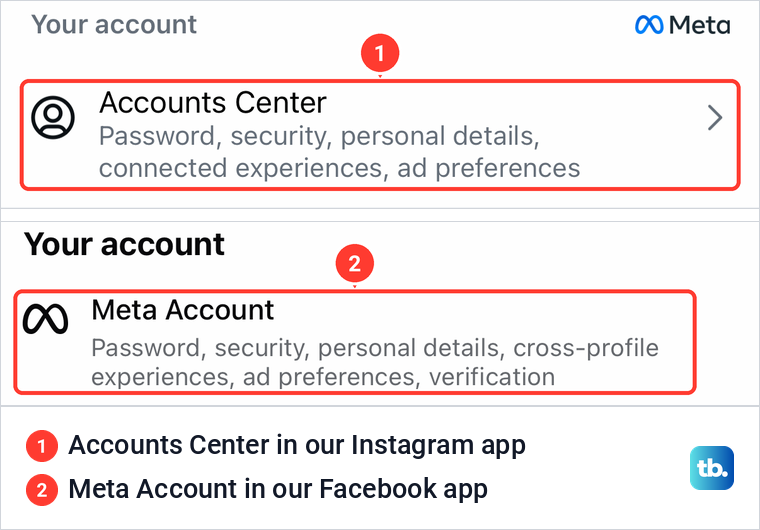
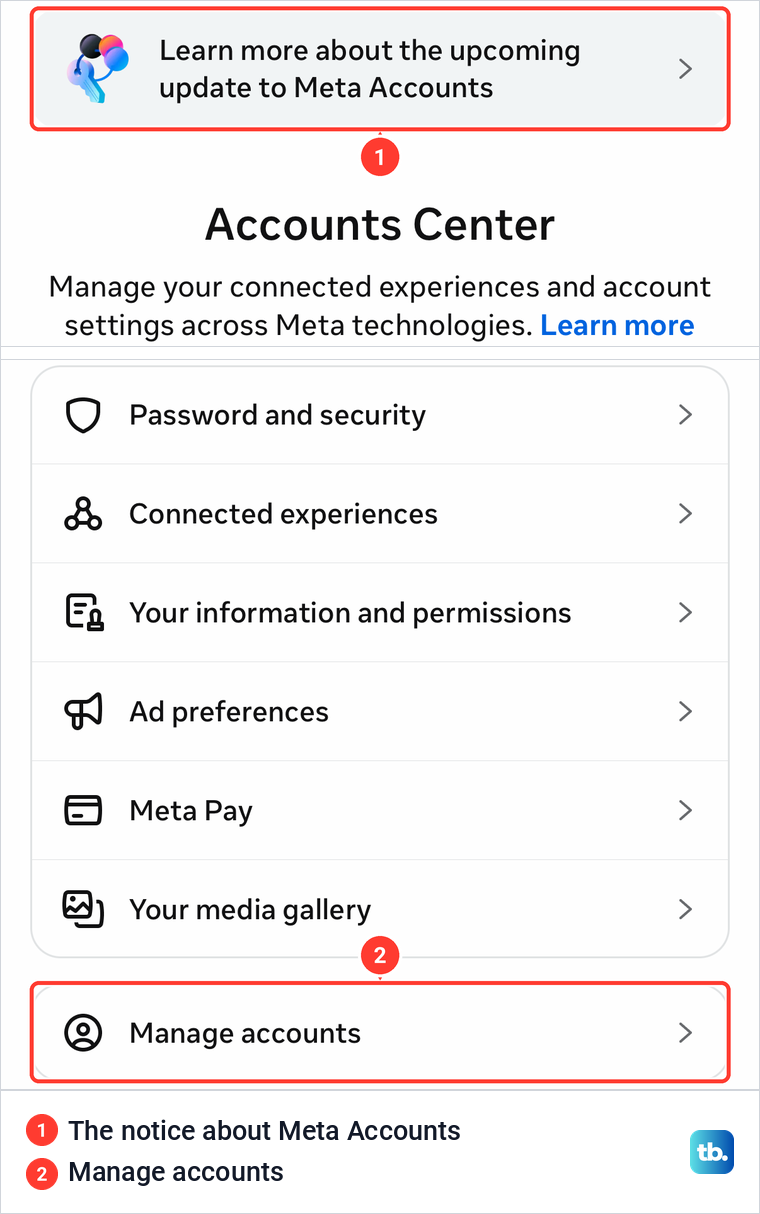
Meta is moving people from Accounts Center to Meta Accounts one by one, and our Accounts Center opened with a notice that read Learn more about the upcoming update to Meta Accounts. Scroll to the bottom of the hub and tap Manage accounts. Meta's help pages call the same row Manage account.
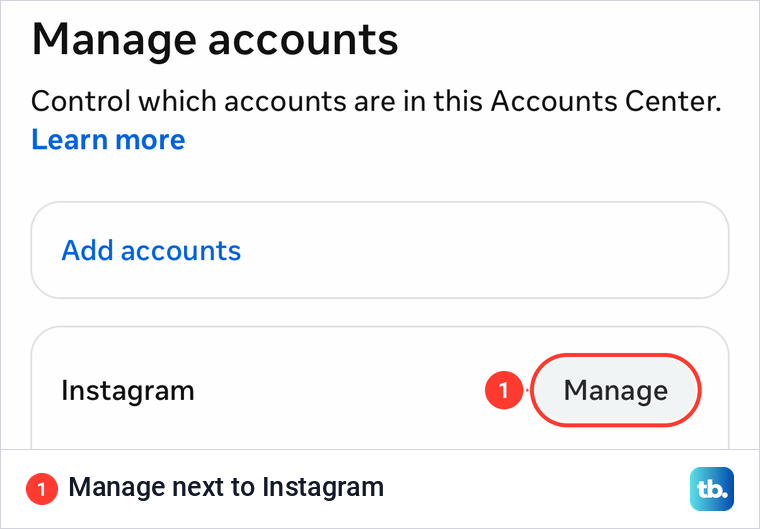
Manage accounts lists the profiles in the hub, each under its app name with its own Manage button. Ours listed Instagram and Threads. Tap Manage next to the Instagram account you want to deactivate, and keep in mind that Meta says deactivating it also deactivates the Threads profile made with it, and Edits.
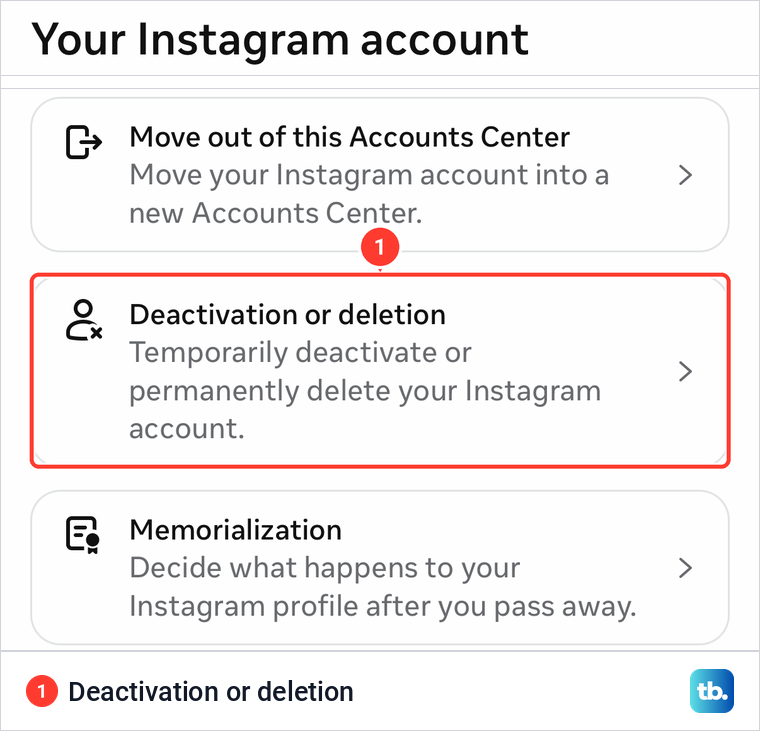
The Your Instagram account page has three options: Move out of this Accounts Center, Deactivation or deletion, and Memorialization. Tap Deactivation or deletion, which the app describes as the way to temporarily deactivate or permanently delete your Instagram account.
The next screen is where people slip. Deactivate account and Delete account sit one above the other, each with a round button, and Deactivate account was selected by default when the screen opened on our iPhone. Read the line under it before you go on: deactivating is temporary, and your profile is hidden until you reactivate it through Accounts Center or by logging in.
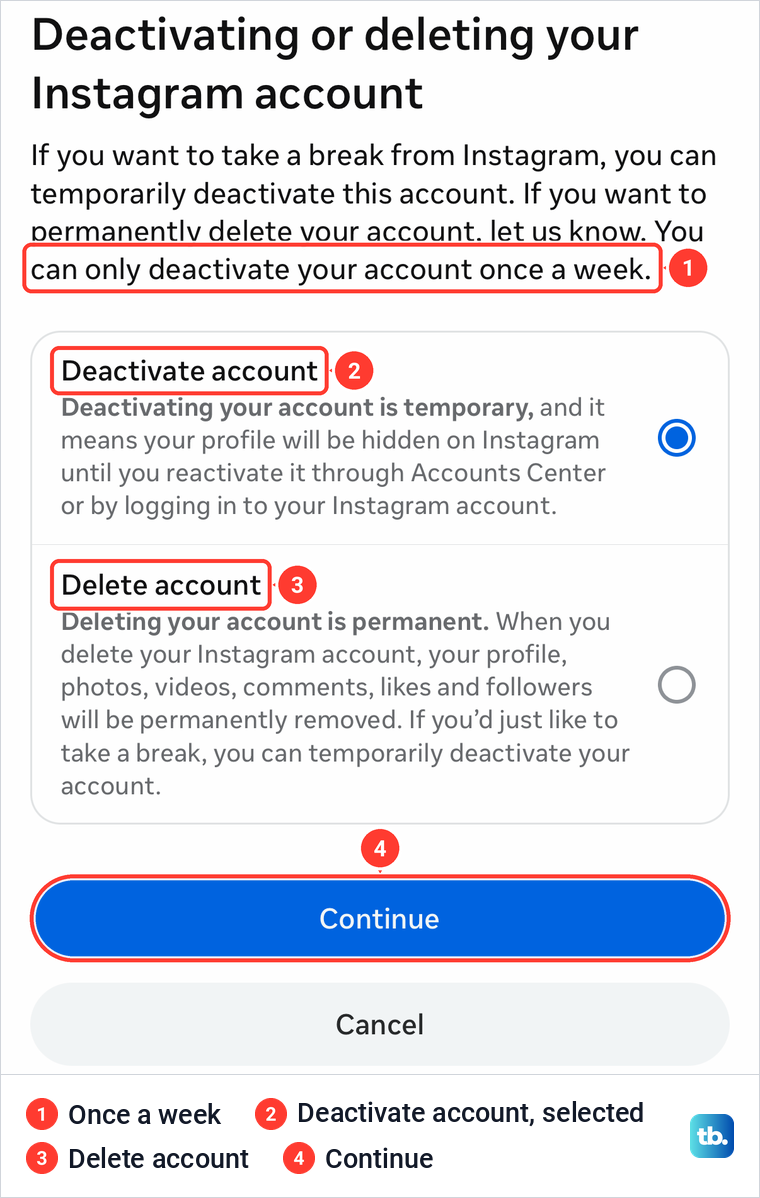
The same screen states Instagram's limit in its own words: You can only deactivate your account once a week. Meta's help page for this task adds to the confusion, because both sets of deactivate steps sit under headings that begin To permanently delete your profile. Follow the option names on the screen, not that heading, and tap Continue with Deactivate account selected.
What Instagram asks after you tap Continue
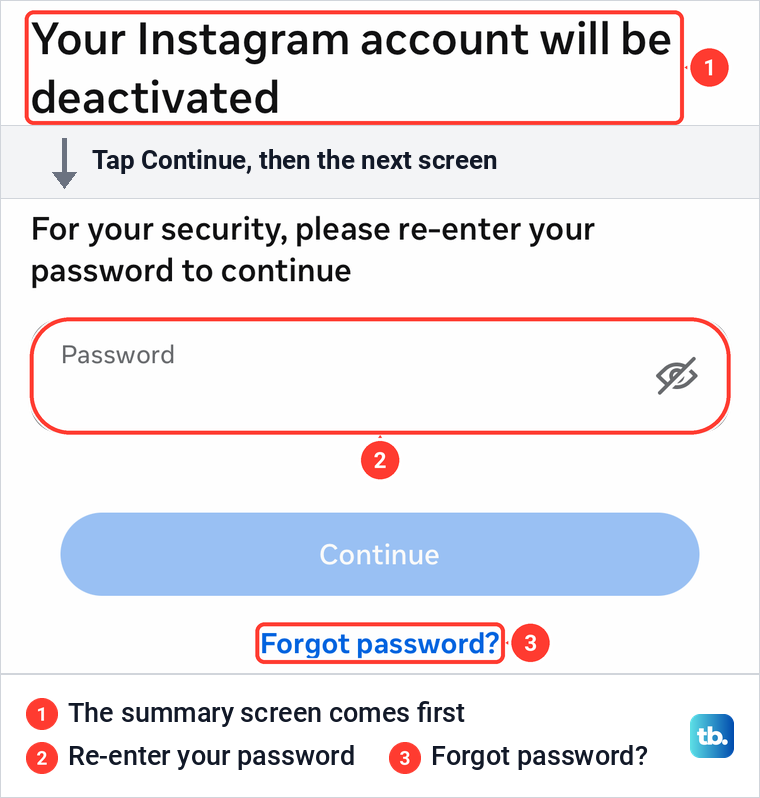
With Deactivate account selected, Continue opened a summary titled Your Instagram account will be deactivated. It showed when the account was created and listed what you lose access to while it is off: followers, posts, stories and reels, each with the date the last one was added, and your saved items. Tap Continue again once you have read it.
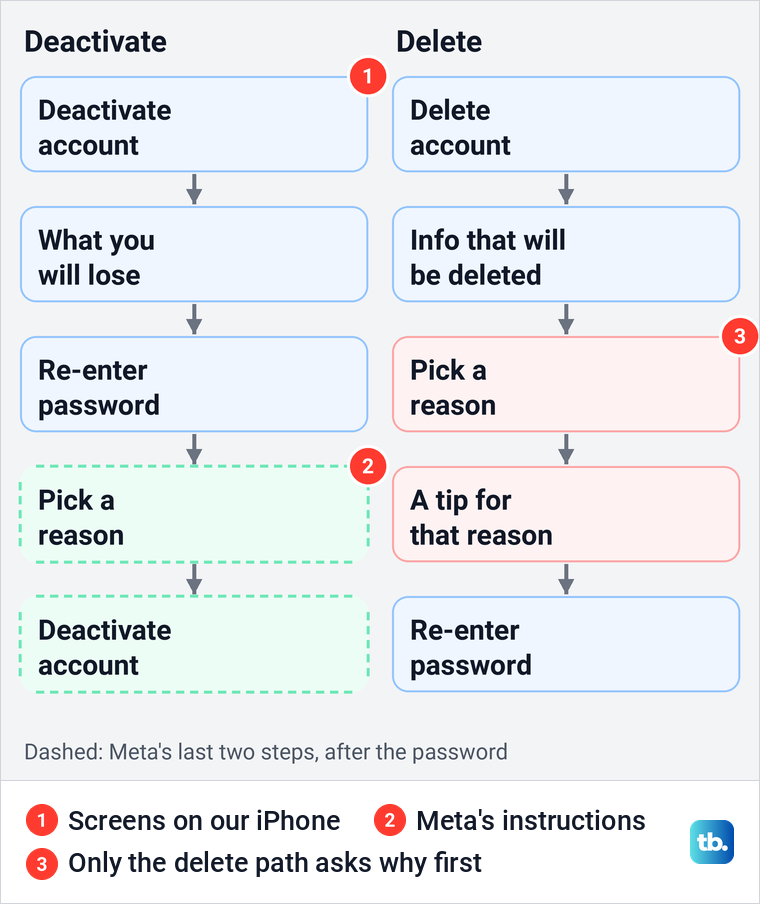
The next screen asked for the password, with the words For your security, please re-enter your password to continue. Several popular guides put a reasons screen before the password, but there was none before it on our iPhone. If you have forgotten your password, the reset link sits under the Continue button on that screen.
Meta's instructions take it from there. Re-enter your password and tap Continue, select the reason you are deactivating and tap Continue, then tap Deactivate account. That last button is the one that switches the account off.
Some guides also describe a menu that reactivates Instagram automatically after one to seven days. The Instagram screens on our iPhone showed no such choice before the password, and Instagram's help pages do not mention one. If a reactivation menu appears after you pick a reason, set it to Don't reactivate automatically for an open-ended break; otherwise the account stays off until you log back in.
On Facebook, the same choice appeared before the password. The Facebook app's deactivation flow on the same iPhone offered Automatically reactivate my profile in, set to 7 days by default, with Don't reactivate automatically as an option, right after its reasons screen.
If your menu says Meta Account or shows Personal details
Meta says it is gradually moving people to Meta Accounts, so either name can show. With Meta Account, Meta's steps are Meta Account, Manage account, Manage next to your Instagram account, then Deactivation or deletion. If your Accounts Center shows Accounts at the bottom instead of Manage accounts, you have an older layout.
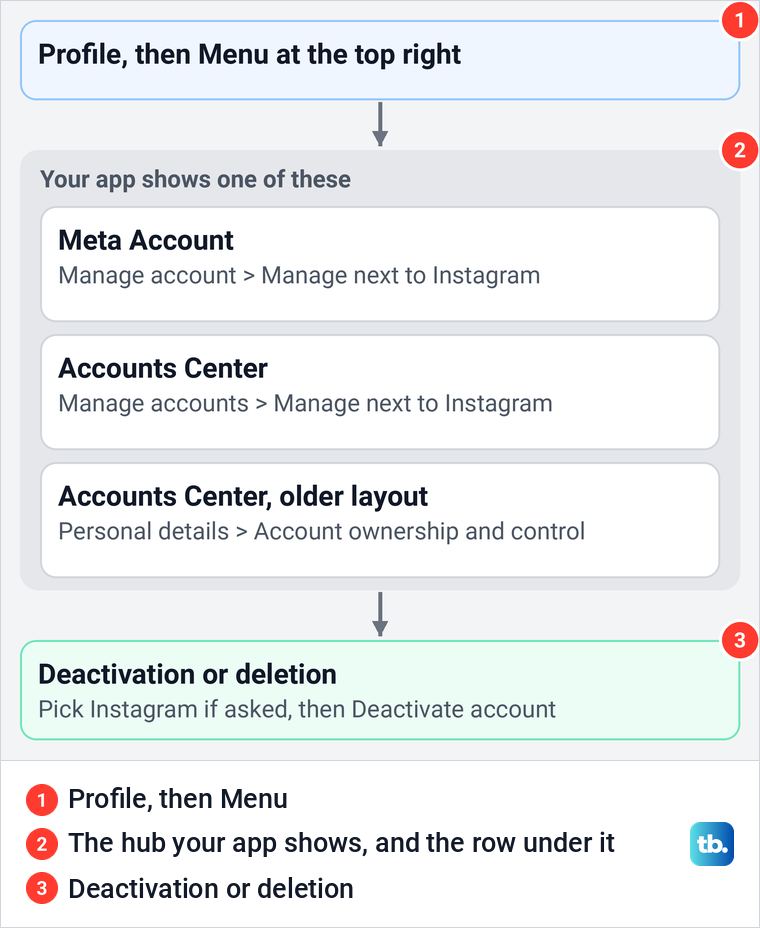
On that older layout, Meta's route is Accounts Center, Personal details, Account ownership and control, then Deactivation or deletion. Pick your Instagram profile there, tap Continue and follow the instructions on screen to confirm deactivation, choosing Deactivate account rather than Delete account if both appear.
How to deactivate Instagram on a computer
Instagram says you can deactivate only from a computer, a mobile browser or the Instagram app. Meta's computer steps follow the same route as the app. Log in at instagram.com, click More at the bottom left, then Settings.
Click Accounts Center or Meta Account, then Manage account, click Manage next to your Instagram profile and click Deactivation or deletion. Choose Deactivate account, click Continue and follow the instructions to confirm. On the older layout, go through Personal details and Account ownership and control instead.
Instagram's help page for mobile browsers prints the same steps word for word. So in Safari or Chrome on a phone, open instagram.com, go to Settings and follow the same hub route.
How long Instagram stays deactivated
Instagram says your photos, comments and likes stay hidden until you reactivate the account by logging back in. Its help pages print no maximum. Claims that a deactivated account is deleted after a week or after 30 days mix deactivating up with deleting, which is the only path Meta ties to permanent removal.
The other limit is how often. The choice screen on our iPhone said You can only deactivate your account once a week, the same rule Instagram's help pages print. So if you come back on a whim, you may have to wait before you can switch the account off again.
How to reactivate your Instagram account
Log in again with your username and password, in the app or at instagram.com. Instagram says that is how you reactivate, and the Deactivate account option on our iPhone also mentioned reactivating through Accounts Center.
If Instagram asks for a confirmation code when you log back in, our guide covers a confirmation code that never arrives. If you can't remember your password or username, Instagram's help pages point you to their tips for logging in.
A message that your account is disabled means Instagram acted, not you. Instagram says you see that message when you try to log in, and that you may be able to ask for a review by following the instructions on screen. Here is how to recover a disabled Instagram account step by step.
If there is no message and you still cannot get in, Meta lists three causes: a login problem, someone else gaining access, or a deletion by you or someone with your password. If you suspect the second, act as if your Instagram account was hacked and secure it first.
What other people see while you are away
Instagram's help pages say your photos, comments and likes are hidden while the account is deactivated. The choice screen on our iPhone put it more broadly: your profile will be hidden on Instagram. Meta's pages do not describe what happens to messages you sent or whether anyone is notified, so be wary of any guide that promises either.
Instagram says a disabled account is no longer visible to others either. So if a friend's profile has vanished, it may be deactivated or disabled rather than a block, and our guide shows how to tell whether someone blocked you on Instagram.
What happens to Threads, Edits and Facebook
Deactivating Instagram also deactivates the Threads profile you made with that account, Meta says. It does not work the other way round, because deactivating Threads on its own does not deactivate Instagram or Facebook. Edits goes with Instagram too, since Meta treats it as part of Instagram.
Facebook is a separate profile. Our Manage accounts list showed each profile under its own app name with its own Manage button, and Meta's steps start from the profile you pick. If you want a break from Facebook too, deactivate your Facebook profile as its own step.
Deactivate or delete Instagram
Deactivating hides the account until you log back in. Deleting removes your profile, photos, videos, comments, likes and followers for good, as the choice screen on our iPhone spelled out. Instagram says the account and its information are permanently deleted 30 days after the request, and the number of days you have to cancel varies by region.
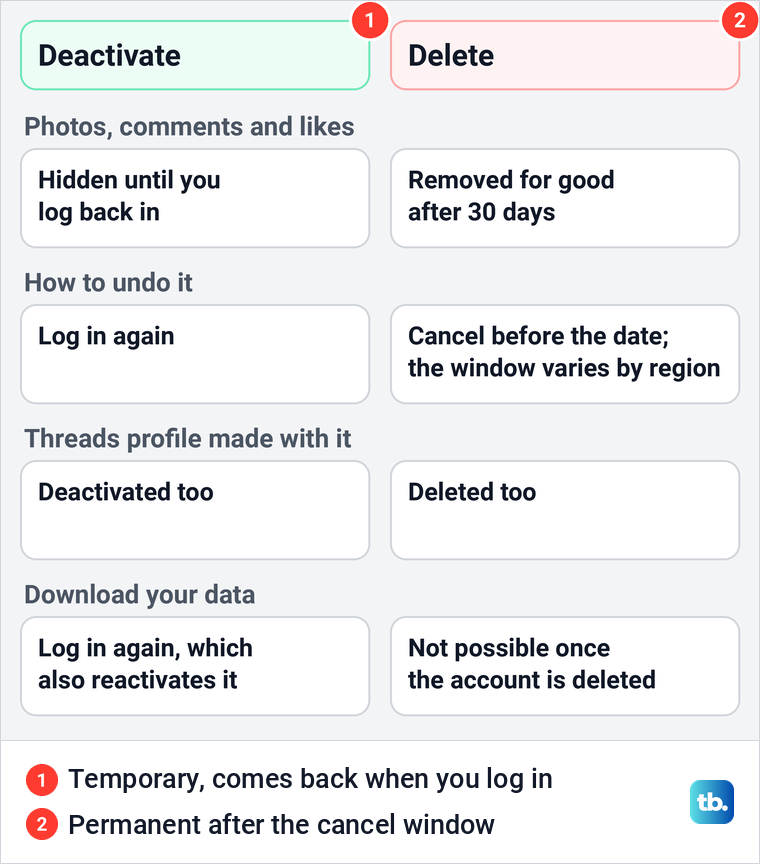
The delete path also looked different on our iPhone. After Delete account and Continue, Instagram showed a summary of the info that would be deleted, asked why you are leaving with a list of ten reasons, then offered a tip for the reason picked before it asked for the password. If you want a copy of your posts, download it first, because Instagram says its Export your information tool is gone once the account is deleted.
Logging out or deleting the app is not deactivating
Logging out, removing a saved login or deleting the app leaves the account active and visible. Instagram says removing login information only removes the account from your iPhone or Android device and does not deactivate or delete it. To clear a saved login and leave the account alone, remove an Instagram account from your phone instead.
In Meta's steps, Log out sits at the bottom of the menu under Login, next to Add account. If you delete the Instagram app, your account stays up for everyone else. Uninstalling only changes what is on that phone.
Before you deactivate Instagram
You need to be able to log in, because Instagram asks for the password before it deactivates anything. If you are locked out of your Instagram account, sort that out first. If you are still logged in but have forgotten the password, the Forgot password? link on the password screen is the quickest place to start.
If you want to stop paying for Meta Verified, cancel the subscription where you bought it before you deactivate. Meta's help page says signing out or deleting the Instagram or Facebook apps won't cancel it, and that where you bought it decides where you cancel. For an Apple purchase, Meta points you to the App Store or the Meta account settings in the app, and our guide shows how to cancel a subscription on your iPhone.
Lighter ways to take a break
If you only want fewer eyes on your account, Instagram suggests making it private or blocking people instead. Instagram says business profiles can't be made private until they switch back to a personal account.
Notifications are often the real pull. Instagram's sleep mode pauses them for up to 24 hours each day, and on our iPhone Time management sat under How you use Instagram in the menu. You can also turn off notification alerts for Instagram on the iPhone itself. To keep Instagram installed but out of sight, our guide shows how to remove the Home Screen icon and keep the app.
Limits hide interactions from groups of people for up to four weeks at a time, and Instagram lets you extend them. Our menu listed the feature as Limit interactions. If messages are the problem, you can limit new message requests from people outside your chats instead of hiding the whole account.
You can also hide when you were last active without hiding your posts. On our iPhone, Show activity status sat under Messages and story replies. Its page now has a second choice under the switch: show your active status to Public, or to Accounts you follow or have messaged.
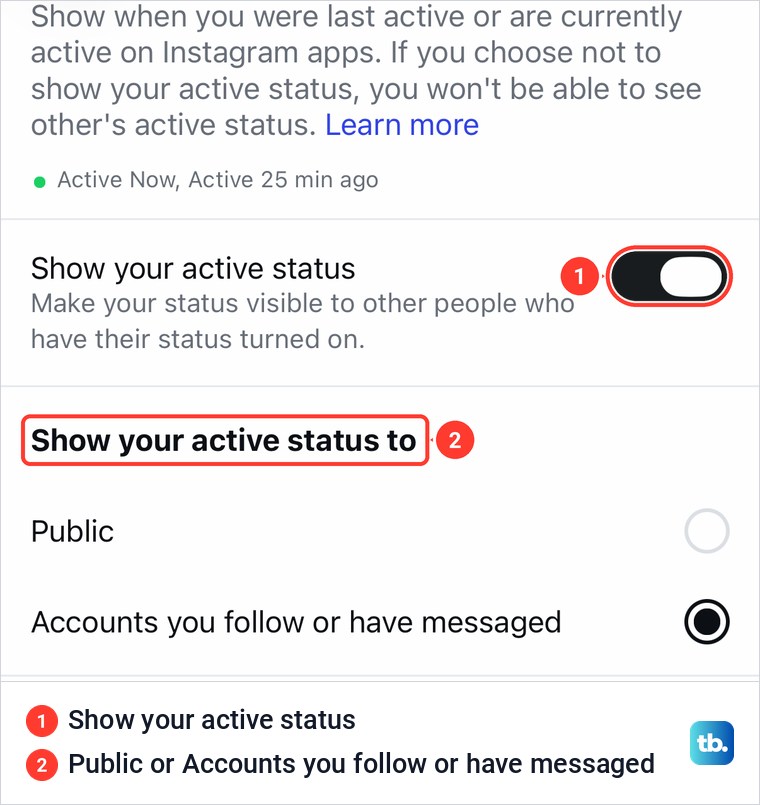
The screen warns that if you hide your status, you can't see other people's either. When we switched it off, the audience choice disappeared, and it came back unchanged when we switched it on again. If the worry is who sees your connections, hide your following list and keep posting.
How we tested this guide
We tested this in the Instagram app on an iPhone 17 Pro with iOS 26.6, taking the deactivation route, stopping at the password prompt.
Frequently Asked Questions
How long can I keep Instagram deactivated?
Instagram says your photos, comments and likes stay hidden until you log back in. Its help pages give no end date for a deactivated account.
How do I reactivate my Instagram account?
Log in again with your username and password, in the app or at instagram.com. The Deactivate account option on Instagram's own screen also mentions reactivating through Accounts Center.
How often can I deactivate Instagram?
Once a week. The limit is printed on the deactivate or delete screen itself and on Instagram's help pages.
What do people see when I deactivate Instagram?
Your photos, comments and likes are hidden, and Instagram's screen says your profile is hidden too. The Threads profile you made with the account is deactivated with it.
How do I deactivate Facebook too?
Deactivate it as its own step. When both profiles are in the same Meta Account, Manage account lists Facebook with its own Manage button; tap it, then Deactivation or deletion, and choose Deactivate profile.
Does deleting the Instagram app deactivate my account?
No. Removing the app or a saved login only affects that phone, and the account stays visible to everyone else.
Does deactivating Instagram cancel Meta Verified?
Meta's help page does not say that it does. To stop paying, cancel where you bought it before you deactivate: the App Store or the app's Meta account settings for an Apple purchase, Google Play for a Google one.
Can Instagram reactivate my account automatically?
Instagram's help pages do not describe an automatic option, and none appeared before the password prompt on our iPhone. If the last screens offer one, choose Don't reactivate automatically to stay off until you log in again.