Trying to sign out of Messenger gets confusing fast because the mobile app does not give every account a full Log Out button. On iPhone, iPad, and Android, Messenger can remove extra saved accounts, but it keeps at least one account in the app.
The fix depends on where Messenger is still open. You can remove a secondary account, log out a lost phone through Accounts Center, clear a browser login, wipe Android app storage, or delete the app from your phone.
Check what Messenger lets you remove
Messenger's mobile app does not include a complete in-app Log Out option for the final account left on the device.
To remove an added account, open Chats, tap Menu, then tap your profile name. Swipe left on the added account and choose Delete, then Remove.
That only clears an additional saved account from the account switcher. If you need to stop access on a phone, browser, or lost device, use the matching method below.
Log out a lost phone or shared computer
The most common reason people need to sign out of Messenger is that the account is still open on another phone, tablet, or computer. Open the Facebook app and tap Menu.
Go to Settings & privacy > Settings > See more in Accounts Center. Meta is moving accounts over to Meta Account, so tap Meta Account instead if that is the label your account shows. Open Password and security, then tap Where you're logged in.
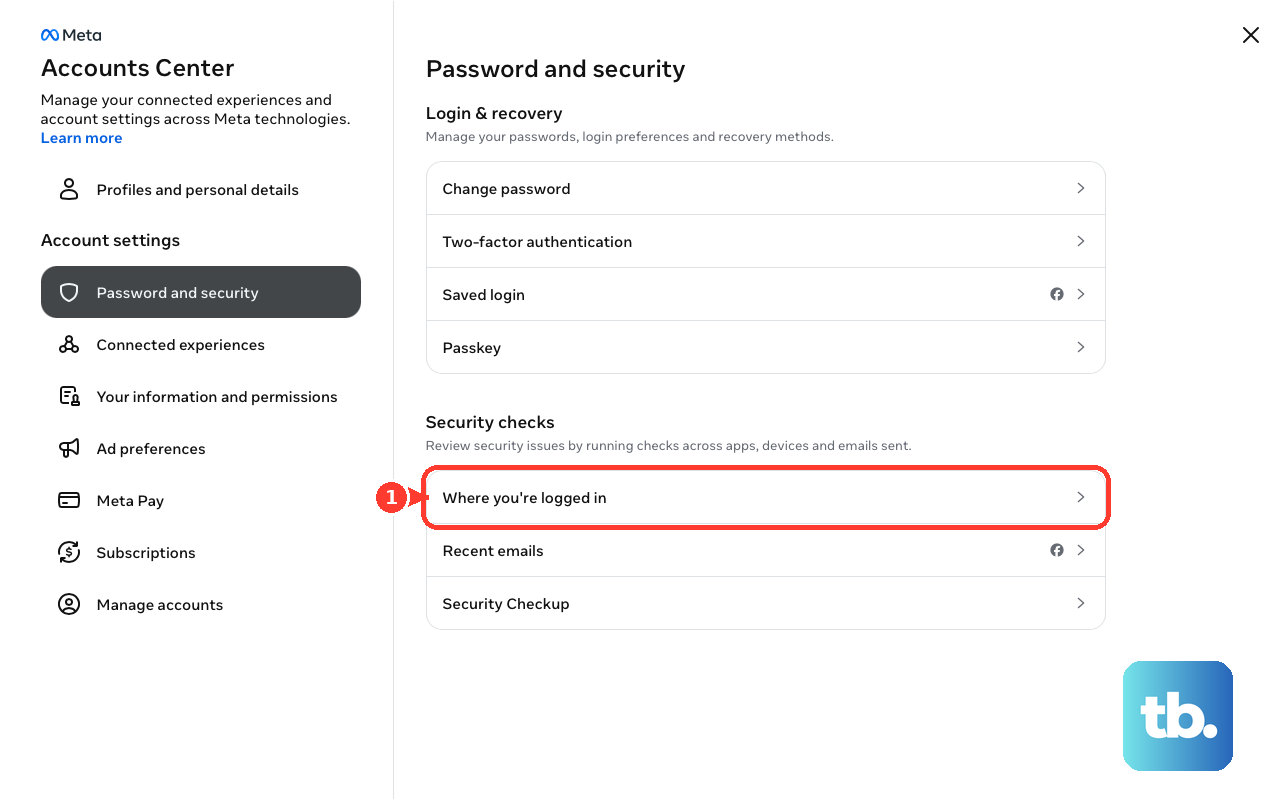
Select your account. Choose the session you want to end, or tap Select devices to log out. Tap Log out to remove that Facebook or Messenger session from the selected device.
Remove an extra saved account
This fixes the account switcher when an old secondary account or someone else's account is saved. Open Messenger and stay on Chats, then tap Menu and tap your profile name at the top.
Swipe left on the added account you want to remove, then tap Delete and tap Remove. This cannot remove the final remaining Messenger account from the app.
Sign out in a desktop browser
Use this when Messenger is open through a web browser or when Facebook is signed in on a computer. Messenger on desktop now runs in a browser at messenger.com, because the Mac and Windows desktop apps are no longer available.
On facebook.com, click your profile picture in the top right, then click Log Out. If Messenger stays open in another browser, repeat the same sign-out there or clear that browser's site data.
Clear Chrome site data
Open Chrome on your computer. Click More, then go to Settings > Privacy and security > Third-party cookies > See all site data and permissions.
Search for facebook.com or messenger.com. Click Delete for the site data you want to remove, then click Delete again to confirm.
To clear every saved website login instead, use Delete browsing data > Cookies and other site data > Delete data. Clearing cookies signs out the browser, but it does not revoke Messenger sessions on your other devices.
Clear Safari website data
Use this when Messenger or Facebook is signed in through Safari instead of the Messenger app. Removing website data can sign you out of websites in that browser.
On iPhone, open Settings > Apps > Safari > Advanced > Website Data. Tap Remove All Website Data, then tap Remove Now. For a broader iPhone cleanup, use Settings > Apps > Safari > Clear History and Website Data > Clear History.
On Mac, open Safari and go to Safari > Settings > Privacy > Manage Website Data. Select facebook.com or messenger.com, then click Remove. Use Remove All when you want Safari to clear all stored website data.
Clear Messenger storage on Android
The most common Android snag is that Messenger keeps local app data after you close the app. Open Android Settings, then go to Apps > Messenger > Storage & cache.
Tap Clear storage, then confirm the deletion when Android asks. Settings labels can vary by device maker. If your phone uses different wording, open Messenger's app info page and use its storage controls.
Delete Messenger from the phone
Use app removal when you only need Messenger access gone from that phone or tablet.
- 1.On iPhone or iPad, touch and hold Messenger.
- 2.Tap Remove App > Delete App > Delete.
- 3.If the icons jiggle, tap the Remove icon, then tap Delete App > Delete > Done.
- 4.On Android, long-press Messenger on the home screen or app drawer, then tap Uninstall and confirm.
- 5.Another Android option is Google Play Store > Messenger > Uninstall.
Deactivate Messenger when leaving the account
Open Messenger and go to Chats. Tap your profile picture in the corner, then open Account settings.
Go to Personal details > Account ownership and control > Deactivation or deletion. On the newer Meta Account layout, go to Manage account > Manage > Deactivation or deletion instead.
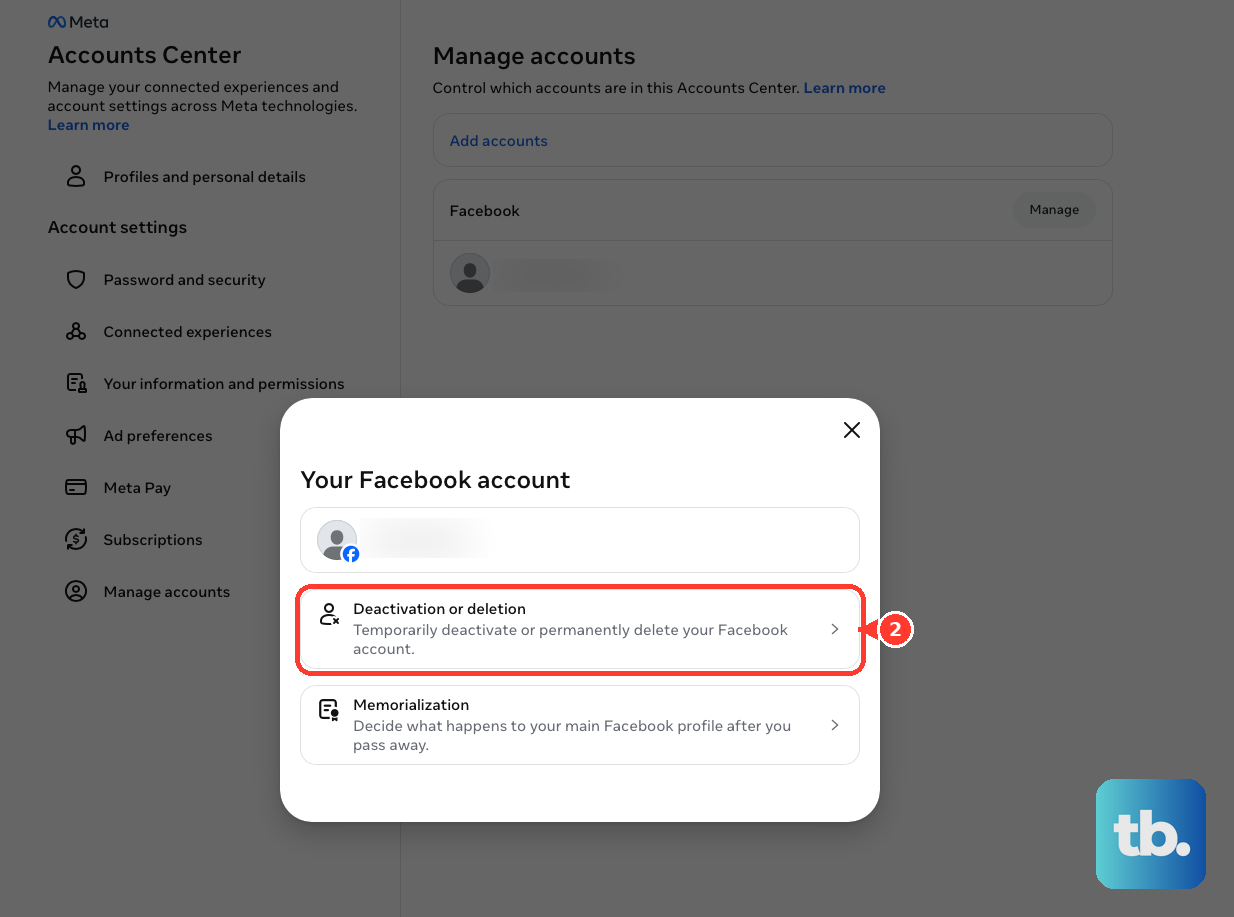
Tap Continue to Facebook account deactivation and deletion. Enter your password, then tap Continue.
If Messenger shows a different deactivation flow, follow the on-screen prompts there. Use deactivation only when you want to deactivate the account, not when you just want to sign out on one device.
Frequently Asked Questions
Can I remove every account from the Messenger app?
No. Messenger lets you remove additional saved accounts, but at least one account must remain in the app.
Does deleting Messenger sign me out everywhere?
No. Deleting or uninstalling Messenger removes local app access from that device. To log out other active sessions, use Accounts Center (or Meta Account, if that is the label your account shows) > Password and security > Where you're logged in.
Can I still sign out of the old Messenger desktop app?
No. The Messenger desktop app for Mac and Windows is no longer available, so current desktop use goes through a web browser.
How do parents log a child out of Messenger Kids?
In the Facebook app, go to Menu > Messenger Kids > the child's name below Messenger Kids Accounts > Controls > Log Out of Devices.