
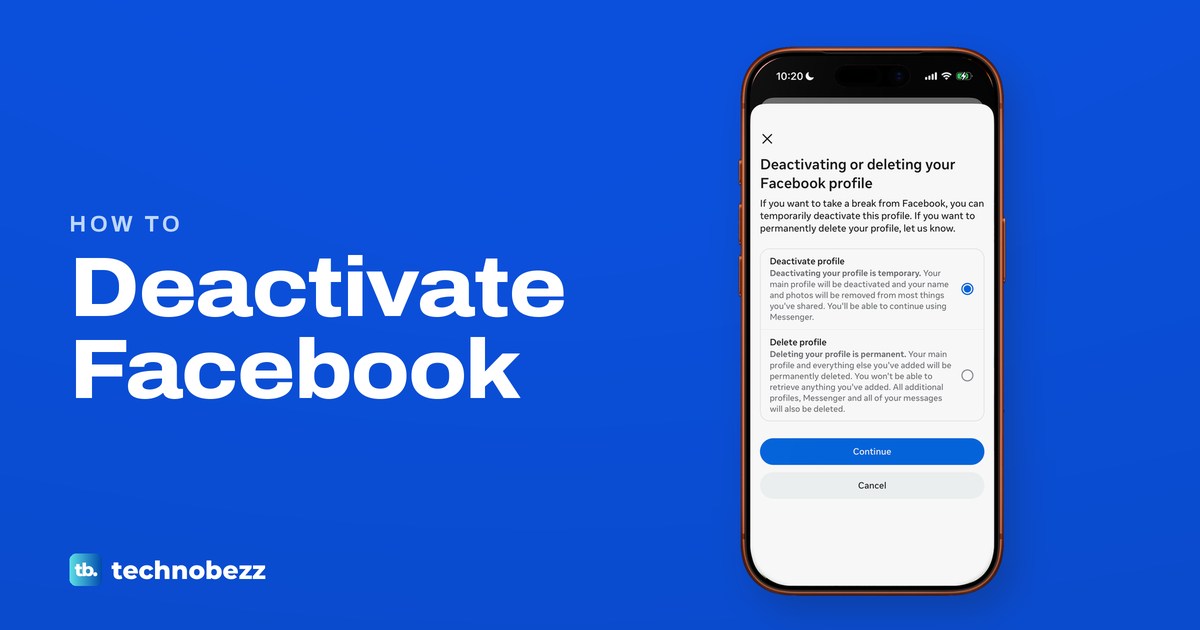
To deactivate your Facebook account temporarily, go to Deactivation or deletion in Meta Account (still called Accounts Center on some accounts), choose Deactivate profile, tap Continue and follow the confirmation screens. In the app, the way there is the Menu, Settings and privacy, Settings, Meta Account, Manage account and Manage next to Facebook. Your profile is hidden while deactivated, and choosing Don't reactivate automatically keeps it that way until you log back in.
Three things catch people out. Pages you manage on your own that aren't in a business portfolio are switched off with your profile, Messenger stays active if you keep it or are logged in to it when you deactivate, and logging back in ends the break. On the Facebook app on our iPhone 17 Pro with iOS 26.6, the deactivation screens also offered to switch the profile back on by itself after 1 to 7 days, with 7 days already selected.
The short version
- Path: Settings and privacy, Settings, Meta Account or Accounts Center, Manage account, Manage, Deactivation or deletion.
- Choose: Deactivate profile is temporary. Delete profile is the permanent one.
- Timer: after we picked This is temporary as the reason, automatic reactivation in 7 days was already set. Change it to Don't reactivate automatically to stay away until you log in.
- Pages: give someone full control first, or Pages you manage alone outside a business portfolio go dark too.
- Messenger: it stays active if you keep it or are logged in to it when you deactivate. Turn it off in the Messenger app afterwards.
Where to deactivate Facebook on each device
The way in starts from a different button on each device, and the hub can be laid out in two ways. The first row is what we followed on our iPhone; the others follow Meta's Help Center.
| Where you are | Where to start | Then |
|---|---|---|
| Facebook app on an iPhone | Menu at the top left, Settings and privacy, Settings | Meta Account or Accounts Center > Manage account > Manage > Deactivation or deletion |
| Facebook app on Android | Menu, Settings & privacy, Settings | Accounts Center or Meta Account > Manage accounts > Manage, or Personal details > Account ownership and control, then Deactivation or deletion |
| facebook.com on a computer | Your profile picture at the top right, Settings & privacy, Settings | Meta Account or Accounts Center at the top left > Manage account or Manage accounts > Manage > Deactivation or deletion |
| Facebook in a phone browser | Menu at the top right, Settings & privacy, Settings | Accounts Center or Meta Account > Manage accounts > Manage, or Personal details > Account ownership and control, then Deactivation or deletion |
| Older layout with Accounts at the bottom | Accounts Center | Personal details > Account ownership and control > Deactivation or deletion |
| Messenger, after Facebook is off | Messenger app, Menu, Settings, Accounts Center | Manage accounts > Manage > Deactivation or deletion, then pick the account |
| One Page, not your profile | Switch into the Page on a computer, Settings & privacy, Settings | Access and control > Deactivate Page |
Deactivate Facebook in the iPhone app
Start from your main profile. If you use Facebook as a Page, switch back first: when our app was in a Page profile, Settings & privacy showed only a card reading "Switch to your main profile to change these settings" with a Switch profiles button.
On our iPhone the Menu button, three short lines, sat at the top left of Facebook's Home feed. Tap it, scroll down, tap Settings and privacy so the section opens, then tap Settings.
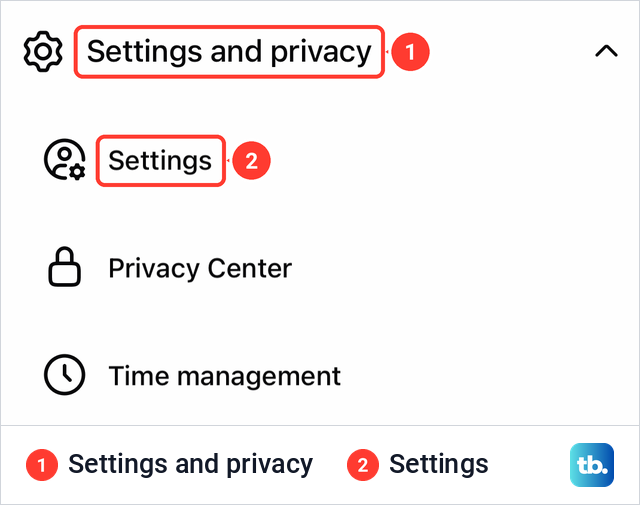
The Settings & privacy page opened with a section called Your account. On our Facebook login its first row was Meta Account, described as password, security, personal details, cross-profile experiences, ad preferences and verification. If your row says Accounts Center instead, tap that and look for Manage accounts at the bottom, or for Personal details and Account ownership and control on the older layout.
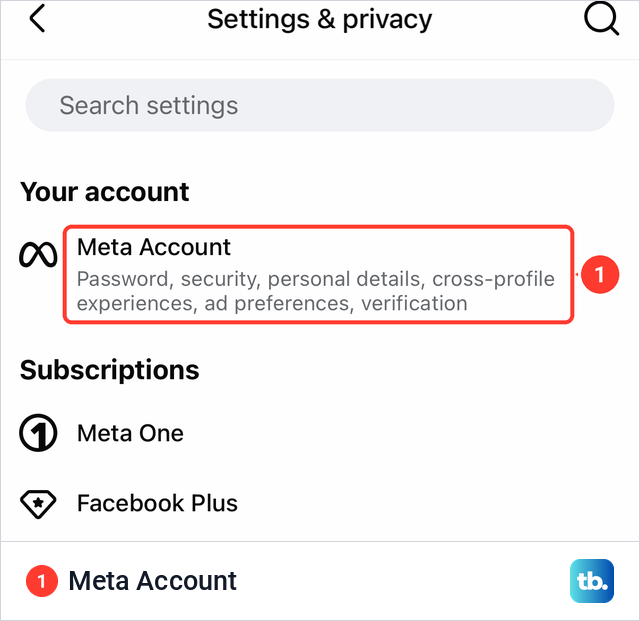
Meta Account opens as a sheet with a list of settings. Ours first showed a pop-up inviting us to add profiles from other Meta apps, which we closed with the X. Scroll to the bottom and tap Manage account, which lists every profile in the account with its own Manage button. Tap Manage next to Facebook.
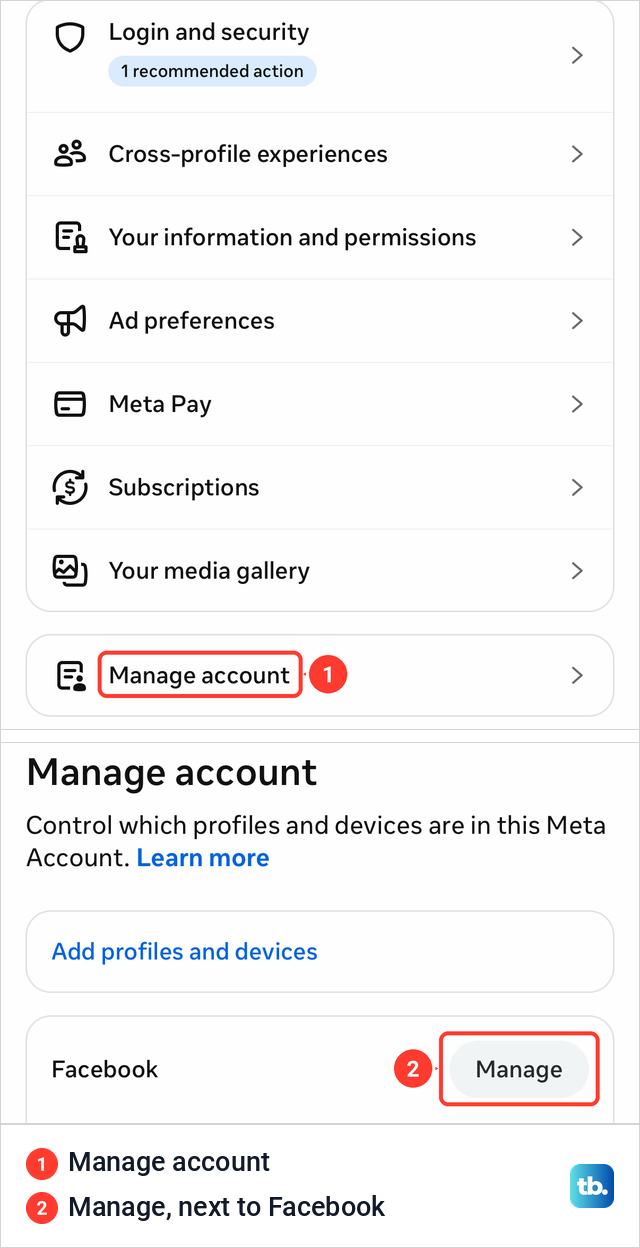
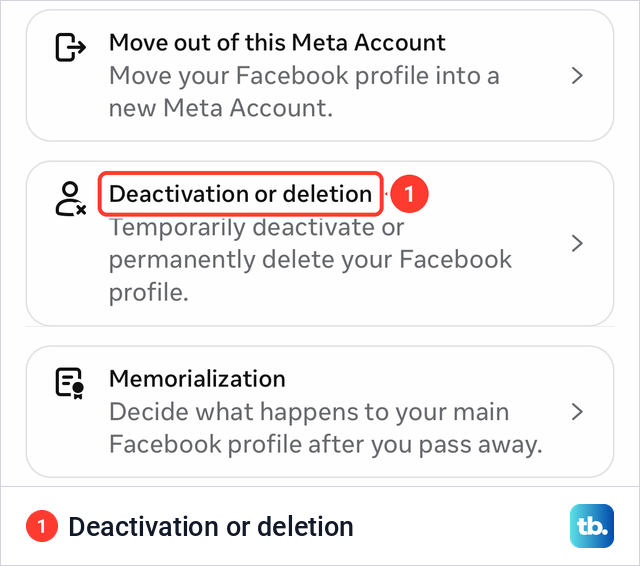
The Facebook screen held three rows: Move out of this Meta Account, Deactivation or deletion and Memorialization. Its subtitle reads "Temporarily deactivate or permanently delete your Facebook profile" and it covers both, so tap it either way.
The next screen, Deactivating or deleting your Facebook profile, offers two options, and Deactivate profile was already selected when it opened on our iPhone. Its note says deactivating is temporary, that your name and photos "will be removed from most things you've shared", and that you'll be able to continue using Messenger. Leave it selected and tap Continue.
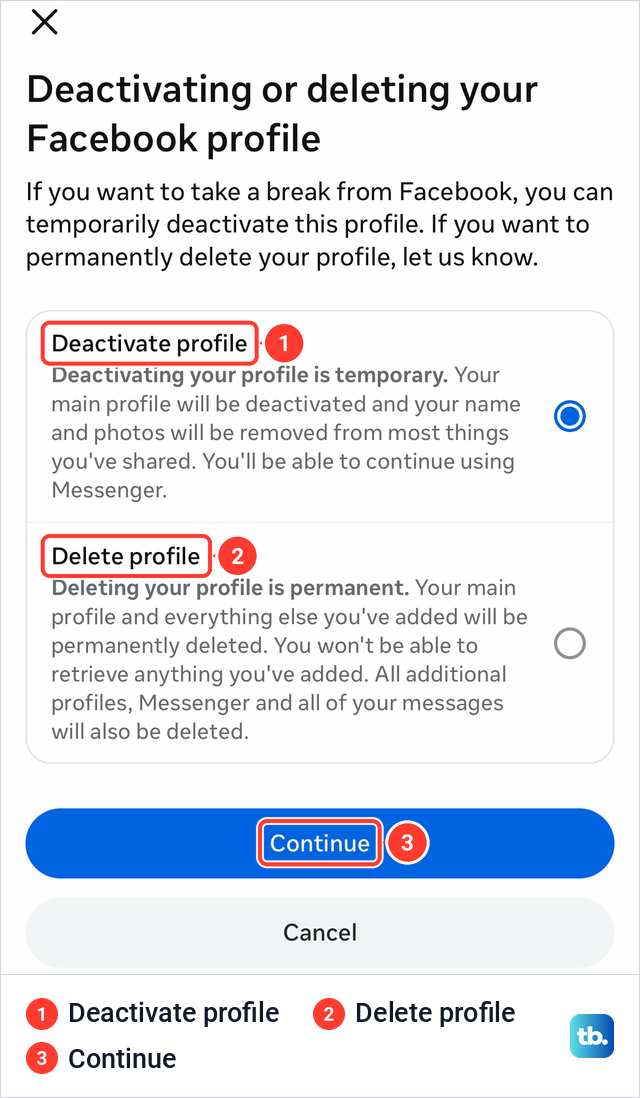
The second option, Delete profile, is the one to avoid if you only want a break. Its note says everything you have added will be permanently deleted, and that "All additional profiles, Messenger and all of your messages will also be deleted." Meta's Help Center adds that copies of messages you sent stay in your friends' inboxes. Meta's own steps call these options Deactivate account and Delete account, so either name means the same choice.
The screens before the final button
Meta's Help Center ends its steps with "follow the instructions to confirm" and leaves the rest to the screens. On our iPhone that meant up to four more screens, and the first one only matters if you run a Page.
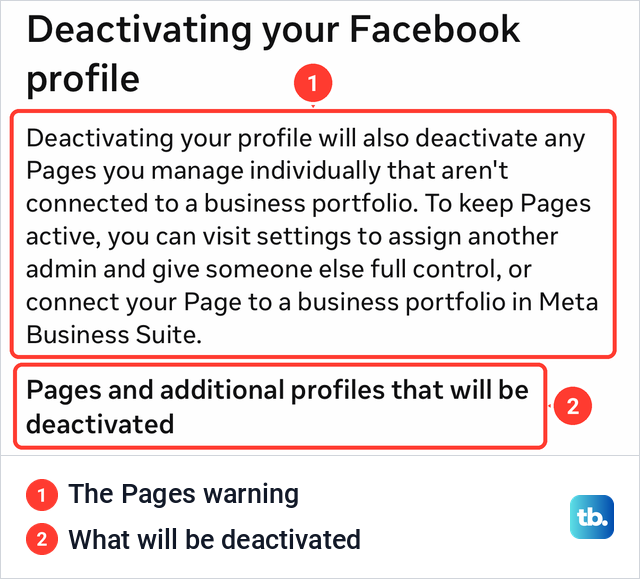
If you manage Pages, expect a warning headed Deactivating your Facebook profile. Ours read: "Deactivating your profile will also deactivate any Pages you manage individually that aren't connected to a business portfolio." Under it was a list headed Pages and additional profiles that will be deactivated. The section on Pages below explains how to keep one running.
After Continue, a screen called We may be able to help asked why we were leaving and listed ten reasons. We picked This is temporary, the first one, and tapped Continue at the bottom of the list.
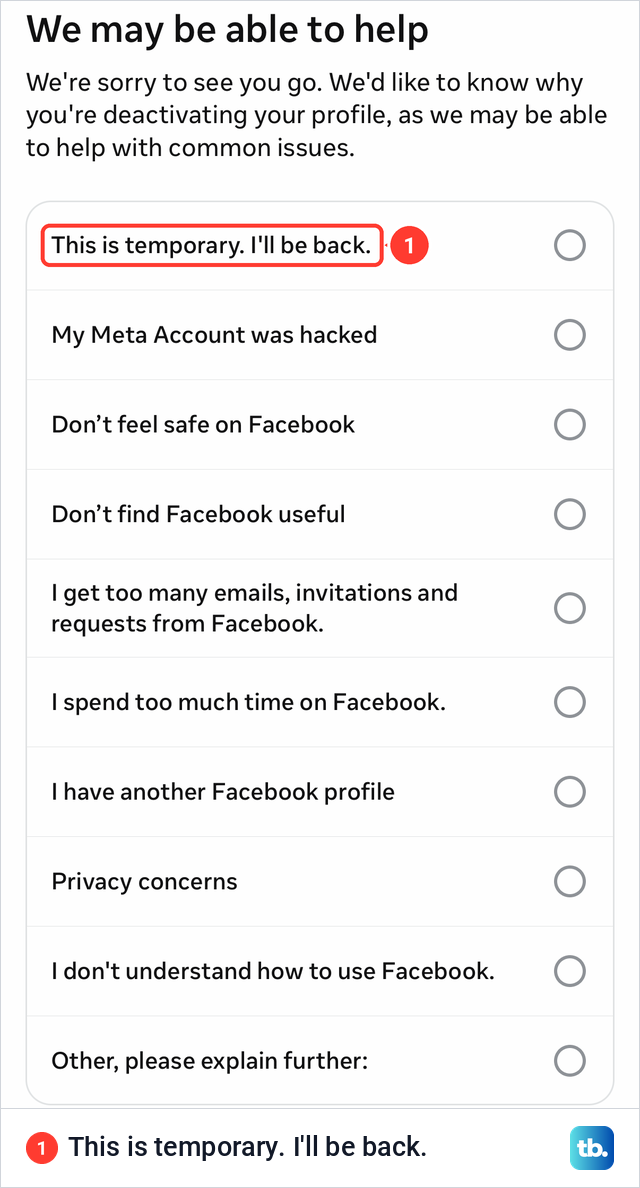
The other reasons include My Meta Account was hacked and Privacy concerns. If a break is not really what you need because someone else got into your account, secure your hacked Facebook account first, since someone who can sign in to your account can reactivate it.
The next screen, Before you deactivate, offered two alternatives before the timer described in the next section. The first asks whether you want to log out instead, with a Log out link, because logging out keeps your profile visible. The second suggests moving posts you no longer want to show into your archive, which hides them without deleting them.
Choose when your profile comes back
At the bottom of Before you deactivate, under Automatically reactivate your Facebook profile, Facebook offers to switch the profile back on for you. In its words, it can "automatically reactivate your profile for you" and make it "active and enabled again".
The box below it, Automatically reactivate my profile in, read 7 days when the screen opened. Tapping it opened a list headed Reactivate this profile in, with 1 day to 7 days and, at the bottom, Don't reactivate automatically. Choose that last option and tap Done if you want the profile to stay hidden until you log in yourself.
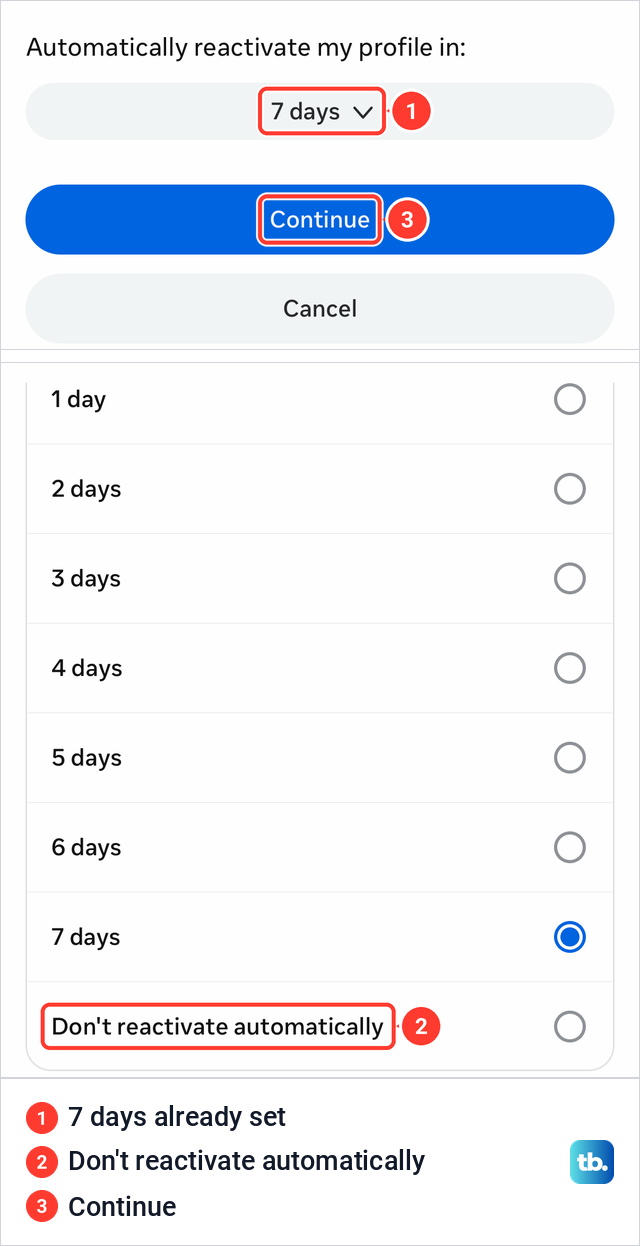
On our iPhone this choice came before the password prompt, not after it, so you can see and change it without committing to anything. The same text says you can still come back sooner "at any time by logging into Facebook or through your Meta Account settings" if you change your mind.
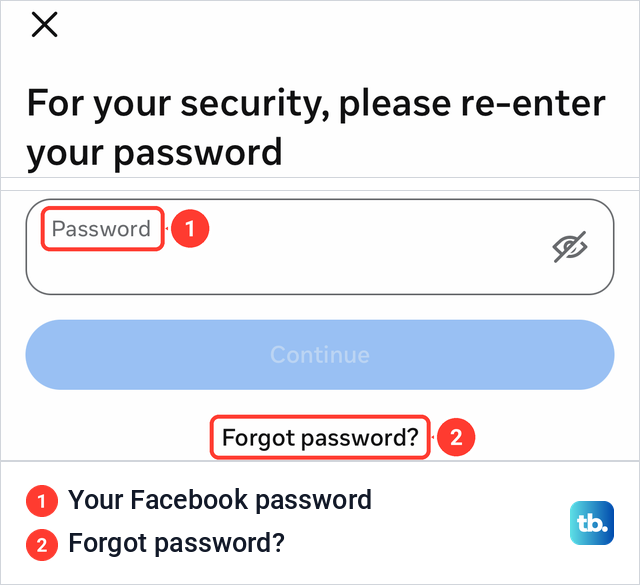
Tapping Continue brought up "For your security, please re-enter your password" with a Password field, a Continue button and a Forgot password? link. If you no longer know the password, use that link, and if the reset email or code never arrives, our fixes for when Facebook password reset is not working cover it. After the password, Meta's Help Center says to follow the on-screen instructions to confirm.
Deactivate Facebook on a computer
On facebook.com, Meta's steps are to click your profile picture in the top right, select Settings & privacy, then click Settings. Click Meta Account or Accounts Center at the top left of the screen, whichever your account shows. If you see Manage account or Manage accounts at the bottom of it, click that, then Manage next to your Facebook profile.
Click Deactivation or deletion, choose the account or profile you want to deactivate, select Deactivate account and click Continue. Meta's last step is to follow the instructions to confirm.
Some accounts still have the older layout with Accounts at the bottom. On those, Meta's route is Personal details, below Account Settings, then Account ownership and control, then Deactivation or deletion.
Deactivate Facebook on an Android phone
Meta's Android steps start from the Menu, then Settings & privacy and Settings, then Accounts Center or Meta Account. From there they go through Manage accounts and Manage, or through Personal details and Account ownership and control on the older layout.
Meta's own Android pages disagree on where the Menu button sits, so look for the Menu button, three short lines, near the top of the app. From Deactivation or deletion, Meta's steps are to choose the account or profile, tap Deactivate account and Continue, and follow the instructions to confirm.
Meta Account or Accounts Center
Meta is renaming Accounts Center to Meta Account, one person at a time. Meta's Help Center articles on deactivating and deleting now open with the same notice: "We're gradually updating people to Meta Accounts. You may see either Accounts Center or Meta Account settings as the place to manage your account settings."
We saw both at once on the same iPhone. Our Facebook login showed Meta Account, while the Instagram app, signed in with a different login, still showed Accounts Center, with a banner about "the upcoming update to Meta Accounts" at the top.
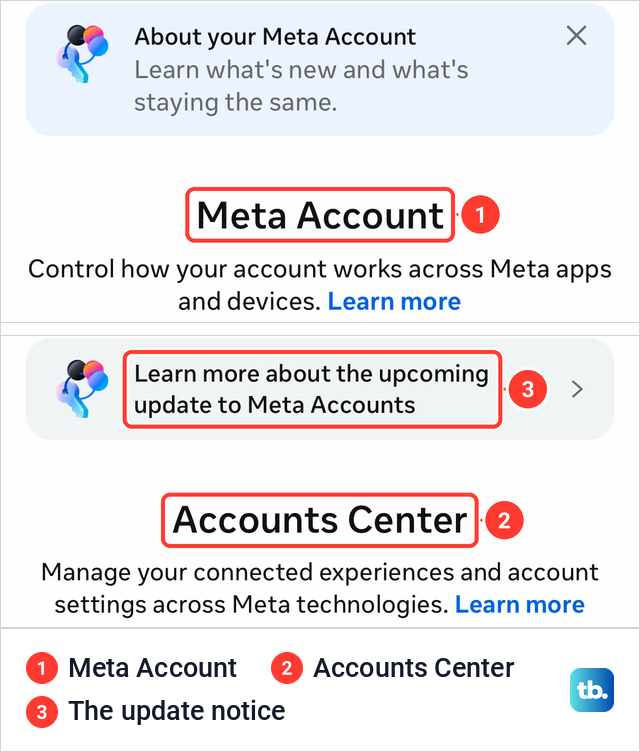
Both lead to the same place. Meta Account ended in Manage account and the Accounts Center in Instagram ended in Manage accounts, each followed by a Manage button and a Deactivation or deletion row. If Instagram sits in the same account, it appears in that list with its own Manage button, so deactivating Facebook does not choose it for you. To take a break from both, deactivate your Instagram account separately.
Deactivating or deleting, which one you want
Deactivating is a pause and deleting is the end. The table compares them, from Meta's descriptions and the notes on the choice screen.
| What happens | Deactivate | Delete |
|---|---|---|
| Your profile | Hidden, people can't see your timeline or search for you | Gone for good once the cancellation window ends |
| Photos, posts and videos | Kept | Deleted |
| Undo | Log back in at any time, or let the timer bring it back | Log in and cancel within 30 days, a window that varies by region |
| Messenger | Keeps working if you keep it or are logged in to it | Deleted too, though Meta says friends keep copies of messages you sent |
| Pages you manage alone, outside a business portfolio | Deactivated | Deleted |
| Logging in to other apps with Facebook | Doing it switches your profile back on | No longer possible |
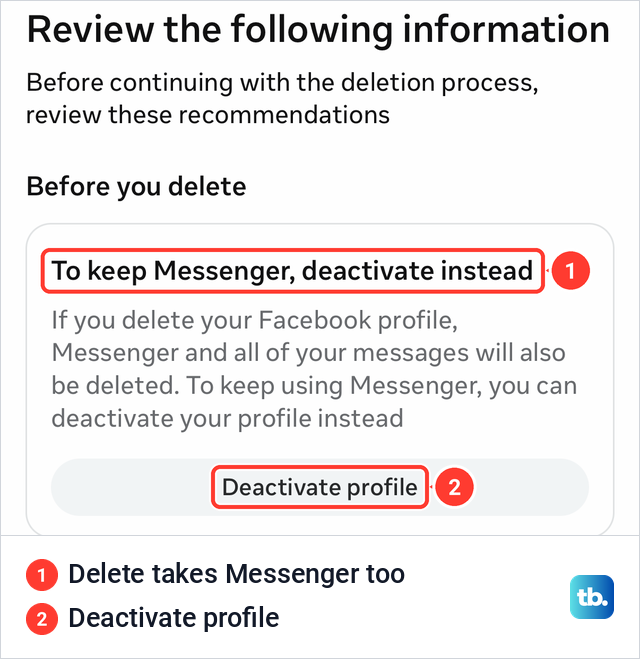
When we looked at the delete path, its Review the following information screen made the same point about Messenger. Its first card was headed "To keep Messenger, deactivate instead" and offered a Deactivate profile button right there.
If you want the account gone for good, you need to permanently delete your Facebook account, which starts from the same Deactivation or deletion screen. Meta says it can take up to 90 days from the start of deletion to remove everything you posted. Within the cancellation window you can still get a deleted account back by logging in.
What people see while you are deactivated
Meta says no one else can see your profile while it is deactivated, and people can't search for you on Facebook (Messenger is different, see below). A few traces stay. Messages you sent may still be visible to the people you sent them to, your friends may still see your name in their friends list, and group admins may still see your posts and comments along with your name.
Your content is kept. Meta says your photos, posts and videos are not deleted, and your Meta Account itself stays active. You also can't use Facebook to access Meta Quest products or your Meta Quest information while your profile is deactivated.
Keep Messenger or turn it off too
Messenger does not go quiet on its own. Meta says it remains active if you choose to keep it or are logged in to Messenger when you deactivate, and the choice screen on our iPhone promised the same: you'll be able to continue using Messenger.
While it stays on, you can still chat with friends, your Facebook profile picture still shows in your conversations, and other people can search for you to send a message. Meta adds that using Messenger will not reactivate your Facebook account, and that Parental Supervision is not available in that state.
To switch Messenger off as well, Meta says you must deactivate Facebook first, and that this can only be done on a mobile device. Meta's iPhone steps in the Messenger app are to tap Menu, then Settings, Accounts Center, Manage accounts and Manage next to the account, then Deactivation or deletion, and select the account you want to deactivate.
Then tap Continue to Facebook account deactivation and deletion, then Continue to account deactivation, enter your password and tap Continue. Meta's Android steps name those two buttons differently, Continue to Facebook account deactivation and then Continue to Facebook account deactivation and deletion. Meta also prints an older route through Accounts Center, Personal details and Account ownership and control, and says you bring Messenger back by logging in with your username and password.
If you only want Messenger off one phone rather than off for everyone, sign out of Messenger on that device instead. Your account stays as it is and people can still message you.
What happens to Pages you manage
Meta's rule is that Pages only you control are deactivated with your account, and people can't see them or find them in search. The warning on our iPhone was more precise: it covers Pages you manage individually that aren't connected to a business portfolio. To keep a Page running, it suggested giving someone else full control or connecting the Page to a business portfolio in Meta Business Suite.
Meta's computer steps for handing over control are to switch into the Page, then open Settings & privacy, Settings, Page setup and Page access. Next to People with Facebook access, click Add New, pick the person, give them full control and confirm with your password. Meta says the person then gets an email inviting them to accept, so wait until they have accepted and show with full control under People with Facebook access before you deactivate.
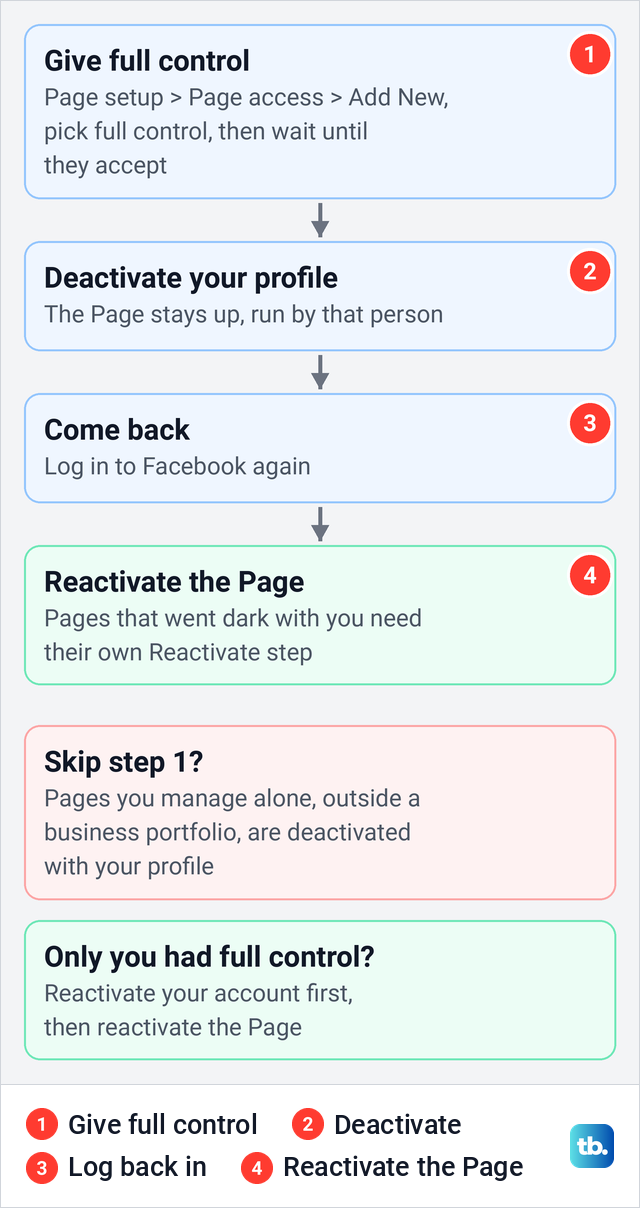
Do this before you leave if the Page needs to stay visible. If you are the only person with full control, Meta says the Page is deactivated with your profile, and you reactivate your Facebook account first, then each Page from your personal profile.
On a computer, Meta's route is to open Settings and click Reactivate a Page below Your activity. On an iPhone, Meta's steps are to tap Pages below Audience and visibility, then View next to Reactivate Your Pages, and on our iPhone Pages was listed in that Audience and visibility section.
To hide only one Page, Meta's computer steps are to switch into the Page, open Settings & privacy and Settings, then Access and control and Deactivate Page. Meta's iPhone steps name the same entry, but in a Page in our iPhone app we found no Deactivate Page option in its Page setup or Page access screens, so a computer is the surer route. To remove a Page for good, you can delete a Facebook Page instead, which Meta keeps for 14 days first.
Extra profiles follow the same logic. Meta says that if you deactivate your Facebook account, every additional profile under it is deactivated too, and the warning list on our iPhone was headed Pages and additional profiles that will be deactivated. Meta lets you deactivate an extra profile on its own from Account ownership and control.
How to reactivate Facebook
Meta says you can reactivate at any time by logging back in to Facebook, or by using your Facebook account to log in somewhere else, and the screen on our iPhone added your Meta Account settings as a third way. If you set a timer, the profile also returns on its own when the days run out.
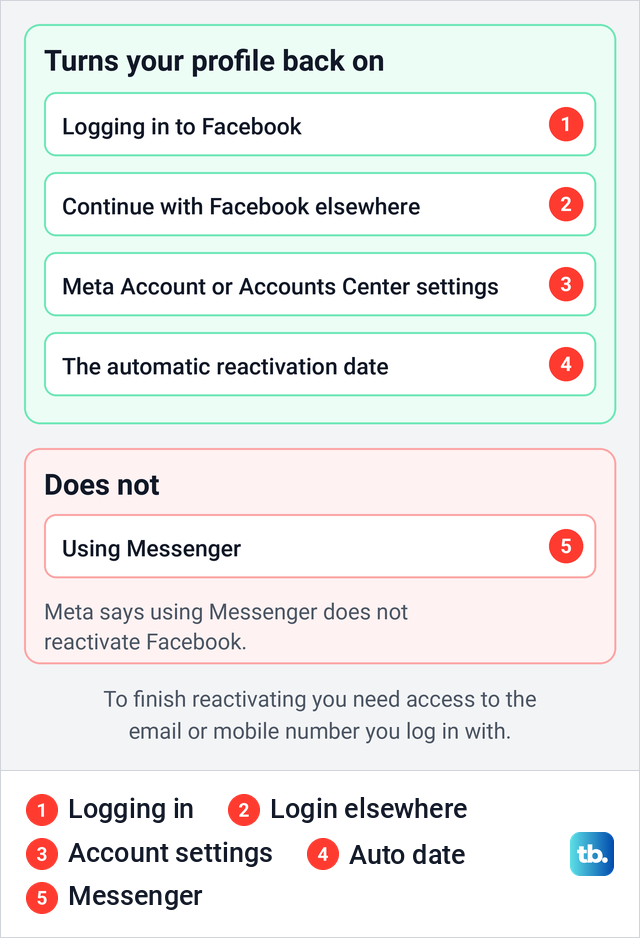
Meta notes that you need access to the email address or mobile number you log in with to complete the reactivation. If you have lost both, you may still be able to recover your account without the phone number or email. If Instagram is in the same Accounts Center, Meta also lets you reactivate Facebook from Instagram's Accounts Center.
The flip side catches people taking a break. Logging back in to Facebook, or using Continue with Facebook on a game, music or shopping app, switches your profile back on. Before you go, switch any app you sign in to with Facebook over to an email login, and log out of Facebook on your other phones and computers so a saved login is not one tap away.
When Deactivation or deletion is missing
First check which label your account has, because Meta is moving people over one by one and older guides only mention Accounts Center. Look for Meta Account or Accounts Center at the top of Settings & privacy. The entry sits under Manage account or Manage accounts, then Manage, or under Personal details and Account ownership and control on the older layout.
If Settings & privacy shows a card asking you to switch to your main profile, you are using Facebook as a Page, so tap Switch profiles and start again. In Messenger, the deactivation option only appears once Facebook itself is deactivated, so do Facebook first.
A message reading We suspended your account or We disabled your account is something else entirely: Meta acted, not you. You can appeal a suspended Facebook account within 180 days, a period Meta says varies by region. Once an account is permanently disabled, Meta says you can't request another review.
Lighter ways to take a break
Deactivating hides your profile, which can be more than you need. Facebook's own Before you deactivate screen points to the gentlest option, logging out, which keeps your profile visible while you take a break.
If strangers are the problem, lock your Facebook profile so only friends see your posts and photos. A profile in professional mode can't do this: ours showed "Profiles in professional mode can't turn on locked profile" with the Lock your profile button greyed out.
If the constant buzzing is what wears you down, stop Facebook notifications and keep the account as it is. To stay reachable without looking available, turn off your active status, and when one person or Page is the reason you want out, snooze someone on Facebook instead.
How we tested this guide
We tested this in the Facebook app on an iPhone 17 Pro with iOS 26.6, going through the deactivation screens, stopping at the password prompt.
Frequently Asked Questions
How long can you keep Facebook deactivated?
Meta does not state a limit and says you can reactivate at any time by logging back in. On our iPhone, after we picked This is temporary as the reason, the screens offered an automatic return after 1 to 7 days with 7 days already selected, so choose Don't reactivate automatically if you want an open-ended break.
Will deactivating Facebook delete my photos and posts?
No. Meta says your photos, posts and videos are not deleted. They are hidden while you are away and come back when you reactivate.
Can people still message me after I deactivate Facebook?
Yes, if Messenger stays on. Friends can message you and people can search for you to send a message. Deactivate Messenger in the Messenger app after Facebook to stop that.
What do my friends see when I deactivate?
Not your profile. Your name may stay in their friends list, and messages you sent may still be visible to them. Group admins may still see your posts and comments.
Does deactivating Facebook deactivate Instagram?
Not on its own. Facebook and Instagram each have their own Manage button in Meta Account or Accounts Center, and the deactivation applies to the profile you pick. Deactivate Instagram separately if you want both off.
Does deleting the Facebook app deactivate my account?
No. Removing the app or logging out leaves your profile live and visible. Only Deactivation or deletion in Meta Account or Accounts Center hides it.
Why does my deactivated Facebook account keep coming back?
Logging back in to Facebook, or using Continue with Facebook on another app or site, reactivates the account. The automatic reactivation timer does the same if it was left on.