You want fewer creepily specific ads on Facebook, and you want Meta to stop quietly building a profile of you from everywhere else you browse and shop. The good news is that almost all of this is controllable from settings you own, on both desktop and your phone.
Two things to set expectations first. None of these steps remove ads entirely; they make ads less personalized while Meta can still use signals like your age, location, and the page you are on. And turning off tracking inside Facebook's apps is separate from stopping cross-app tracking on your phone, so you will want to do both.
The steps below are ordered quickest and most impactful first. Most of the heavy lifting happens in one place called Accounts Center, which controls Facebook and any linked Instagram account together.
Disconnect Your Future Activity Off Meta Technologies
Historically this was the single biggest lever, but note that Meta is discontinuing the "Your activity off Meta technologies" setting in the US and a number of other countries starting July 2026, folding these controls into the expanded "Activity from other businesses" setting, so this exact option may no longer appear on your account. Where it is still available, businesses that use Meta's tracking tools send Meta what you do on their sites and apps (pages viewed, items added to cart, purchases) even when you are not on Facebook. Disconnecting future activity stops Meta from linking that incoming data to your account.
- 1.Click your profile picture (top right) and select Settings & privacy.
- 2.Click Settings.
- 3.Click Accounts Center, then Your information and permissions.
- 4.Click Your activity off Meta technologies.
- 5.Click Manage future activity.
- 6.Click Disconnect future activity, click Continue, then confirm.
Two things worth knowing before you confirm. Disconnecting future activity for all apps and websites also clears your past activity automatically, so you cover both at once. It can also log you out of any app or site you signed into using Facebook Login, so you may need to sign back into those.
If you would rather keep most connections and only cut one, use Disconnect specific activity from the same page, re-enter your password if asked, pick the app or website, click Continue, then Confirm.
Review and Clear Your Past Off-Site Activity
If you only want to wipe what has already been collected without changing future behavior, you can clear past activity on its own. First, it helps to see who has been sending your data.
Go to Settings & privacy > Settings > Accounts Center > Your information and permissions > Your activity off Meta technologies.
Then confirm your password if prompted, then review the list of businesses that shared activity; select any item to see details.
After that, select Clear previous activity (sometimes shown as clearing history), then confirm by clicking Clear.
Remember that clearing only unlinks this data from your profile. Meta states it may still retain off-site activity in aggregated or de-identified form for measurement and to improve its ad systems.
Turn Off Activity Information From Ad Partners
This is a separate data stream from off-site activity. Advertisers and data partners can send Meta information about you, including uploaded customer lists, which Meta then uses to target ads to you on Facebook. You can tell Meta not to use it.
Click your profile picture and select Settings & privacy > Settings.
Next, click Accounts Center, then Ad preferences.
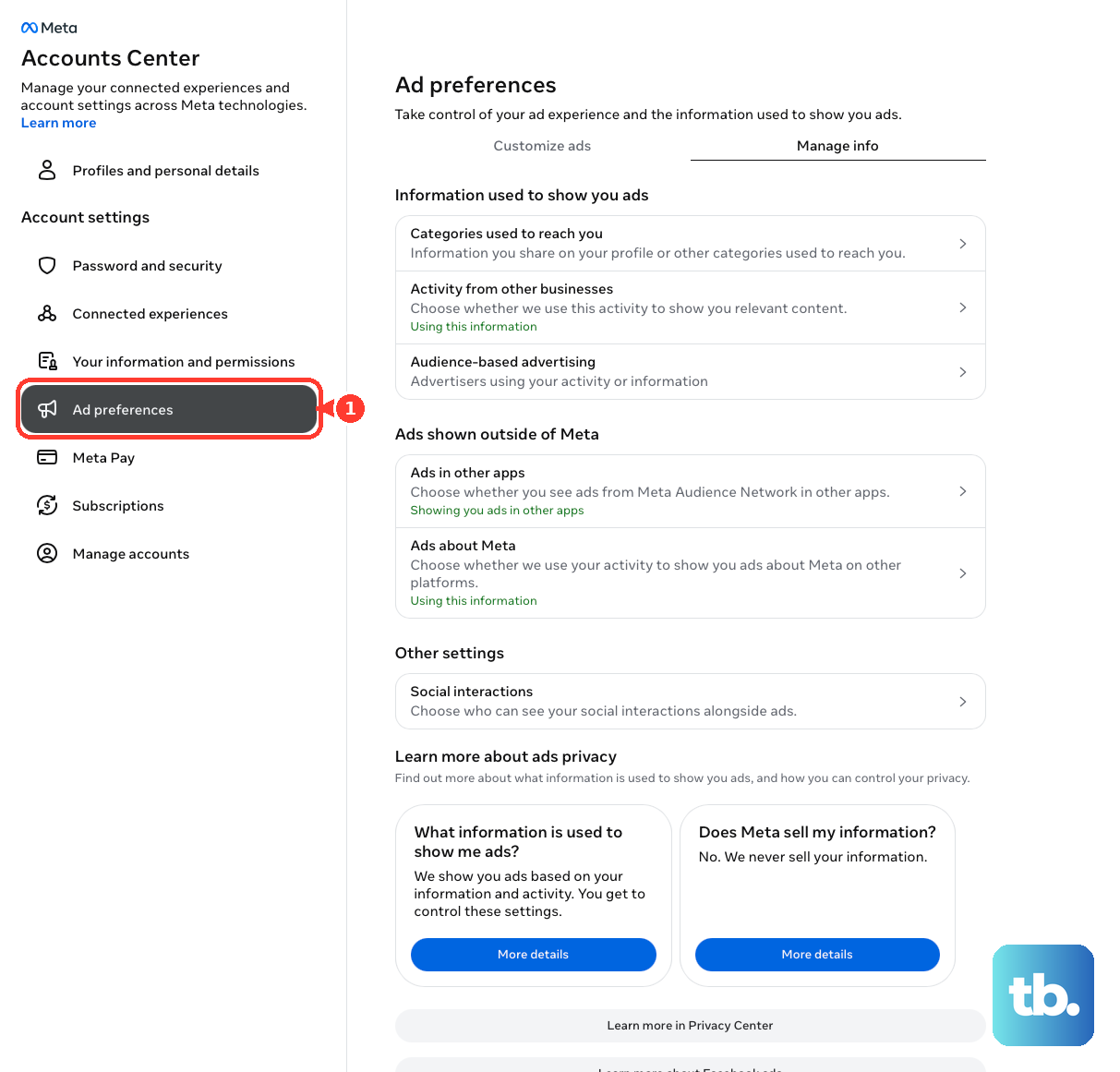
From there, click Ad settings, then Activity information from ad partners.
Finally, click Review setting, choose the option to not use this information to make your ads more relevant, then click Confirm.
If your account uses an older layout without Accounts Center, the same control lives under Settings > Ads > Ad settings > Activity information from ad partners. Note that this choice applies to every account linked in the same Accounts Center, so a linked Instagram account is affected too.
Trim On-Facebook Interests, Advertisers, and Ad Topics
Your own activity on Facebook (likes, clicks, Pages followed, searches, profile info) also feeds personalization. You can review and prune these inputs from the Ad preferences hub.
Open Settings & Privacy > Settings > Accounts Center > Ad preferences (or Ads in the left menu on the older layout).
Once there, review Advertisers (who has shown you ads) and the interests under Categories used to reach you, and remove any you do not want influencing ads.
Use Ad settings to manage the partner and off-site data toggles described above.
To suppress specific sensitive categories, open Ad preferences > Ad topics, click a topic you want fewer ads about (Meta lists examples such as alcohol, gambling, parenting, and pets), then click See less. A "See less" choice also applies across all accounts in the same Accounts Center.
Do the Same Steps Inside the Facebook Mobile App
The mobile app shares the same Accounts Center surface as the web, so the labels match. This is useful if you primarily use Facebook on a phone.
In the Facebook app, tap the menu, then Settings & privacy > Settings.
Next, tap Accounts Center.
Use Ad preferences for Ad topics and Activity information from ad partners.
Use Your information and permissions > Your activity off Meta technologies for the disconnect and clear actions.
You can also reach all of this in a browser at accountscenter.facebook.com, where Account settings holds both Ad preferences and Your information and permissions.
Stop Cross-App Tracking on iPhone or iPad
On iOS, the advertising identifier (IDFA) lets the Facebook app track you across other companies' apps and websites. App Tracking Transparency shuts that down. Note this limits cross-app tracking only; it does not stop Facebook from tracking what you do inside its own apps.
Open Settings > Privacy & Security > Tracking.
To stop one app, find Facebook in the list and turn its toggle off.
To block every app from even asking, turn off Allow Apps to Request to Track; every app is then treated as if you tapped Ask App Not to Track.
When you turn off the master setting, you can choose to ask previously allowed apps to stop, or let them continue. When any app prompts you in future, tap Ask App Not to Track to deny IDFA access.
Reset or Delete Your Advertising ID on Android
On Android, the Google Advertising ID plays the same cross-app tracking role. You can delete it outright or reset it.
Open Settings > Privacy > Ads.
Then tap Delete advertising ID and confirm to remove it entirely; on Android 12 and later, no new ID is assigned.
Or tap Reset advertising ID and confirm to replace it with a fresh one.
On older Android versions, go to Settings > Privacy > Advanced > Ads and enable Opt out of Ads Personalization. The exact path can differ by manufacturer skin and Android version, and individual apps may still have their own ad settings that affect what you see.
Cut Off New Tracking Connections at the Source
Using "Continue with Facebook" on a third-party app or website creates a data-sharing connection that becomes one of the sources feeding your off-Meta activity. Going forward, prefer signing up with an email address instead of Facebook Login.
Be aware that removing existing Facebook Login connections can cause loss of saved data in those apps, such as game scores or posts, so review what you might lose before disconnecting. Also note that DNS or network-level ad blockers cannot stop first-party tracking inside the Facebook app; reducing in-app personalization requires Facebook's own settings, and browser ad blockers only help on the web.
Frequently Asked Questions
Will any of this stop ads from appearing on Facebook?
No. Turning off personalization makes ads less personalized, not gone. Meta can still use your age, location, and contextual signals, and advertisers can still target you using your Facebook activity or uploaded customer lists.
How fast does disconnecting future activity take effect?
It is not instant. Future off-site activity is only disconnected within 48 hours from when Meta receives it, and your data may still be used during that window.
Do I have to repeat these changes on Instagram?
If Instagram is linked in the same Accounts Center, no. Controls like Activity information from ad partners and "See less" on Ad topics apply to every linked account, so changing Facebook changes the linked Instagram too, and vice versa.
Does App Tracking Transparency or resetting my Advertising ID stop Facebook entirely?
No. Those controls only limit cross-app and third-party tracking. They do not stop Facebook from tracking your behavior inside its own apps, which is why you also adjust the in-app ad settings.
If I clear past activity, is my data really gone?
Clearing or disconnecting only unlinks the activity from your profile. Meta states it may still keep that off-site activity in aggregated or de-identified form and use it for measurement and to improve its ad systems.
Why does the "Activity information from ad partners" setting sit in a different place for me?
There are two layouts. In the current Accounts Center it is under Ad preferences > Ad settings. In an older layout it is under Ads in the left settings menu. The path simply depends on which interface your account has.