Your friends are messaging you about a strange link you never sent. You are getting login alerts from a city you have never visited. Or worse, your password no longer works and you are locked out entirely. These are the classic signs that someone else has gotten into your Facebook account.
Once you regain control, replace the old password with one that cannot be guessed. A free password generator creates a long random password locally in your browser, and nothing you generate ever leaves your device.
The good news: Facebook has a dedicated recovery path, and many people regain control within minutes. Harder cases, especially when an attacker has changed your contact details, can take longer, up to roughly 7 to 10 days. This guide walks you through confirming the hack, ending the intruder's access, and locking the account down so it does not happen again.
Work through the sections in order. The fastest, most common actions come first.
Confirm Your Account Was Actually Hacked
Before changing anything, verify the signs of compromise so you know what you are dealing with. Watch for notifications or emails about logins you did not make, or that your email, phone, password, name, or birthday was changed.
You are suddenly logged out of all devices, or you can no longer log in because your credentials were changed.
Your profile name or picture changed on its own, or the recovery email and phone in your About section were altered.
Posts, comments, likes, friend requests, ads, or Messenger messages you did not create.
Friends report odd messages from you, often with suspicious links or requests for money.
Your two-factor authentication method stops working unexpectedly.
If any of these apply, treat the account as compromised and move quickly.
Check Where You Are Logged In
This is the fastest way to see if an intruder still has an active session. Facebook lists the devices and locations currently signed in to your account.
Open Facebook and go to Settings and privacy > Settings.
Open Accounts Center (the direct address is accountscenter.facebook.com).
Select Password and security.
Under the security checks, select Where you're logged in.
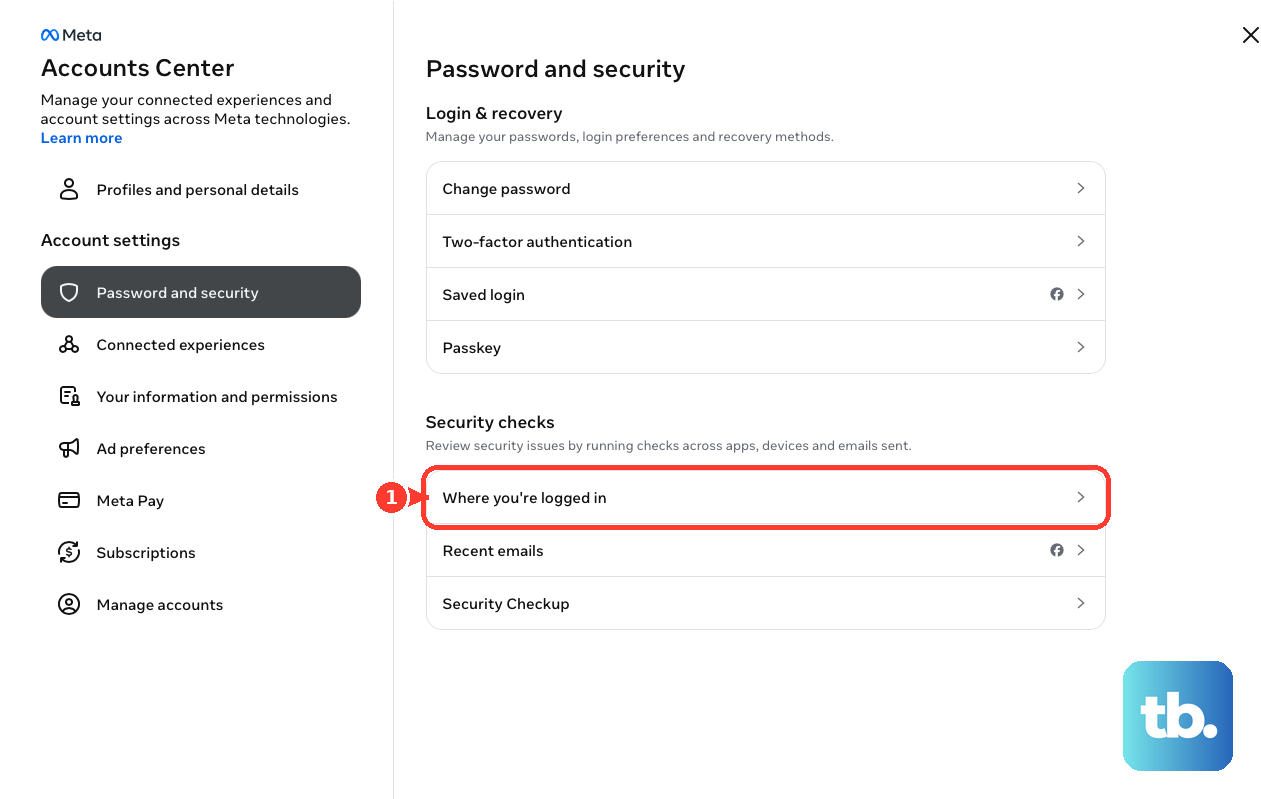
Select your Facebook account to see the devices and locations signed in.
Look for any unfamiliar device or an unexpected, far-flung location. If you see one, you are likely dealing with a live intrusion, so continue immediately.
Change Your Password and Log Out All Other Sessions
If you can still log in, change your password right away. This is your single most important move, but only if you do it correctly. A password change on its own may not evict an attacker who is holding a stolen session cookie, so you must also force every other session to log out at the same time.
Open Settings and privacy > Settings, then Accounts Center.
Select Password and security, then Change password.
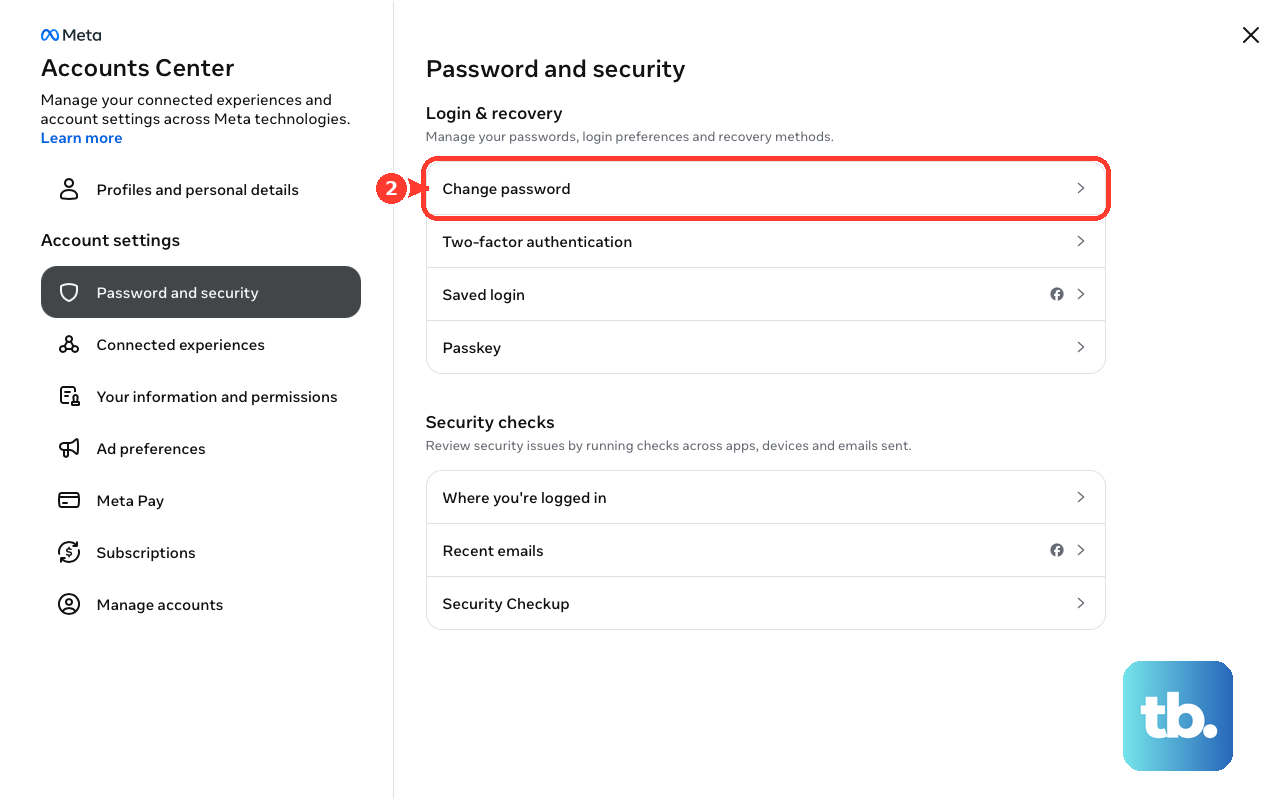
Select your Facebook account.
Enter your current password, then enter a new strong password twice.
Choose the option to log out of all other sessions and devices. Do not skip this.
Save the change.
Use a long, unique password you have never used elsewhere. Password reuse is one of the most common ways accounts get taken over in the first place.
Manually Log Out the Unrecognized Devices
If you want to remove specific intruder sessions directly, do it from the same screen you used to spot them.
Go to Accounts Center > Password and security.
Under the security checks, open Where you're logged in and select your account.
Use the option to select devices to log out.
Mark the unrecognized devices, or select all of them.
Log out and confirm.
On the iOS or Android app, the path is Menu > Settings and privacy > Settings > Accounts Center > Password and security > Where you're logged in. Tap your account, then either log out a single device from the list or use the option to select several and log them out at once.
Recover an Account You Are Locked Out Of
If the attacker changed your password and you cannot log in, use Facebook's official recovery flow. Start on a device, browser, and network you have used to log into Facebook before; recovery is far more reliable that way.
- 1.Go to facebook.com/hacked.
- 2.Identify your account by entering an associated email or phone number. If you cannot find it, use facebook.com/login/identify.
- 3.When your account appears, start the recovery and choose where to receive a verification code (such as email or phone).
- 4.Enter the code and continue.
- 5.When offered, set a new password.
- 6.If your login info was changed, choose the option indicating someone else changed your details or is using your account, then complete identity verification.
That identity check may include a video selfie or uploading a government photo ID. Confirm you are on a genuine Facebook page before submitting any ID. Never create a brand-new account to report the hacked one, because that can get your original account flagged or deleted; always use the official recovery flow on the existing account.
If the hacker changed both the email and the phone number, the standard password-reset flow is blocked, and the facebook.com/hacked identity-verification path is your route back in.
Recover Through a Friend's Logged-In Account
If you cannot start recovery from your own devices, you can begin it from someone else's session. From a friend's logged-in Facebook account, open your profile, use the report or support option on it, and follow the prompts to recover the account. Facebook will then guide the verification from there.
Turn On Two-Factor Authentication
Once you are back in control, two-factor authentication is the protection that stops a stolen password from being enough on its own.
Open Accounts Center > Password and security.
Select Two-factor authentication.
Select your Facebook account and confirm your identity if prompted.
Choose a method: an authentication app, a text message (SMS), or a security key.
Follow the on-screen prompts to finish setup.
An authentication app or security key is generally stronger than SMS, but any second factor is far better than none.
Turn On Login Alerts
Login alerts let you receive an alert when someone tries logging in to your account from a device Facebook does not recognize, giving you an early warning of the next attempt. Manage them from the same Accounts Center > Password and security area as two-factor authentication, and switch on login alerts there.
Review and Remove Connected Apps
An attacker may have entered through a compromised third-party app or business integration with account access, so revoke anything you do not recognize.
Go to Settings and privacy > Settings.
Open Apps and websites, and also review Business Integrations.
Review the list of connected apps and websites.
Select any app you do not recognize, trust, or need, and choose Remove.
While you are tidying up, also consider any browser extensions you have granted access to, since a malicious extension can siphon saved logins and session cookies.
Run Facebook's Security Checkup
Security Checkup is Facebook's official consolidated tool. It walks you through your password, login alerts, two-factor authentication, and where you are logged in in one guided pass, which is a good final sweep after recovery.
Log into your Facebook account.
Open Security Checkup and follow the steps it presents.
For any Meta platform, the broader Account Recovery and Support Hub is available at meta.com/account-recovery-support.
Recover a Hacked Business Page
A Page is administered by a personal profile, so you must secure that profile first. Page recovery generally cannot proceed until your personal account is secure and verified.
Recover and secure the personal Facebook profile that administers the Page.
If you still have admin access, open your Page or Business Suite settings, go to the area that manages page access and admin roles, find the unauthorized person, and remove them.
If you have lost admin access entirely, submit a Meta Page recovery request and be ready to provide government ID, a letter on company letterhead, and proof of ownership. Expect a multi-day review.
Frequently Asked Questions
Why is changing my password not enough on its own?
An attacker who stole your session cookie can stay logged in even after you change the password. That is why you must combine the password change with logging out of all other sessions and devices at the same time.
How long does it take to recover a hacked account?
It varies. Many cases resolve in minutes, but harder situations can take longer, up to roughly 7 to 10 days to regain full control, especially when identity verification or contact-detail changes are involved.
The hacker changed both my email and phone number. What do I do?
The standard password-reset flow is blocked in that case. Go to facebook.com/hacked and use the identity-verification path instead, which may ask for a video selfie or a government photo ID.
Should I make a new account to report the hacked one?
No. Creating a brand-new account to report your compromised one can get your original account flagged or deleted. Always use the official recovery flow on the existing account.
Why do Facebook's help pages sometimes look blank when I open a link?
Facebook's Help Center pages are built to load while you are signed in, so a plain link may not display content. Log in first and follow the live navigation through Settings and Accounts Center.
What is the single best way to prevent this happening again?
Use a strong, unique password you do not reuse anywhere else, turn on two-factor authentication, and enable login alerts. Together these stop the most common takeover methods: phishing, password reuse, and credential stuffing.