Changing your Spotify password depends on how you sign in. If you know your current password, use the account page. If you forgot it, use Spotify’s reset form and set a new password from the email Spotify sends. As of September 1, 2026, Spotify says login uses your email address instead of your username, though the reset form still accepts an email address or username.
Change your Spotify password when you know it
This fixes the standard case: you can sign in, you know your current Spotify password, and you want to replace it.
Go to Spotify’s Change password page in a web browser.
Sign in to your Spotify account.
Enter your current password.
Enter your new password.
Enter the new password again in the confirmation field.
Click Set new password.
Reset a forgotten Spotify password
Use this when you cannot remember your current password but you still have access to the email address on your Spotify account. The reset happens in a browser, not inside the Spotify app.
Open Spotify’s password reset page.
Enter the email address or username linked to your account in Email address or username.
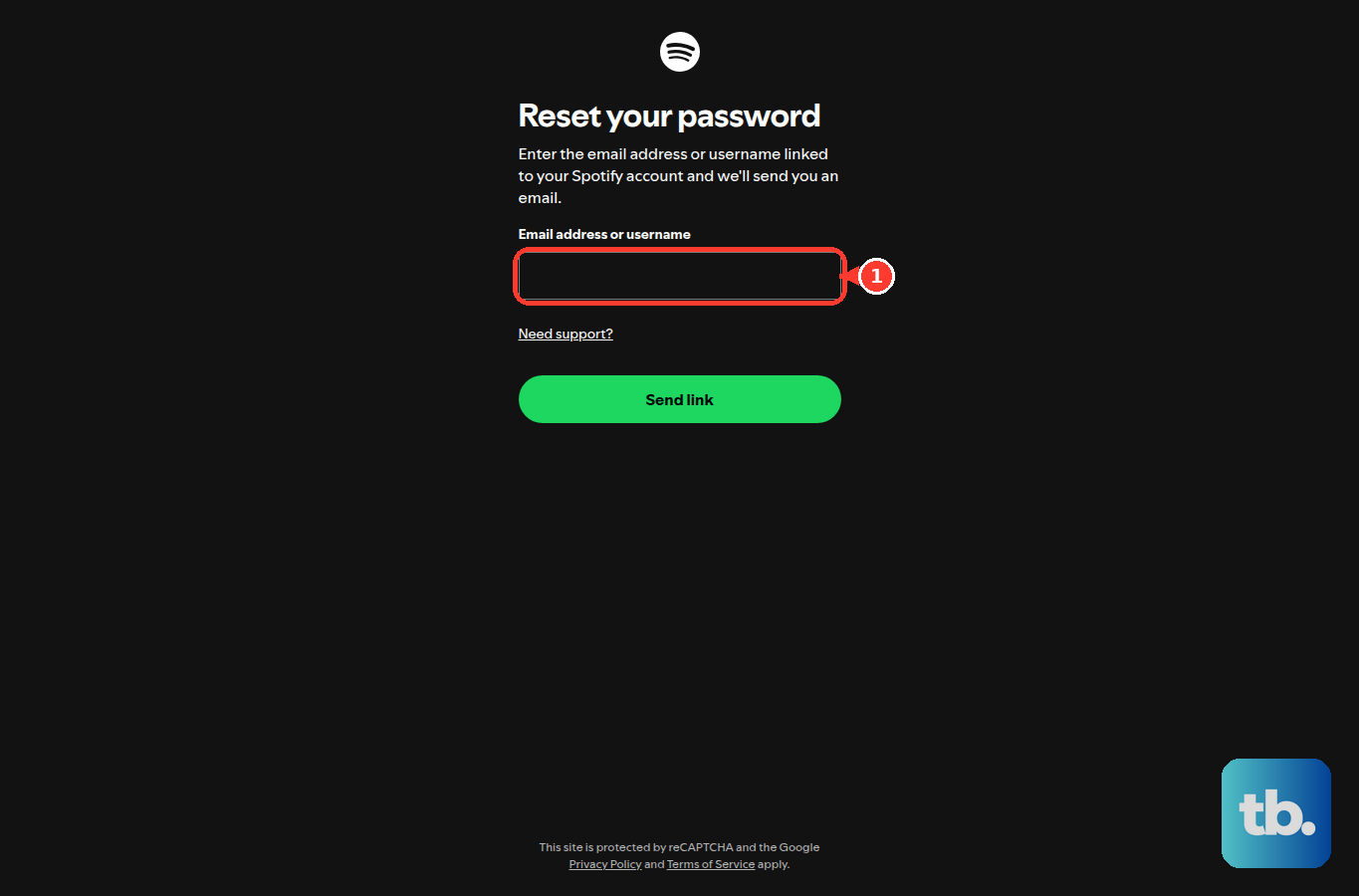
Submit the form.
Open the reset email from Spotify.
Follow the email instructions to set your new password.
Use the right email for Google, Apple, or Facebook login
For a Google login, open Spotify’s password reset form and enter your Google email address. After you set the new Spotify password, sign in with your Google email address and the new password instead of Continue with Google.
For an Apple login, enter the email address connected to your Apple Spotify account on the reset form. If you used Hide My Email, enter the Apple-generated email address.
For a Facebook login, enter your Facebook email address on Spotify’s password reset form. After the reset, sign in with that email address and your new Spotify password instead of Continue with Facebook.
Spotify does not let users add Facebook as a new login method right now. Existing Facebook-linked accounts still create a Spotify password through the reset flow.
Find your Apple Hide My Email address
Open Settings on your iPhone.
Tap your name at the top of the screen.
Tap Sign in with Apple to see the apps and websites using Sign in with Apple.
Choose Spotify from the list.
Check the email address shared with Spotify. If you used Hide My Email, it ends in @privaterelay.appleid.com.
Use that address on Spotify’s password reset form.
Keep the relay address handy because Spotify sends the reset email to the address Apple shared with Spotify.
Set a password for a phone number Spotify account
Phone-number accounts need an email address before you create a Spotify password.
- 1.Log in to your Spotify account page with your phone number.
- 2.Click EDIT PROFILE.
- 3.Add an email address to your account.
- 4.Use that email address in Spotify’s password reset flow.
Secure Spotify after a suspicious login
Reset your password.
Open the reset link in a private or incognito browser window.
Choose a strong password you have not used before.
Log in to your account page after the password changes.
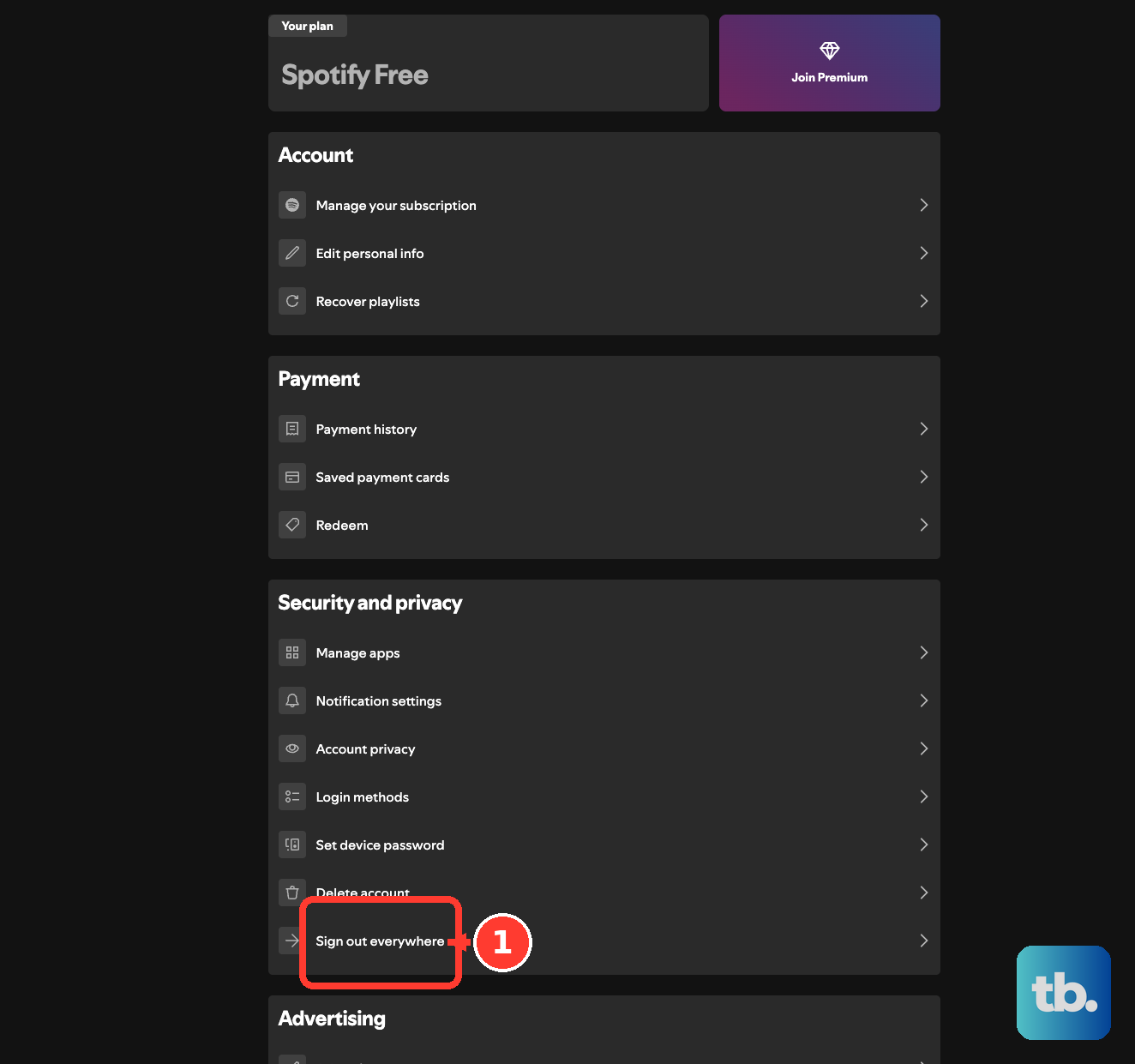
Scroll down.
Select Sign out everywhere.
Select Manage apps.
Choose Remove Access for connected apps you do not trust.
If you cannot get back into the account or the account email changed without your permission, contact Spotify support instead of repeating the same reset.
Change login methods without changing the password
Use this when you want to add or remove Google, Apple, or another login route connected to your Spotify account. Facebook is the exception: Spotify does not let you add it as a login method now, so an existing Facebook login can only be used or removed. This changes login access, not your Spotify password.
Go to Edit login methods from your Spotify account page.
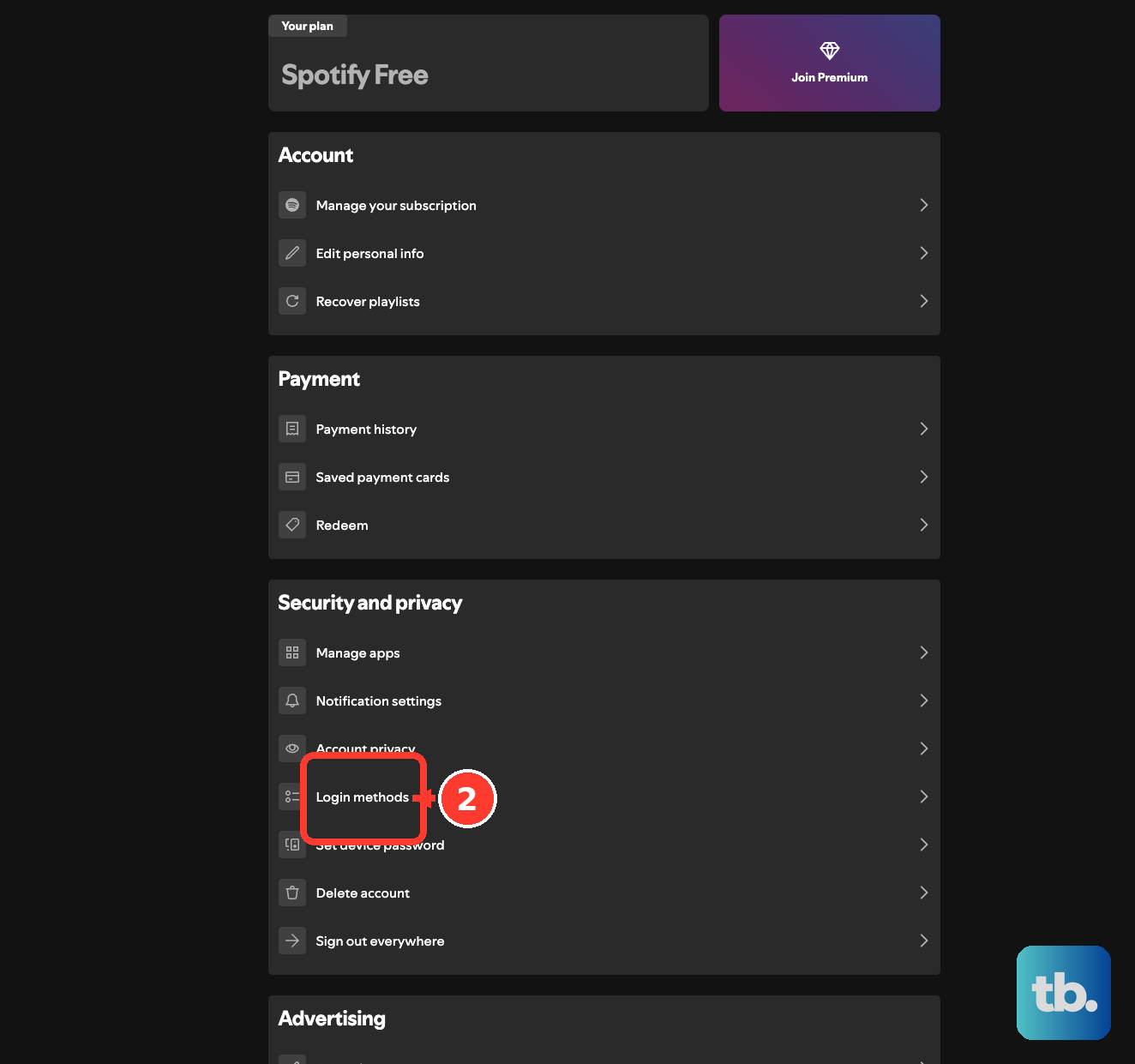
To add a login method, select Add next to the method you want to enable.
If you see Edit next to Available login methods, click it and verify yourself first.
To remove a login method, select Remove next to the method you want to disable.
Select Yes, remove.
Spotify requires at least one login method to remain available.
Handle Premium Family managed accounts and Spotify Kids
For young listener and Kids setups, change the plan manager’s password, not a separate child password.
- 1.For a managed account on another device, open Spotify on the young listener’s device.
- 2.Log in with the Premium Family plan manager’s details.
- 3.Select the managed account on Who’s listening?.
- 4.Change or reset the plan manager’s Spotify password with the normal password flow.
- 5.For Spotify Kids, sign in as the plan manager with the same email address and password used for the Spotify app.
- 6.If the manager uses Facebook or Apple, tap LOG IN WITHOUT PASSWORD and enter the email address registered to the account to receive a login link.
Skip old in app password change advice
Current Spotify password changes use the web Change password page or the web password reset page. The mobile and desktop apps do not provide the current consumer password-change path.
If the browser reset does not secure your account, use Spotify’s hacked-account help page and choose Get in touch, or open Contact us and select Message us. Spotify does not offer support by phone.
Frequently Asked Questions
Can I change my Spotify password in the app?
No. Spotify directs password changes and resets to the web account page or web reset page, not an in-app password setting.
What should I enter on the Spotify reset form?
Enter the email address or username linked to the account. After September 1, 2026, Spotify says login uses email address rather than username, but the reset form still accepts email address or username.
Can I make a Spotify password if I normally use Google, Apple, or Facebook?
Yes. Use Spotify’s password reset form with the email tied to that login method, then sign in with that email address and the new Spotify password instead of the provider button.
What if someone changed my Spotify email?
Use Spotify support. Open the hacked-account help page and choose Get in touch, or open Contact us and select Message us.