
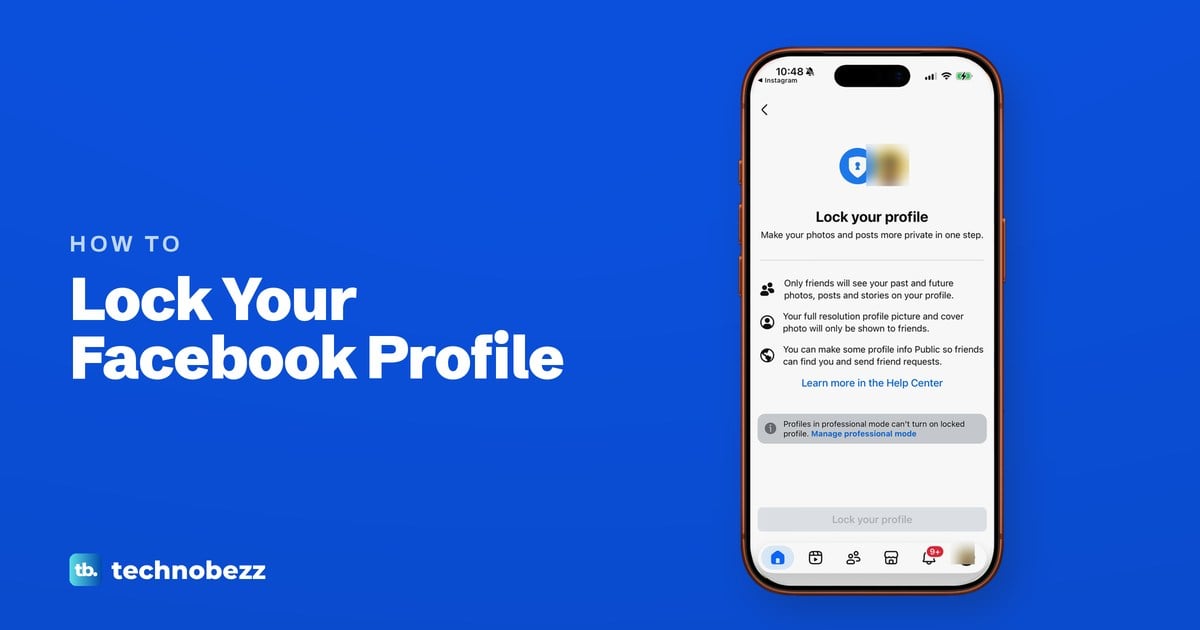
If Profile locking is available on your account, lock your Facebook profile by tapping Menu in the Facebook app, then Settings and privacy, Settings, Audience and visibility, Profile locking and Lock your profile. Meta offers the lock only in certain countries, so if the row or the button is missing, make your profile private by hand from the same list.
Without the lock, set your future posts to Friends, run Limit Past Posts once, set your story to Friends, hide your friends list, turn off search engine links and switch on the two review switches in Profile and tagging. Then check the result with View As. Neither route hides everything, because your name and username stay public, and Meta counts your profile picture and cover photo as public information even when the lock keeps their full-resolution versions for friends.
The short version
- Where the lock is: Menu > Settings and privacy > Settings > Audience and visibility > Profile locking.
- Grey button: read the note above it. On ours it said professional mode blocks the lock, so turn off pro mode first or use the manual settings.
- No lock on your account: set future posts to Friends and run Limit Past Posts, which has no one-click undo.
- Hide your circle: set your friends list to Friends or Only me and turn off search engine links.
- Stop surprise tags: turn on both review switches in Profile and tagging.
- Check your work: open your profile, tap Options, then View As.
Facebook privacy settings at a glance
Almost every row below lives in one list in the Facebook app: tap Menu, Settings and privacy, Settings, then scroll to Audience and visibility. The exceptions are your story and your About details, which Meta sets from the story and your profile, and View As, which starts on your profile.
| What you want | Where to find it | What to choose |
|---|---|---|
| Lock the whole profile, where Facebook offers it | Profile locking | Lock your profile (if it is greyed out, read the note above it) |
| New posts for friends only | Posts, Who can see your future posts? | Friends |
| Old public posts for friends only | Posts, Limit who can see past posts | Limit Past Posts (no one-click undo) |
| Stories for friends only | Your Story, Options, Edit story privacy (Settings, Privacy for a new story) | Friends, then Save |
| Hide your city, work, birthday and other details | See Your About Info, Edit profile | Friends or Only me on each detail |
| Hide your friends list | How people find and contact you, Who can see your friends list? | Friends or Only me |
| Fewer friend requests from strangers | How people find and contact you, Who can send you friend requests? | Friends of friends |
| Stop profile suggestions based on your email or phone number | How people find and contact you, People with your email address or phone number | No one |
| Keep search engines from linking to your profile | How people find and contact you, the search engine question | Off |
| Check tags before they show | Profile and tagging, Reviewing | Both switches on |
| See your profile the way strangers do | Your profile, Options, View As | Exit when you are done |
On facebook.com, Meta puts the same settings in the left column of Settings, under Audience and visibility. The Audience and visibility row names in the table are the ones in the app's list, and the choices inside each row, like the story and About info routes, use Meta's Help Center wording.
What locking your Facebook profile changes
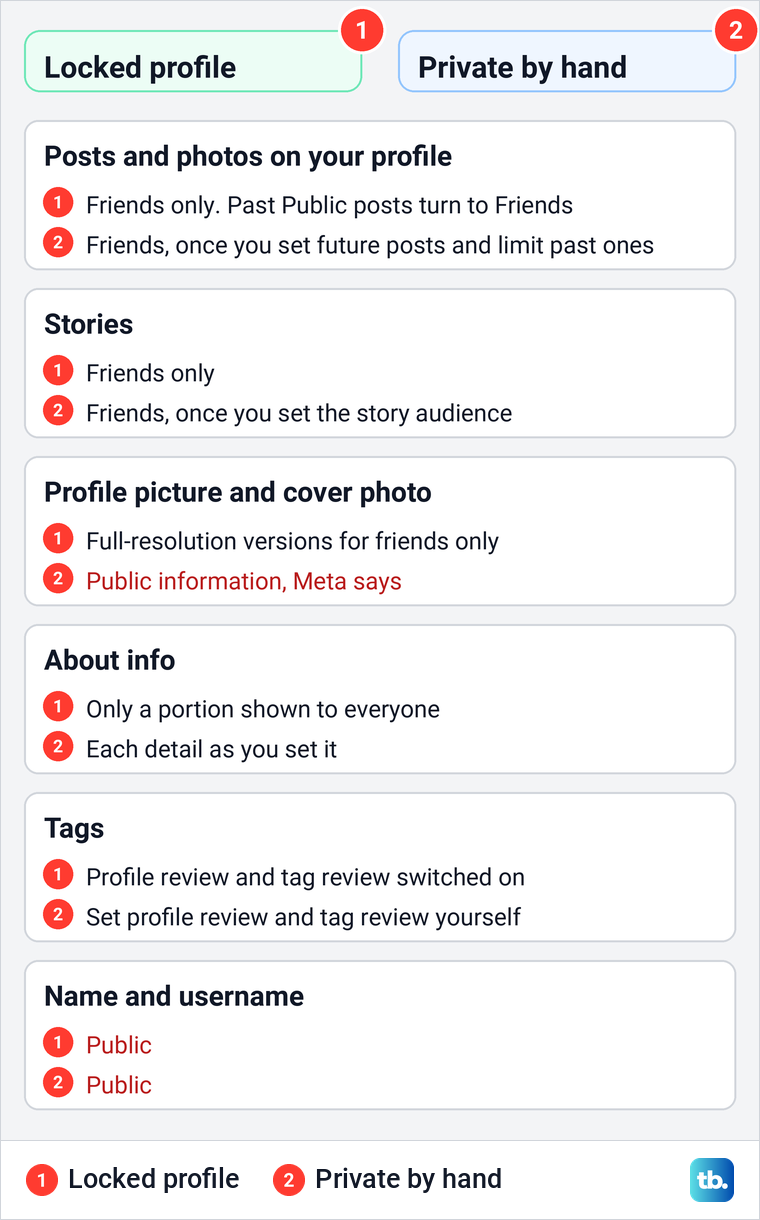
Meta's description is short. When you lock your profile, only your friends see the photos and posts on your profile, your full-resolution profile picture and cover photo, your stories, and your new posts and photos. Anything you shared to Public in the past changes to Friends, profile review and tag review switch on, and only a portion of your About info stays visible to everyone.
People who are not your friends see a Profile locked label and that limited view, Meta says. Meta also notes that your sharing choices are more restricted while the profile is locked.
The biggest difference from doing it by hand is the pictures. Meta counts your profile picture and cover photo as public information, and only the lock limits the full-resolution versions to friends.
How to lock your profile in the Facebook app
These are the screens we opened in the Facebook app on our iPhone 17 Pro with iOS 26.6. Meta's Help Center article on locking prints no lock steps, so the path below is the one the app showed us. Meta's Android privacy steps start the same way, with Menu, Settings and Audience and visibility, so look for Profile locking in that list on Android too.
- 1.Tap Menu, the three-line button in the top left of the Home screen.
- 2.Scroll down, tap Settings and privacy to expand it, then tap Settings.
- 3.Scroll down to Audience and visibility and tap Profile locking, the first row.
- 4.Read the page, then tap Lock your profile at the bottom.
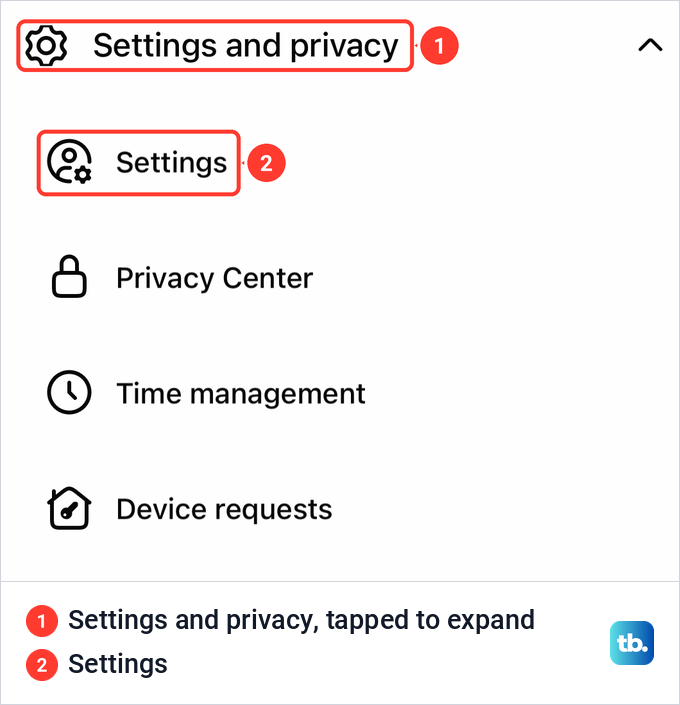
The menu row reads Settings and privacy, while the screen it opens is titled Settings & privacy. Both names lead to the same place, so do not worry when the wording changes.
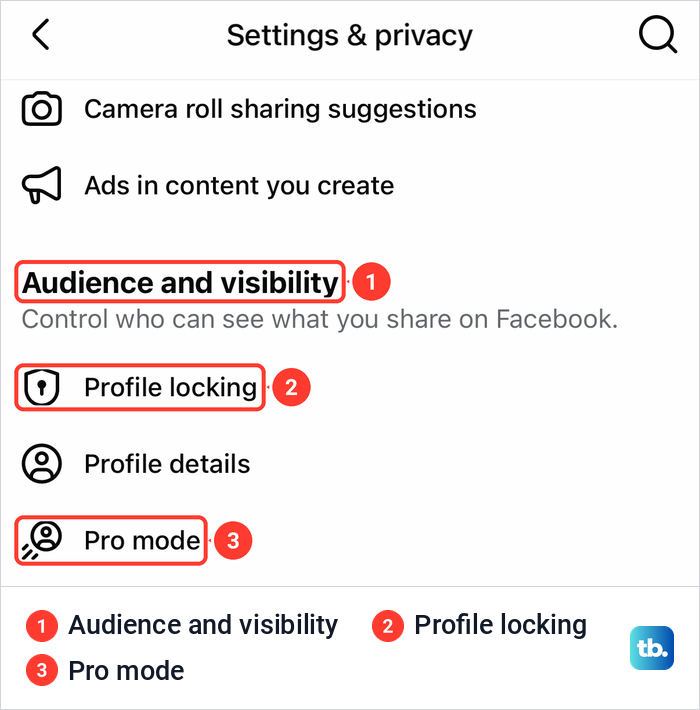
Profile locking sits at the top of Audience and visibility, with Profile details and Pro mode right below it. Older instructions send you to a Permissions section, but on our iPhone the row was under Audience and visibility.
Tapping Profile locking opened a page titled Lock your profile, with the line "Make your photos and posts more private in one step." Three lines follow: only friends will see your past and future photos, posts and stories on your profile, your full resolution profile picture and cover photo will only be shown to friends, and you can make some profile info Public so friends can find you. The Lock your profile button sits at the bottom of the page.
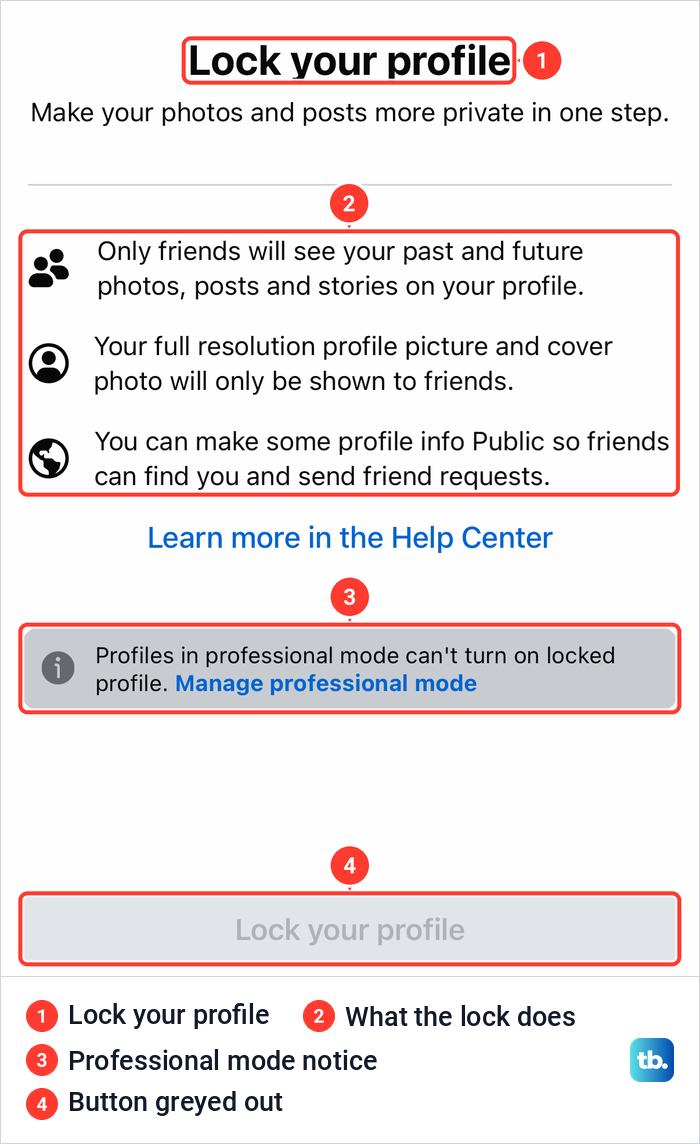
On our profile, that button was greyed out. A note above it read "Profiles in professional mode can't turn on locked profile." with a Manage professional mode link, because our profile uses professional mode. What a locked profile shows to others after the tap follows Meta's description in the section above.
Where to look on facebook.com
The computer steps follow Meta's Help Center, which keeps every privacy setting in one place. Click your profile picture in the top right of Facebook, select Settings & privacy, then click Settings, and look under Audience and visibility in the left column.
Meta's computer list of those settings does not name Profile locking, and its lock article gives no computer steps. If you do not see the row in your browser, use the Facebook app, where it was the first row of Audience and visibility on our iPhone.
Why you can't lock your Facebook profile
There are two reasons Meta or the app gives, and one thing to check. If the Profile locking row is missing, Meta's only stated reason is availability: the feature "isn't available everywhere right now" and works "in certain countries." Meta publishes no list of those countries, and the lists printed online contradict one another.
If the row is there but the Lock your profile button is grey, read the note above it. On ours it named professional mode, as the lock steps above show. Professional mode, which Meta also calls pro mode, has its own row in Audience and visibility.
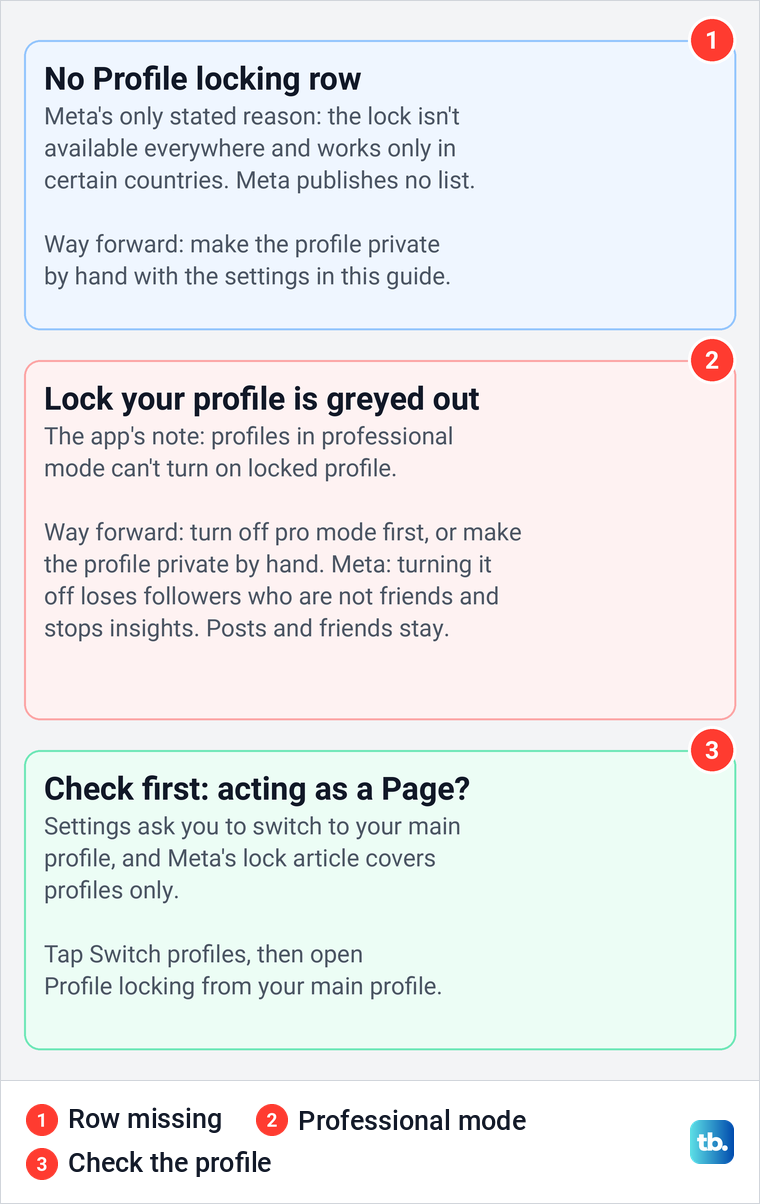
Turning pro mode off has a cost, so decide first. Meta says your Who can follow me preference changes to Friends and you lose any followers who are not your friends. Your friends and profile content stay as they are, but the insights for your existing content and audience are no longer available.
Two more changes apply to some profiles. If you are eligible for monetization, Meta says you still receive pending payouts but future bonuses and payouts are paused, and if content protection is on, protection for all your content is removed.
Check who would go first. Our guide shows how to see who is following you on Facebook. Meta's steps to switch are Menu, your name, Options above your photo and Turn off pro mode, then Continue and Turn off. Meta says you can turn pro mode back on later to allow public followers again.
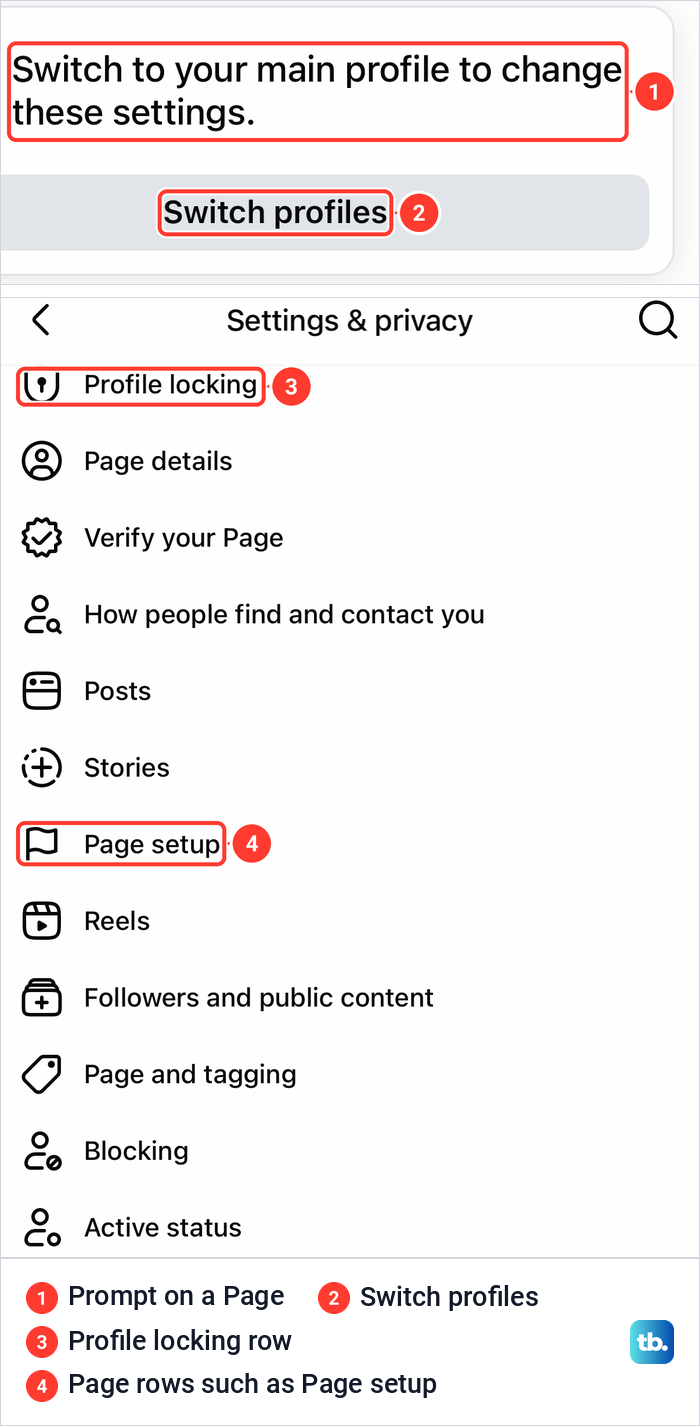
The thing to check is which profile the app is using. When the app on our iPhone was switched to a Page, the Account part of Settings & privacy read "Switch to your main profile to change these settings." with a Switch profiles button.
The Page's own list still began with a Profile locking row, followed by Page rows such as Page details and Page setup. Meta's lock article describes locking for profiles only, so if the app is acting as a Page, tap Switch profiles and open Profile locking from your main profile.
Make your Facebook profile private without the lock
Most audience controls are under Audience and visibility, so start there. The rows that matter are How people find and contact you, Posts, Stories, Reels and Profile and tagging, and the sections below also give the separate routes for story privacy, profile details and Privacy Checkup.
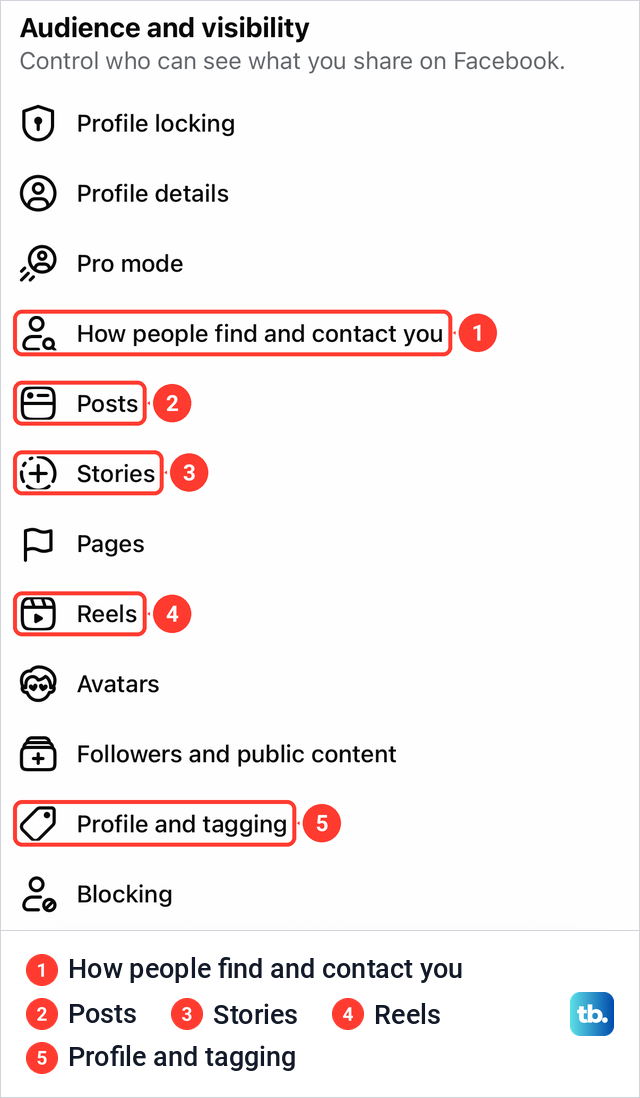
Meta says some of these settings may change based on your profile type, so your list can differ slightly from ours. The steps inside each row follow Meta's Help Center.
Make future and past posts friends only
Tap Posts, tap next to Who can see your future posts? and choose Friends. Meta says the choice is saved immediately, so there is no Save button to look for.
For everything already posted, tap View next to Limit who can see past posts, then tap Limit Past Posts and confirm with Limit Past Posts again. Meta says this changes all your past posts that were visible to more than your friends, such as Public posts, to Friends.
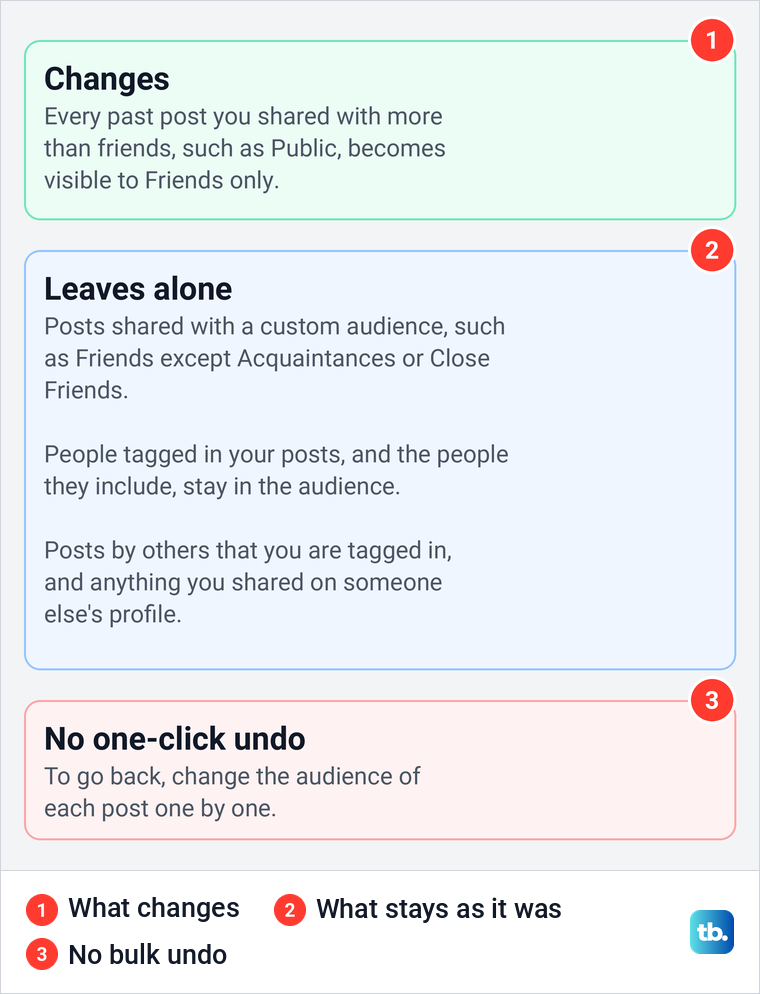
Read Meta's warning before you confirm, because "Limiting the audience of your previous posts cannot be reversed in one click." To go back, you change the audience of each post one by one. It also skips posts with a custom audience such as Close Friends, keeps people you tagged in the audience, and does not touch other people's posts you are tagged in.
To change one post, Meta's steps are to open your profile, tap Options in the top right of the post, tap Edit Privacy and pick the audience. A post nobody should see is better deleted than hidden, and our guide shows how to remove a Facebook post for good.
Hide your stories and reels
Stories have their own audience. For a story you have already shared, Meta's steps are to tap Your Story at the top of your Feed, tap Options in the top right, then Edit story privacy, choose Friends and tap Save. For a new story, add your photo or video, tap Settings in the bottom left, then Privacy, choose Friends and tap Save.
Meta says the change applies to what is already in your story as well as what you add later, and that your story shows on Facebook and Messenger to the same audience. Reels have their own audience, and Meta says all videos on Facebook are now reels.
To change a reel, Meta's steps are to tap Menu in the top left, tap your name, go to the reel, tap Options in the top right and then Edit Privacy. Choose Friends and tap Save, then repeat it for each reel you want to keep from strangers.
Choose who sees your profile details
Your city, workplace, school, birthday and similar details each have their own audience. Meta's iPhone steps are to tap your profile picture on the bottom right, tap See Your About Info, then Edit profile, and use the audience selector in each section to pick Friends or Only me.
Meta notes that you can choose who sees your gender identity, but the pronouns Facebook uses to refer to you are public. Your birthday is one of these details, and our guide shows how to hide your birthday and birth year by setting their audience to Only me.
Hide your friends list and stop strangers finding you
Tap How people find and contact you. Meta says your Friends section is public by default, so tap Who can see your friends list? and pick Friends or Only me. Meta adds a limit: if a friend's own list is Public, anyone can see that you two are friends, and people may still see mutual friends.
On the same screen, Who can send you friend requests? can be cut from Everyone to Friends of friends. People with your email address and People with your phone number decide who Facebook suggests your profile to.
Both are set to Possible Connections by default. Choose No one to stop those suggestions. People You May Know can still suggest your profile based on other information, Meta says.
The last setting in Meta's steps is Do you want search engines outside of Facebook to link to your profile? Turning it off stops search engines linking to your profile, but Meta warns that public information can still appear in search results, and removal requests go to each search engine, not to Facebook.
Review tags with Profile and tagging
Tap Profile and tagging. Under Reviewing, Meta's iPhone labels for the two switches a lock turns on are Review posts you're tagged in before the post appears on your profile? and Review tags people add to your posts before the tags appear on Facebook?, so turn both on.
The same screen sets who can see what others post on your profile and who can see posts you're tagged in on your profile, and Friends keeps both private. This only controls your profile, Meta says, so tagged posts can still show in Feed and search to the audience they were shared with. For the other side of it, our guide explains how tagging works on Facebook.
Check what strangers see with View As
View As is the check Meta offers, and it shows your profile the way people who are not your friends see it. In the iPhone app, Meta's steps are to tap Menu in the top left, tap your name, tap Options and select View As, then tap Exit in the top left to leave.
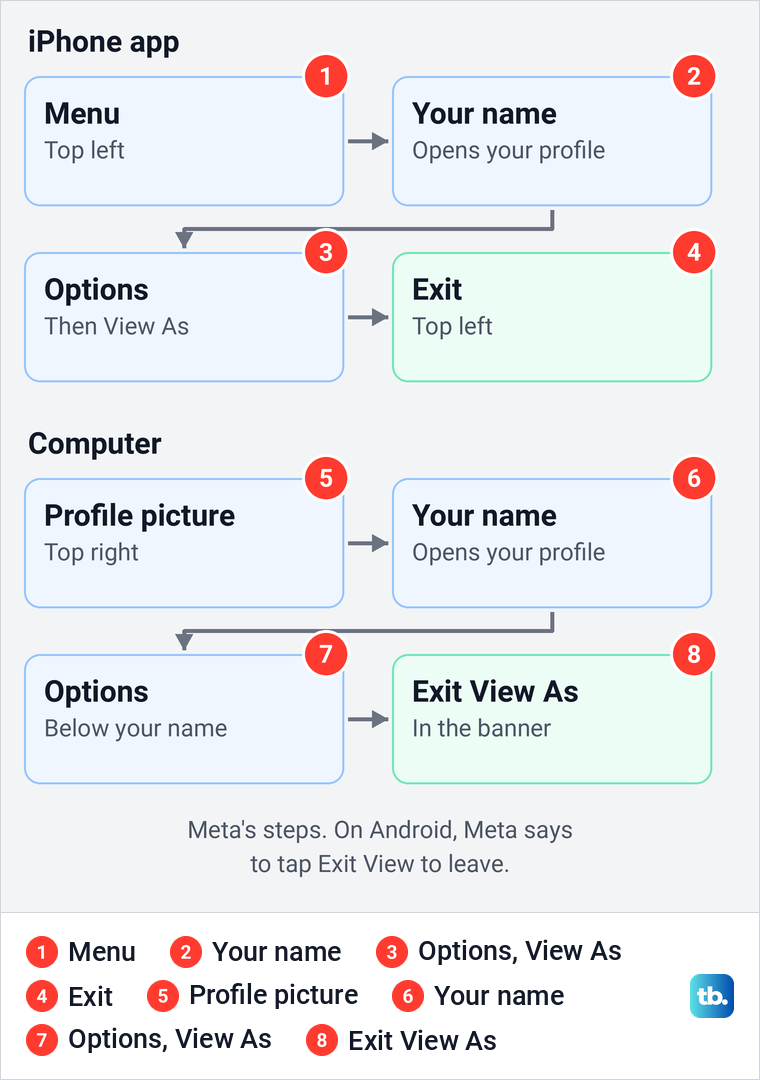
On a computer, click your profile picture in the top right, click your name, click Options below your name and select View As, then click Exit View As in the banner. On Android, Meta says to tap Exit View to leave.
View As has one blind spot. Meta says posts and photos you hide from your profile are still visible to their audience elsewhere on Facebook, such as Feed and search, so check the audience of the post itself, not only your profile.
Keep one friend out with the Restricted list
Sometimes one person is the problem, such as a boss you added years ago. Meta's Restricted list is made for that: someone on it sees your public information and posts you tag them in, but not your private posts, and Meta says they can't see your story either.
Meta's iPhone steps are to go to their profile, tap Friends, select Edit Friend Lists, tap Restricted and tap Done. The friendship stays in place, and our guide on how to restrict someone on Facebook goes through the options in more detail. If restricting is not enough, Blocking, the last row of Audience and visibility, is where you can view the people you have blocked.
Run Privacy Checkup for a guided pass
Privacy Checkup walks through most of these settings one topic at a time. On our iPhone it sat near the top of the Settings & privacy screen, under Tools and resources, below Meta Account (still called Accounts Center on some accounts).
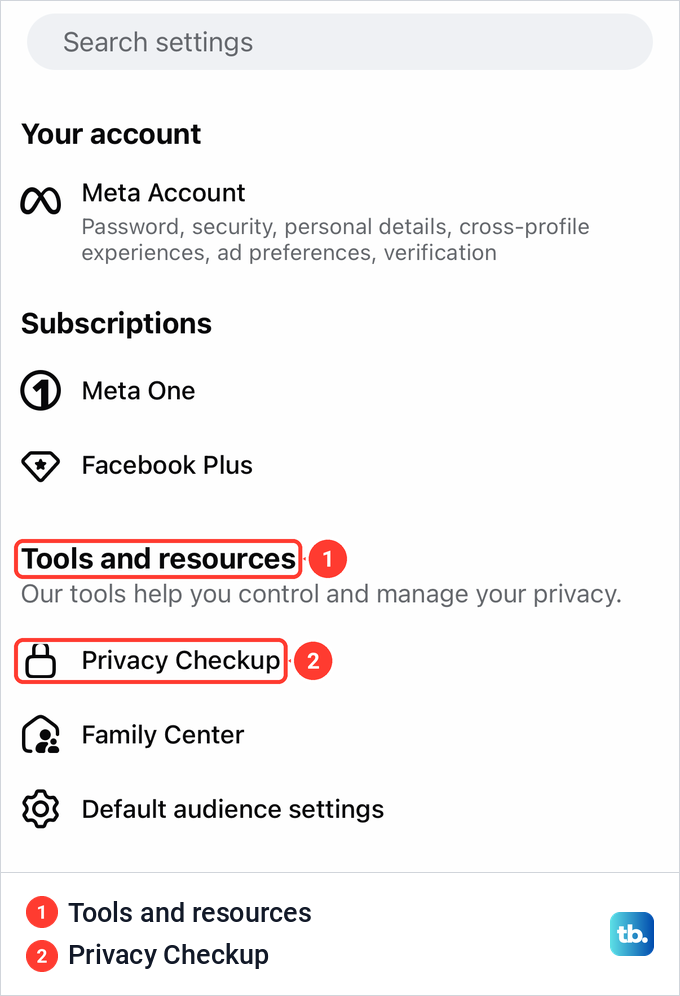
Meta lists five topics: who can see what you share, how to keep your account secure, how people can find you on Facebook, your data settings and your ad preferences. On a computer, Meta's path is your profile picture in the top right, then Settings & privacy, then Privacy Checkup. Meta also says some checkup settings can be managed only from your main profile, the one you created when you signed up.
The security topic is a good moment to set up two-factor authentication on Facebook, which keeps the account itself in your hands. The ad preferences topic is only a start, and our guide on how to reduce Facebook ad personalization goes further.
What stays public whatever you set
Some things no setting hides. Meta says anyone can see your name, profile picture, cover photo, username, user ID and networks, and the pronouns Facebook uses to refer to you are public too. Posts and comments in public groups and on Pages are public as well.
Meta says everyone except people you have blocked can search for you by name. Because Meta counts your profile picture and cover photo as public information, pick ones you are happy for strangers to see, and delete old pictures on Facebook that you no longer want on your profile.
Whether people can see when you are online is a separate setting, so turn off active status on Facebook too if that matters to you. If you would rather disappear for a while than stay private, you can deactivate your Facebook profile instead and come back later.
How we tested this guide
We tested this in the Facebook app on an iPhone 17 Pro with iOS 26.6, opening Lock your profile, where professional mode kept the button greyed out.
Frequently Asked Questions
Why can't I lock my Facebook profile?
Meta says the lock isn't available everywhere and works only in certain countries, without naming them. If the row is there but Lock your profile is grey, the note above the button may say profiles in professional mode can't turn on locked profile, as ours did. If the app is acting as a Page, switch to your main profile first.
Can I lock my Facebook profile in the United States?
Meta does not say which countries have the lock, so check your own account by looking for Profile locking under Audience and visibility in Settings. If it is not there, the manual settings below get you most of the way, apart from the full-resolution profile picture and cover photo, which only the lock limits to friends.
What can people who aren't my friends see on a locked profile?
Meta says they get a limited view with a Profile locked label, and only a portion of your About info is visible to everyone. Your posts, photos, stories and the full-resolution profile picture and cover photo are for friends only.
Can I make my Facebook profile completely private?
No. Meta says your name, profile picture, cover photo, username, user ID and the pronouns Facebook uses for you are always public, anyone can search for you by name, and what you post in public groups stays public.
Does Limit Past Posts change everything I ever posted?
It changes your past posts shared with more than friends to Friends. Meta says it skips posts with a custom audience, keeps people you tagged in the audience and does not touch other people's posts, and it cannot be reversed in one click.
Can I see who looked at my Facebook profile?
No. Meta says Facebook doesn't let people track who views their profile and that third-party apps can't either. Our guide explains what Facebook reveals about profile visitors.
Facebook says my account is locked. Is that the same as locking my profile?
No. That is a security lock Facebook can put on an account after unusual activity, and Meta's steps are to open Facebook, select Get started and follow the on-screen steps. Our guide covers how to get back into a locked Facebook account.