
Your iPad 10th Gen's battery is a key part of its long-lasting appeal, and knowing its cycle count gives you a clear picture of its overall wear. Unlike some newer iPhones, iPadOS doesn't show this number directly in the Settings app. You need to use a different method to find it.
Use the Shortcuts App to Find the Cycle Count
The easiest way to see your iPad's battery cycle count is by using the built-in Shortcuts app. You don't need to download anything. First, open the Shortcuts app on your iPad. If you've never used it before, you'll find it on your home screen or by searching.
Tap the Gallery tab at the bottom. In the search bar at the top, type "Battery Cycle Count" or "Battery Health". Look for a shortcut called "Battery Cycle Count" or something similar. Apple often features official shortcuts here that can pull this diagnostic data.
If you find it, tap the + button to add it to your My Shortcuts library. Once added, just tap the shortcut's name to run it. It will ask for permission to access your analytics data, which is where this info is stored. Grant permission, and it will display your battery's cycle count, maximum capacity percentage, and sometimes other details.
Check via a Mac with System Information
If you have a Mac, you can check your iPad's battery information by connecting it with a USB-C cable. Make sure your iPad is unlocked. On your Mac, click the Apple logo in the top-left corner and select About This Mac.
Click on System Report. In the sidebar that opens, under the Hardware section, click on USB. Find your iPad in the list of USB devices (it might be listed as "iPad" or "Apple Mobile Device"). Select it, and look in the detailed information pane on the right for battery-related data, including the cycle count.
This method pulls the information directly from the iPad's diagnostics. It's a reliable way to get the exact number without installing any third-party apps on your iPad itself.
What the Battery Cycle Count Means
A charge cycle is counted each time you use 100% of your battery's capacity. It doesn't have to be all at once. For example, using 50% one day, charging it back up, and using 50% the next day equals one full cycle. Apple designs iPad batteries to retain up to 80% of their original capacity at 1000 complete charge cycles.
If your cycle count is in the low hundreds, your battery is still in great shape. As you approach and pass 1000 cycles, you might start to notice that the iPad doesn't last as long on a single charge as it used to. The cycle count, combined with the maximum capacity percentage, gives you the full health picture.
Check Maximum Capacity in Settings
While the cycle count is hidden, you can easily check the battery's maximum capacity. On your iPad 10th Gen, go to Settings > Battery > Battery Health. Here you'll see the Maximum Capacity percentage.
This number shows your battery's current capacity compared to when it was new. A lower percentage means the battery holds less charge. You'll also see the status of Optimized Battery Charging, which you should keep enabled. It learns your routine to reduce wear by not keeping your iPad at 100% charge all the time.
Review Battery Usage by App
To see what's actually using up your battery life, go to Settings > Battery. You'll see a chart of your usage and a breakdown of battery usage by app for the last 24 hours or last 10 days. Tap Show Activity to see how much time was spent on screen versus running in the background.
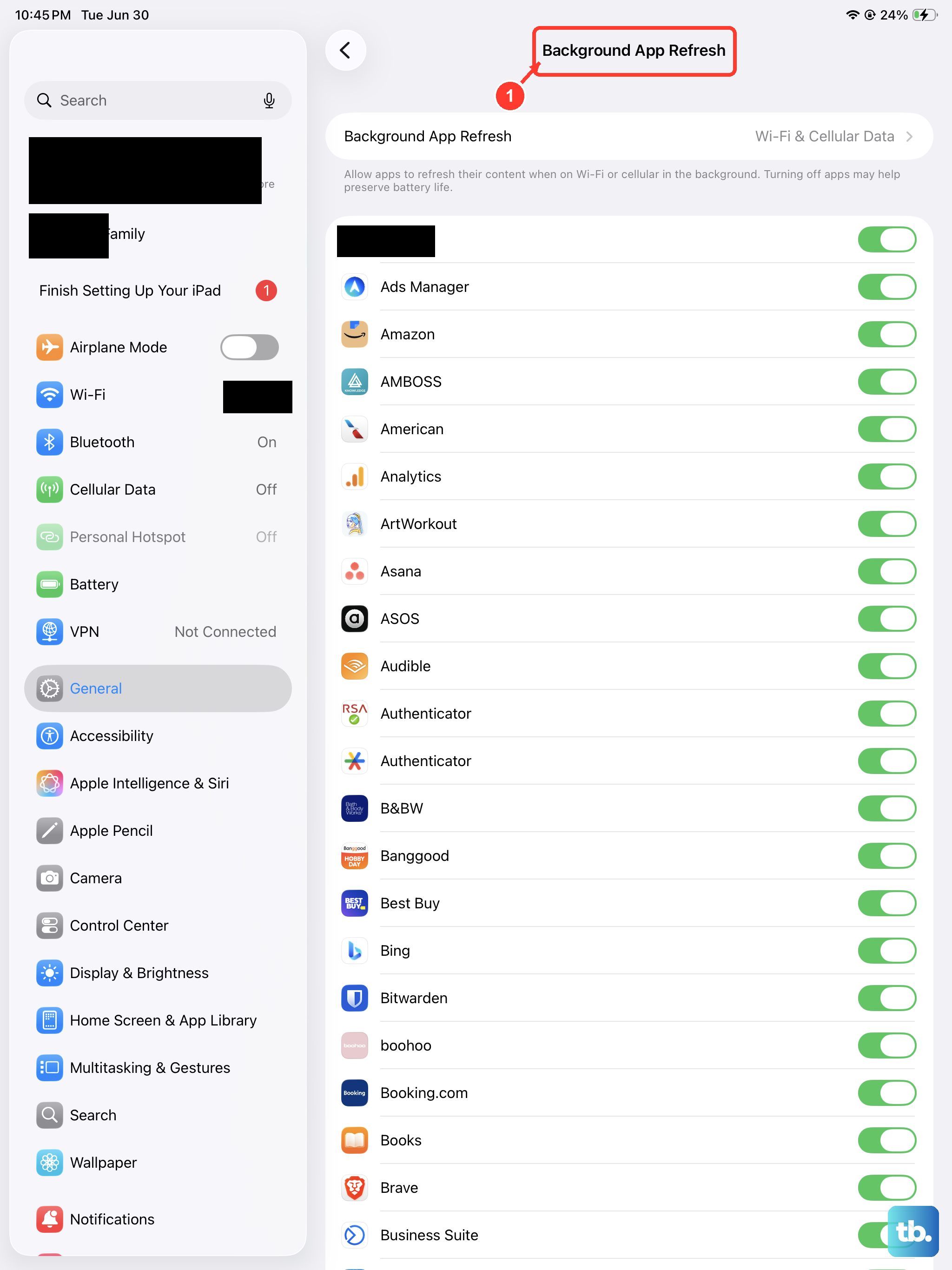
This is useful for spotting apps that might be draining power unnecessarily. If an app you don't use much has high background activity, you can go to Settings > General > Background App Refresh and turn it off for that specific app.
Tips for Maintaining Your iPad's Battery
Use a proper 20W or higher USB-C Power Delivery charger. The iPad 10th Gen supports 20W charging, and using a lower-wattage charger will make it charge very slowly. I'd avoid cheap, uncertified chargers as they can cause inconsistent power delivery.
Try not to let the battery run down to 0% regularly. Similarly, you don't need to constantly top it up to 100%. Letting it sit between 20% and 80% most of the time is easier on the battery's long-term health. Also, keep it out of extreme heat, like a hot car dashboard, as high temperatures accelerate battery degradation faster than anything else.