
If your iPad 10th Generation is getting uncomfortably warm, it's usually a sign it's working harder than it should. While some heat during charging or intensive tasks is normal, excessive or persistent overheating can slow things down and isn't great for the battery in the long run. The good news is, a few simple adjustments can often cool things right off.
Let's start with the quickest fix. If your iPad feels hot right now, take it out of any case or cover. Cases, especially thick ones, trap heat against the device. Then, close all your open apps by swiping them away in the app switcher. Finally, move it to a cooler spot, away from direct sunlight or a warm surface, and let it sit for 15 minutes. This simple combo solves a lot of immediate overheating issues.
Check for Problematic Apps and Updates
Sometimes one app can explain unusual battery use. Go to Settings > Battery. Scroll down to review today's App and System Activity, or tap View All Battery Usage and choose a day to compare app activity across today and the previous week.
Look for apps with unusually high Background activity. Apple says background activity can include directions, music playback, syncing photos, fetching mail, and similar tasks. If one app stands out, reduce your use of it, adjust its notifications or other background-related settings, or update the app if an update is available.
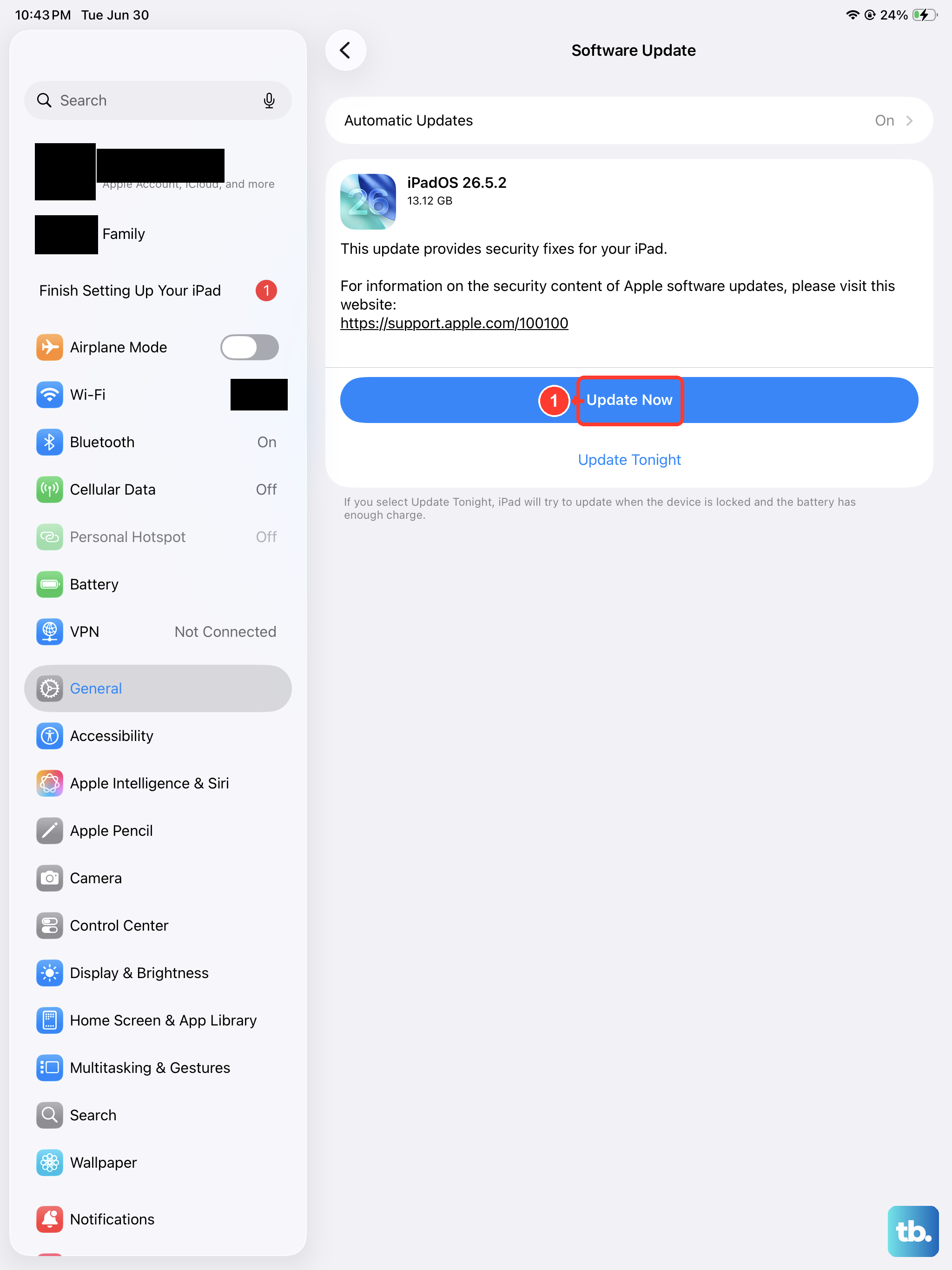
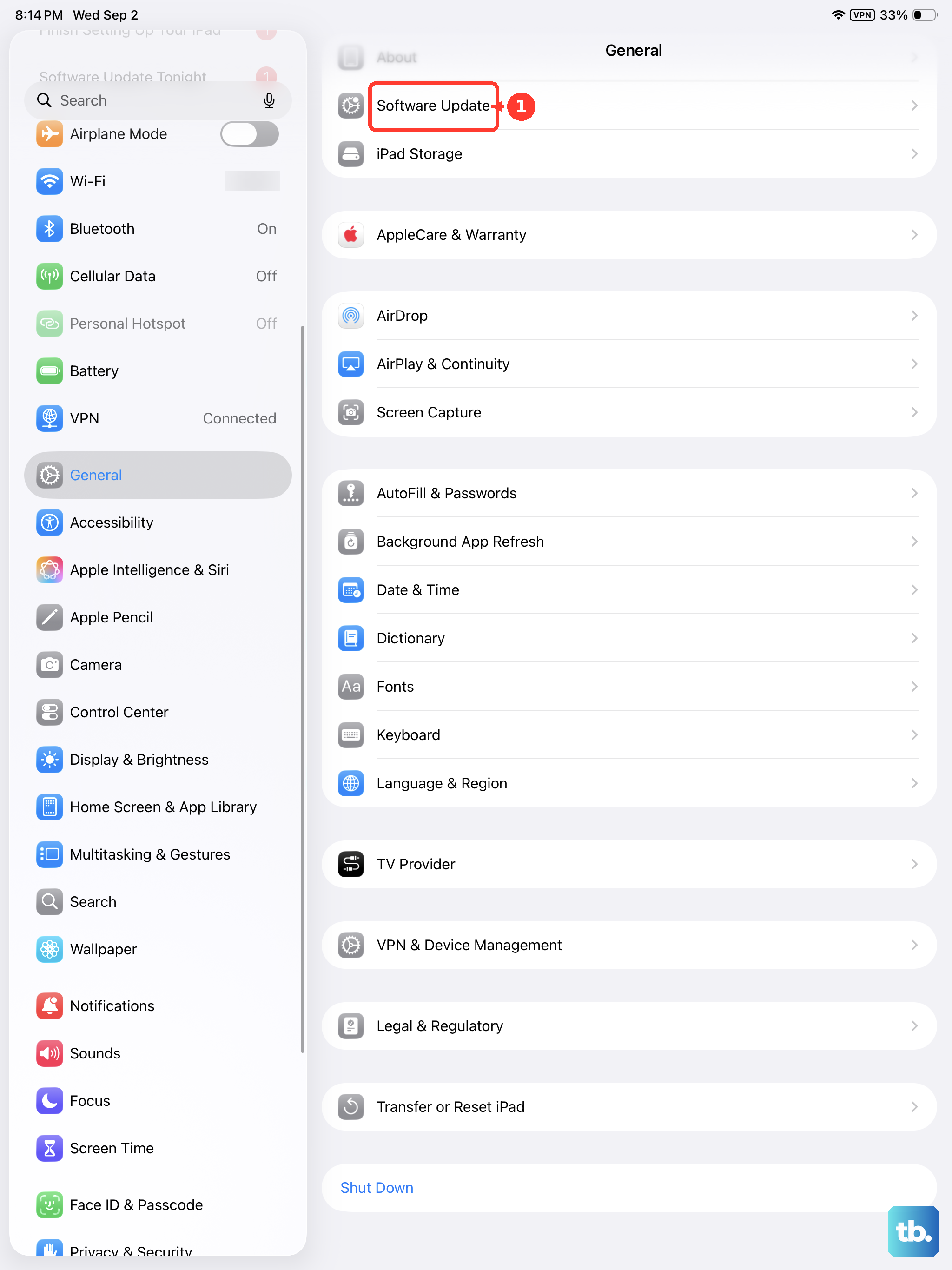
Next, make sure iPadOS itself is up to date. Go to Settings > General > Software Update. If an update is available, follow the onscreen instructions to download and install it. Apple describes software updates as a way to get the latest features, security updates, and bug fixes, so treat this as a general troubleshooting step rather than a guaranteed overheating-specific fix.
Adjust Your Display and Performance Settings
The bright, beautiful display is one of the biggest battery and heat draws on any iPad. Turning down the screen brightness can make a noticeable difference. Swipe down from the top-right corner to open Control Center and drag the brightness slider down a bit.
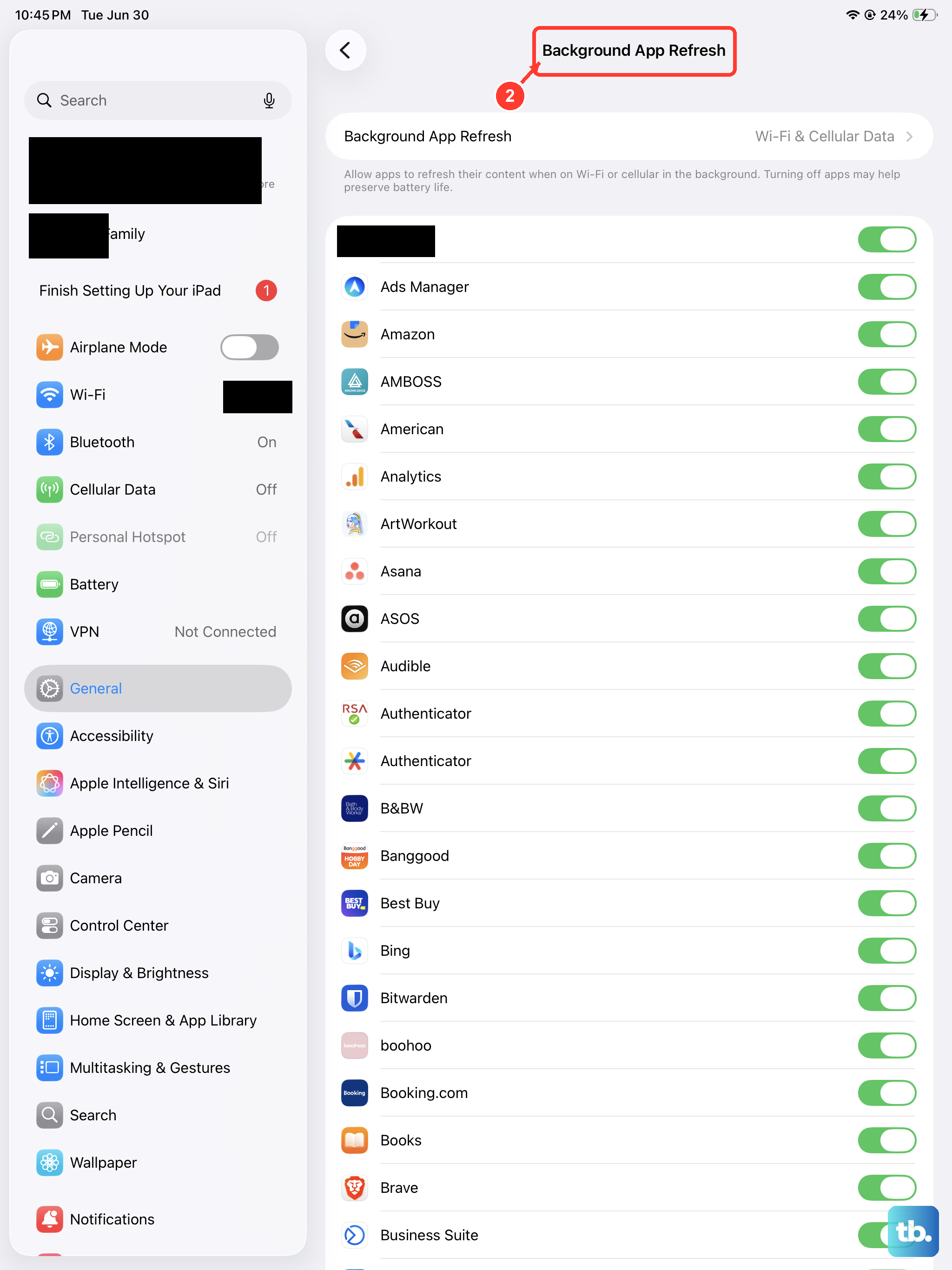
Also, consider disabling features you aren't actively using. Features like Background App Refresh allow apps to update content when you're not using them, which uses power. You can manage this globally in Settings > General > Background App Refresh, or turn it off for specific apps.
If you're using Stage Manager for multitasking on iPadOS 26, be aware that keeping multiple app windows active can add workload. If your iPad is heating up during heavy multitasking, temporarily turn Stage Manager off from Control Center, or open Settings > Multitasking & Gestures and switch away from Stage Manager.
Be Smart About Charging and Accessories
Your iPad 10th Gen uses a USB-C connector, and Apple lists a 20W USB-C Power Adapter for iPad 10th generation in its power-adapter guidance. If you need a replacement, use an Apple adapter, a Mac USB-C Power Adapter, or a third-party cable and power adapter that comply with applicable safety standards. Avoid no-name adapters that do not meet safety standards.
Try to avoid using the iPad intensively while it's charging, especially for things like gaming or video editing. Combining processor load with the heat from charging is a surefire way to make it warm. If you need to use it while plugged in, keep an eye on the temperature and take a break if it gets too hot.
Also, disconnect any accessories you aren't using. This is especially true if you're using the USB-C to Apple Pencil adapter for a 1st gen Pencil, or if you have hubs, external drives, or cameras connected. Some accessories can draw more power than expected, contributing to heat buildup.
Give It a Fresh Start with a Restart
If things are still running hot, a simple restart can clear out temporary software glitches that might be causing high CPU usage. Hold down the top button and either volume button until the power slider appears, then slide to power off. Wait a minute, then press the top button again to turn it back on.
For more stubborn issues, try a force restart. On an iPad without a Home button, press and quickly release the volume button closest to the top button, press and quickly release the volume button farthest from the top button, then press and hold the top button until you see the Apple logo. Apple documents this as a restart step for an iPad that is frozen or will not turn on; it does not describe it as clearing deeper caches or resetting a thermal controller.
Manage Your Environment and Workflow
Where and how you use your iPad has a big impact. Never leave it in a hot car or in direct sunlight. The internal temperature can soar much higher than the air around it, triggering safety shutdowns. Always try to use it in a cool, well-ventilated area.
Be mindful of what's underneath it. Using it on a soft blanket, pillow, or your lap can block the subtle heat dissipation across its aluminum back. A hard, flat surface like a table or desk is best. For longer sessions, a simple stand that allows air to circulate behind it can help.
Finally, think about your workflow. If you're doing something very demanding like exporting a long 4K video, expect some warmth. That's normal. For extended tasks like this, I'd recommend doing them when the iPad is cool, not already warm, and taking short breaks if possible to let the heat dissipate.